You reach for your Google Pixel 10 Pro, tap the screen, and nothing happens. The 6.3-inch Super Actua display stays completely dark, even though the phone felt fine a few hours ago.
Before you assume the panel has failed, know that a black screen on the Pixel 10 Pro is often a drained battery, a frozen system, or a misbehaving app, and most of those have a quick fix you can do at home. Work through the steps below in order, starting with the safest, and stop as soon as your screen comes back to life.
Start With Power Before You Panic
A black screen is very often just a fully drained battery, not a broken display. The fastest way to rule this out is to give the phone a proper charge from a known-good setup and watch for the charging screen to appear. A phone that has run all the way down can stay dark for several minutes before it shows any sign of life, so patience matters here.
Remove the case first, then plug the Pixel 10 Pro into a charger you trust. Google recommends a 30W USB-C PPS adapter or higher for the Pixel 10 Pro, which charges over wired USB-C.
Check the charging port for debris while you are at it, and if nothing happens, swap in a different cable and adapter to rule out a faulty accessory.
Take the case off the phone.
Inspect the USB-C charging port for lint or dirt and clear any debris.
Connect the phone to a known-good 30W USB-C PPS adapter (or higher) and cable.
Let it charge for at least 10 minutes before you decide the screen is dead.
Watch closely for a charging screen to appear.
One more thing worth checking is brightness. A very low brightness setting can make the screen look black when it is actually on. Tilt the phone in good light and look closely for any faint image before moving on.
Force a Restart to Clear a Frozen System
If the screen is black or frozen but the phone still has power, a forced restart usually wakes it up. This reboots the Pixel 10 Pro without erasing any of your data, so it is a safe step to try early in the process.
Hold down the Power button for about 30 seconds to restart the phone. Google also describes this as holding the Power button for up to 60 seconds and releasing it once the screen displays the "G" logo, so do not panic if it takes the full minute to react.
Press and hold the Power button.
Keep holding for about 30 seconds (up to 60 seconds in some cases).
Release the Power button once the phone begins to reboot and the "G" logo appears on screen.
If the phone was simply off rather than frozen, you can turn it back on by pressing and holding the Power button until you feel a buzz, which can take up to 7 seconds in some situations.
Find Out If Only the Display Is Broken
Sometimes the phone is running normally and only the screen is dark. Confirming this tells you whether you have a software issue you can fix or a hardware fault that needs a repair, which saves you from chasing the wrong solution.
After charging the phone, press and hold the Power button for about 35 seconds to reboot, then wait about 2 minutes. Next, call the phone from another phone, or ring it using Google's Find Hub app from another device. Find Hub, formerly Find My Device, is the official tool Google references for this kind of test.
Charge the phone, then press and hold the Power button for about 35 seconds to reboot.
Wait about 2 minutes for the phone to come back up.
Call the phone from another phone, or ring it with the Find Hub app.
Listen and feel for a ring or vibration.
If the phone rings or vibrates but the screen stays blank, the display itself is likely the fault. In that case, the home fixes will not bring the picture back, and you should contact an authorized repair center.
Strip Off Cases and Accessories
Accessories can sometimes get in the way of the very thing you are trying to fix. A case, an external battery, or another attachment may cover sensors or touch areas, or interfere with charging, which can leave the screen unresponsive.
Take off the case along with any external batteries or other accessories, then try turning the phone on again.
This is quick to do and rules out a surprisingly common cause before you move to deeper software steps.
Clear Storage and Update Your Apps
Low storage can cause the kind of freezing and crashing that looks exactly like a black screen. If your Pixel 10 Pro is nearly full, freeing up room often restores normal behavior.
Open Settings > Storage and free up space if less than 10% is available, removing files or apps you no longer need.
Then make sure your apps are current, since an out-of-date app can be the thing crashing the display.
Go to Settings > Storage and free up space if less than 10% is available.
Open the Google Play Store.
Tap your profile icon.
Choose "Manage apps & devices."
Update the available apps.
Install Any Pending Android Update
The Pixel 10 Pro launched with Android 16, and Google releases updates that can fix software-related display and crash issues. If an update is waiting, installing it may resolve a black screen caused by a known bug.
Go to Settings > System > Software update and follow the on-screen instructions to install whatever is available.
Let the phone finish and restart fully before you judge whether the problem is gone.
Use Safe Mode to Catch a Bad App
Safe mode temporarily turns off all the apps you have downloaded, so you can tell whether one of them is causing the black or frozen screen. If the phone behaves normally in safe mode, a third-party app is the likely culprit.
Note that airplane mode turns on automatically while you are in safe mode, so your connectivity dropping is expected and not a new problem.
Press and hold the Power and Volume Up buttons for a few seconds.
Tap and hold either the Power off or Restart button.
Tap OK.
Confirm that "Safe mode" appears at the bottom of the screen.
If the black-screen problem stops in safe mode, the cause is one of your installed apps.
Remove recently installed apps one at a time, testing after each removal, until the problem disappears.
To leave safe mode, press and hold the Power button and the Volume up button for a few seconds, then tap Restart.
Factory Reset From Settings as a Last Software Step
If your screen still responds but nothing above has worked, a factory reset clears out whatever software problem is causing the trouble. Treat this as a last resort, because a factory reset erases all your data from your phone.
Back up your data first.
Apps and their data are uninstalled during a reset, although data stored in your Google Account can be restored afterward.
Charge the phone to at least 70% and connect to Wi-Fi or a mobile network before you begin, since the reset can take up to one hour.
Back up anything you want to keep.
Charge the phone to at least 70% and connect to Wi-Fi or a mobile network.
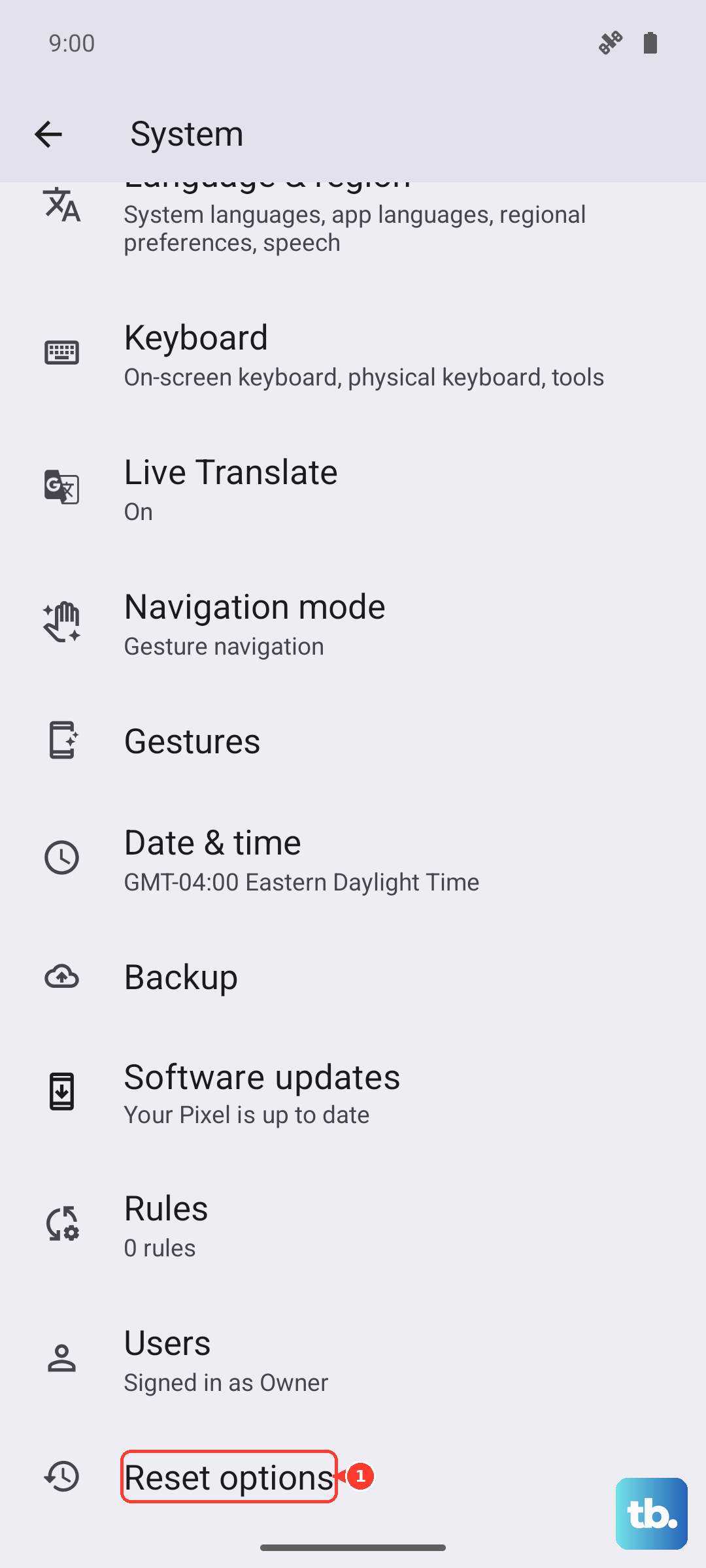
Go to Settings > System > Reset options.
Tap Erase all data (factory reset).
Follow the prompts and let the reset finish, which can take up to one hour.
Reset With the Buttons, Then Reach Out for Repair
If the screen is unresponsive and you cannot get into Settings at all, you can still trigger a reset using the hardware buttons through Fastboot and Recovery mode. Be aware that this wipes the phone and erases all data, so use it only when you have run out of on-screen options. Back up anything you can beforehand, since this step cannot be undone.
- 1.Press and hold the Volume down and Power buttons at the same time for up to 30 seconds, until the Fastboot mode screen shows. (If you hold the buttons for too long, the phone restarts.)
- 2.Use the volume buttons to move to Recovery Mode, then press the Power button to select it.
- 3.At the "No command" screen, press and hold the Power button; while you hold it, press the Volume up button, then let go of both buttons quickly.
- 4.Choose "Wipe data/factory reset."
If the phone still will not display anything or turn on after all of these steps, the issue is beyond a home fix. Contact your local authorized repair center or the Google Store repair portal to have the Pixel 10 Pro looked at.
Frequently Asked Questions
How do I force restart a Pixel 10 Pro with a black screen?
Hold down the Power button for about 30 seconds to force a restart. Google also describes this as holding the Power button for up to 60 seconds and releasing it once the "G" logo appears on screen. This reboots the phone without erasing any of your data.
How can I tell if it is the screen or the whole phone that is broken?
After charging, press and hold the Power button for about 35 seconds to reboot, wait about 2 minutes, then call the phone from another phone or ring it using the Find Hub app. If it rings or vibrates but the screen stays blank, the display itself is likely the fault, and you should contact an authorized repair center.
Will a factory reset erase everything on my Pixel 10 Pro?
Yes. A factory reset erases all your data from your phone, and apps and their data are uninstalled. Data stored in your Google Account can be restored afterward, so back up first, charge to at least 70%, and connect to Wi-Fi or a mobile network before you start. The reset can take up to one hour.
Why does my Pixel 10 Pro lose its connection in safe mode?
Airplane mode turns on automatically when you enter safe mode, so dropping your mobile and Wi-Fi connections is expected behavior, not a new problem. It returns to normal once you restart the phone out of safe mode by holding Power and Volume up and tapping Restart.
What charger should I use to revive a Pixel 10 Pro that will not turn on?
Google recommends a 30W USB-C PPS adapter or higher for the Pixel 10 Pro, which charges over wired USB-C. Remove the case, check the charging port for debris, try a different cable and adapter if needed, and let the phone charge for at least 10 minutes before deciding the screen is dead.