
When the flashlight on your Google Pixel 10 is grayed out, it's one of those small frustrations that can really throw you off. The tile in your Quick Settings is unresponsive, and tapping it does absolutely nothing. Let's get that light working again.
Close the Camera App
The camera and flashlight share the same LED hardware on your Pixel. If the Camera app is open, even if it's just running in the background, the system reserves the flash and grays out the flashlight control. Swipe up from the bottom to see your recent apps and swipe the Camera app away to fully close it. The flashlight tile should become active again right away.
Force Restart Your Pixel 10
This is often the quickest fix for a stuck software process. Press and hold the Power button and the Volume Up button together for about 10 seconds. Let go when you see the Google logo appear on the screen. This reboot clears the temporary state that manages the flash LED.
Check for System Overheating
Android will disable certain features, including the flashlight, if your phone gets too hot to prevent damage. If your Pixel 10 feels warm to the touch, give it a break. Place it in a cooler spot, out of direct sunlight, for 10 to 15 minutes. The flashlight function should return once the temperature drops back to a normal range.
Use Google Assistant to Toggle It
Say "Hey Google, turn on the flashlight" or press and hold the power button to activate Assistant and give the same command. If Assistant can turn the light on and off but the Quick Settings tile remains grayed out, it points to a minor interface bug. A simple restart, as mentioned above, should clear that up.
Adjust the Flashlight Brightness
You might not be able to tap the tile, but try a long-press instead. Press and hold the flashlight icon in your Quick Settings panel. A small menu should pop up with a brightness slider. Slide it all the way to the right to the brightest setting. Sometimes, if it's set to the dimmest level, the light can be so faint you might think it's not working at all.
Check for App Conflicts
Some third-party camera or flashlight apps can interfere with the system's control. Go to Settings > Apps and see if you have any dedicated flashlight apps installed. Try force stopping them. Better yet, if you don't use them, uninstall them temporarily to see if that resolves the conflict with your Pixel's built-in light.
Reset App Preferences
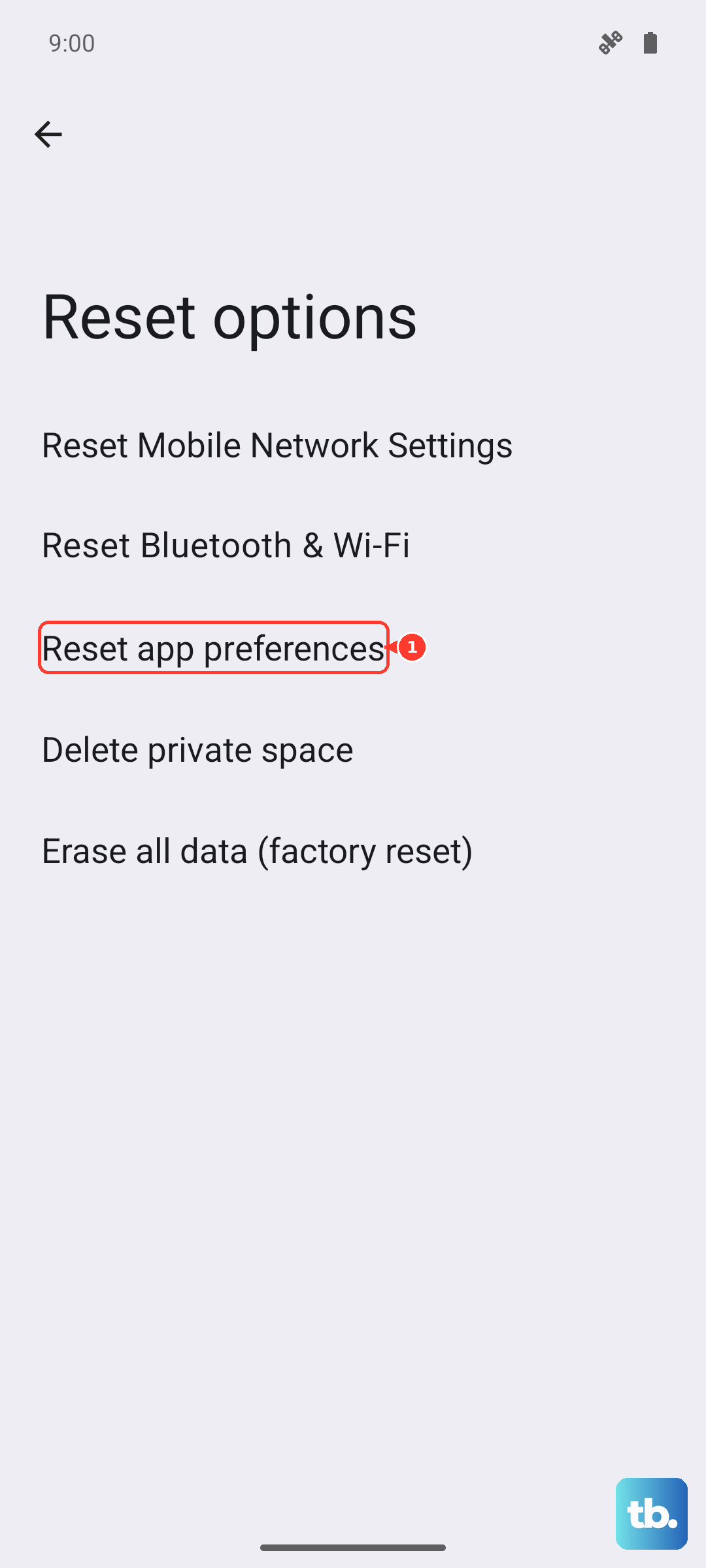
This is a useful step that resets permissions and default apps without deleting any of your personal data. Navigate to Settings > System > Reset options. Tap on Reset app preferences. After your phone reboots, check the flashlight. I've seen this resolve odd permission glitches that can lock system features.
Update Android
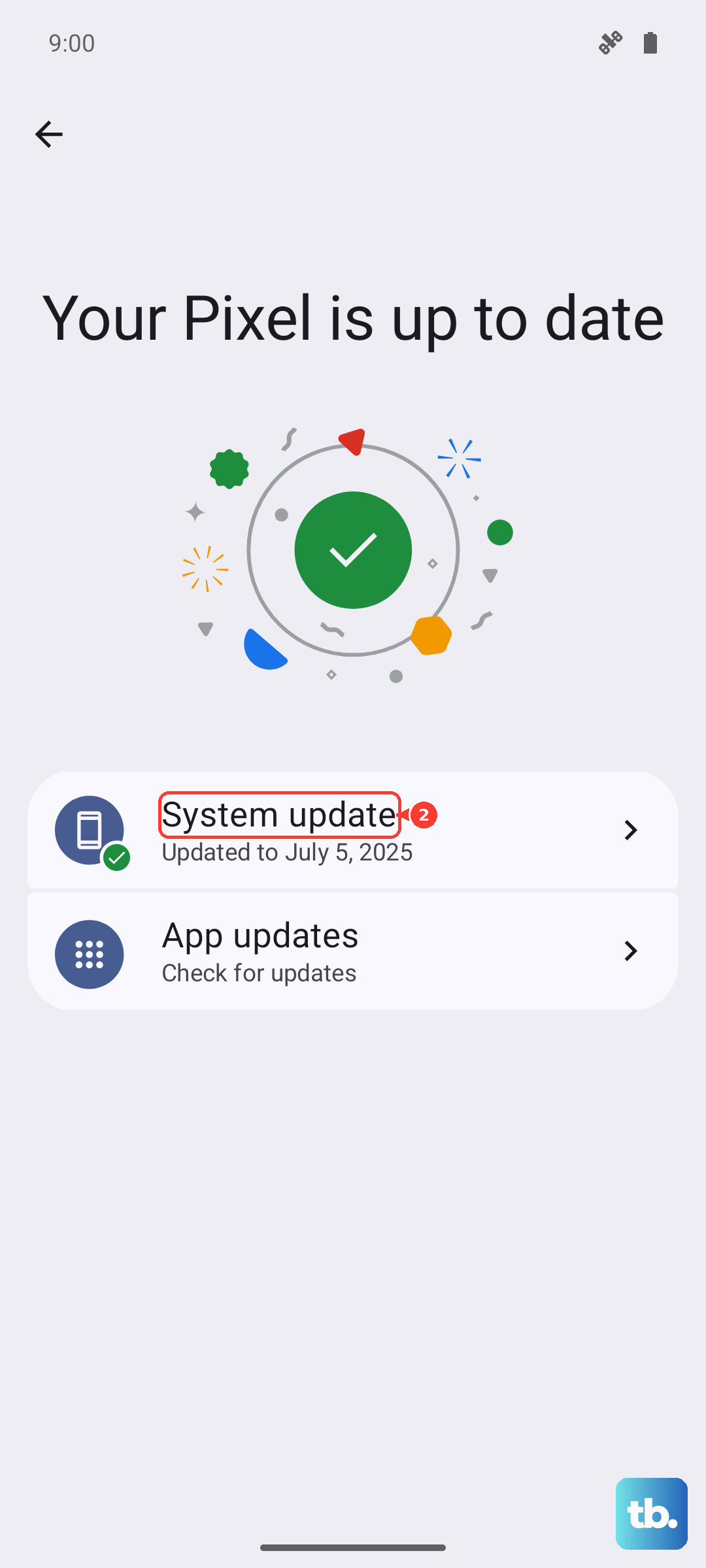
Google regularly patches bugs in system updates. Go to Settings > System > System update and tap Check for update. Install any available update. Past Pixel updates have specifically addressed issues where hardware controls like the flashlight became unresponsive or unavailable.
Test the Flash Hardware
If every software fix fails, the LED itself might have a problem. Open your Camera app and switch to a photo mode. Try taking a picture with the flash forced on. If the flash doesn't fire for photos either, then the hardware likely needs service. Since the Pixel 10 is a newer device, it would be best to contact Google Support or visit an authorized repair center for a diagnosis.