You reach for your Android phone expecting a fresh inbox, but the messages sitting on your desktop are nowhere to be seen. When Gmail stops syncing on Android, the app quietly falls out of step with your account, leaving you to wonder whether a reply ever arrived. The good news is that most sync problems trace back to a handful of fixable causes, from a paused toggle to a full storage bin.
Work through the nine fixes below in order. They move from the quick and harmless to the more involved, so you can stop as soon as your mail starts flowing again.
Give a Manual Sync a Moment to Catch Up
Before assuming anything is broken, force the app to check for new mail yourself. Open the Gmail app and, from your inbox, swipe down from the top of the screen. A refresh icon appears briefly and then disappears, which signals that the app is reaching out for new messages.
Patience matters more than you might expect here. It can take up to 15 minutes for Gmail to sync your messages, and even longer if the device has been unused for a while. Give it that window before deciding the manual pull did nothing.
Install the Latest Version of the Gmail App
An outdated app is a common culprit behind stalled email. Make sure you have the most recent version of the Gmail app installed from the Google Play Store, since updates ship with the latest fixes for email and sync issues.
Open the Play Store, search for Gmail, and tap Update if the button appears. Once the new version finishes installing, reopen the app and check whether your messages start arriving as expected.
Power the Device Off and Back On
A simple restart clears the temporary glitches that can quietly interrupt syncing in the background. Power your phone or tablet completely off, wait a moment, then turn it back on.
Restart steps differ across hardware, so check with your device manufacturer for the specific instructions if the usual button combination does not do the trick. After the device boots up, open Gmail and see whether new mail loads.
Confirm You Actually Have a Working Connection
Sync cannot happen without an active internet connection, and a dropped signal is easy to overlook. Test your connection by opening a browser such as Chrome and trying to load any website.
If the page refuses to load, the problem is your connection rather than Gmail itself. Reconnect to Wi-Fi or switch to mobile data, confirm the site loads, and then return to the Gmail app to try again.
Make Sure Sync Is Switched On Inside Gmail
Gmail has its own per-account sync setting that can quietly turn off, and when it does, no new mail will arrive. To check it, open the Gmail app, tap the menu, then Settings, and select your account.
Under "Data usage," make sure the box next to "Sync Gmail" is checked. If it was switched off, enabling it should let messages begin flowing into your inbox again.
Check Your Account Sync at the Device Level
Even with Gmail's own toggle on, the device itself controls whether your Google Account syncs at all. Auto-sync for Google apps is on by default, but it is worth confirming when mail goes quiet.
Open the device Settings app and find the account sync controls for your Google Account. The exact path varies by Android version and device manufacturer, so if you cannot find it quickly, use the search bar inside Settings to look for "Account sync." Once you reach it, work through these points:
- 1.If you have more than one account, choose the one you want to sync.
- 2.Confirm that the Gmail toggle on this screen is enabled.
- 3.Tap More, then Sync now to start syncing.
Forcing a sync from this screen pushes the device to reconcile your account right away, which often jolts a stuck inbox back to life.
Free Up Room in Your Google Account Storage
Your Google Account has a finite amount of storage, and once it fills up, new mail simply has nowhere to land. When the account reaches its storage limit, you cannot send or receive messages, and messages sent to you return to the sender.
To reclaim room, delete large attachments you no longer need and empty the Trash and Spam folders regularly, since those still count against your total. You can review and manage your usage from your Google Account storage settings, which show exactly what is taking up space.
Clear Out Space on the Device Itself
Separate from your account, the physical storage on your phone or tablet also affects syncing. If the device is low on space, the Gmail app will not sync new mail.
Open up some room by uninstalling apps you do not use and deleting downloaded files you have finished with. Moving photos, videos, and other large files from the phone or tablet to a computer is another reliable way to recover storage, and once there is breathing room, Gmail should resume syncing.
Clear the Gmail App Storage as a Last Resort
If none of the earlier steps worked, clearing the app's storage is the final option, and it should only be used after everything else has failed. This wipes the app's local data and forces a clean start.
To do it, open the device Settings app and work through these steps:
- 1.Tap Apps, then See All Apps, then Gmail.
- 2.Tap Storage & cache.
- 3.Tap Clear storage.
- 4.Restart the device once the storage has been cleared.
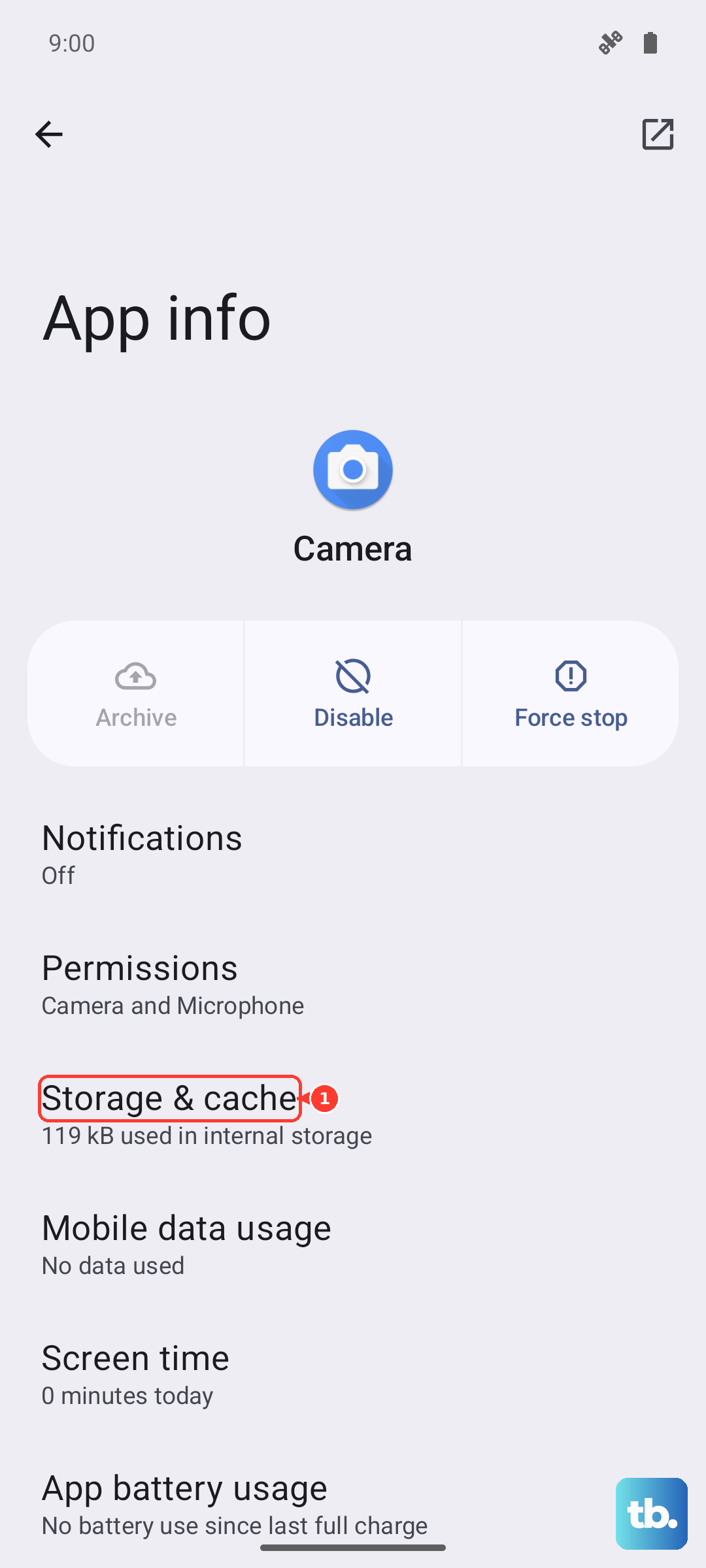
Be aware that this can erase locally saved items such as message drafts and other app settings, so reserve it for when you have exhausted the gentler fixes above.
Frequently Asked Questions
Why is my Gmail not updating even though I have internet?
Sync can stall for reasons unrelated to your connection, such as a disabled sync toggle, an outdated app, or full storage. Confirm that the in-app sync setting is turned on, check that account sync is enabled at the device level, then make sure both your Google Account and your device have free storage space.
How long should I wait before Gmail syncs new messages?
It can take up to 15 minutes for Gmail to sync your messages, and longer if the device has been unused for a while. Swipe down in your inbox to trigger a manual sync, then give it that window before assuming something is wrong.
Will clearing Gmail app storage delete my emails?
Clearing the app's storage is a last resort because it can erase locally saved items such as message drafts and other app settings. Your actual emails live on Google's servers and sync back down, but anything saved only on the device, such as unsent drafts, may be lost.
What should I check first when Gmail stops syncing?
Start with the simplest steps: swipe down to sync manually, confirm you have a working internet connection by loading a website in a browser, and make sure the Gmail app is updated from the Play Store. These quick checks resolve many sync problems before you need to dig into settings.