You are waiting on an email you know was sent, but your Gmail inbox stays empty. Maybe it is a password reset, a receipt, or a message a colleague swears they delivered. Nothing arrives.
The missing email may still be in another folder, or the cause may be something you can fix from your own settings. Gmail might be filtering the message, a filter or forwarding rule might be hiding it, or your account simply ran out of storage. Messages sent while storage is full bounce back, and messages in Spam or Trash are permanently deleted after 30 days.
Work through the fixes below in order. The first few solve the most common cases in a couple of minutes, and the later ones cover syncing, blocked senders, and business-account issues.
Search Every Folder, Including Spam and Trash
Before changing any settings, confirm the email is truly missing. Gmail may have filed it in Spam or Trash, and the default search does not look there.
On a desktop browser, open Gmail at mail.google.com, then click the "Show search options" (sliders) icon in the search bar.
Click the "All Mail" dropdown and choose "Mail & Spam & Trash", enter the sender, subject, or a keyword, and click "Search".
On the Android or iPhone and iPad app, open Gmail and type in:anywhere in the search bar, then add the sender or a keyword to narrow it down.
This searches across every folder, including Spam and Trash.
One caution: Spam and Trash both empty automatically after 30 days, and there is only one copy of each email across all your devices. If the message is older than 30 days in those folders, it is gone permanently.
Move the Message Out of Spam
Gmail automatically filters suspected spam, and legitimate mail sometimes lands there by mistake.
On a computer, click "More" in the left menu to expand it, then click "Spam".
Select or open the email that should not be there and click "Not spam" at the top.
Future mail from that sender will then skip Spam.
Marking a message "Not spam" moves that message out of Spam and helps keep future mail from that sender out of Spam. It does not recover permanently deleted messages.
Empty Trash and Spam to Free Up Storage
Your 15 GB free allowance is shared across Gmail, Google Drive, and Google Photos. When it fills up you cannot send or receive mail, and messages sent to you go back to the sender.
Emptying Trash and Spam is required to actually reclaim space; items there keep counting against your quota until permanently removed. Many people delete thousands of emails and see no change because they never emptied those folders.
- 1.Open the Gmail Trash and click "Empty Trash now"; do the same in the Spam folder. Also empty the Drive trash at drive.google.com/drive/trash and the Photos trash at photos.google.com/trash.
- 2.In the Gmail search bar, search has:attachment larger:10M to find attachments over 10 MB.
- 3.Select unwanted messages with the checkboxes, click the "Delete" (trash) button, then empty the Trash again.
- 4.Review overall usage at one.google.com/storage, remove device backups at one.google.com/storage/management, or buy more at one.google.com/plans if needed.
Space does not update instantly. It refreshes after a short period, and after mass deletions it can take up to 48 to 72 hours.
If you stay over quota for two years, Google may delete your content across Gmail, Drive, and Photos.
Find and Remove a Filter That Deletes or Skips the Inbox
A filter can quietly archive incoming mail, delete it, or skip the inbox. This is one of the most common reasons specific emails never appear.
Filters can only be edited from a computer, not the mobile apps.
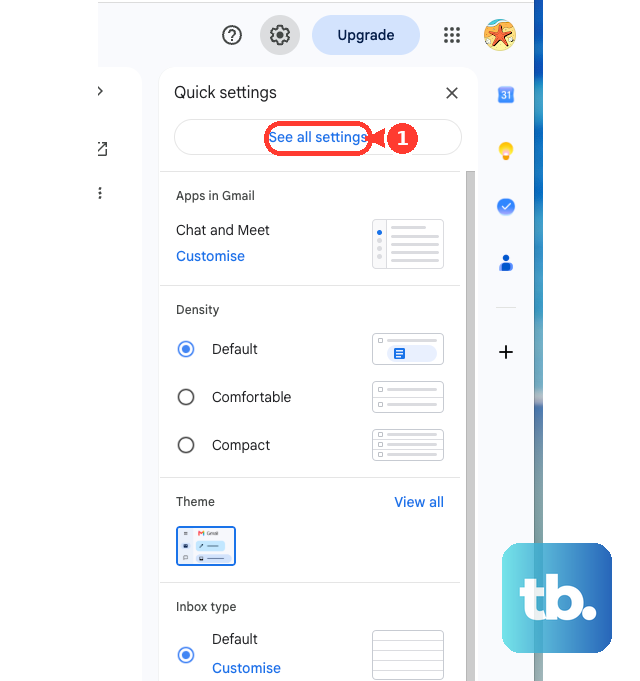
Click the Settings gear icon at the top right, then "See all settings".
Open the "Filters and Blocked Addresses" tab.
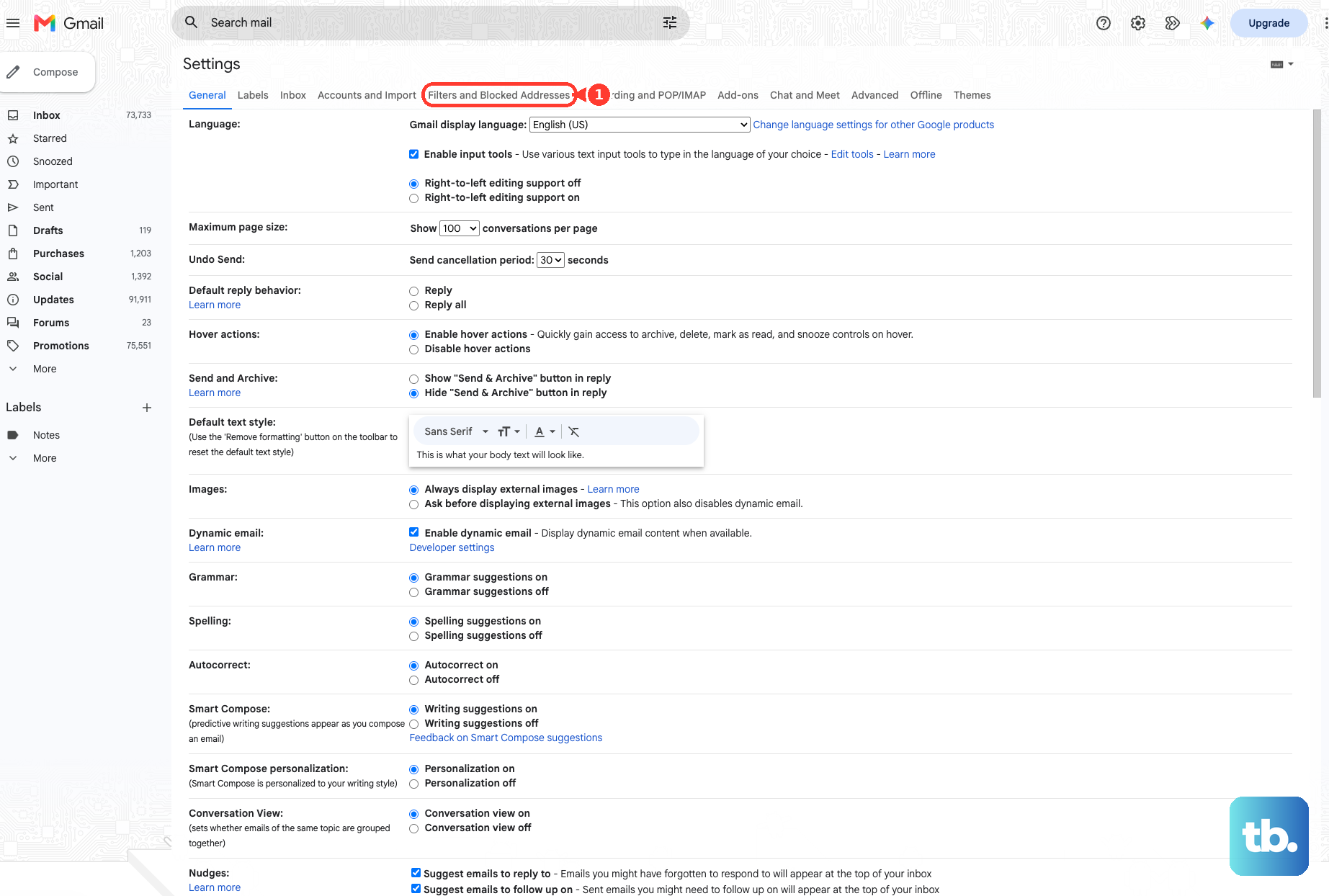
Look for any filter containing "Delete it" or "Skip Inbox".
Click "Edit" to change it, or "Delete" to remove it entirely.
Check Your Blocked Addresses
If a sender is on your blocked list, their mail goes straight to Spam. Review the list on a computer.
Click the Settings gear, then "See all settings".
Open the "Filters and Blocked Addresses" tab.
Scroll to the list of blocked addresses.
Check the box next to any sender you want to allow, then click "Unblock selected addresses".
You can also act on a single sender directly. Open one of their messages, click "More" (next to Reply), and select Block "[sender]" or Unblock "[sender]".
The exact wording shows the sender's name.
On the Android and iPhone and iPad apps, open the message, tap the three-dot "More" menu next to Reply, then tap Block or Unblock; if you cannot find their message, open the Menu and check "Spam".
Unblocking only returns future mail to the inbox.
Fix Forwarding and POP/IMAP Settings
Forwarding rules and external clients can be set to archive or delete Gmail's copy instead of keeping it in your inbox. An app like Apple Mail pulling messages over POP or IMAP can remove the original, and because there is only one copy across all devices, that deletes it everywhere.
These settings are computer-only.
Click the Settings gear, then "See all settings".
Open the "Forwarding and POP/IMAP" or "Forwarding" tab.
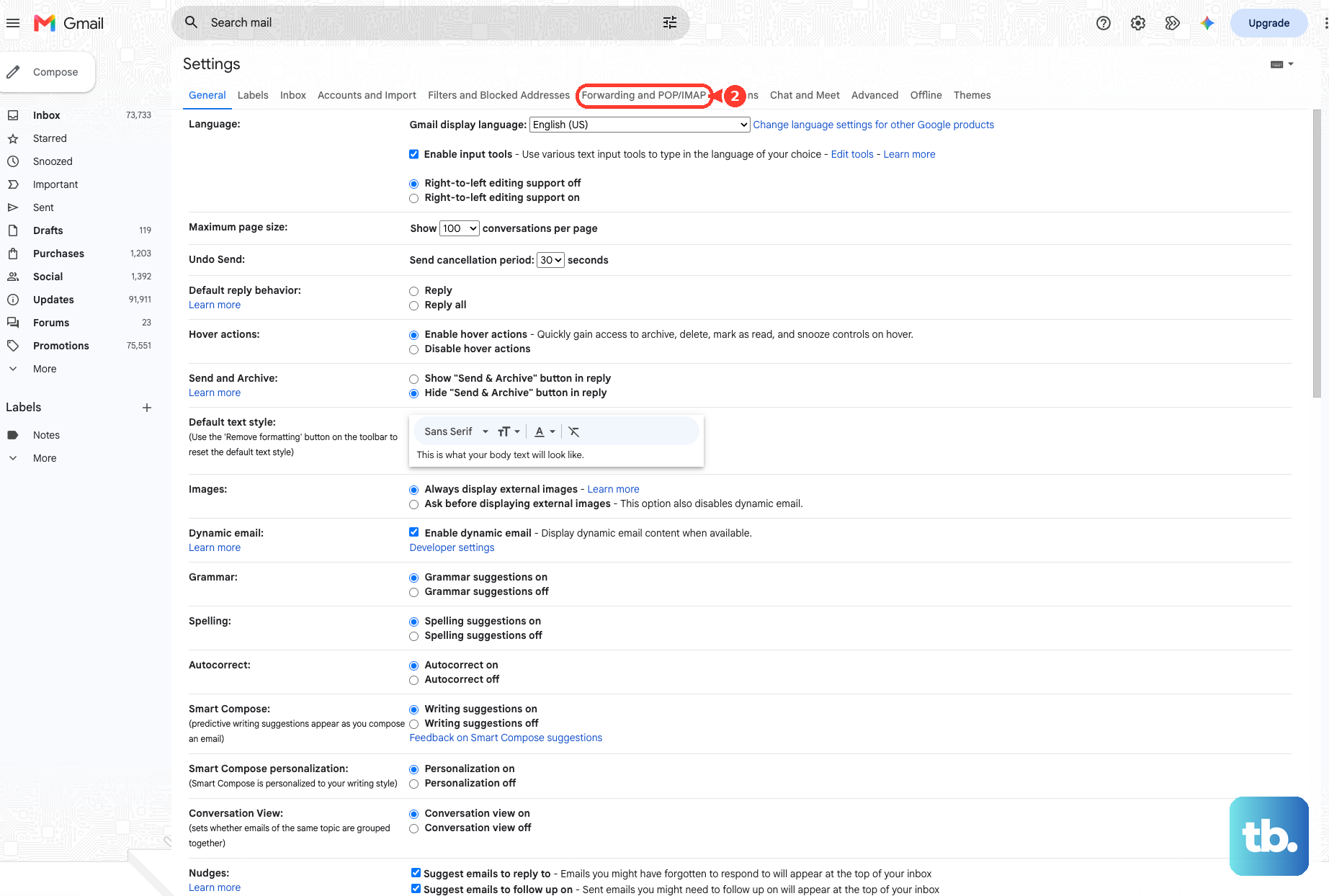
If "Forward a copy of incoming mail" is on, set the action dropdown to "Keep Gmail's copy in the Inbox".
For POP, under POP download set "Keep Gmail's copy in the inbox".
Click "Save Changes".
If you find forwarding to an unfamiliar address you did not set up, treat it as a sign of unauthorized access and secure your account; that rule may be diverting your mail.
Get the Gmail App Syncing Again
If mail shows on the web but not on your phone, the app is not syncing. Causes include sync turned off, low device storage, an outdated app, or a weak connection.
Sync can take up to about 15 minutes, longer if the device has been idle.
On Android: swipe down in your inbox to refresh.
Update the app from the Play Store.
Restart the phone, and confirm the internet works by opening a website in Chrome.
Then open Gmail > Menu > Settings, select your account, and under "Data usage" make sure "Sync Gmail" is checked.
In the device Settings app, open the Google account's sync controls, tap "More", then "Sync now".
The app will not sync when device storage is low, so remove unused apps or move downloaded files to your computer. If your Google Account storage is full, empty Trash and Spam to free up account space.
As a last resort on Android, go to Settings > Apps > See All Apps > Gmail > Storage & cache > "Clear storage", then restart. This can erase message drafts, your signature, ringtone, and other settings.
On iPhone and iPad: swipe down to refresh.
Update the app from the App Store.
Restart the device, and check connectivity in Safari.
Open the iOS Settings app > General > "Background App Refresh" and enable it for Gmail.
In the Gmail app, go to Menu > Settings > General > "Data usage" > Sync settings and set the number of days of email to sync.
Free up storage by deleting large attachments and emptying Trash and Spam.
Rule Out a Gmail-Wide Outage
Occasionally the problem is on Google's side. Open the Google Workspace Status Dashboard at google.com/appsstatus/dashboard and find Gmail in the list.
A green "Available" status means no known incident.
If an incident is listed, the issue is on Google's end and you simply wait for resolution.
Trace the Message on a Business or Workspace Account
If your address uses a custom domain managed in Google Workspace, an admin can trace delivery with Email Log Search. This applies to managed accounts only, not personal @gmail.com addresses.
Have your Workspace administrator sign in to the Google Admin console.
Go to Menu > Reporting > Email Log Search.
Set the date range and enter the sender or recipient details.
Click "Search", then click a subject to view its delivery status.
If the message does not appear, check the search details before contacting the sender. For messages older than 30 days, enter both the recipient email address and message ID; only post-delivery status is available, and you cannot search using a Google Group email address.
Also verify your MX records point to Google, the account is not suspended, and the domain registration is valid.
Note that Gmail blocks messages with potentially dangerous attachments, such as executable files, which can prevent delivery.
Frequently Asked Questions
Why do emails sent to me bounce back to the sender?
That is the signature of a full account. Your 15 GB is shared across Gmail, Drive, and Photos, and once it fills you can no longer receive mail. Empty Trash and Spam, delete large attachments, then wait for space to update.
I deleted thousands of emails but my storage did not change. Why?
Deleted messages sit in Trash and keep counting against your quota until it is emptied. Open Trash and click "Empty Trash now", do the same for Spam, and allow up to 48 to 72 hours after large deletions for the figure to refresh.
Can I edit filters or forwarding from the Gmail mobile app?
No. Filters, forwarding, POP/IMAP, and third-party app access can only be changed from a computer at mail.google.com.
I marked a sender "Not spam" but still cannot find their old email. Why?
Marking a message "Not spam" moves that message out of Spam and helps keep future mail out of Spam. Unblocking affects future mail. Neither action recovers messages permanently deleted from Spam or Trash after 30 days.
Why did an email disappear from my phone after I read it elsewhere?
There is only one copy of each email across all synced devices and clients. Deleting it on a second device, or in an app like Apple Mail set to delete the original, removes it from Gmail everywhere.
Why does mail show on the Gmail website but not in the app?
The app is not syncing. Swipe down to refresh. On Android, confirm Sync Gmail is checked. Check your connection, update the app, and free up device storage, since the app will not sync when storage is low.