You open Gmail expecting your messages and instead you are staring at a blank white inbox, an endless spinning loader, or a list that refuses to refresh. It is one of the more unsettling email problems because you cannot tell whether your messages are gone, delayed, or simply not displaying. The good news is that a stuck or empty Gmail inbox almost always comes down to a handful of fixable causes, from a browser hiccup to a full storage quota.
Gmail is a web-based email service operated by Google LLC, and you reach it at mail.google.com or through the Gmail mobile app. Because it runs in a browser or app rather than a standalone program, the loading problem can sit on Google's side, your connection, your browser, or your account. Work through the eight numbered fixes below in order, and you will usually have your inbox back in a few minutes.
Start by Ruling Out a Google-Side Outage
Before you touch a single setting on your own device, confirm the problem is not on Google's end. If Gmail is down for everyone, no amount of local troubleshooting will help, and you would only be wasting your time.
1. Check whether Gmail itself is down
Open the Google Workspace Status Dashboard, which shows the current and past status of Gmail and other Google services, including any active outages or disruptions. If Gmail shows an active incident, your blank inbox is a service-side issue and you only need to wait for Google to resolve it. When the dashboard reports everything as normal, the cause is local, so move on to the next fix.
Make Sure Your Browser Can Actually Run Gmail
Gmail leans heavily on modern browser features, so an outdated or unsupported browser is one of the most common reasons the interface fails to render. This is especially likely if the inbox loads on your phone but not on your computer.
2. Use a supported browser and update it
Gmail officially supports Google Chrome, Firefox, Safari, and Microsoft Edge, and it works best in the newest and last prior version of these browsers. Whichever browser you use must have cookies and JavaScript turned on, since Gmail cannot build the inbox without them.
Update your browser to the latest version, or try a different supported browser, then reload Gmail. Older browsers or out-of-date versions can cause Gmail to fail to load entirely, which leaves you with that blank screen.
Confirm Your Connection Is Solid
A blank or stuck inbox is frequently nothing more than a weak or dropped connection. Gmail needs a steady link to Google's servers to pull in your messages, and an unstable network can leave the list empty.
3. Check and restart your internet connection
Restart your device, turn your Wi-Fi or mobile data off and back on, and restart your router if you are on Wi-Fi. These quick resets clear up the majority of temporary connection glitches.
You can also try connecting to a different network to see whether your usual one is the problem. If issues continue after that, contact your service provider or network host, since the fault may be upstream from your equipment.
Test Whether an Add-On Is Breaking the Page
Browser extensions and certain applications on your computer can interfere with how Gmail renders, sometimes blocking content so thoroughly that the inbox appears empty. Isolating these is straightforward once you know where to look.
4. Turn off browser extensions or test in private mode
Google states that some extensions or add-ons on your browser, or applications on your computer, may cause Gmail to not work. Disable your extensions one at a time and reload Gmail after each, which lets you pinpoint exactly which one is the culprit.
For a faster check, open Gmail in your browser's incognito or private browsing mode, which runs without extensions. If Gmail loads correctly there, you have confirmed that an add-on is the cause and can re-enable them selectively until you catch the offender.
Clear Out Corrupted Local Data
Over time, your browser stores cached files and cookies to speed things up, but these can become corrupted and cause loading or formatting problems in Gmail. Wiping them forces the browser to rebuild a clean copy of the page.
5. Clear your browser's cache and cookies
In Chrome on a computer, open Chrome and click More at the top right, then select Delete browsing data. Choose a time range such as Last hour or All time, select the types of information you want to remove, and click Delete data.
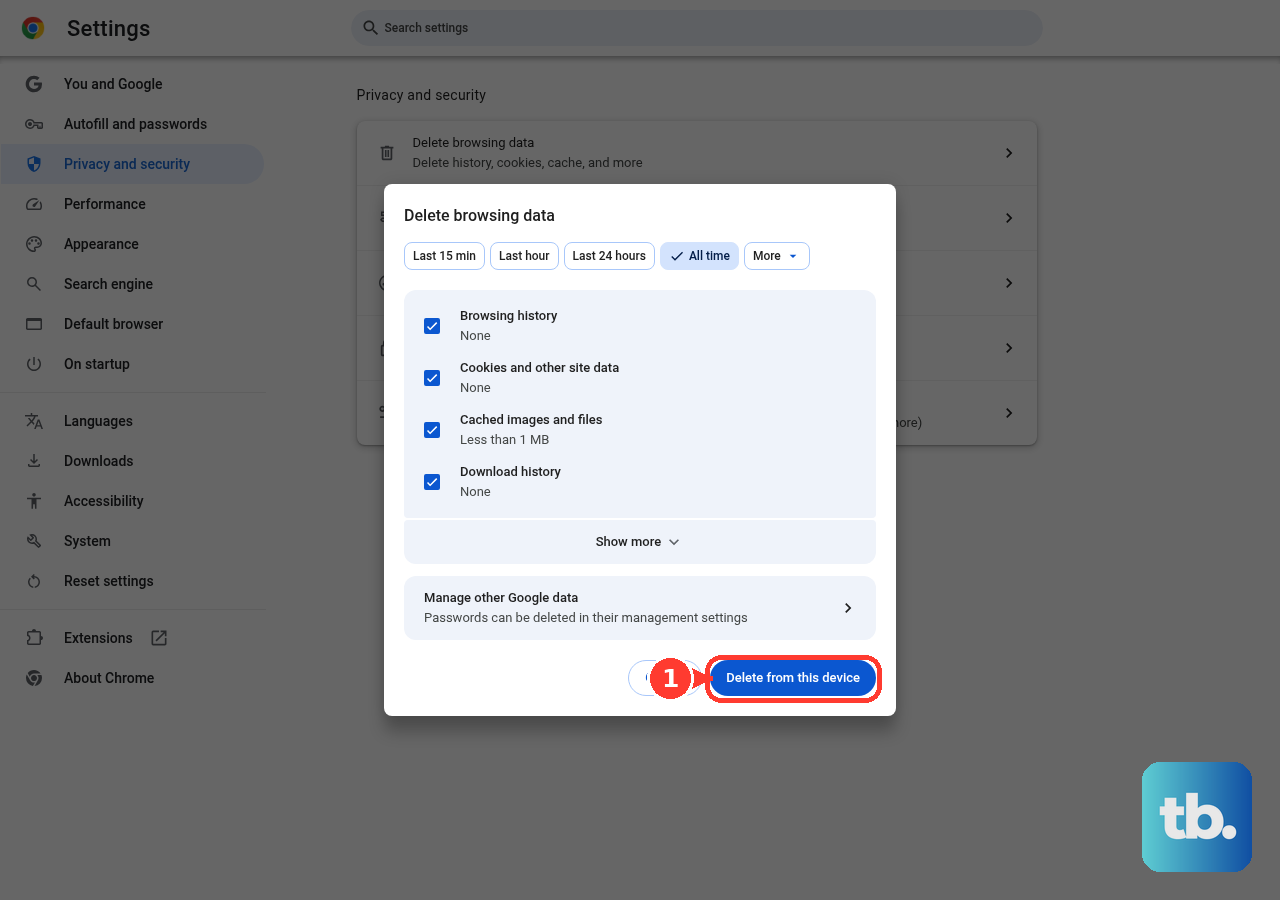
Keep in mind that if you were signed in, you may need to sign in again afterward, so have your password ready. Once the data is cleared, reopen Gmail and check whether the inbox loads.
Find Out Whether the Problem Follows You
If you are not sure whether the issue lives in one browser, one device, or your account itself, the quickest way to narrow it down is to change the variable. Switching devices tells you immediately where the fault sits.
6. Try Gmail on another device
Open Gmail on a different device to determine whether the problem is specific to your original device or browser. If it loads fine elsewhere, you know the issue is local to your first device rather than your account.
Google notes that Gmail may not load on older devices or browsers that no longer support current Gmail functionality. Testing on a newer device helps you confirm whether aging hardware or software is the reason the inbox stays blank.
Repair Sync in the Gmail App
When the problem appears in the Gmail mobile app rather than a browser, the cause is usually a sync setting or a stalled refresh rather than the page itself. A couple of taps will often pull your missing messages back in.
7. Refresh and confirm sync is on (Android)
If you are using the Gmail app and messages are missing, swipe down from the top of your inbox to manually sync. Make sure you have the most recent version of the Gmail app installed, and restart your phone or tablet to clear any temporary app glitch.
To verify sync is enabled, open the Gmail app, go to Settings, select your account, then open Data usage and confirm that Sync Gmail is checked. It is also worth checking your device's account sync settings, since a system-level toggle can quietly block new mail from arriving.
Make Room When Your Inbox Stops Updating
Your Google Account storage is shared across Gmail, Google Drive, and Google Photos, so filling it up in one place affects all three. When that storage is full, you cannot send or receive messages, which can leave the inbox looking blank or frozen.
8. Free up account storage
Start by deleting large attachments and emptying your Trash and Spam folders, since those often hold the bulk of recoverable space. You can also open your Google storage management page to see what is using the most room and reclaim space across your account in one place.
After you have cleared enough space, reload Gmail and watch for your messages to begin updating again. Once you are back under your storage limit, new mail should flow in normally and the inbox will populate as expected.
Frequently Asked Questions
Why is my Gmail inbox suddenly blank?
A blank inbox usually points to a temporary glitch rather than lost mail. The most common causes are a service-side outage, an unstable internet connection, an outdated or unsupported browser, a conflicting extension, corrupted cache and cookies, or full account storage. Working through these one at a time almost always restores the inbox.
How do I know if Gmail is down or if the problem is on my end?
Check the Google Workspace Status Dashboard first. It shows the current and past status of Gmail, including any active incidents. If an outage is listed, the issue is on Google's side and you simply wait. If the dashboard looks normal, the cause is local, so you can begin troubleshooting your connection, browser, and account.
Which browsers does Gmail officially support?
Gmail officially supports Google Chrome, Firefox, Safari, and Microsoft Edge, and it works best in the newest and last prior version of each. Whichever one you use must have cookies and JavaScript turned on, because Gmail cannot load the inbox without them.
My Gmail app is missing messages, what should I do?
Swipe down from the top of your inbox to manually sync, make sure you have the latest version of the app, and restart your phone or tablet. Then open the Gmail app, go to Settings, select your account, open Data usage, and confirm Sync Gmail is checked. Also review your device's account sync settings.
Can full storage really make my inbox look empty?
Yes. Google Account storage is shared across Gmail, Google Drive, and Google Photos, and when it is full you cannot send or receive messages, which can leave the inbox looking blank or frozen. Deleting large attachments, emptying Trash and Spam, and reviewing your Google storage management page will recover space and let mail flow again.