
That blinking light on your Galaxy Buds 3 Pro case means the earbuds are in pairing mode, broadcasting to any nearby device that'll listen. The problem is usually that the connection handshake never completes, leaving the lights flashing forever with no setup screen appearing.
Start with the most common culprit first: your phone's Bluetooth state. Make sure your phone is unlocked, Bluetooth is toggled on, and you're within a few feet of the open case. The Galaxy Wearable app needs to see the buds during that initial handshake window, and a locked phone or disabled Bluetooth kills the connection before it starts.
Open the Galaxy Wearable App With Both Buds in the Case
Put both Galaxy Buds 3 Pro in the charging case and leave the lid open. On your phone, open the Galaxy Wearable app (or Galaxy Buds app on iOS). The app should automatically detect the buds and prompt you to start the setup flow. If you see a Start or Connect button, tap it and follow the on-screen instructions.
If nothing pops up, close the Galaxy Wearable app completely and reopen it while holding the case right next to the phone. The Bluetooth Low Energy signal from the Buds 3 Pro is short-range, so inches matter.
Check That Bluetooth Is Actually Enabled
Swipe down to open your quick settings panel and confirm Bluetooth is on. If it's already on but the blinking continues, toggle it off, wait 5 seconds, then toggle it back on. Then open the Galaxy Wearable app again with the case lid open.
On Samsung Galaxy phones running One UI 6.1 or later, Bluetooth usually stays on even in airplane mode, but it's worth double-checking. A quick restart of your phone's Bluetooth radio clears up most detection hiccups.
Force a Fresh Pairing Attempt by Closing the Lid
Sometimes the Galaxy Buds 3 Pro case gets stuck in an advertising loop, broadcasting its pairing signal but never receiving a response. Close the lid completely and wait about 30 seconds. Open it again next to your unlocked phone. The lid close resets the advertising state, giving you a clean shot at pairing.
If you're using a Samsung Galaxy phone, the setup card usually appears automatically. On non-Samsung Android phones or iOS, you'll need to tap the buds in the Galaxy Wearable app manually.
Forget the Buds From Your Phone and Start Fresh
If these Galaxy Buds 3 Pro were previously paired to your phone, the old pairing record can interfere with a new connection. Open your phone's Bluetooth settings, find the Galaxy Buds 3 Pro in the paired devices list, and tap Forget or Unpair. Then close the case lid, wait 10 seconds, and reopen it near the phone.
A fresh pairing attempt without an old Bluetooth record sidesteps most connection conflicts. The Galaxy Wearable app will treat them as new and prompt you through the full setup.
Reset the Galaxy Buds 3 Pro From the App
If the case keeps flashing and nothing pairs, a full reset clears out any internal pairing state. Open the Galaxy Wearable app, go to About earbuds, and tap Reset.
The reset wipes all pairing history from the buds themselves. After the process finishes, the buds return to pairing mode from a clean slate. Bring them near your unlocked phone and the Galaxy Wearable app should pick them up immediately.
If you can't access the Galaxy Wearable app at all, maybe the app keeps crashing or never detects the buds, there's no button on the case to force a reset. Try uninstalling and reinstalling the Galaxy Wearable app and the Galaxy Buds 3 Pro Manager plugin, then attempt the reset again.
Charge the Case and Check the Buds Are Seated Properly
If the battery in either the case or the buds is critically low, the case may flash without successfully connecting. Plug in the case via USB-C (it accepts 5W standard input) or set it on a Qi wireless charger for at least 15 minutes. The case LED should light up to confirm charging.
Open the lid and check that both buds are sitting flat on their charging contacts with no debris blocking the connection. I've seen a single misaligned bud prevent the case from exiting its initial advertising state. Each bud needs to make firm contact with the two metal pins at the bottom of each slot. Wipe those pins with a dry cotton swab if they look dirty.
Try Pairing to a Different Phone
Bring the open case near a different phone, any Android or iPhone will do. If the Galaxy Wearable app detects the buds there and pairs without issue, the problem is with your original phone, not the buds. Try clearing the Bluetooth cache on your original phone in Settings > Apps > Bluetooth > Storage > Clear cache, then restart the phone and try again.
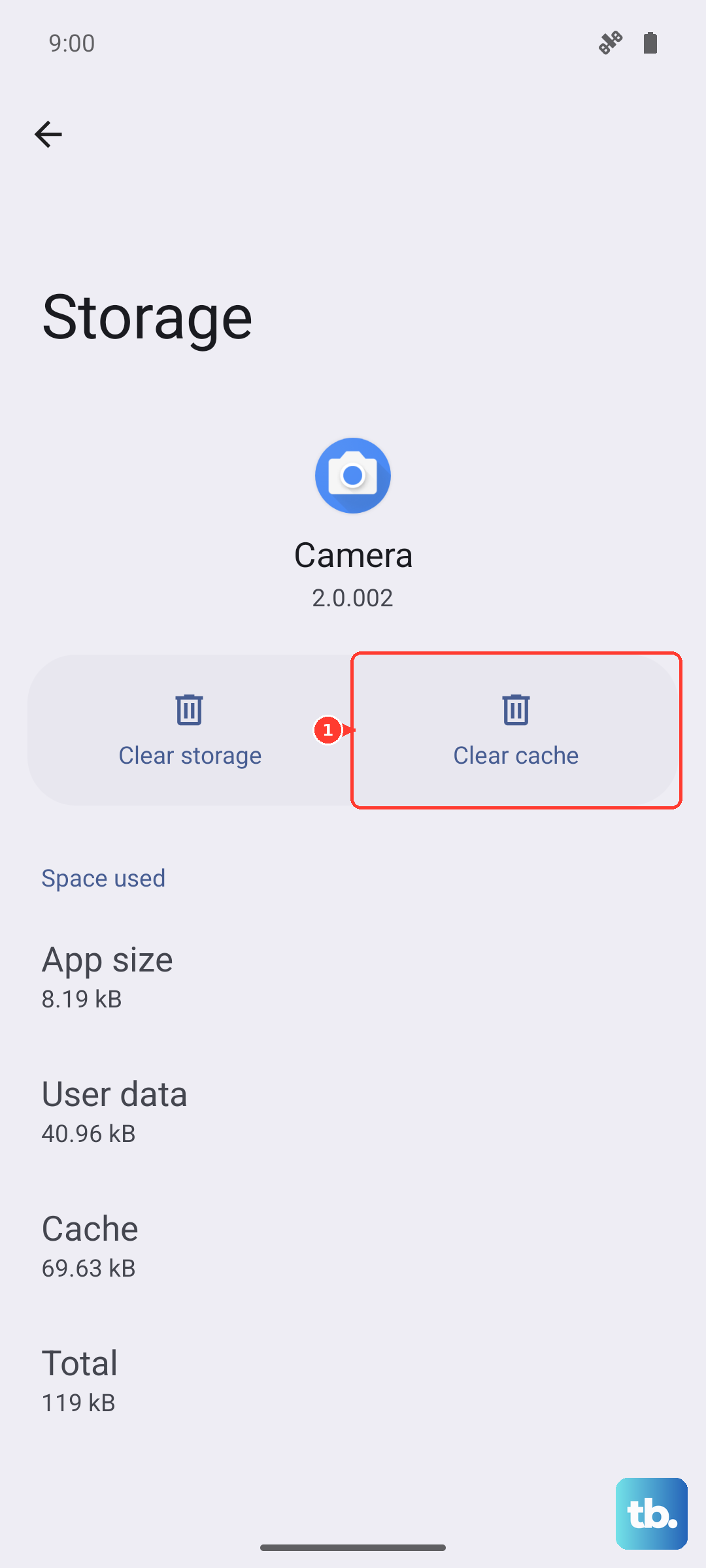
If the buds refuse to pair with any phone at all, they may need service. A Samsung service center can run diagnostics on the Bluetooth module inside the case.
Pair One Bud at a Time to Break a Stuck Handshake
A stereo handshake can sometimes stall when both buds are trying to sync simultaneously. Remove one earbud from the case and leave the other inside with the lid open. Bring the single bud near your unlocked phone. If the Galaxy Wearable app detects it and pairs, drop that bud back into the case and take out the second one. Pair the second bud the same way.
Once both buds are paired individually, they'll sync together as a stereo pair the next time you open the case. This trick bypasses whatever was causing the two-bud negotiation to hang.
Keep in mind that the Galaxy Buds 3 Pro's stem touch controls are sensitive, and you might accidentally trigger pairing commands or volume changes just by handling the buds during setup. Pinch the stems firmly when you need to register a tap, rather than touching the flat touchpad area. A light brush on the touchpad can interrupt the pairing flow without you realizing it.