Your Galaxy Buds3 Pro promised a long day of listening, but lately one earbud taps out hours early, or both die before lunch even though the case said they were full. Fast battery drain on true-wireless earbuds usually comes down to a handful of fixable causes, such as power-hungry sound features, a charging fault, stale firmware, or a bad pairing that keeps the buds working harder than they should.
Before you assume the hardware is failing, it helps to confirm what the drain actually is and then work through the safe fixes in order. The steps below are arranged from the easiest and least disruptive to the official reset and support path at the end.
Most owners get their runtime back well before reaching the last fix. Everything here applies specifically to the Samsung Galaxy Buds3 Pro (model SM-R630) paired to an Android phone or tablet running Android 10.0 or above, which is what the Galaxy Wearable app requires.
First, confirm whether the drain is actually abnormal
Samsung rates the Galaxy Buds3 Pro at up to 6 hours of play time on the earbuds alone with Active Noise Canceling on, or up to 7 hours with it off. With the included charging case, total play time reaches up to 26 hours with Active Noise Canceling on and up to 30 hours with it off.
Actual battery life varies with your settings, the type of audio you play, and Bluetooth signal strength. That ANC On versus ANC Off gap matters.
If you keep Active Noise Canceling and the adaptive sound features running constantly, shorter runtime is expected behavior, not a defect. Compare what you are getting against these official figures before you treat it as a fault, because the fix for ANC eating your battery is very different from the fix for a case that will not charge.
Read the real battery level and the case LED
The fastest way to separate a true drain problem from a charging or temperature fault is to look at the actual numbers and the case light. Open the Galaxy Wearable app on your paired phone to check the battery status of both the earbuds and the charging case.
If one earbud reads much lower than the other, or the case is not holding charge, that points you toward a charging issue rather than a runtime issue. The charging case LED tells you the case state at a glance.
Green means fully charged.
Yellow means between 30 and 60 percent battery.
Red means charging.
Flashing red means a charging error or abnormal temperature.
If you see a flashing red light, the problem is a charging fault or heat condition, not normal playback drain. Let the case return to room temperature and try charging again before moving on.
Store the buds in the closed, charged case when you are done
Samsung's official battery guidance is to keep the earbuds in the charged charging case with the cover closed whenever you are not using them. This preserves the buds' charge and lets the case top them back up between uses.
Leaving the buds loose in a pocket or bag, or leaving the case lid open, gives them more chances to discharge and reconnect needlessly. This small habit alone often fixes a complaint that the buds were dead when you picked them up.
Charge the right way and keep the contacts clean
Charging problems can masquerade as battery drain, because buds that never reach a full charge appear to run down fast. A few official practices keep charging working as designed.
Use only the case that came with your earbuds. Samsung advises against using a charging case that came with any other model, because the included case is designed to provide the optimal charge for these specific buds.
Clean the charging terminals before placing the buds in the case, so a thin layer of debris is not blocking contact.
Avoid bent or damaged chargers and cables, which can reduce charging performance.
The Galaxy Buds3 Pro case also supports wireless charging, so you can top it up on a Qi pad or with Wireless PowerShare if a cable seems unreliable. If the case charges fully and the contacts are clean, you have ruled out the most common charging causes of apparent drain.
Turn down the features that are rated to cut runtime
This is the single biggest lever for battery life on this model, and it is fully supported by Samsung's own specs. Active Noise Canceling is what creates the difference between up to 26 hours with it on and up to 30 hours with it off when using the case.
The adaptive and automatic sound features add processing on top of that. To dial these back, insert both earbuds, then open the Galaxy Wearable app and use the control bar at the top to switch between Ambient sound, Adaptive sound, and Active noise canceling.
Switch off Active noise canceling, or move to Ambient sound, when you do not need active cancellation.
Drag the slider to lower the ANC level instead of running it at maximum.
Disable the adaptive and automatic behaviors under Auto switch to ambient sound, which controls features such as Voice Detect, Siren Detect, and call enhancement.
You do not have to give up noise cancellation entirely. Even reducing the ANC level or limiting how often the auto features kick in moves your real-world runtime toward the higher rated figures.
Restart the earbuds to clear minor glitches
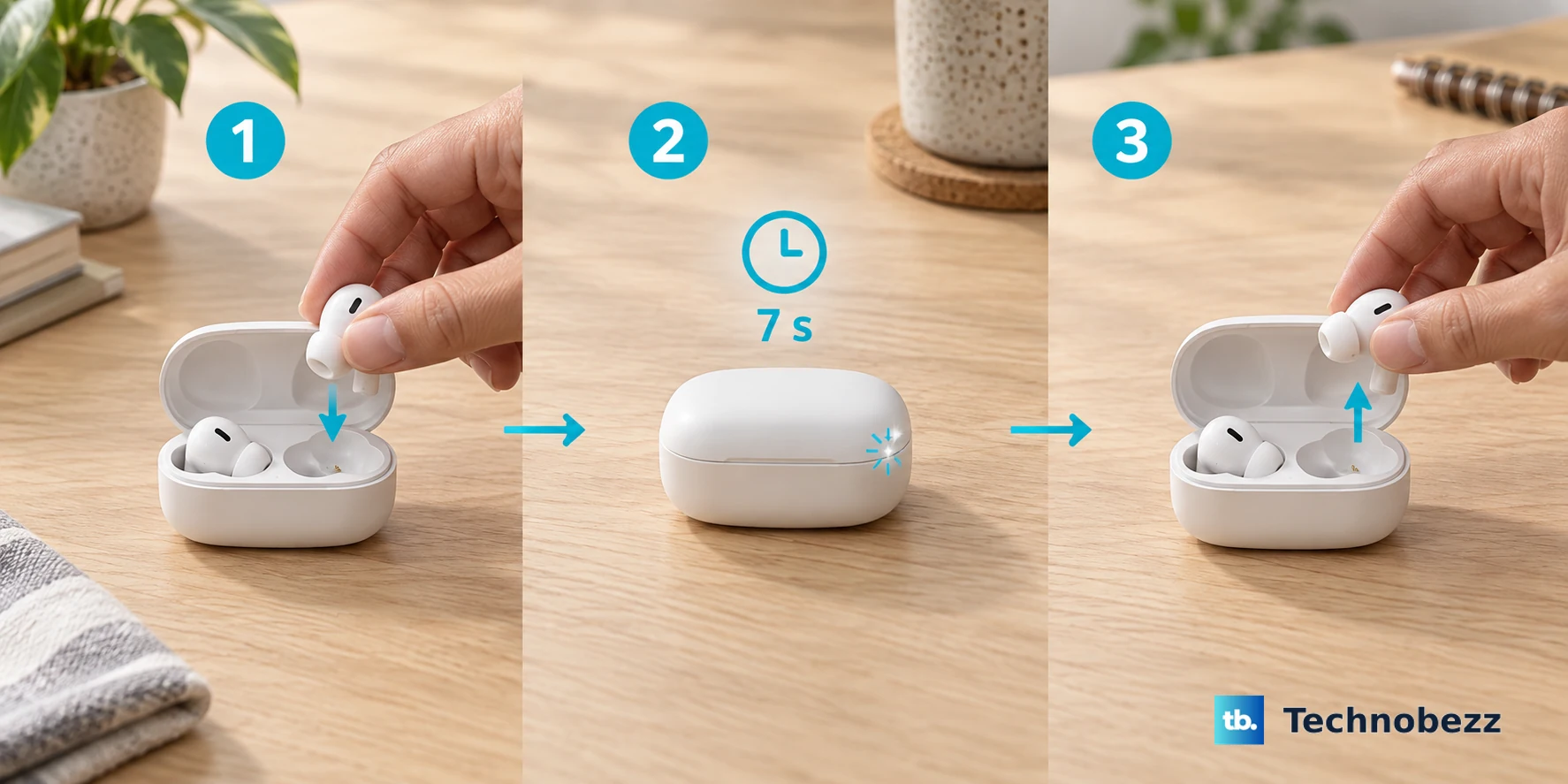
If the drain feels random or started suddenly, a quick restart can clear a software glitch that is keeping the buds busier than they should be. Samsung's restart method does not use any buttons.
Insert the earbuds into the charging case, then close the lid.
Wait at least seven seconds.
Remove the earbuds from the case.
This restarts both earbuds. It is non-destructive, keeps all your settings, and is worth doing before any of the heavier fixes below.
Update the earbuds' firmware
Firmware updates can include stability fixes that affect power behavior, so out-of-date software is a real candidate for unexplained drain. Updates are delivered over the air through the Galaxy Wearable app.
- 1.Insert the earbuds into the charging case, leaving the lid open.
- 2.Open the Galaxy Wearable app on your paired phone.
- 3.Tap Earbud settings.
- 4.Tap Earbuds software update.
- 5.Tap Download and install.
Let the buds stay in the open case until the update finishes, then check that the drain has improved over your next few charges.
Forget the buds and pair them fresh
A corrupted or stale Bluetooth pairing can cause the buds to drop and reconnect repeatedly, which wastes power and looks like fast drain. Rebuilding the connection from scratch often resolves it.
On the paired phone, go to Settings, then Connections, then Bluetooth.
Tap the gear icon next to your Galaxy Buds.
Tap Unpair.
Tap Unpair again to confirm.
After unpairing, reconnect the earbuds through the Galaxy Wearable app. This gives you a clean connection without changing the buds' own stored settings.
Factory reset as the last step, then reach out to support
If the drain survives everything above, a factory reset returns the earbuds to their default settings and re-pairs both buds, clearing any lingering software cause. This is a destructive step that restores defaults, so you will lose your saved sound preferences and will need to set them up again afterward.
In the Galaxy Wearable app, tap Earbuds settings.
Tap Reset.
Tap Reset again to confirm.
If fast battery drain continues even after a reset, the issue may be hardware-related and should be looked at by the manufacturer. Use Samsung's official Support and Contact us options on the Samsung website to arrange repair or warranty help for your Galaxy Buds3 Pro.
Frequently Asked Questions
How long should the Galaxy Buds3 Pro last on a single charge?
Samsung rates the earbuds at up to 6 hours with Active Noise Canceling on and up to 7 hours with it off on the buds alone. With the charging case, total play time reaches up to 26 hours with ANC on and up to 30 hours with ANC off, with actual results depending on your settings, audio type, and Bluetooth signal strength.
Does Active Noise Canceling really shorten the battery life?
Yes. Samsung rates runtime separately for ANC On and ANC Off, and the ANC On figures are lower. Switching to Ambient sound, lowering the ANC slider, or turning off the auto sound features in the Galaxy Wearable app are legitimate ways to extend battery life on this model.
What does a flashing red light on the case mean?
A flashing red LED indicates a charging error or abnormal temperature, not normal playback. A steady red light means the case is charging, yellow means it is between 30 and 60 percent, and green means it is fully charged. If you see flashing red, let the case reach room temperature and try charging again.
Can I charge the Galaxy Buds3 Pro case wirelessly?
Yes. The case supports wireless charging, so you can top it up on a Qi charging pad or with Wireless PowerShare. Samsung also advises using only the case that came with your earbuds and keeping the charging terminals clean for the best charging performance.
Will resetting the earbuds delete my settings?
A factory reset restores the earbuds to their default settings and re-pairs both buds, so you will need to set up your sound preferences again. It is meant as a last step in the Galaxy Wearable app under Earbuds settings, then Reset, then Reset to confirm, and if drain persists afterward you should contact Samsung Support.