"I keep getting a 'Currently unable to send your message' error on my Android phone. My signal looks strong, but I still can't send texts. What's going on?"
The "Currently unable to send your message" error means your phone tried to hand a text to the network and the network refused it. Most of the time it points to a registration or APN problem rather than a broken phone, so the fix is usually a few taps away.
This guide is built for Google Messages, Samsung Messages, and generic Android, with a short note for the same wording on iPhone near the end. Work top to bottom because the fixes are ordered from fastest to most involved.
Technobezz has helped millions understand tech since 2012. We explain things clearly, so you can make better choices about your devices and apps.
The 30 Second Quick Fix
Before you change any settings, run this short sequence. It clears the most common cause, which is a stale network registration after a weak-signal moment.
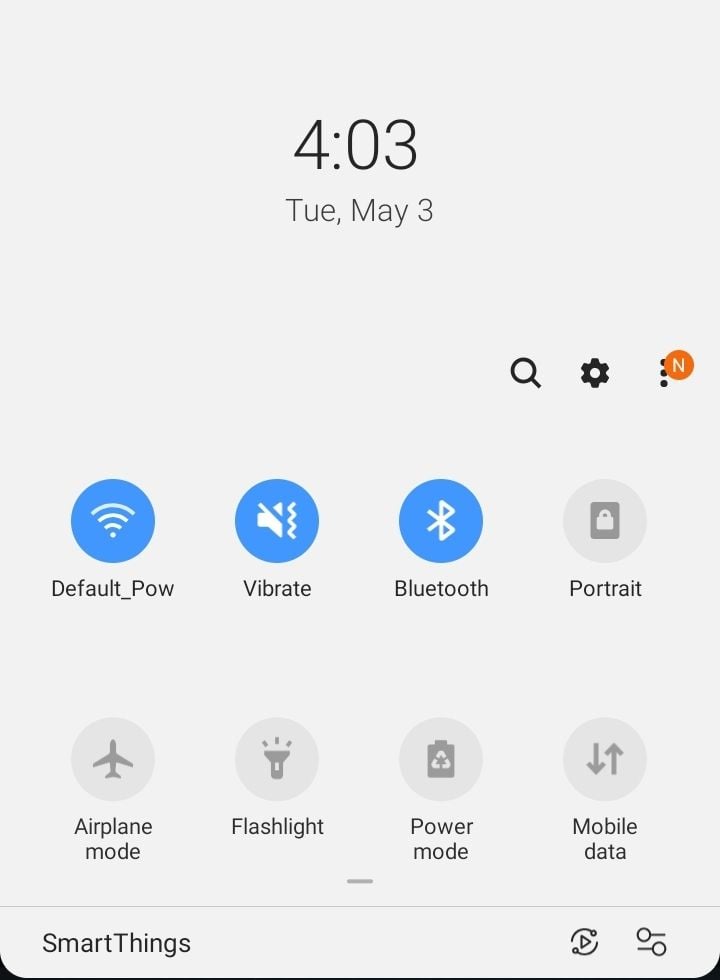
- 1.Swipe down and turn Airplane mode on, wait ten seconds, then turn it off.
- 2.Wait for your signal bars and the carrier name to come back.
- 3.Open your messaging app and tap the failed message, then tap retry or send it again.
If the message goes through, you are done. If it still fails, restart the phone once and then move on to the fixes below.
Match The Symptom To The Fix
This error shows up for a few different reasons. Use the table to jump to the fix that matches what you are seeing, then work through the rest if needed.
| Symptom | Likely cause | Start here |
|---|---|---|
| Fails on every contact | Network registration or message center | Fix 1, 5, 9 |
| Only photos and group texts fail | APN or MMS data | Fix 6, 8 |
| Started after switching phones or apps | RCS or default app | Fix 7, 10 |
| Strong signal but nothing sends | Disabled SIM or carrier hold | Fix 2, 13 |
| Fails after a recent app update | Cache or app conflict | Fix 8, 11, 12 |
Confirm The Basics First
A few quick checks rule out the simplest causes before you touch deeper settings. Each takes a few seconds.
- Active plan and real signal: Confirm your plan or prepaid credit is active and that you have at least one or two bars from your own carrier, not just Wi-Fi.
- Recipient not blocked: Make sure you did not accidentally block the contact, and test by sending to a different number.
- Correct number format: Save the contact with the country code where needed, such as +1 for the United States.
- Airplane mode is off: Open Settings > Connections and confirm Airplane mode is not toggled on.
Fix 1 Restart Your Phone
A reboot clears temporary memory and forces the phone to re-register on the network. It is the single most effective first step for messaging glitches.
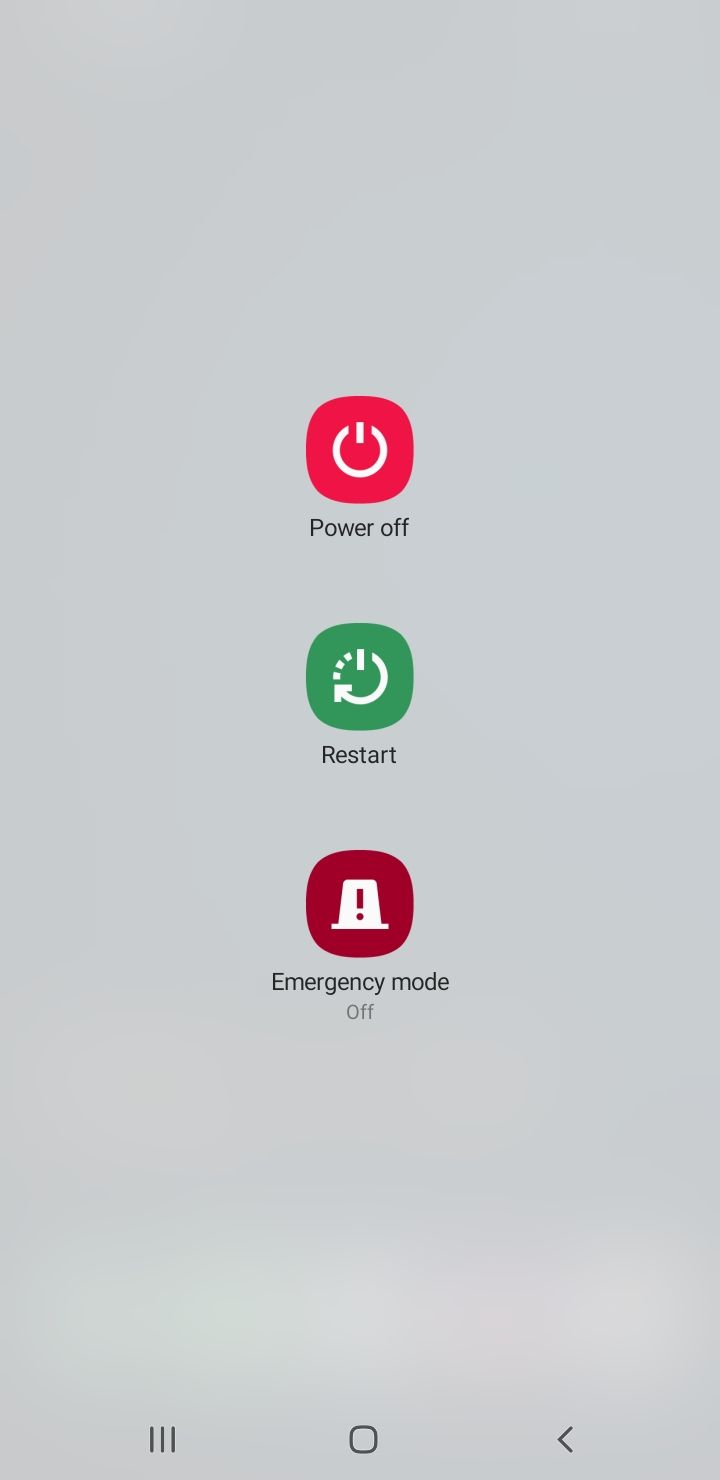
- 1.Press and hold the power button, or the power and volume-up buttons together on newer Samsung models.
- 2.Tap Restart.
- 3.When the phone powers back on, wait for full signal and try sending again.
Fix 2 Make Sure Your SIM Is Active
On dual-SIM phones it is easy to disable the SIM you actually text from. Check that the right line is switched on.
- 1.Go to Settings > Connections.
- 2.Tap SIM manager or SIM card manager.
- 3.Find your SIM or eSIM and toggle it on if it is off.
- 4.Confirm the same line is set for calls and messages.
Fix 3 Reseat The Physical SIM
A loose or dirty SIM can drop the connection just enough to block sending. Reseating it takes a minute and rules out a hardware contact issue.
- 1.Power off the phone.
- 2.Use the eject tool to remove the SIM tray.
- 3.Inspect the SIM for scratches and gently wipe the gold contacts.
- 4.Reseat the SIM so it sits flat in the tray, then slide the tray back in.
- 5.Power on and try again.
If the error follows the SIM into another phone, the SIM is likely the problem and your carrier can issue a free replacement.
Fix 4 Toggle Airplane Mode Again The Slow Way
If the quick toggle did not stick, do it from settings and give the radio longer to drop and reconnect. This forces a clean re-registration.
- 1.Go to Settings > Connections.
- 2.Turn Airplane mode on and leave it on for thirty seconds.
- 3.Turn it off and wait until the carrier name and signal bars return.
- 4.Send a test message.
Fix 5 Check Your Message Center Number
Every SMS is routed through your carrier's message center, also called the SMSC. If that stored number is wrong or blank, plain text messages fail to send. Samsung's support guidance points to verifying this number when no SMS will go out.
- 1.Open Messages, tap the three-dot menu, then Settings.
- 2.Tap More settings, then Text messages.
- 3.Find the Message center number.
- 4.Compare it with the number published on your carrier's website. If it is wrong or empty, tap Message center, enter the correct number, and tap Set.
Restart the phone after editing this field, then send a test text. The exact path varies by phone, so look for "Message center" or "SMSC" under your messaging app's advanced settings.
Fix 6 Reset Your APN To Carrier Defaults
The Access Point Name carries your data, and a wrong APN can block MMS and group messages even when calls work. Google's Messages support recommends resetting your APN settings to default when picture messages will not send.
- 1.Go to Settings > Connections > Mobile networks, or Network & internet > Mobile network on stock Android.
- 2.Tap Access Point Names.
- 3.Tap the three-dot menu and choose Reset to default.
- 4.Reboot, then send a photo to test MMS.
If your carrier requires manual settings, enter only the values published on the carrier's own site, including the MMSC URL and MMS proxy. Do not copy APN values from forums, since a wrong entry is a common cause of this exact error.
Fix 7 Toggle RCS Chat Features
RCS, shown as chat features in Google Messages, runs over data and can stall during verification, which blocks sending. Turning it off and back on forces a fresh registration.
- 1.In Google Messages, tap your profile picture, then Messages settings.
- 2.Tap RCS chats, or Chat features if that wording appears.
- 3.Turn RCS off, restart the phone, then turn it back on.
- 4.Wait for the status to read Connected before you test.
Google warns that turning RCS off and leaving it off removes you from RCS group chats, so only do this if individual texts are failing. If you only need plain SMS for now, leaving RCS off is a valid quick workaround.
Fix 8 Clear The Messaging App Cache
A corrupted cache can leave the app stuck on an error even when the network is fine. Clearing cache is safe and keeps your message history. Clearing data is a stronger step that wipes local conversations, so back them up first.
- 1.Go to Settings > Apps.
- 2.Select your messaging app, such as Google Messages or Samsung Messages.
- 3.Tap Storage, then Clear cache.
- 4.Reopen the app and test. If it still fails, return and tap Clear data, then Force stop.
Fix 9 Set Your Preferred Network Type
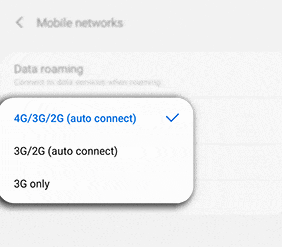
If your phone is locked to a band your carrier no longer prioritizes, registration can get shaky. Letting it pick automatically usually restores a stable connection.
- 1.Go to Settings > Connections > Mobile networks.
- 2.Tap Network mode or Preferred network type.
- 3.Choose the automatic option, such as 5G/LTE/3G (auto connect).
- 4.Send a test message.
Fix 10 Confirm Your Default Messaging App
Android only lets one app handle SMS at a time. If the default got switched after an update or app install, sending can break.
- 1.Go to Settings > Apps > Choose default apps.
- 2.Tap SMS app.
- 3.Select the app you actually use, such as Google Messages or Samsung Messages.
- 4.Grant SMS and contacts permissions if prompted.
Fix 11 Update The App And System Software
Old app or system versions can fall out of step with carrier messaging protocols. Keeping both current closes that gap.
- 1.Open the Play Store, search your messaging app, and tap Update if available.
- 2.Go to Settings > Software update and tap Download and install.
- 3.Restart after any update and try again.
Fix 12 Test In Safe Mode Or Another App
A rogue third-party app or overlay can interfere with messaging. Safe Mode loads only system apps so you can isolate the cause.
- 1.Press and hold the power button until the power menu appears.
- 2.Touch and hold Power off until the Safe mode prompt appears, then tap it.
- 3.Try sending a message in Safe Mode.
If it works in Safe Mode, a recently installed app is the culprit, so uninstall suspects after rebooting normally. You can also install a second SMS app temporarily to confirm whether your default app is at fault.
Fix 13 Rule Out A Carrier Block Or Spending Limit
Sometimes the phone is fine and the carrier is holding your line. Billing issues, a suspended account, or a prepaid balance that ran out will all block outbound texts.
Log in to your carrier account or call support and confirm the line is active, the balance covers messaging, and there is no spending limit or content block on the account. Carriers also enforce daily volume limits, so a burst of messages can trigger a temporary hold that only the carrier can lift.
Fix 14 Reset Network Settings
When nothing else works, a network reset clears every connection setting at once, which fixes hidden misconfigurations. It does not touch your photos, apps, or messages, but it does erase saved Wi-Fi passwords and Bluetooth pairings.
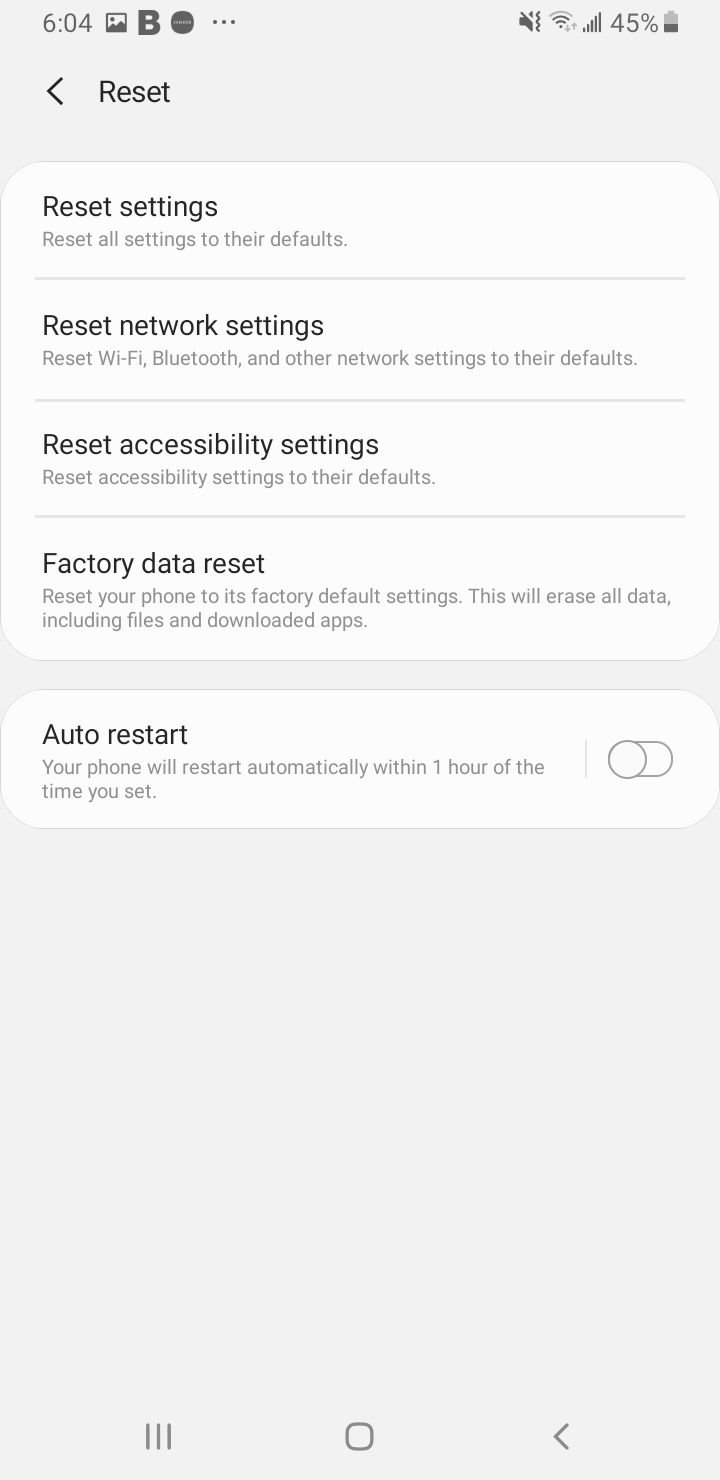
- 1.Go to Settings > General management > Reset, or System > Reset options on stock Android.
- 2.Tap Reset network settings, or Reset mobile network settings on newer models.
- 3.Confirm with your PIN or biometric and let the phone reboot.
- 4.Reconnect Wi-Fi, then send a test message.
If You See This Error On iPhone
iPhone uses different wording, usually a red exclamation mark with "Not Delivered," but the cause is the same failed handoff to the network. The fixes mirror Android.
Tap the red exclamation mark and tap Try Again, or tap Send as Text Message to fall back to SMS. If iMessage is involved, go to Settings > Apps > Messages, toggle iMessage off and back on, and confirm your number under Send & Receive.
If plain SMS or MMS still fails after a restart and a network reset, contact your carrier, since Apple's own guidance routes SMS and MMS problems to the carrier rather than to Apple.
Frequently Asked Questions
Why do I get this error even with strong signal
Signal bars only show radio strength, not a working data or message path. A wrong APN, a disabled SIM, a bad message center number, or a stale RCS session can all block sending while the bars look full. Start with the airplane-mode toggle and the message center check.
Does resetting network settings delete my texts or photos
No. A network reset only clears Wi-Fi passwords, Bluetooth pairings, and cellular configuration. Your messages, photos, apps, and accounts stay intact, though you will need to reconnect to Wi-Fi afterward.
Should I turn RCS chat features on or off to fix this
Toggle it off and back on only if individual texts are failing and you suspect RCS is stuck on connecting. Turning RCS off removes you from RCS group chats, so use it as a targeted fix, not a routine step. Leaving RCS off forces plain SMS, which is a fine temporary workaround.
Why do only my picture messages and group texts fail
Photos and group texts travel as MMS, which needs a correct APN and an active data connection. Reset your APN to carrier defaults and confirm mobile data is on, then resend the photo.
What if the error followed my SIM into another phone
If a different phone shows the same error with your SIM, the SIM or the account is the issue, not the original device. Contact your carrier for a free SIM replacement and ask them to confirm the line is provisioned for messaging.
When should I contact my carrier
Reach out if every fix above fails, if texts fail on multiple devices with your SIM, or if you suspect a billing hold. Ask them to verify the account is active, check for a spending limit or content block, and confirm there is no local outage or recent APN change pushed to your line.
First published February 9, 2025. Last updated June 4, 2026.