

You plug the Ethernet cable in, the link lights blink, and yet Windows 11 stubbornly labels the connection "Unidentified Network" with no internet access. It is a frustrating spot to be in, because the hardware looks fine on the surface but Windows cannot work out what it is talking to. The problem can come from configuration settings, the cable, router, ISP, or network adapter, and the steps below can help you narrow it down.
The fixes below start with the gentlest, fastest options and only move toward deeper changes if the simple ones do not stick. Start with the automated Network and Internet troubleshooter in the Get Help app, described below, then work through the remaining steps and stop as soon as your connection comes back.
Start With a Clean Restart of Your PC and Router
Before changing any settings, give every device in the chain a fresh start. Restarting clears transient state in the network adapter and prompts Windows to re-run DHCP, which can re-identify a connection that was stuck.
Restarting your modem and router helps create a new connection to your internet service provider.
Restart your PC from Start > Power > Restart. Unplug the router, then the modem; if the modem's lights stay on because it has a backup battery, remove the battery too. Wait at least 30 seconds, then replace any battery and plug the modem back in.
Wait for the modem's lights to stop blinking, then plug the router back in. Allow a few minutes for both devices to fully power on before checking the connection again. If you have a modem/router combo, restart just that device.
Check the basics like cables and restarting before moving on to deeper troubleshooting.
Let the Built-In Network Diagnostics Do the Work
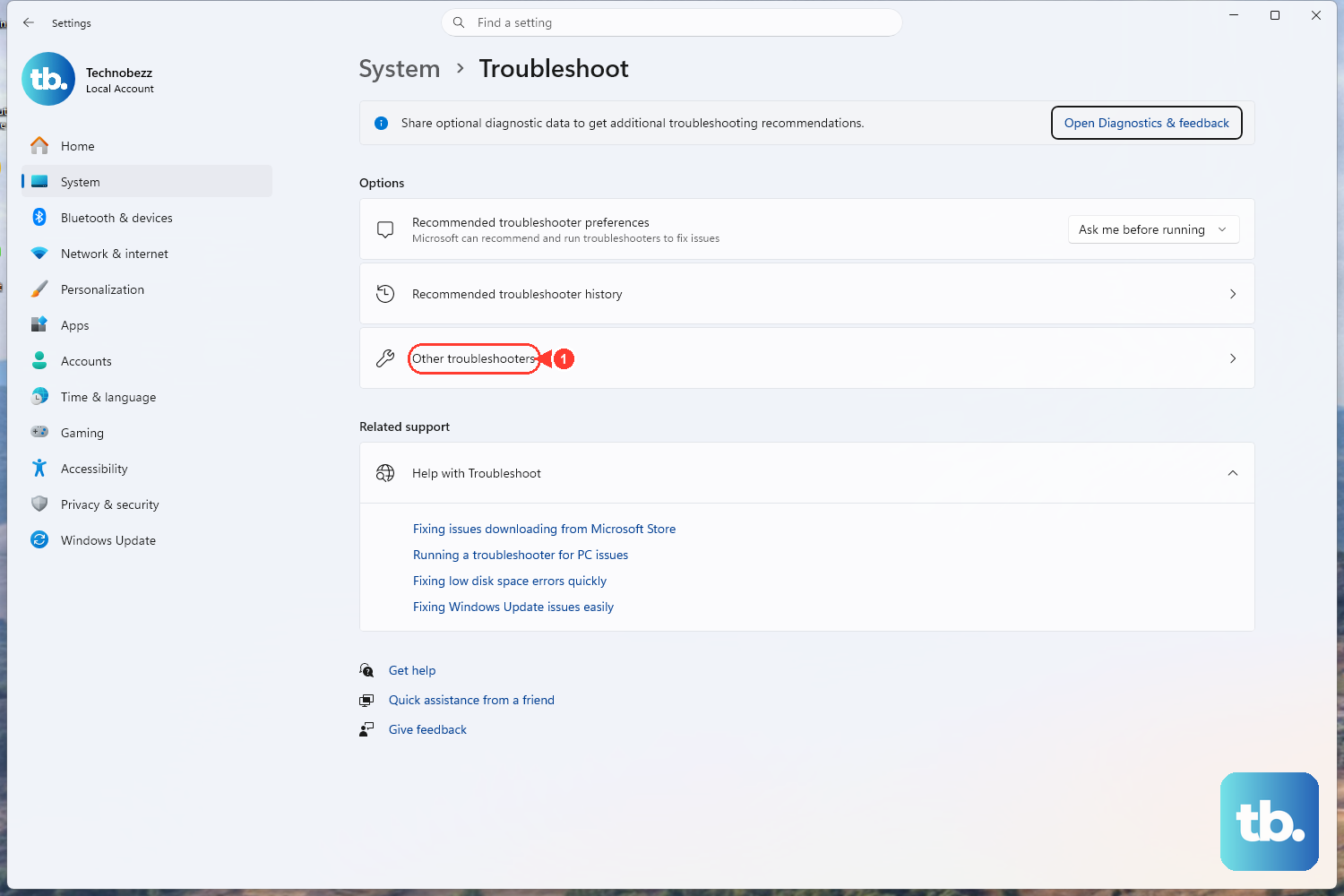
Windows ships with an automated troubleshooter that can detect and repair common connection faults without you changing anything by hand. Running it early is wise because it applies safe, supported fixes first.
On Windows 11, open the Get Help app, enter connect to network and internet in the Search bar, then select Run network diagnostics.
Windows will run diagnostics automatically and attempt repairs for you.
On Windows 10, the equivalent lives under Settings > Network & internet > Status > Network troubleshooter.
Either way, follow any on-screen prompts and let the tool finish before testing the link.
Confirm the Cable and Port Are Solid
A loose or faulty cable can keep Windows from identifying the network, so it is worth ruling out the physical layer next. This takes a moment and saves you from chasing software fixes for a hardware problem.
Confirm the Ethernet cable is firmly seated at both the PC and the router. On the router, use an Ethernet port, not the Internet port used for the modem connection.
Try a different Ethernet cable if you have one available.
Plug into a different port on the router or modem if another one is free.
If swapping the cable or port instantly fixes things, you have found your culprit. Check these physical connections before moving on to software fixes.
Reset the Network Stack From an Elevated Command Prompt
When the cable is fine but the connection still will not identify, resetting the underlying networking components often clears it. These commands release and renew your IP address, flush the DNS resolver cache, and reset the Winsock catalog and TCP/IP stack to a clean state.
First, open Command Prompt as administrator: select Search on the taskbar, type command prompt, then to the right of the Command Prompt result select Run as administrator > Yes.
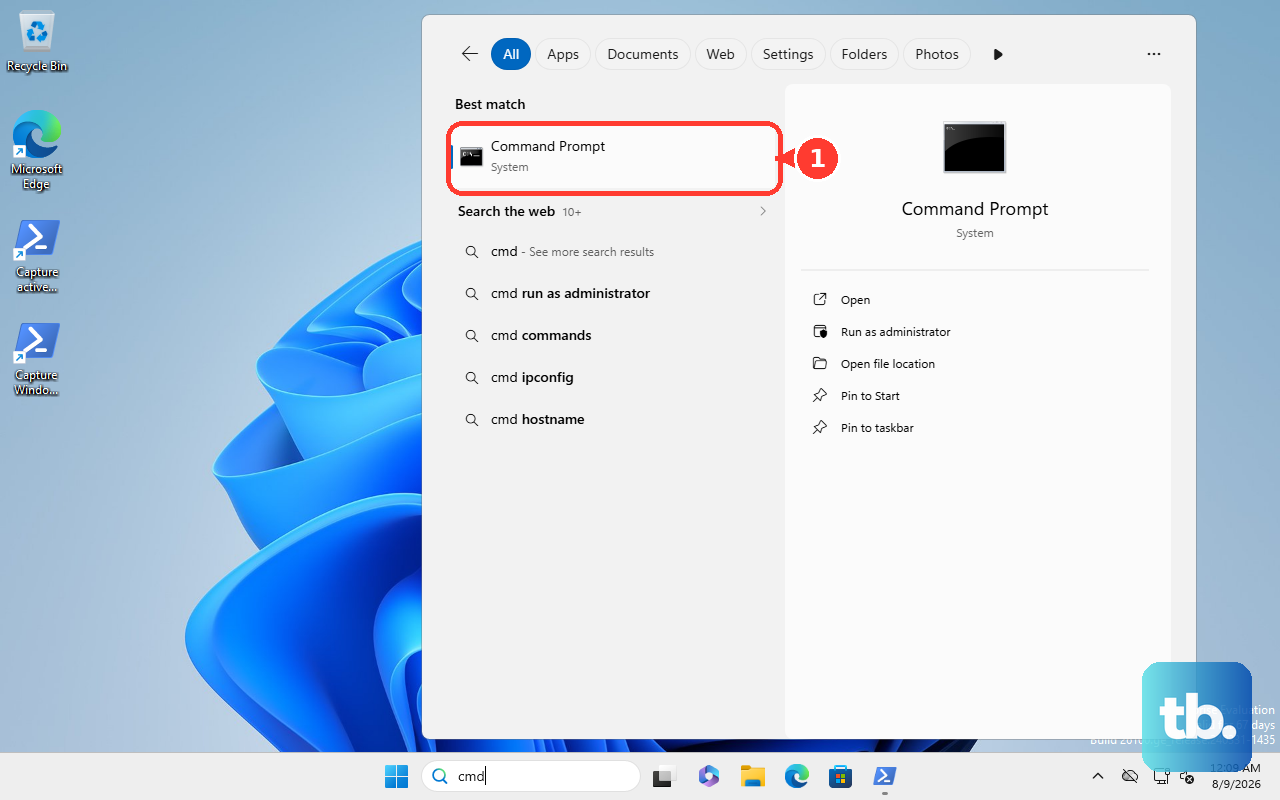
With the elevated window open, run the following commands one at a time, in this order:
- 1.
netsh winsock reset - 2.
netsh int ip reset - 3.
ipconfig /release - 4.
ipconfig /renew - 5.
ipconfig /flushdns
After the commands finish, restart the PC from Start > Power > Restart so the reset fully takes effect.
This combination commonly restores a connection that was failing to identify.
Manually Resetting TCP/IP and Saving a Log
If you want a record of the reset, you can run the TCP/IP reset and write a log file.
As an administrator, run netsh int ip reset c:\resetlog.txt to write the log to the path you specify, or netsh int ip reset resetlog.txt if you do not need a full directory path.
Restart the computer afterward.
Update the Ethernet Adapter Driver
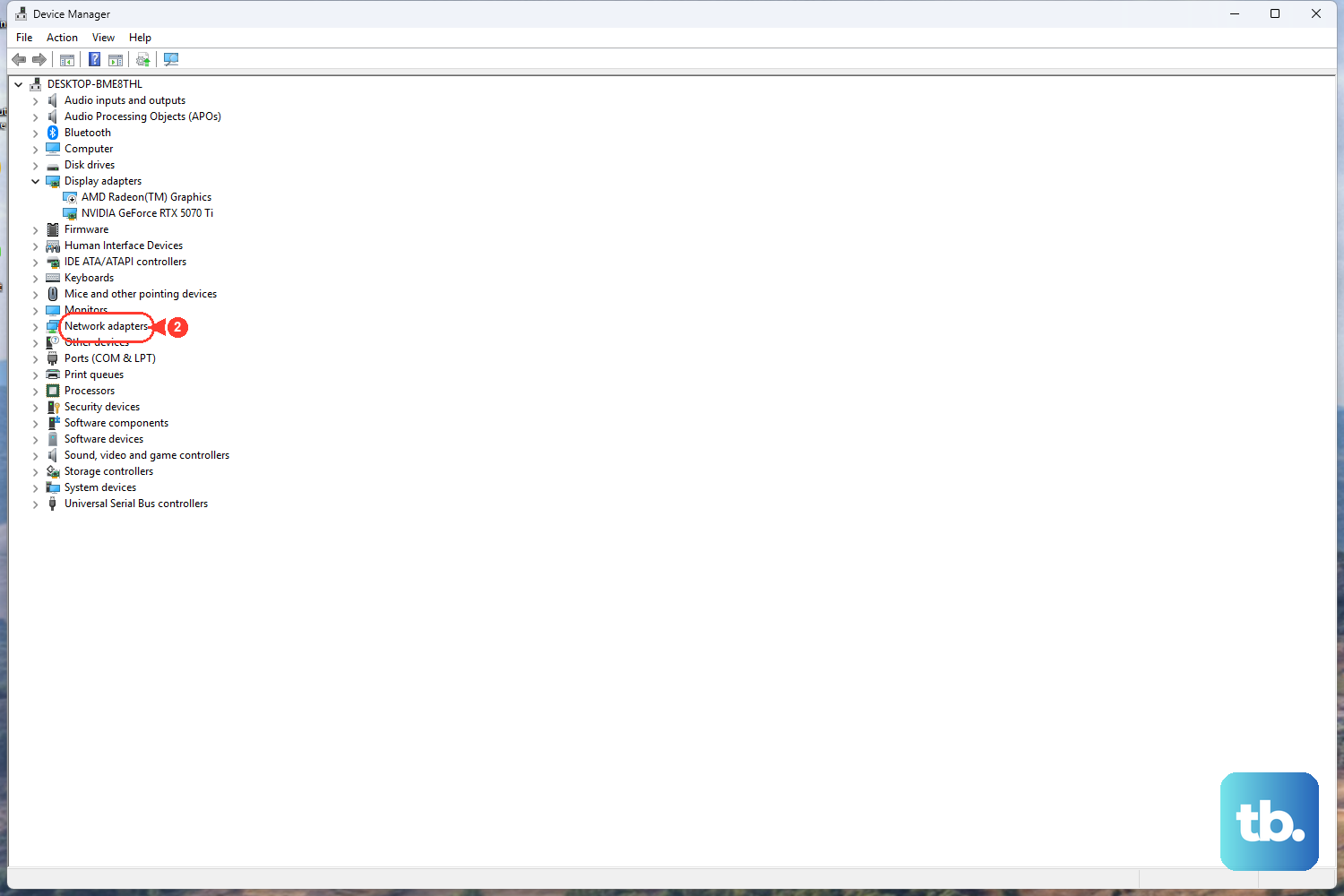
An outdated or incompatible adapter driver can cause connection problems, including a network that will not identify itself. Updating the driver through Device Manager is a low-risk way to rule this out.
Select the Start button, type Device Manager, and open it.
Expand Network adapters.
Right-click your Ethernet adapter and select Properties.
Open the Driver tab and select Update Driver.
Choose Search automatically for updated driver software.
Let Windows search for and install any newer driver it finds, then check whether the connection identifies correctly.
Reinstall the Adapter Driver if Updating Did Not Help
If updating the driver made no difference, reinstalling it gives Windows a fresh copy. Before uninstalling, download a backup Ethernet adapter driver from your PC manufacturer's website. If this PC cannot connect, use another PC and save the driver to a USB flash drive.
In Device Manager, expand Network adapters.
Press and hold (or right-click) your Ethernet adapter and select Uninstall device.
Check Attempt to remove the driver for this device.
Select Uninstall.
Restart the PC from Start > Power > Restart.
On restart, Windows attempts to reinstall the adapter driver, which can resolve a corrupted or mismatched driver that an update alone could not fix. If it does not install automatically, install the backup driver you saved.
Set DNS Servers Manually for the Ethernet Connection
If automatic settings are failing, applying a known-good DNS configuration by hand sometimes restores a stable connection. You configure this directly in Settings for the Ethernet adapter.
On Windows 11, go to Settings > Network & internet > Ethernet, then select the Ethernet network you’re connected to.
Next to IP assignment, select Edit.
Choose Manual and turn on IPv4. Enter the IP settings for your network in the IP address, Subnet mask, and Gateway boxes before entering the DNS addresses.
In the Preferred DNS and Alternate DNS boxes, type the DNS server addresses you want to use.
Select Save.
This swaps the automatic DNS settings for ones you control, which can help when the assigned settings are the source of the trouble.
When Nothing Else Works, Perform a Network Reset
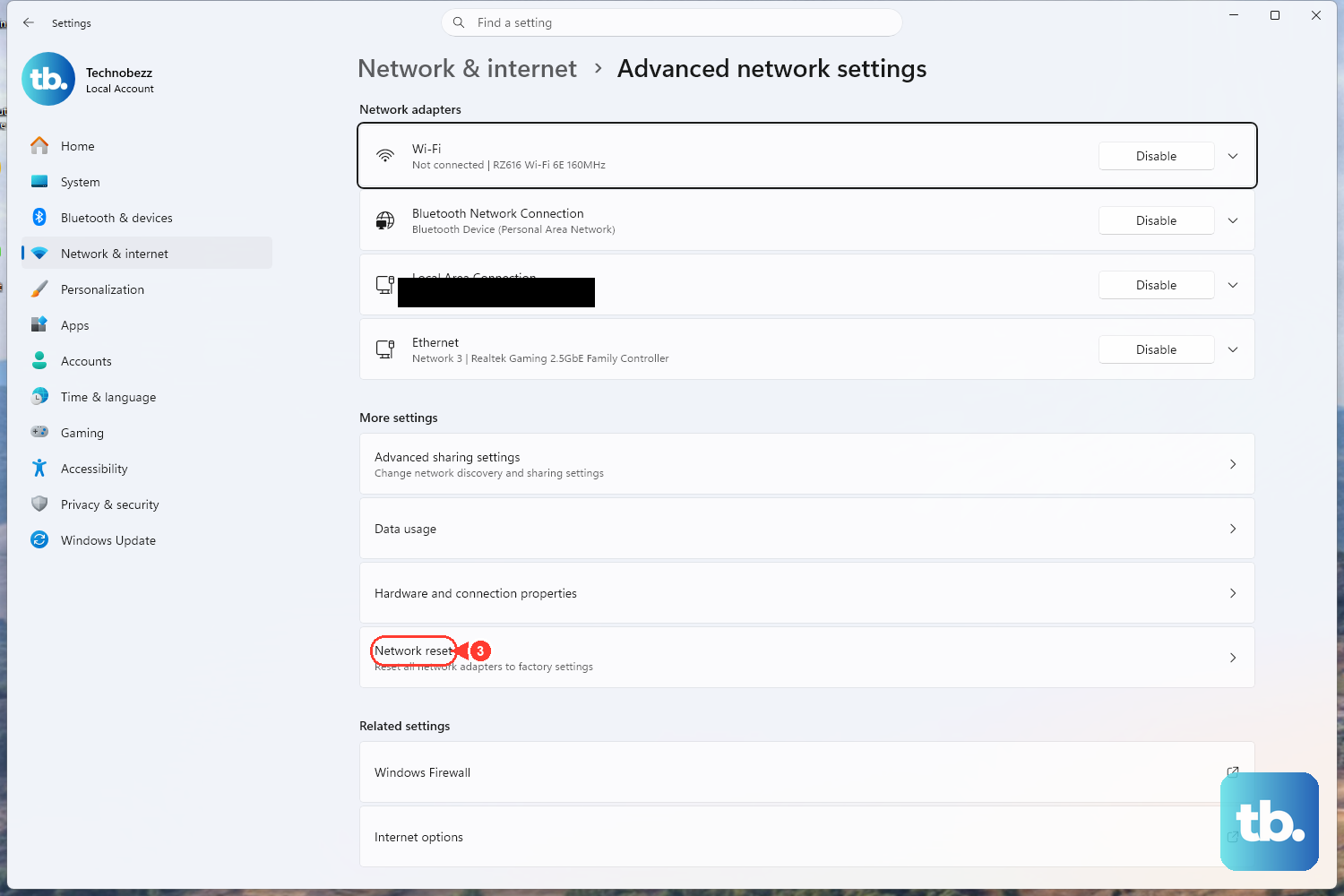
Network reset is the last step you should try, because it removes and reinstalls all of your network adapters and returns their settings to defaults after the PC restarts. Reserve it for when every gentler fix above has failed.
On Windows 11, go to Settings > Network & internet > Advanced network settings > Network reset > Reset now > Yes.
On Windows 10, the path is Settings > Network & internet > Status > Network reset.
Be aware that afterward you may need to reinstall and set up other networking software, such as VPN client software or Hyper-V virtual switches, because the reset returns the networking stack to its default state.
Once the PC restarts and you have reconnected, check whether your Ethernet connection identifies itself normally again.
Frequently Asked Questions
Why does my Ethernet show "Unidentified Network" even though the cable is plugged in?
This can point to a configuration issue, a faulty cable, or a problem with the router, ISP, or adapter. Start with the Network and Internet troubleshooter in Get Help, then check the cable and restart your PC and router. If that fails, try resetting the network stack with the ipconfig and netsh commands.
Do these fixes work on Windows 10 as well as Windows 11?
Yes. The steps apply to both versions, although some Settings paths differ. For example, Windows 11 uses Settings > Network & internet > Advanced network settings for Network reset, while Windows 10 uses Settings > Network & internet > Status. Each step above notes the version-specific path where it matters.
In what order should I run the command-line fixes?
Open Command Prompt as administrator, then run them in this exact order: netsh winsock reset, netsh int ip reset, ipconfig /release, ipconfig /renew, and ipconfig /flushdns. Restart the PC once they have all finished.
Will a Network reset delete my files or settings?
A Network reset does not touch your personal files. It removes and reinstalls all network adapters and returns their settings to defaults. After it completes you may need to reinstall and reconfigure networking software like VPN clients or Hyper-V virtual switches, so treat it as a last resort.
How do I update my Ethernet adapter driver?
Open Device Manager from the Start button, expand Network adapters, right-click your Ethernet adapter, and select Properties. On the Driver tab, choose Update Driver, then Search automatically for updated driver software so Windows can find and install any newer version.