
Your Eero 6+ node has a solid red light, and the Eero app won't recognize it. Devices in that room are either offline or hopping to a weak signal from the main router across the house. The Eero 6+ uses TrueMesh to coordinate traffic, but sometimes a node just drops off and refuses to rejoin.
Start with a full mesh power cycle. Unplug the power from your main Eero 6+ gateway and the problematic node. Wait a full 30 seconds, then plug the main gateway back in first. Wait 2-3 minutes for the main Eero to come back online (solid white light), then plug the problem node back in. Give it up to 5 minutes to sync. The light should go from blinking white to solid white. This clears most transient software hangs with TrueMesh routing.
If the light stays red or turns yellow, the node is alive but can't establish a solid connection to the main gateway. That leads to the next checks.
Decode the Light on Your Eero 6+ Node
The Eero 6+ has a clean, simple LED that tells you exactly where the link is breaking. A solid white light means the node is connected to the main gateway and the internet is flowing. A blinking white light means it's booting up or syncing. A solid red light means the node can't reach the main gateway at all, which is the exact problem we're chasing. A yellow or blue light usually means the node is in setup mode or has a weak connection that keeps dropping.
Soft Reset the Problem Node
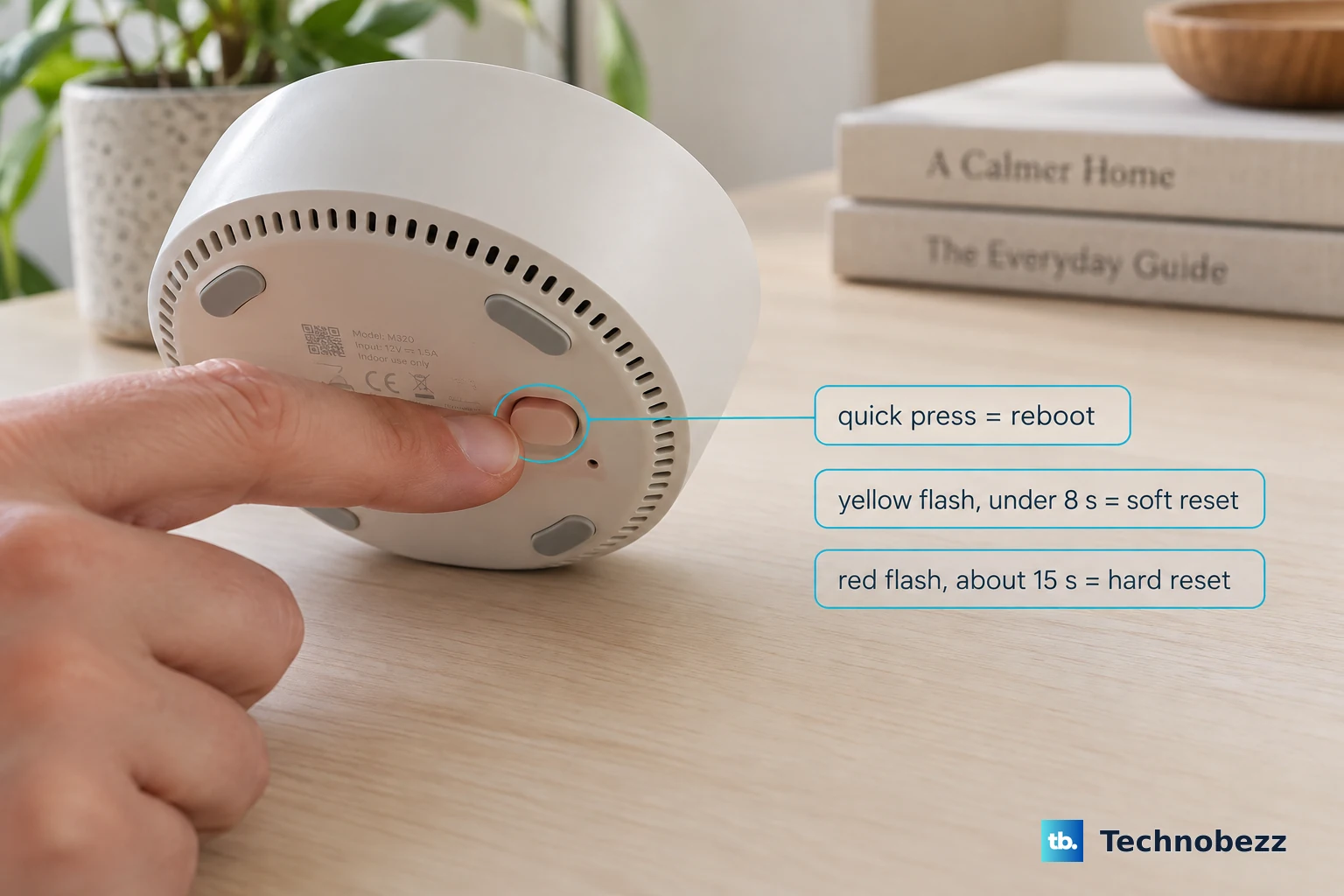
If a power cycle didn't fix the red light, try a soft reset. Locate the tiny reset button on the back of the Eero 6+, use a paperclip, and press and hold it until the LED flashes yellow (this takes about 7 seconds). Release the button. The node will reboot, but it keeps your network settings intact. Wait 3-5 minutes for it to rejoin the mesh. Most network topology hiccups resolve here without losing any custom configurations.
Factory Reset the Node
If the soft reset doesn't work and the light is still red, you need a full factory reset. Hold the reset button for about 15 seconds. Keep holding even after the yellow flash. Wait until the light flashes red, then turns white as it reboots, and eventually blinks blue when it's ready to set up. This wipes the node completely. You'll need to go into the Eero app and tap Add or Replace Node to pair it again from scratch.
Move the Nodes Closer Together
TrueMesh is smarter than a standard daisy-chain setup, but it still needs a healthy WiFi link between nodes. The Eero 6+ is dual-band, so it uses a mix of 5 GHz and 2.4 GHz for backhaul. If the problematic node is in a detached garage or on the far end of a brick-walled house, it may simply be too far away. Temporarily move the node within 20-30 feet of the main gateway (connect it to power there, no Ethernet needed). If it syncs up immediately, distance or construction is the issue. You can confirm signal strength in the app under Settings > Troubleshooting > Check Signal.
Check the Ethernet Backhaul
The Eero 6+ has two Gigabit Ethernet ports. If you ran an Ethernet cable between the node and the main gateway, or if you recently added one, that can sometimes cause a handoff hiccup. The node tries to switch from WiFi backhaul to wired backhaul, and if the cable negotiation fails or the switch doesn't pass the link properly, the node gets stuck. Unplug the Ethernet cable from the node, power cycle the node, and let it reconnect via WiFi first. Once the light is solid white, plug the Ethernet cable back in. The Eero will auto-detect the wired backhaul and switch over seamlessly.
Update the Eero 6+ Firmware
The Eero 6+ updates firmware automatically in the background, but the auto-update can stall if the mesh has a partial outage. Open the Eero app, tap Settings (bottom right), then tap Troubleshooting, then tap Check for Updates. If there's a firmware version mismatch between the main gateway and the node, the node will refuse to pair. Forcing a check usually pushes the latest firmware to all nodes in the mesh. Give the update 10 minutes to fully propagate.
Turn Off WPA3 in eero Labs
This is a very common Eero 6+ gotcha. WPA3 is available in eero Labs, but it's not enabled by default. The factory default is WPA2/WPA3 transitional (mixed mode). If you went into Settings > eero Labs and turned on WPA3, it can block older 2.4 GHz smart home devices from connecting to the mesh. More importantly for this specific node-offline problem, some third-party gateways and older nodes struggle with the WPA3 handshake. Head back to eero Labs in the app and disable WPA3. Leave it in the default WPA2/WPA3 mixed mode.
Remove and Re-Add the Node in the App
Go into the Eero app, tap the Settings gear, tap Network Settings, and scroll down to Devices. Find the problematic node (it might show as offline or with a red indicator). Tap it and choose Remove Node. Confirm the removal. Once it's removed, physically press the reset button on the node for 7 seconds until it flashes yellow, then release. Wait for the light to start blinking blue (setup mode). Back in the app, choose Add or Replace Node and scan the QR code on the bottom of the Eero 6+. This forces a completely fresh pairing handshake.
Factory Reset the Entire Mesh
If you have a larger network or the issue started after a power outage, sometimes you have to wipe the whole thing. Factory reset your main gateway Eero (hold the button for 15 seconds until the LED flashes red). Then repeat that for each node. It's a pain, but once all nodes are reset, set up the network fresh in the app. Don't restore a backup, just build it from scratch. It takes about 15 minutes but guarantees there's no lingering software mismatch.











