You open your browser, type an address, and instead of a page you get a notice telling you the DNS server is not responding. The Wi-Fi icon may still look connected, which makes the failure feel random and frustrating. The good news is that this symptom almost always traces back to a handful of fixable causes, from a stale cache on your PC to a hiccup at the router. The fixes below are ordered from the easiest and safest to the more involved, so start at the top and work down only as far as you need to.
Let Windows Diagnose It First with the Built-In Troubleshooter
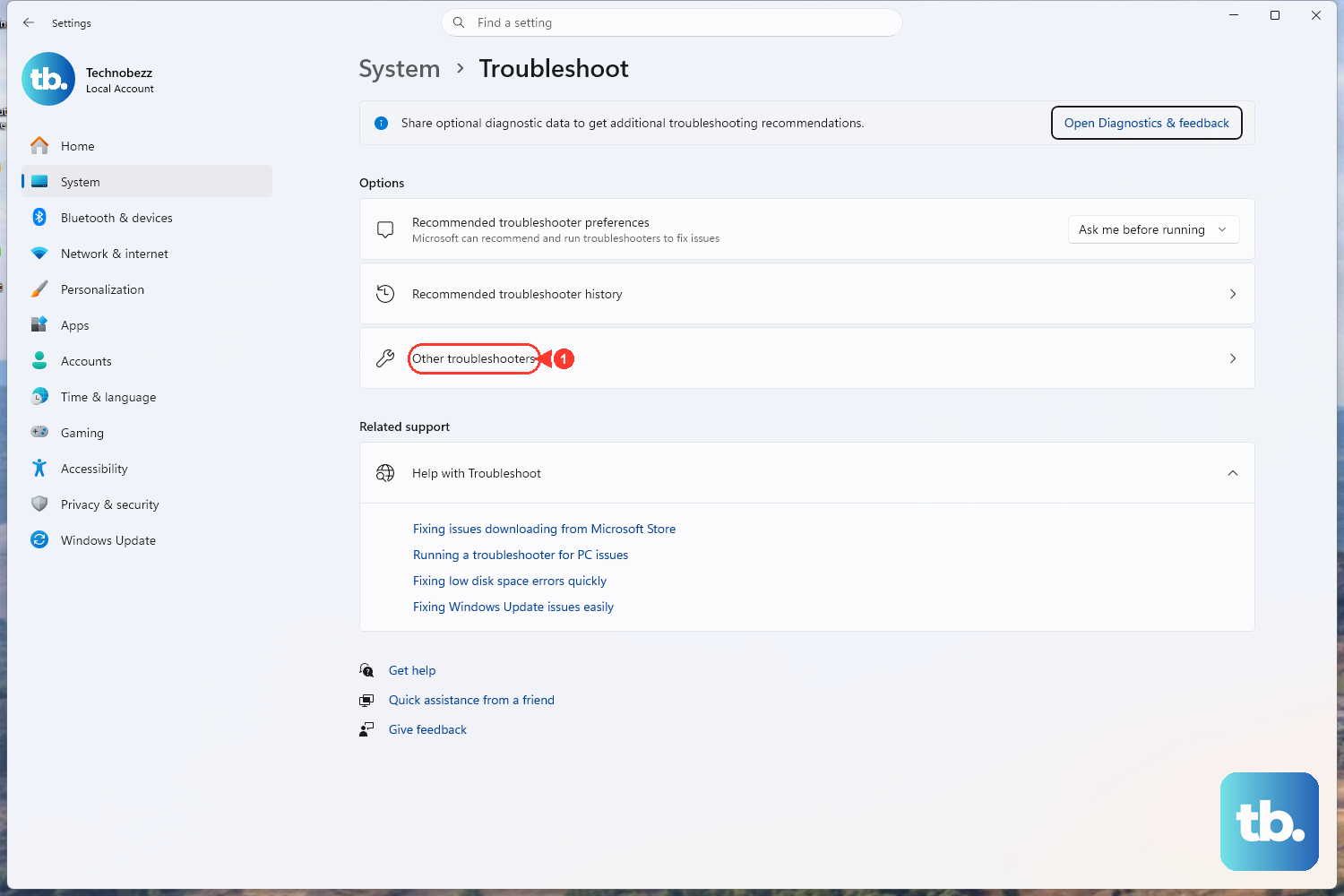
Before you touch any commands, let Windows look at the problem for you. The official troubleshooter runs diagnostics and attempts to fix most connection problems automatically, which makes it the safest possible first move.
On Windows 11, run the automated Network and Internet troubleshooter in the Get Help app. On Windows 10, the path is different: go to Start > Settings > Network & Internet > Status, scroll down, and select Network troubleshooter.
Follow whatever prompts appear and let it apply any fixes it finds. If the troubleshooter resolves the DNS error, you can stop here. If not, move on to the next step.
Power-Cycle the Modem and Router
A DNS error is often upstream at the router rather than on your PC, so restarting the hardware is a smart and risk-free early fix. Unplug both your modem and your wireless router from power, wait, then plug them back in and let them fully restart.
While you are at it, verify that all cables are firmly connected to the correct ports. A loose or wrong-port Ethernet cable can produce the same symptoms as a software fault.
Once the hardware is back up, open Settings > Network & internet to confirm the connection status. If the status reads as connected and the error is gone, you are done.
Flush the DNS Cache and Reset the Network Stack
If the hardware checks out, the next step is to clear out stale network state on your PC. This is done with a short sequence of commands, and the order matters, so follow it exactly.
First, open Command Prompt as administrator: select Search on the taskbar, type command prompt, then to the right of the Command Prompt result select Run as administrator > Yes.
Now run these commands in this exact order, pressing Enter after each one:
- 1.
netsh winsock reset - 2.
netsh int ip reset - 3.
ipconfig /release - 4.
ipconfig /renew - 5.
ipconfig /flushdns
Here is what each one does. netsh winsock reset clears the Winsock catalog; netsh int ip reset rewrites the TCP/IP registry keys; ipconfig /release and ipconfig /renew get a fresh IP address from the DHCP server; and ipconfig /flushdns clears the DNS resolver cache. If Windows prompts you to restart the PC afterward, do so.
Reset TCP/IP with the NetShell Utility
If the command sequence above did not stick, you can perform a deeper, dedicated TCP/IP reset using the NetShell utility. You must be logged on as an administrator for this to work.
Open Command Prompt as administrator again, then run netsh int ip reset c:\resetlog.txt. If you would rather not specify a directory for the log file, use netsh int ip reset resetlog.txt instead. After the command finishes, restart the computer.
This action overwrites the TCP/IP registry keys, which has the same effect as removing and reinstalling TCP/IP. It is a clean, supported way to rebuild the stack without any manual registry editing. Because it rewrites core networking settings, run it only after the lighter fixes above have not worked.
Point Windows at Different DNS Server Addresses
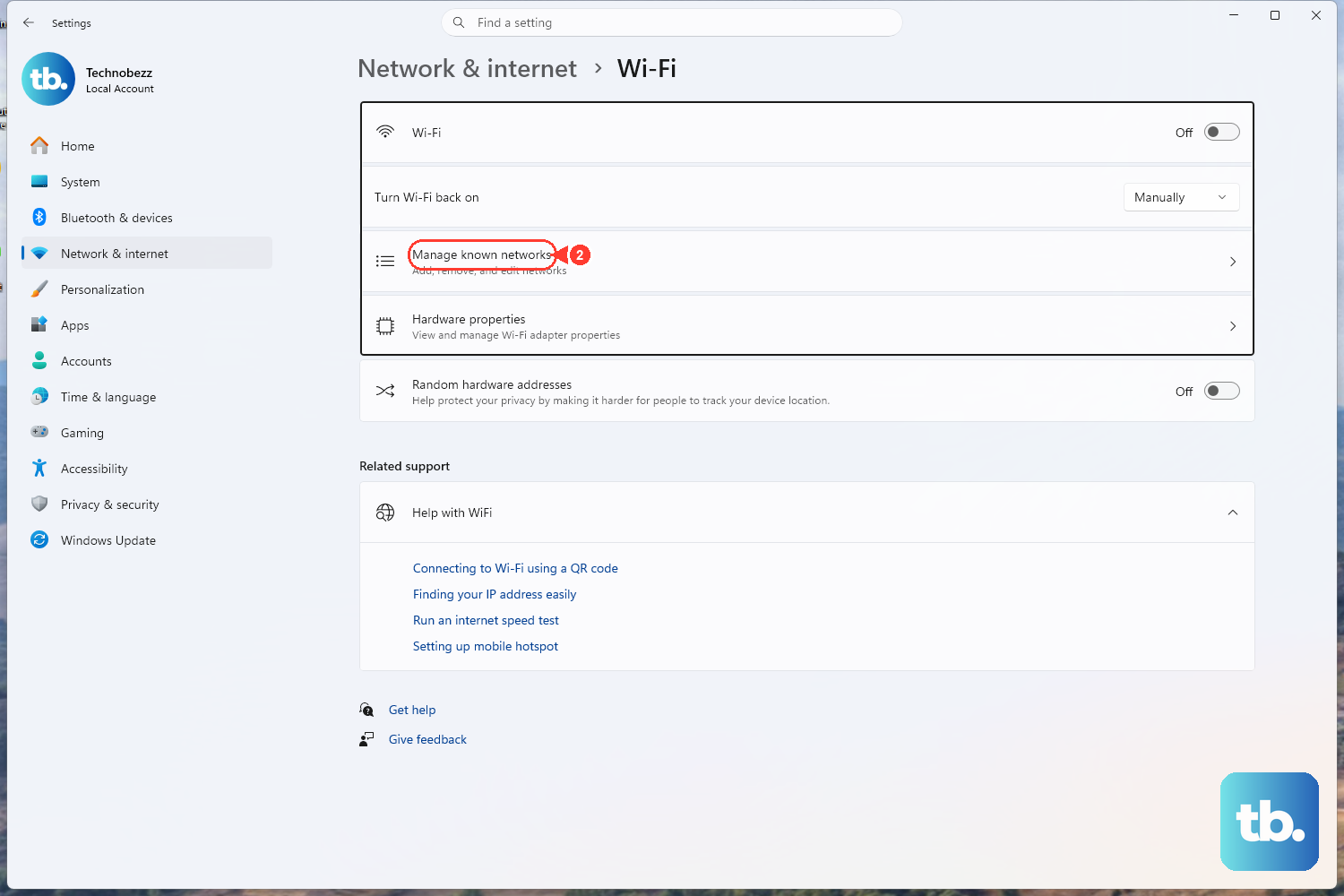
If your PC is connecting but cannot resolve names, manually setting the DNS addresses can route around a flaky default. Go to Start > Settings > Network & internet to begin.
For Wi-Fi, select Wi-Fi > Manage known networks and choose your network, or select the connected Wi-Fi network directly. For Ethernet, select Ethernet and then the connected network.
Next to IP assignment, select Edit, then choose Automatic (DHCP) or Manual. Under IPv4, type the addresses into the Preferred DNS and Alternate DNS boxes, then select Save. If you do not have specific addresses to enter, leaving the setting on Automatic (DHCP) lets Windows pull DNS from your router as normal.
Update or Reinstall the Network Adapter Driver
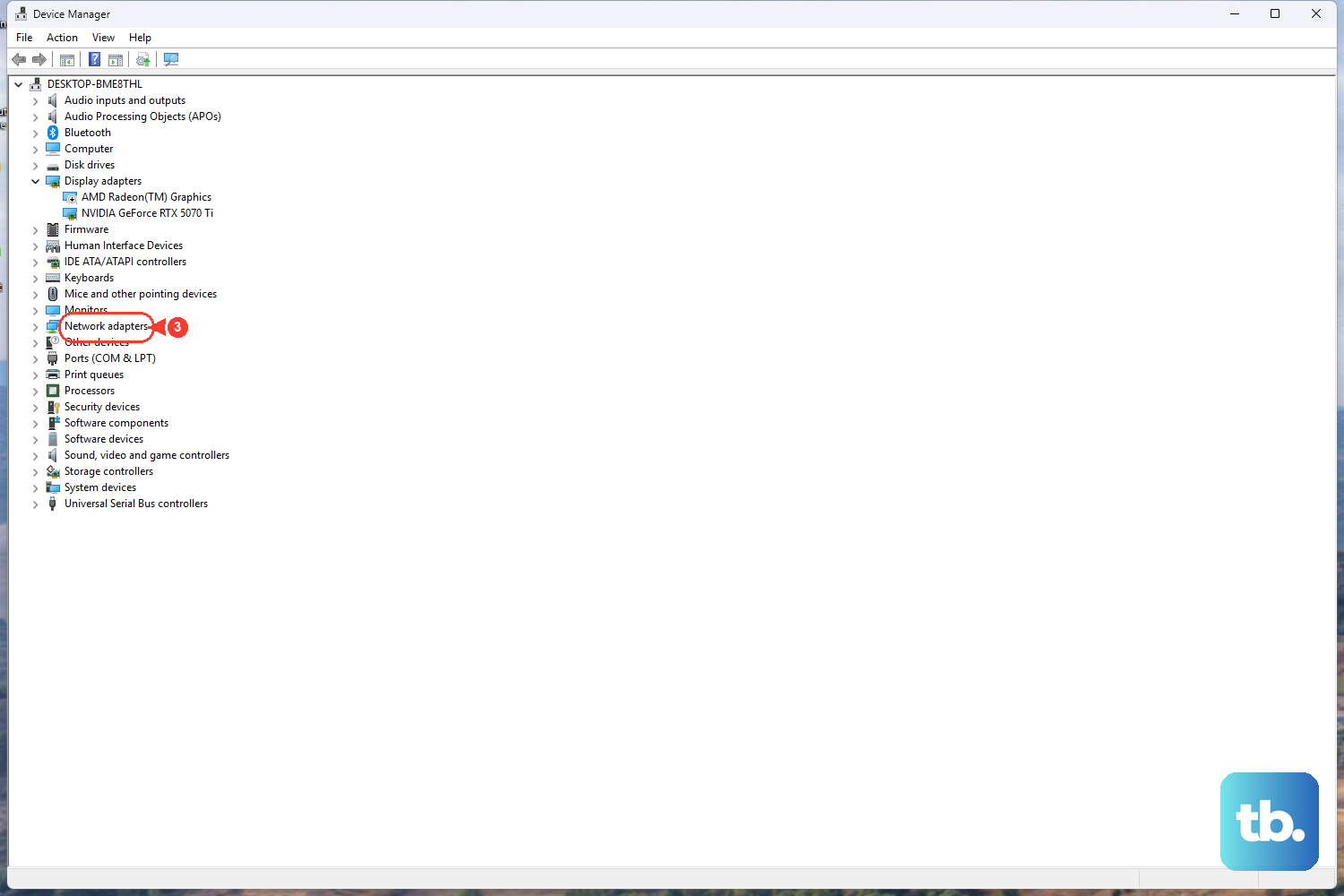
A corrupted or outdated network driver can also break name resolution. Select Search on the taskbar, type device manager, and open Device Manager, then expand Network adapters and locate your adapter.
To reinstall the driver, which is the approach the network-fix steps recommend, right-click the adapter > Uninstall device, check the box for "Attempt to remove the driver for this device," then select Uninstall. After that, restart via Start > Power > Restart so Windows automatically installs the latest driver on its own.
If you would rather update the existing driver in place, right-click the adapter > Update driver > Search automatically for drivers. This is a documented Device Manager path for refreshing a driver, and Windows will look for a newer version automatically.
Forget the Wi-Fi Network and Reconnect
If you are on Wi-Fi, the saved connection profile may be holding a bad DNS assignment. Rebuilding that profile from scratch can clear it.
Open Settings > Network & internet > Wi-Fi > Manage known networks, select your network, and click Forget. Then reconnect by selecting the network again and re-entering the password.
Because this discards and rebuilds the stored profile, any stale settings tied to that saved network are wiped out in the process. Have your Wi-Fi password on hand first, then try this step before the heavier reset below.
Use Network Reset as a Last Resort
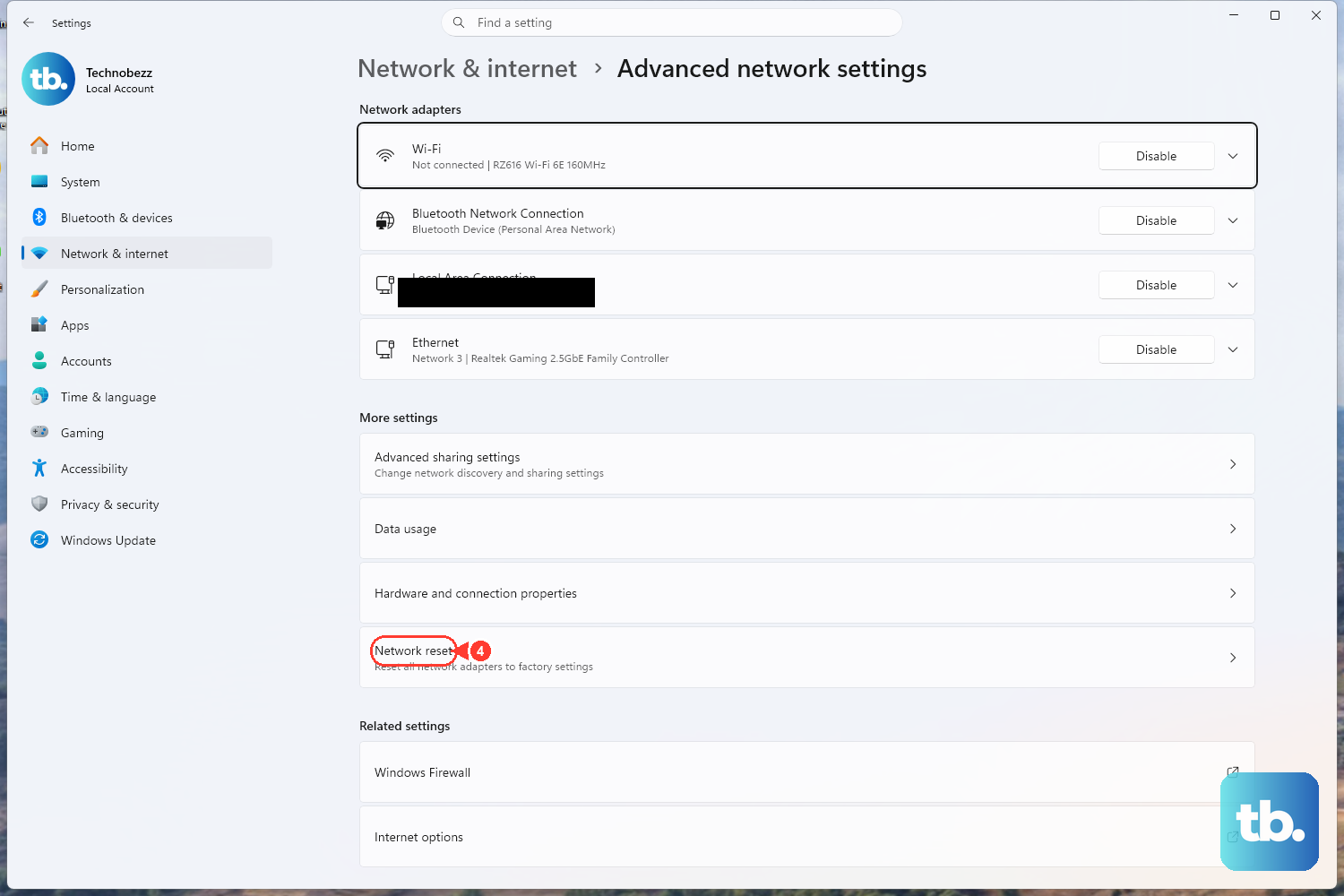
Network reset removes and reinstalls all of your network adapters and returns their settings to defaults, so reserve it for after everything above has failed. Treat it as the cleanup of last resort rather than an early step.
On Windows 11, go to Settings > Network & internet > Advanced network settings > Network reset, then select Reset now > Yes. On Windows 10, the path is Settings > Network & internet > Status > Network reset.
One thing to plan for: afterward you may need to reinstall and set up other networking software, such as VPN client software or virtual switches. Make sure you have access to that software before you run the reset.
Confirm the Problem Is Actually Your PC
If nothing has worked, it is worth verifying where the fault really lives. Try connecting to the same network from another device, such as a different PC, a phone, or a tablet.
If those other devices also fail to reach the internet, the problem is most likely with the router, the modem, or your internet service rather than your Windows PC. That single test tells you whether to keep troubleshooting Windows or to focus on your hardware and provider instead.
Frequently Asked Questions
What does "DNS server not responding" actually mean?
It is a user-facing symptom telling you that your PC could not get an answer from the DNS server it was relying on to translate website names into addresses. It is best treated as a sign that something in the connection path needs attention rather than as a single defined cause, which is why working through the steps above is the reliable way to clear it.
Which fix should I try first?
Start with the built-in troubleshooter, since Windows does the diagnosis and applies most fixes automatically with no risk. If that does not help, power-cycle your modem and router next, because DNS errors are frequently upstream at the router.
Do these steps work on both Windows 10 and Windows 11?
Yes. The commands are the same on both versions, and where the menu paths differ, both have been listed. For example, the troubleshooter is in the Get Help app on Windows 11 but under Settings > Network & Internet > Status on Windows 10, and the Network reset option sits under Advanced network settings on Windows 11 versus under Status on Windows 10.
Is Network reset safe to use?
It is supported, but it removes and reinstalls all your network adapters and returns their settings to defaults, so it should only be used after the earlier steps. Be prepared to reinstall and set up other networking software afterward, such as VPN client software or virtual switches.
How do I open Command Prompt as administrator?
Select Search on the taskbar, type command prompt, then to the right of the Command Prompt result select Run as administrator > Yes. You need this elevated window for the netsh and ipconfig commands to run correctly.