
That sudden blue screen on your Dell Inspiron 16 is Windows hitting the emergency brake. It's usually a driver conflict, a hardware hiccup, or a corrupted system file. The specific error code on the screen points to the exact problem, but the fixes below work for most common BSOD causes on this laptop.
Write Down the Stop Code
When the blue screen appears, look for the all-caps stop code. Common ones include DRIVER_IRQL_NOT_LESS_OR_EQUAL, SYSTEM_SERVICE_EXCEPTION, or KERNEL_SECURITY_CHECK_FAILURE. Jot it down. This code is your best clue for a targeted search later, but the general troubleshooting steps here will often resolve it.
Perform a Full Restart
A one-time crash can be a fluke. Press and hold the power button for about 10 seconds to force a full shutdown. Wait a moment, then press it again to turn the laptop back on. If it boots to the desktop and runs normally, you might be in the clear. If the blue screen returns quickly or during startup, you have a recurring issue to fix.
Use Dell's Built-in Diagnostics
Before diving into Windows, use Dell's hardware check. Restart your Inspiron 16 and immediately start tapping the F12 key at the Dell logo. This opens the boot menu. Use the arrow keys to select Diagnostics and press Enter. Let the extended test run; it will check your RAM, hard drive, and other components for failures.
Boot Into Windows Safe Mode
If crashes prevent a normal boot, you need Safe Mode. From the sign-in screen, hold the Shift key while you click the power icon and select Restart. After the restart, go to Troubleshoot > Advanced options > Startup Settings > Restart. When your laptop restarts again, press the 4 key to enable Safe Mode. This loads Windows with minimal drivers, which can bypass the faulty one causing the crash.
Roll Back a Problematic Update
If the blue screens started right after a Windows update, that's likely the culprit. Go to Settings > Windows Update > Update history > Uninstall updates. Look for the most recent quality update or feature update, select it, and click Uninstall. I've seen this resolve crashes that appeared out of nowhere after a patch Tuesday.
Update Your Drivers Properly
Outdated or corrupt drivers are the most common cause of BSODs. Don't just use Windows Update. Go to Dell's support website, enter your Inspiron 16 service tag, and download the latest drivers for your chipset, audio, and network adapters. For critical components like your GPU (whether it's Intel Iris Xe, NVIDIA, or AMD), get the driver directly from the manufacturer's site. Dell's SupportAssist app can also automate this scan and update process for you.
Scan for Corrupted System Files
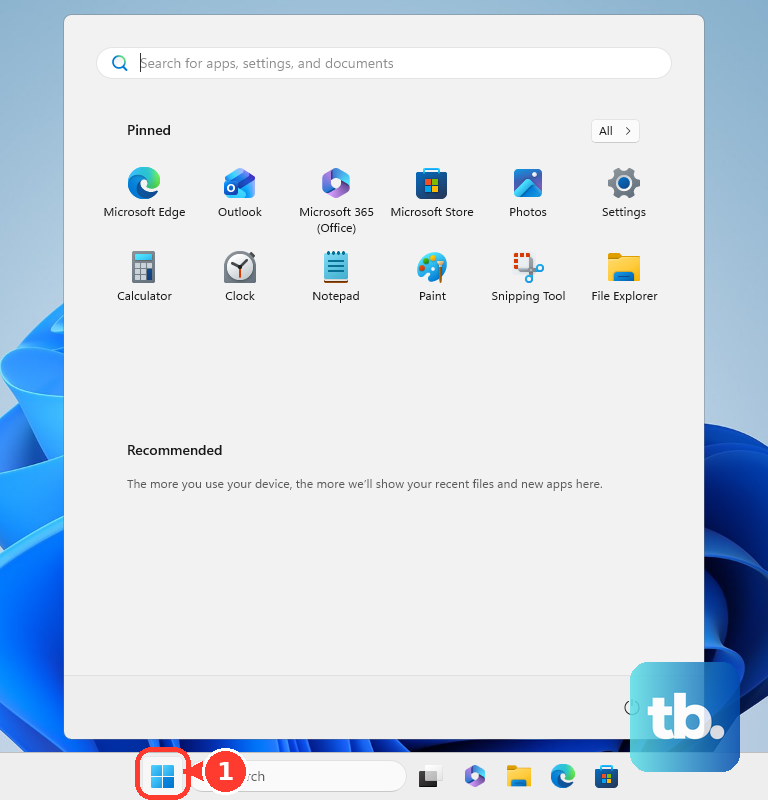
Open the Start menu, type cmd, right-click on Command Prompt, and select Run as administrator. In the window, type sfc /scannow and press Enter. This System File Checker will scan and repair Windows system files. If it finds corruption it can't fix, run this command first: DISM /Online /Cleanup-Image /RestoreHealth. After it finishes, run the sfc command again.
Test Your Memory and Storage
Faulty RAM can cause all sorts of random crashes. Search for Windows Memory Diagnostic in the Start menu and run it. Choose to restart now and check for problems. The test runs before Windows loads. After reboot, check the notification area for results. For your drive, open an admin Command Prompt and type chkdsk C: /f /r. Type Y to schedule the scan for the next restart, then reboot your laptop.
Check for Overheating and Power Issues
The Inspiron 16 can run hot under load. If blue screens happen during gaming or video editing, overheating is a prime suspect. Make sure the vents on the bottom and sides are not blocked. Use a can of compressed air to blow dust out of the fan vents. Also, try plugging directly into a wall outlet instead of a power strip to rule out unstable power delivery.
Reset or Refresh Your PC
If all else fails, a reset can wipe out deep-seated software conflicts. Go to Settings > System > Recovery. Click Reset PC. Choose Keep my files to reinstall Windows while preserving your personal data. This is a last resort, but it often clears up persistent blue screen errors related to system file corruption or driver conflicts that other tools can't fix.