
That sudden blue screen on your Dell Inspiron 15 is Windows hitting the emergency stop button. It's usually a driver conflict, a hardware hiccup, or a corrupted system file. The specific error code on the screen points to the exact problem, but the fixes below work for most of them.
Write Down the Stop Code
When the blue screen appears, look for the all-caps stop code. Common ones include DRIVER_IRQL_NOT_LESS_OR_EQUAL, SYSTEM_SERVICE_EXCEPTION, or KERNEL_SECURITY_CHECK_FAILURE. Jot it down. You can search for it later, but starting with these general steps often resolves the issue without needing the code.
Perform a Full Restart
A single blue screen can be a random glitch. Hold the power button down for about 10 seconds until the laptop turns off completely. Wait a few seconds, then press the power button again to turn it on normally. If it boots to the desktop and runs fine, it was likely a one-time event. If the blue screen comes back quickly, you have a recurring issue to fix.
Boot Into Safe Mode
If the laptop crashes before you can log in, you need to get into Safe Mode. From the sign-in screen, hold the Shift key while you click the power icon and select Restart. After it reboots to a blue menu, go to Troubleshoot > Advanced options > Startup Settings > Restart. When it restarts again, press the 4 key to enable Safe Mode. This loads Windows with only essential drivers, which can bypass the faulty software causing the crash.
Undo Recent Changes
Think about what changed just before the blue screens started. If it was after a Windows Update, you can roll it back. Go to Settings > Windows Update > Update history > Uninstall updates. Look for the most recent quality update and uninstall it. If you installed a new program or a driver update, uninstall that from the Control Panel. I've seen recent graphics driver updates cause conflicts on some Inspiron models.
Update Your Drivers Properly
Outdated or incorrect drivers are the most common cause of these crashes. Don't just rely on Windows Update. Go to Dell's support site, enter your Service Tag, and download the latest drivers for your specific Inspiron 15 model. Pay special attention to the chipset, graphics, and network adapter drivers. For the touchpad, Dell often has a precision driver update that fixes erratic behavior and can prevent related system crashes.
Run the System File Checker
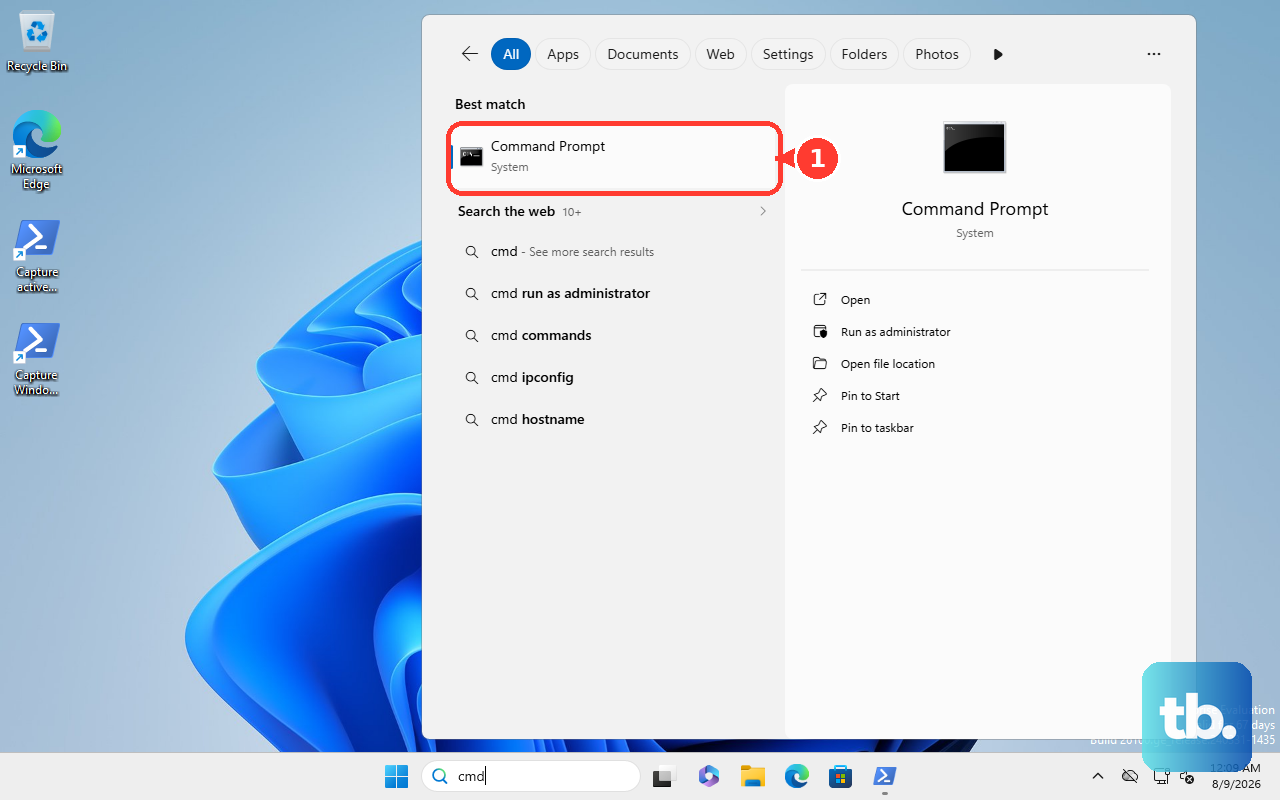
Corrupted Windows system files can trigger blue screens. Right-click the Start button and select Terminal (Admin) or Command Prompt (Admin). Type sfc /scannow and press Enter. Let it run through the scan; it will attempt to repair any damaged files it finds. If it finds problems it can't fix, run DISM /Online /Cleanup-Image /RestoreHealth first, then try the sfc command again.
Test Your Memory
Faulty RAM is a classic culprit. Search for Windows Memory Diagnostic in the Start menu and run it. Choose Restart now and check for problems. Your laptop will reboot and run a series of memory tests before Windows loads. If it finds any errors, you'll see a report after it boots. This usually means you need to reseat the RAM modules or replace one that's failing.
Check Your Storage Drive
This is important, especially if you have a slower SSD in a budget configuration. Open an Administrator Command Prompt again and type chkdsk C: /f /r. It will schedule a check for the next restart. Type 'Y', restart your laptop, and let it run. The process checks for file system errors and bad sectors. If it finds and fixes many errors, it's a good sign. If the drive is constantly having issues, it might be failing.
Monitor for Overheating
If blue screens happen during demanding tasks like gaming or video editing, overheating is likely. The CPU or GPU gets too hot, and Windows crashes to prevent damage. Make sure the laptop vents on the bottom and sides are clear of dust and not blocked by a blanket or your lap. Using a laptop cooling pad can help a lot with airflow on these models.
Use Dell SupportAssist
Your Inspiron 15 likely came with Dell SupportAssist. Open it and run a full hardware scan. It can check your drive health, memory, battery, and fan performance, and it often flags driver issues. Let it run its weekly health check if you have it enabled. It can sometimes identify a failing component before it causes a full system crash.
Reset Windows
If you've tried everything and the blue screens won't stop, a reset is your next step. Go to Settings > System > Recovery and click Reset this PC. Choose Keep my files to reinstall Windows while preserving your personal documents. This cleans out all system files and drivers, giving you a fresh start. It's the most reliable way to eliminate deep-seated software conflicts.