
Screen flickering on your Dell G16 can turn a gaming session into a frustrating slideshow, with rapid flashes, horizontal lines, or intermittent blackouts. It's a common issue with a few clear culprits, and the fix is usually just a few clicks away.
I'd start by checking if the flickering is system-wide or just in a specific app. Press Ctrl + Shift + Esc to open Task Manager and watch it closely. If Task Manager itself flickers, you're likely dealing with a graphics driver problem. If Task Manager stays perfectly stable while your game or desktop flickers, the issue is probably with a specific application.
Update Your Graphics Drivers
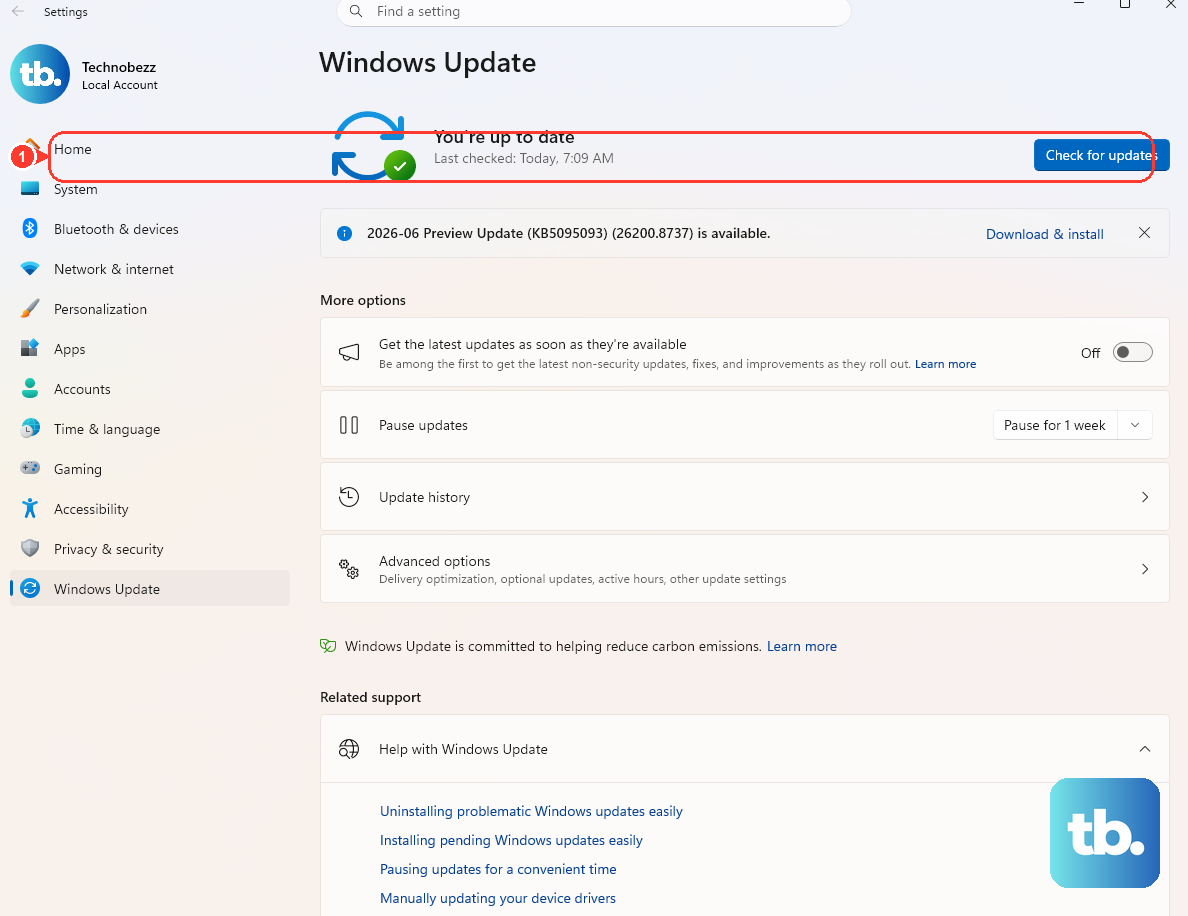
For the G16, this is the most important step. Don't rely on Windows Update for this. Go directly to the NVIDIA or AMD website, use their driver detection tool, and download the latest Game Ready or Adrenalin driver. During installation, choose the "Custom" option and select "Perform a clean installation" to wipe out old driver files that could be causing conflicts.
Using Alienware Command Center to update drivers can sometimes lag behind. Getting them straight from the source ensures you have the latest optimizations and bug fixes, especially for newer games that might trigger flickering on older driver versions.
Adjust Your Display Refresh Rate
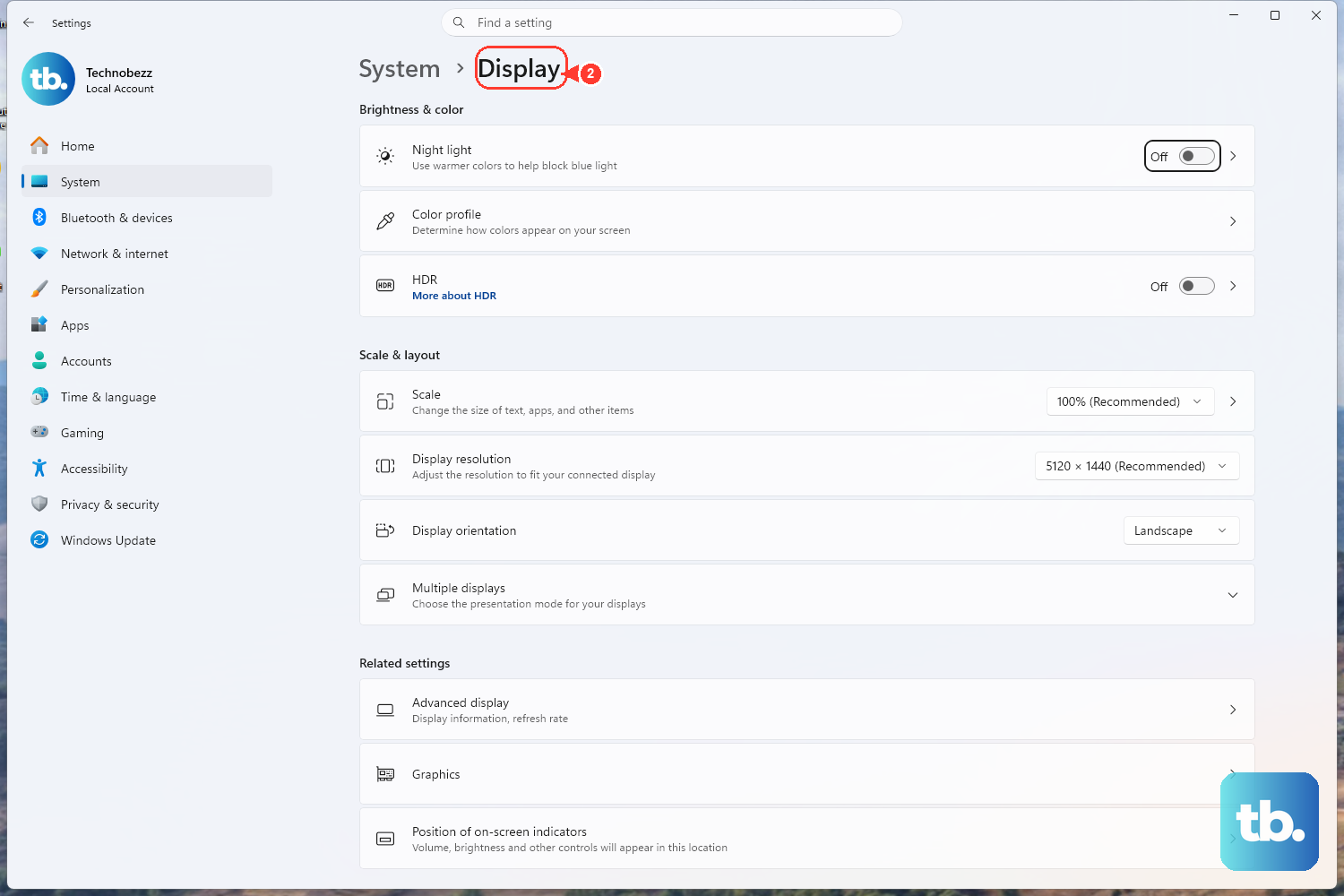
Right-click your desktop and select Display settings. Scroll down and click Advanced display. Here, you can see and change your refresh rate. If your G16 has a 165Hz panel, try dropping it to 144Hz or 60Hz temporarily to see if the flickering stops.
Some flickering, especially in menus or during loading screens, can be caused by a mismatch between the game's frame rate and the monitor's refresh rate. Enabling V-Sync or G-Sync/FreeSync in your game's graphics settings can often smooth this out completely.
Disable Hybrid Graphics (NVIDIA Optimus)
The G16 uses NVIDIA Optimus to switch between the integrated Intel GPU for basic tasks and the discrete NVIDIA GPU for gaming. This switching can sometimes cause flickering. You can force the laptop to use only the dedicated GPU. Restart your laptop and press F2 repeatedly to enter the BIOS.
Navigate to the Display section and look for a setting called "Hybrid Graphics" or "Optimus." Disable it. This will make your system use the powerful NVIDIA GPU all the time, which can resolve flickering and even boost performance, though it may reduce battery life when unplugged.
Manage Performance and Thermal Settings
Open the Alienware Command Center. Go to the Fusion tab and check your thermal profile. If the system is overheating, the GPU can thermal throttle, which might manifest as screen artifacts or flickering under heavy load. Switch to a more aggressive cooling profile like "Performance" or "Full Speed" to keep temperatures in check during long gaming sessions.
Also, check the "Overclocking" section if you've applied any manual overclocks to the GPU or VRAM. An unstable overclock is a prime cause of graphical glitches. I'd recommend resetting any overclocks to default to see if that stabilizes the display.
Disable Hardware Acceleration in Apps
If flickering only happens in a web browser like Chrome or Discord, turn off hardware acceleration. In Chrome, go to Settings > System and toggle off Use hardware acceleration when available. Restart the browser. This hands off graphics processing from your GPU to your CPU for that app, which can resolve conflicts.
Roll Back a Problematic Driver
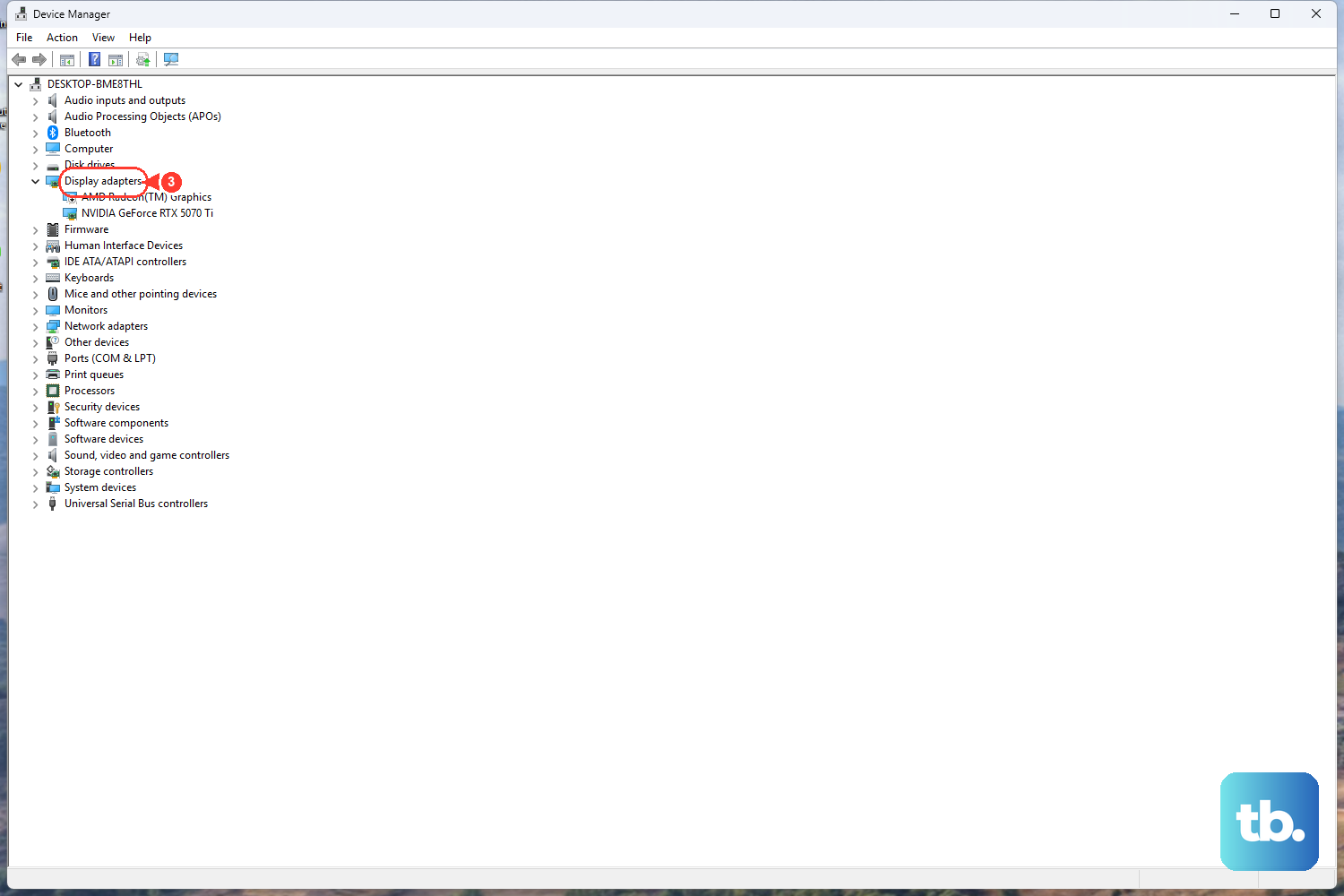
If the flickering started right after you updated your graphics driver, rolling back can be a quick fix. Type "Device Manager" into the Windows search bar and open it. Expand Display adapters, right-click your NVIDIA GeForce RTX card, and select Properties.
Go to the Driver tab and click Roll Back Driver. Follow the prompts. This will revert to the previous driver version that was working correctly. After the rollback, consider pausing Windows Updates for a bit to prevent it from automatically reinstalling the problematic driver.
Run a Display Cable Check
This is a hardware check. Does the flickering get worse when you gently flex the laptop screen or open and close the lid? If so, the internal display cable (an eDP cable) might be loose or failing. This is less common but something to be aware of, as it would require a repair.
You can also try connecting your G16 to an external monitor or TV via HDMI. If the external display works perfectly without flickering, it points more strongly to an issue with the laptop's internal screen or its connection.
Perform a Clean Boot
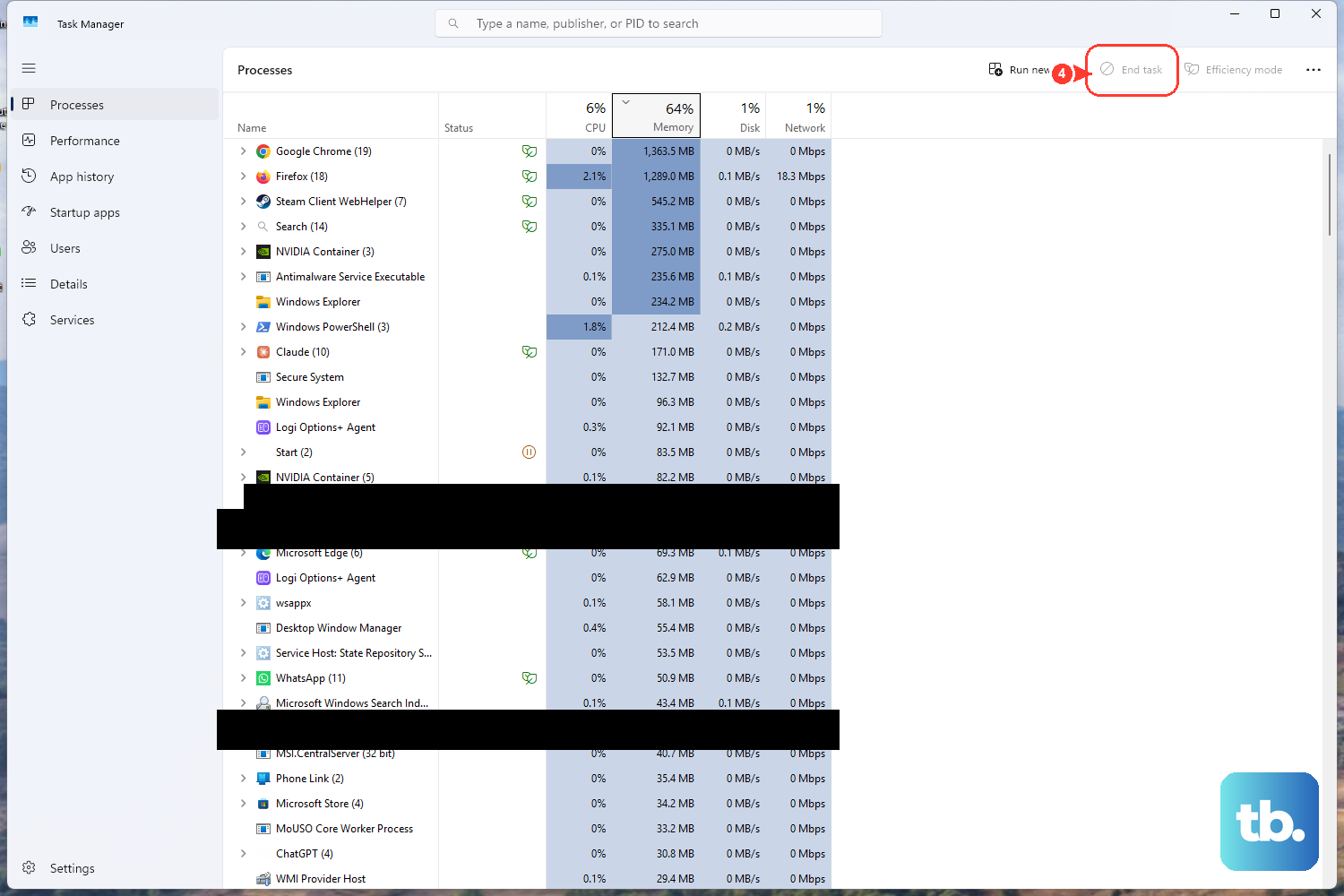
This helps determine if a background program is causing the issue. Type "System Configuration" into the Windows search bar and open it. Go to the Services tab, check Hide all Microsoft services, then click Disable all. Next, go to the Startup tab and click Open Task Manager. Disable every startup item there.
Click OK and restart your laptop. If the flickering is gone, you enabled a service or startup item back one by one, restarting each time, until you find the culprit. Common offenders can include third-party antivirus software, RGB lighting controllers, or older utility apps.