
That sudden blue screen on your Dell G16 can be a real gut punch, especially in the middle of a game. It's Windows hitting the emergency stop button because something went critically wrong, often related to a driver, hardware, or system file. The good news is you can usually track it down and fix it yourself.
Write Down the Stop Code
When the blue screen flashes, look for the all-caps error code near the bottom, like VIDEO_TDR_FAILURE or SYSTEM_SERVICE_EXCEPTION. This is your biggest clue. Snap a photo with your phone if you can't write it down fast enough. While the general fixes here work for most BSODs, that specific code can point you right to the culprit, like a GPU driver issue.
Perform a Full Restart
First, just restart the laptop normally. A single blue screen can sometimes be a random glitch. If it boots up fine to Windows and runs without another crash for a while, you might have just gotten unlucky. If the blue screen comes back immediately during startup or within a few minutes of logging in, you've got a persistent problem that needs solving.
Boot Into Safe Mode to Isolate the Issue
If the crashes are preventing you from reaching the desktop, you'll need to boot into Safe Mode. From the sign-in screen, hold the Shift key and click the power icon, then select Restart. After it reboots to a blue menu, go to Troubleshoot > Advanced options > Startup Settings > Restart. When it restarts again, press the 4 key to enable Safe Mode. This loads Windows with only essential drivers, which can help you determine if a third-party app or driver is causing the crash.
Roll Back a Problematic Update
Think about when the blue screens started. If it was right after a Windows Update, you can uninstall that update. Go to Settings > Windows Update > Update history > Uninstall updates. Look for the most recent quality update or feature update, right-click it, and select Uninstall. I've seen this resolve BSODs that appeared out of the blue after a patch Tuesday.
Update Your Graphics Drivers the Right Way
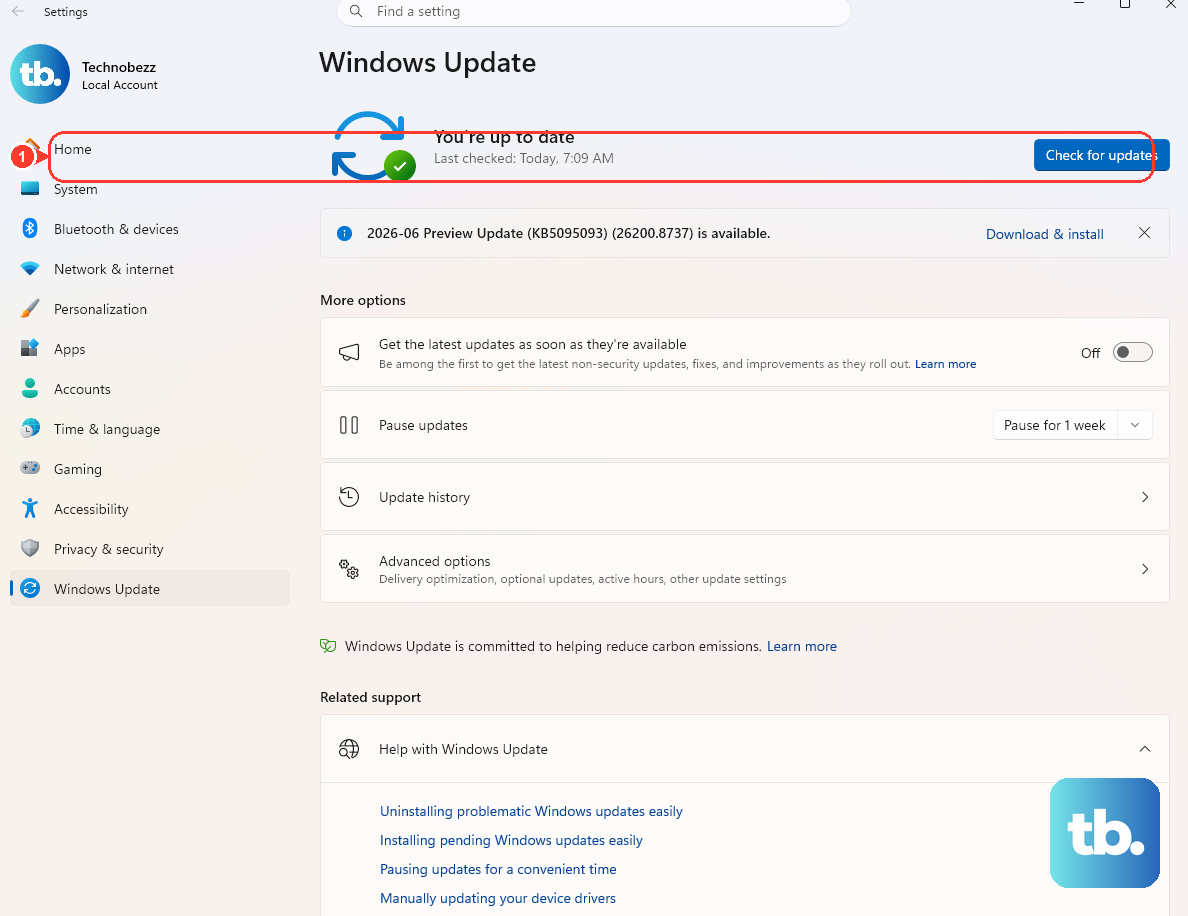
For a gaming laptop like the G16, the graphics drivers are the most common source of blue screens, especially with hybrid graphics setups. Do not rely on Windows Update for these. Go directly to the NVIDIA or AMD website, use their driver detection tool, and download the latest Game Ready or Adrenalin driver. During installation, choose the "Custom" option and check the box for Perform a clean installation. This completely removes old driver files before installing the new ones.
Use Alienware Command Center for Thermal Management
The G16 is powerful, and that heat needs to go somewhere. If blue screens happen during intense gaming sessions, thermal throttling or overheating could be the cause. Open the Alienware Command Center (AWCC) and check your thermal profiles. Make sure the fans are set to a performance mode and that the vents on the bottom and sides aren't blocked. Using a laptop cooling pad can make a significant difference here.
Run the System File Checker
Corrupted Windows system files can lead to all sorts of instability. To check for this, right-click the Start button and select Terminal (Admin) or Command Prompt (Admin). Type the command sfc /scannow and press Enter. Let it run through the scan; it will automatically repair any corrupted files it finds. If it finds problems it can't fix, run DISM /Online /Cleanup-Image /RestoreHealth first, then run sfc again.
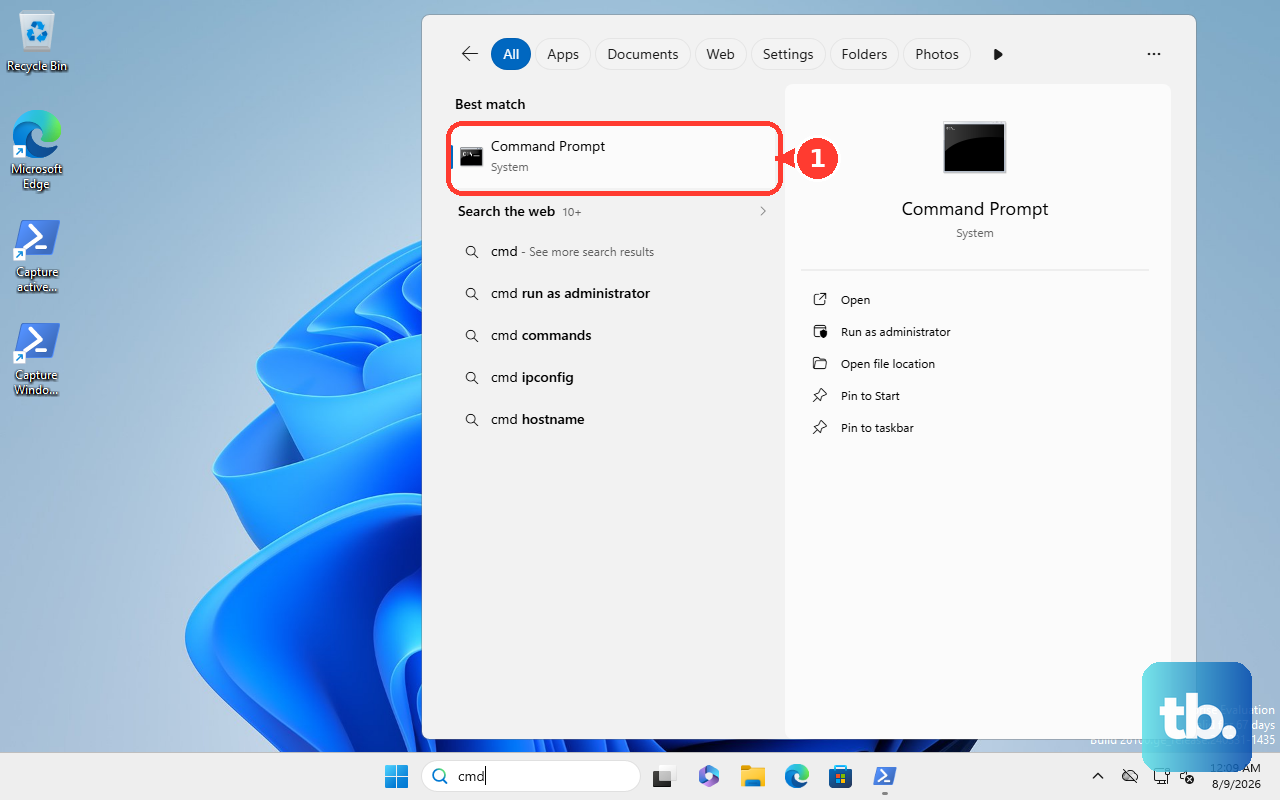
Check Your RAM with Windows Memory Diagnostic
Faulty memory is a classic BSOD trigger. Search for "Windows Memory Diagnostic" in the Start menu and run it. Choose Restart now and check for problems. Your laptop will reboot and run a comprehensive memory test before Windows loads. If it finds any errors, you'll see a notification after you log back in. This could mean you need to reseat the RAM modules or potentially replace one.
Scan Your Drive for Errors
Storage issues can also cause crashes. Open an admin Command Prompt again and type chkdsk C: /f /r. It will tell you it can't run because the volume is in use and ask if you want to schedule the scan for the next restart. Type Y and then restart your laptop. The check will run before Windows boots, looking for and repairing file system errors or bad sectors on your SSD.
Adjust Graphics Settings in BIOS
Some G16 users have reported blue screens related to the NVIDIA Optimus graphics switching technology. You can try disabling this hybrid mode. Restart your laptop and repeatedly tap the F2 key to enter the BIOS. Look for a display or graphics setting, often called "Switchable Graphics" or "Hybrid Graphics," and change it to "Discrete Graphics" mode. This forces the laptop to use only the powerful NVIDIA GPU, which can sometimes resolve driver conflict crashes.
Reset Your PC as a Last Resort
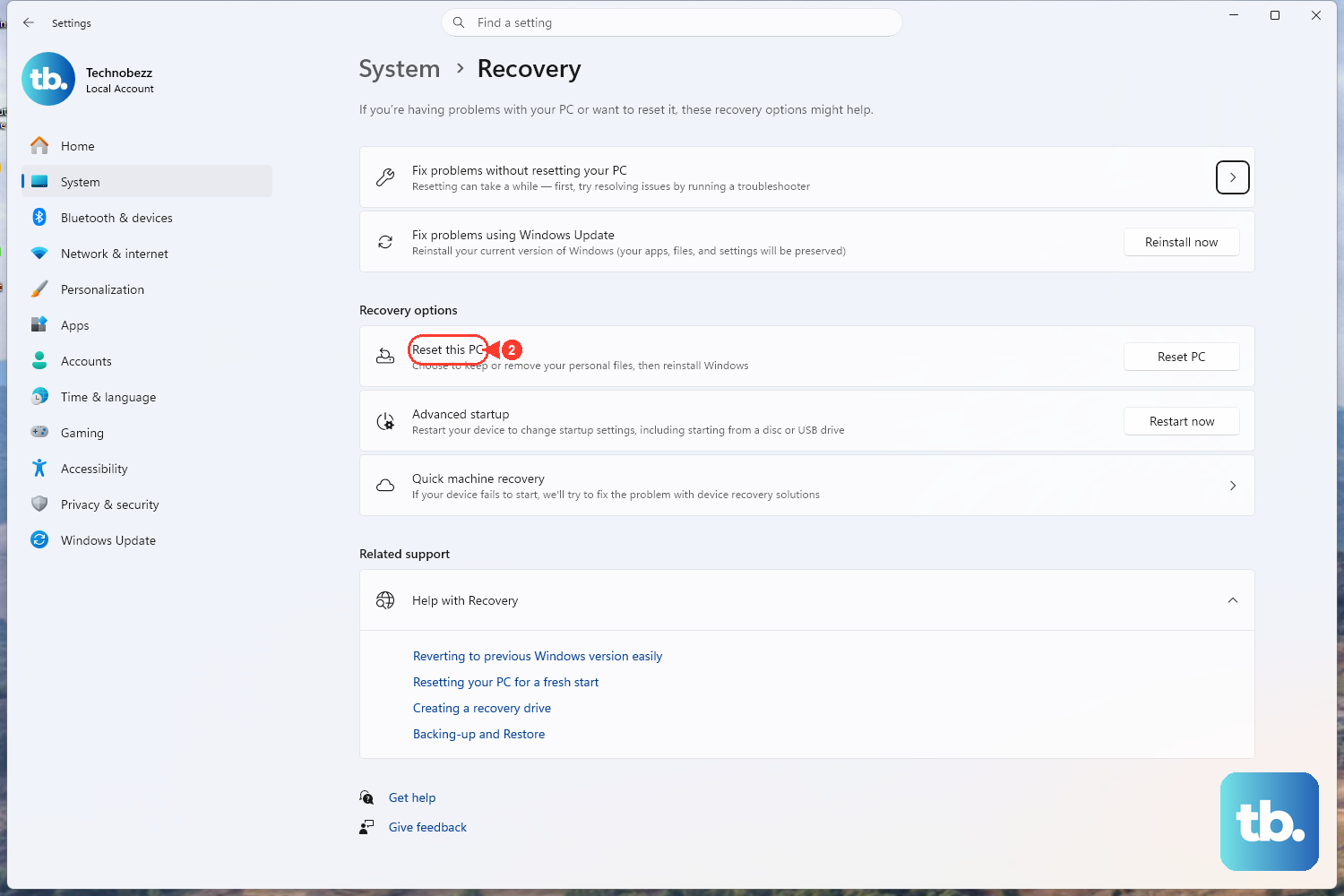
If you've tried everything and the blue screens won't stop, a Windows reset is a powerful solution. Go to Settings > System > Recovery and click Reset this PC. Choose Keep my files. This will reinstall Windows 11 while preserving your personal documents, photos, and most user-installed apps, but it will remove all desktop applications and settings, which often clears out the deep-seated driver conflict causing the crashes.