You open Windows Security expecting the green checkmark, and instead the protection service looks stalled, switched off, or unresponsive. That kind of gap is unsettling, because it can mean anything from a perfectly normal handoff to another security app to a genuinely broken component on your PC. The good news is that almost every cause has a built-in, first-party fix, and you can work through them in order without touching anything risky. This guide walks Windows 11 and Windows 10 users from the safest checks to the deeper repairs, so you only escalate if the simple steps do not stick.
First, Rule Out a Second Antivirus
Before you change a single setting, confirm whether another security program is installed. Microsoft documents this behavior plainly: if you install a compatible non-Microsoft antivirus program, Microsoft Defender Antivirus will automatically turn itself off. That is expected, not a failure. When it happens, your other security app is the one actively protecting the device, and Defender is simply standing down to avoid conflicts.
If you want Microsoft Defender to take over again, uninstall the third-party app. Microsoft states that Defender turns back on automatically once the other app is removed. So if you recently added a separate antivirus, that alone may explain everything you are seeing, and there is nothing to repair.
Turn Real-Time Protection Back On
Your home base for everything that follows is the Windows Security app. Open it by searching for "Windows Security" in the Start menu, then select Virus & threat protection. You can also jump straight there with the windowsdefender://threat/ shortcut, or open the app itself with windowsdefender://. This screen shows your current protection status, and it is where every Defender control lives. Take a moment to note what it is reporting before you start flipping switches.
If real-time protection has been switched off, this is the most common and easiest fix. Here is the path:
- 1.Open the Windows Security app.
- 2.Go to Virus & threat protection > Manage settings.
- 3.Switch the Real-time protection toggle to On.
Microsoft notes that even if you turn this off manually, it will turn back on automatically after a short while to resume protecting your device. So a temporary off state is not unusual. If the toggle is greyed out or simply will not stay off, that is usually because Tamper Protection is enabled, which is the next thing to check.
Why Tamper Protection May Be Locking Things
Tamper Protection also lives under Virus & threat protection > Manage settings. Microsoft describes it as a feature that helps prevent malicious apps from changing important Microsoft Defender Antivirus settings, including real-time protection and cloud-delivered protection. That safeguard is exactly why some toggles appear locked or unresponsive.
Because of this, if Tamper Protection is turned on, you will need to turn it off before you can turn Real-time protection off. Leaving Tamper Protection on is recommended for security, so only disable it if you specifically need to change a protected setting, and turn it back on afterward. Worth knowing: Tamper Protection does not affect how third-party antivirus apps work or how they register with Windows Security, so it is not the reason a separate antivirus has taken over.
Refresh Your Security Intelligence Definitions
Out-of-date definitions can leave the protection service in a degraded state, so refreshing them is a quick, safe step. In the Windows Security app, select Virus & threat protection > Protection updates > Check for updates.
Microsoft explains that these security-intelligence files contain information about the latest threats. Windows automatically downloads the latest security intelligence as part of Windows Update, but you can also manually check for it. Forcing that manual check ensures you are not running on stale data while you troubleshoot.
Install Pending Windows Updates
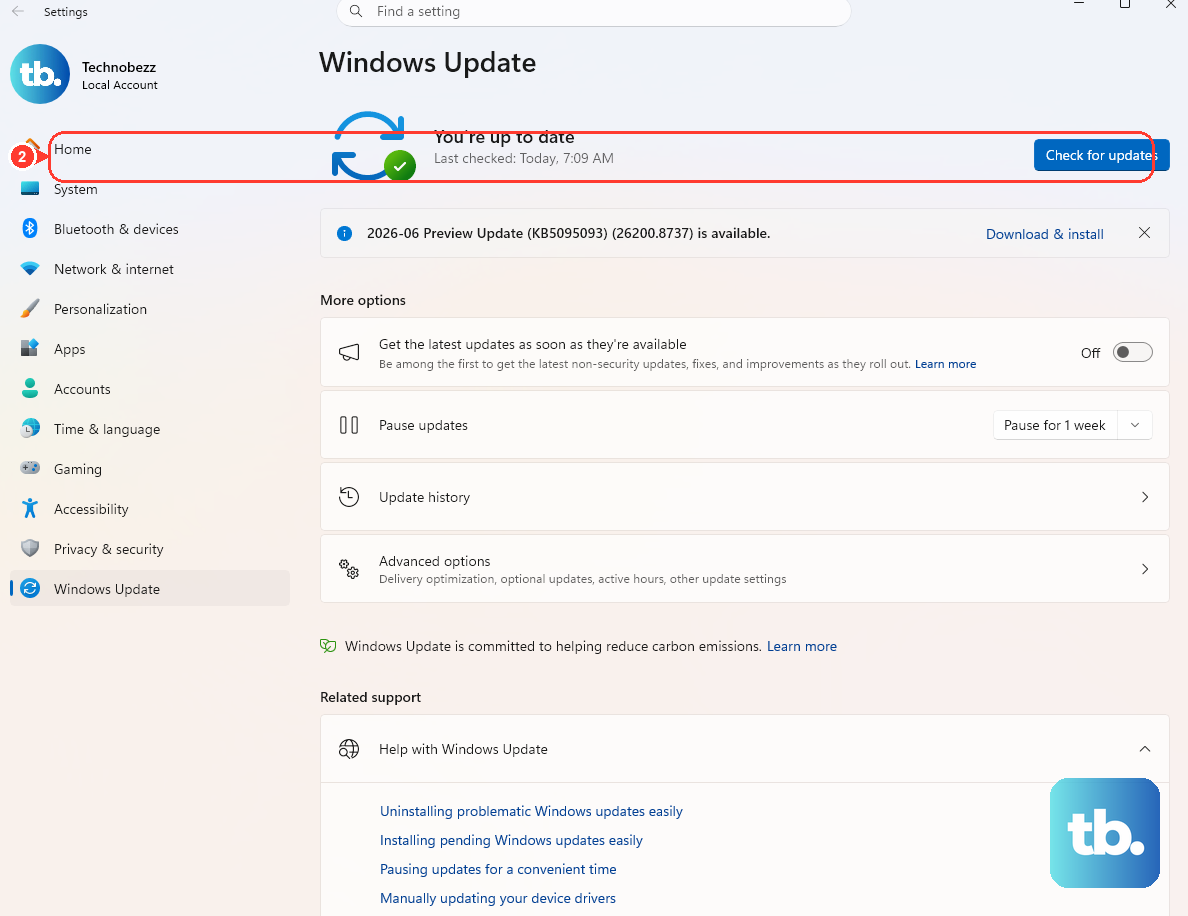
Windows delivers Defender platform and security-intelligence updates through Windows Update, so keeping the OS current keeps the protection service healthy. The path differs slightly by version.
On Windows 11, select Start > Settings > Windows Update > Check for Windows updates. On Windows 10, select Start > Settings > Update & Security > Windows Update > Check for Windows updates. Install any available updates and restart if prompted.
One note for Windows 10 users: Microsoft ended free Windows 10 updates and support after October 14, 2025. Running Windows Update is still the path, but Microsoft now recommends moving to Windows 11 to stay current going forward.
Scan the Device for Malware That Disables Protection
Malware can deliberately disable security features, so scanning is a smart move when the service keeps failing. Start with a thorough on-system scan, then escalate to an offline scan if you suspect something persistent.
- 1.In Windows Security, go to Virus & threat protection > Scan options.
- 2.Choose Full scan, which scans every file and program on your device, and run it. You can also start a quick scan instantly with the
windowsdefender://quickscan/shortcut. - 3.If you still suspect persistent malware, return to Scan options and choose Microsoft Defender Antivirus (offline scan), then select Scan now. You can also launch it with the
windowsdefender://wdoscan/shortcut.
The offline scan runs after a restart without loading Windows, so any persistent malware has a more difficult time hiding. Save your work first, because the PC restarts to run it. The scan takes about 15 minutes, then the PC restarts automatically, and you can view results in Windows Security > Protection history.
Repair Corrupted System Files With DISM and SFC
If the service still will not run after the steps above, corrupted Windows system files may be the cause, and the built-in repair tools can fix them. You will run two commands in order from an elevated Command Prompt. To open it, type cmd in the Search box, right-click Command Prompt, and select Run as administrator.
Microsoft states you should run DISM before System File Checker, so follow this sequence exactly:
- 1.Run
DISM.exe /Online /Cleanup-image /Restorehealthfirst to repair the Windows component store. Note the space before each /. - 2.After it completes, run
sfc /scannowto scan and repair protected system files. Note the space between sfc and /scannow.
Important: do not close the Command Prompt window until verification is 100% complete. These tools are built into Windows 10 and 11 (and also Vista, 7, 8, and 8.1), and they repair rather than reinstall, so they are safe to run.
Frequently Asked Questions
Is it a problem if Microsoft Defender turned itself off?
Not necessarily. Microsoft documents that if you install a compatible non-Microsoft antivirus program, Microsoft Defender Antivirus will automatically turn itself off. When that happens, your other security app is providing protection. If you remove that third-party app, Defender turns back on automatically.
Why is the real-time protection toggle greyed out?
That usually means Tamper Protection is on. Microsoft notes that if Tamper Protection is turned on, you will need to turn it off before you can turn Real-time protection off. Tamper Protection is found under Virus & threat protection > Manage settings, and leaving it on is recommended for security.
Do I need to keep real-time protection on, or will it come back by itself?
If you turn it off manually, Microsoft says it will turn back on automatically after a short while to resume protecting your device. You can also switch it on yourself under Virus & threat protection > Manage settings.
What is the difference between a full scan and an offline scan?
A Full scan scans every file and program on your device while Windows is running. The Microsoft Defender Offline scan runs after a restart without loading Windows, so any persistent malware has a more difficult time hiding. It takes about 15 minutes, and results appear in Windows Security > Protection history.
Should I run SFC or DISM first?
Run DISM first. Microsoft states you should run DISM.exe /Online /Cleanup-image /Restorehealth before sfc /scannow, and warns that you should not close the Command Prompt window until verification is 100% complete.











