You open your Comcast (Xfinity) email expecting new messages, and nothing is landing in your Inbox. Maybe one specific sender has gone quiet, maybe the whole account has stalled, or maybe mail shows up on the web but never reaches your phone. Whatever the pattern, the messages are usually being misrouted, blocked, or stopped by a setting rather than lost.
The good news: almost every cause has a clear, repeatable fix. Most of them live inside your Xfinity Email settings, and the most common culprits take under a minute to rule out.
Work through the fixes below in order. They are arranged quickest and most-common first, so you may solve this long before reaching the end.
Confirm Whether the Problem Is the Account or the App
Before changing anything, find out where the mail is actually going. This one check tells you which half of this guide to use.
- 1.Sign in to Xfinity Email directly in a desktop browser at connect.xfinity.com using your Xfinity ID and password.
- 2.If your messages ARE visible here but missing in your phone or computer app, the account is fine and the problem is the third-party app. Skip ahead to the server-settings and Third Party Access fixes.
- 3.If mail is missing even in webmail, the problem is account-side. Continue with the steps below.
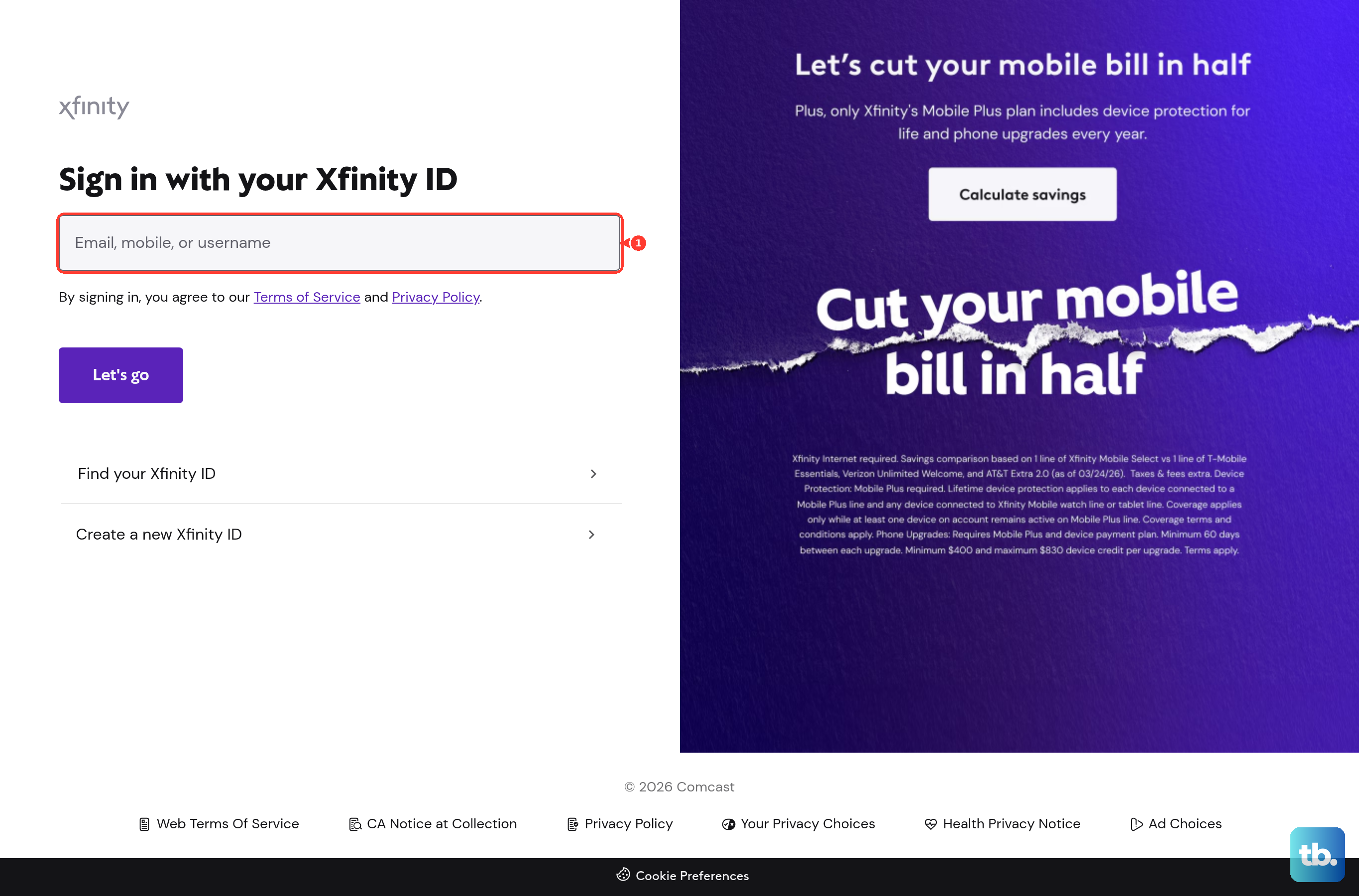
To test live delivery, send yourself a message from a different (non-Comcast) account and watch whether it arrives. Note whether that sender gets any bounce-back error, since the wording often points straight to the cause.
Check the Spam, Junk, and Other Folders
Incoming mail is frequently routed to Spam or Junk, or even to Archive or a custom folder, instead of the Inbox. This is one of the most common reasons a message seems missing.
Open the Spam (Junk) folder in webmail, then glance through Archive and any custom folders you have created.
When you find a legitimate message, move it back to the Inbox.
One important detail: messages caught by Xfinity's own spam filter bypass your personal filter rules entirely, so a message sitting in Spam will not be processed by anything else you have set up. That is why checking the folder directly matters.
Make Sure Your Mailbox Is Not Full
Each Xfinity ID gets 10GB of email storage. Once that limit is reached, new messages are rejected and bounced back to the sender rather than simply delayed, so the mail never arrives.
In webmail, click the gear icon in the upper-right corner of the Inbox.
Look for the Email Usage meter at the bottom of the expanded menu.
If you are at or near 10GB, delete large or old messages and empty the Trash to free space so new mail can be delivered.
Disable an Over-Broad Safe List
The Safe List is an allow-only mode. When it is on, you receive mail ONLY from addresses on the list, and everything else is silently dropped from the Inbox. An overly narrow Safe List can block almost everything.
Click the gear icon in the upper-right corner.
Select Email Settings.
In the left menu choose Mail, then Advanced Settings.
If the Safe List box (Use email safe list) is checked, uncheck it, then close the page.
If the Safe List already appears off but mail is still being blocked, try toggling it on, then turning it off again and closing the page. This may refresh the setting and restore delivery even though it looked disabled the whole time.
Review Your Email Filter Rules
A filter rule, sometimes created by accident, can redirect or delete incoming mail before you ever see it. Look for any rule whose action discards messages or moves them to Spam or Trash.
Click the gear icon (Settings) in the upper-right corner and select Email Settings.
In the left menu choose Mail, then Filter Rules.
Inspect each rule for conditions such as "From contains" an address or domain paired with an action like Discard or Move to folder.
Edit, disable, or delete any rule diverting wanted mail, then Save.
Check the Blocked Senders List
If only certain people fail to reach you, their address or domain may have been added to your blocked senders list. Open Settings in webmail and review that list (alongside your filters).
Remove any wanted sender or domain you find there.
If a sender you just unblocked still does not get through (or a removed sender stays blocked), review your filter rules for other blocks on their address or domain.
Turn Off Unexpected Auto-Forwarding
If auto-forwarding is on, your incoming mail can be leaving the account before you see it. In webmail Settings, locate any forwarding rule and disable it so mail stays in your Inbox.
Pay close attention to the forwarding destination. If you find an address you do not recognize, treat the account as possibly compromised: reset your Xfinity password, then re-enter the new password in every device's mail app. An unfamiliar forward may be a sign of a break-in.
Turn On Third Party Access Security
If mail arrives in webmail but never reaches Outlook, Apple Mail, Thunderbird, or the Gmail app, third-party access may be switched off. With it unchecked, outside programs cannot connect and may show setup error messages.
Sign in to Xfinity Email at connect.xfinity.com with your Xfinity ID and password.
Click the Gear icon in the top-right corner and select Settings.
Go to the Security section.
Check the box under Third Party Access Security to allow third-party email programs to connect.
Update Your Mail App to the Current Server Settings
The legacy server name mail.comcast.net no longer works. Apps still using it will silently fail to receive mail. Update your account in iOS Mail, Android, Outlook, Apple Mail on Mac, or Thunderbird to the current secure values:
Incoming IMAP server: imap.comcast.net, port 993, SSL/TLS on (recommended for syncing across multiple devices).
Incoming POP3 (alternative): pop3.comcast.net, port 995, SSL on. The old POP port 110 is no longer permitted.
Outgoing SMTP server: smtp.comcast.net, port 587 (STARTTLS) or 465 (SSL), with "My outgoing server (SMTP) requires authentication" enabled.
Username: your full @comcast.net address. Password: your Xfinity password.
If you recently changed your password, re-enter it in the app on each device.
If the account still fails, delete it from the device and re-add it to force the app to pull the latest security certificates.
Re-add the Account to Force Fresh Credentials
On modern iOS, changing the mail password can appear to save in the interface without actually writing to the Keychain, so the app keeps failing to connect. Deleting the account and adding it again forces fresh credentials and certificates.
This same delete-and-re-add step also resolves stubborn cases on other apps where a recent password change never took effect, so it is worth trying on any device that quietly stopped syncing.
Run Through Basic Connectivity and Refresh
Simple connection issues can mimic a broken account. Confirm the basics on the affected device.
Confirm the device is connected to Wi-Fi or cellular data and that Mail is toggled on for the account.
Restart the device and reboot your router or modem to refresh the connection.
Confirm the account is still connected (not signed out or paused) in the mail app.
When the Block Is Out of Your Hands
If your account-side checks all pass and mail still does not arrive, the cause may be upstream. Use the right escalation path for the symptom.
If a specific sender fails with "Authentication (DKIM/SPF) Required," the block is on the sender's side. The sender must fix their SPF/DKIM DNS records. Marking the message Not Spam or adding the sender to your contacts will not bypass it.
If a mail app shows "Excessive failed authentication", a device may be signing in repeatedly with an old password. Update the password on every device that uses the account.
If an entire domain appears to be blocked by Comcast's mail system, contact the Xfinity email security team at spa.xfinity.com.
If server maintenance is the suspected cause, allow some time. Incoming-mail delays from server updates usually clear with time, so re-test later.
If the account was unused for a long stretch, it may have been marked inactive. Signing back in may reactivate it within the allowed window.
If nothing here resolves it, contact Xfinity support through official channels for an account-specific fix.
Frequently Asked Questions
Why is my Comcast email working on the website but not on my phone?
That points to an app-side issue, not your account. Update the app to the current servers (imap.comcast.net port 993 with SSL, or pop3.comcast.net port 995, and smtp.comcast.net port 587 or 465), re-enter your password, confirm Third Party Access Security is checked, and re-add the account if it still fails.
How much email storage does a Comcast account have?
Each Xfinity ID gets 10GB. Once that limit is reached, new messages are rejected and bounced back to the sender, so freeing space by deleting old mail and emptying Trash is what restores delivery.
I am only missing email from one specific person. What should I check?
Check the Spam folder first, then your blocked senders list and filter rules for anything matching their address or domain. If they fail with an "Authentication (DKIM/SPF) Required" error, the problem is on their end and only they can fix it by correcting their DNS records.
I found auto-forwarding to an address I do not recognize. Is that a problem?
Yes. An unfamiliar forwarding address is a sign your account may be compromised. Remove the forward, reset your Xfinity password, and then re-enter the new password in every device's mail app.
My filter rules look correct, so why is mail still going missing?
Your custom filters only process mail that reaches your Inbox. Messages caught by Xfinity's own spam filter bypass your rules entirely, which is why you have to open the Spam folder directly to find them.
Can a full mailbox just delay my mail instead of losing it?
No. Once you hit the 10GB limit, new messages are rejected and bounced back to the sender rather than held and delivered later, so clearing space promptly is important.