Chrome won't open, freezes on launch, or throws an "Aw, Snap!" page the moment you try to load a site. You click the icon and nothing happens, or a window flashes and disappears. Tabs hang on a white screen, or you get "This site can't be reached" on pages that work everywhere else.
The good news: almost every Chrome problem on Windows comes down to a short list of causes. A hidden process still running in the background, a bad extension, a stale cache, low memory, an out-of-date version, security software in the way, or a corrupted profile. Each has a clean fix.
Work through these in order. The earliest ones are the fastest and solve the most cases, so you may never need to reach the later steps. After each fix, reopen Chrome and try again before moving on.
Force-Quit Lingering Chrome Processes
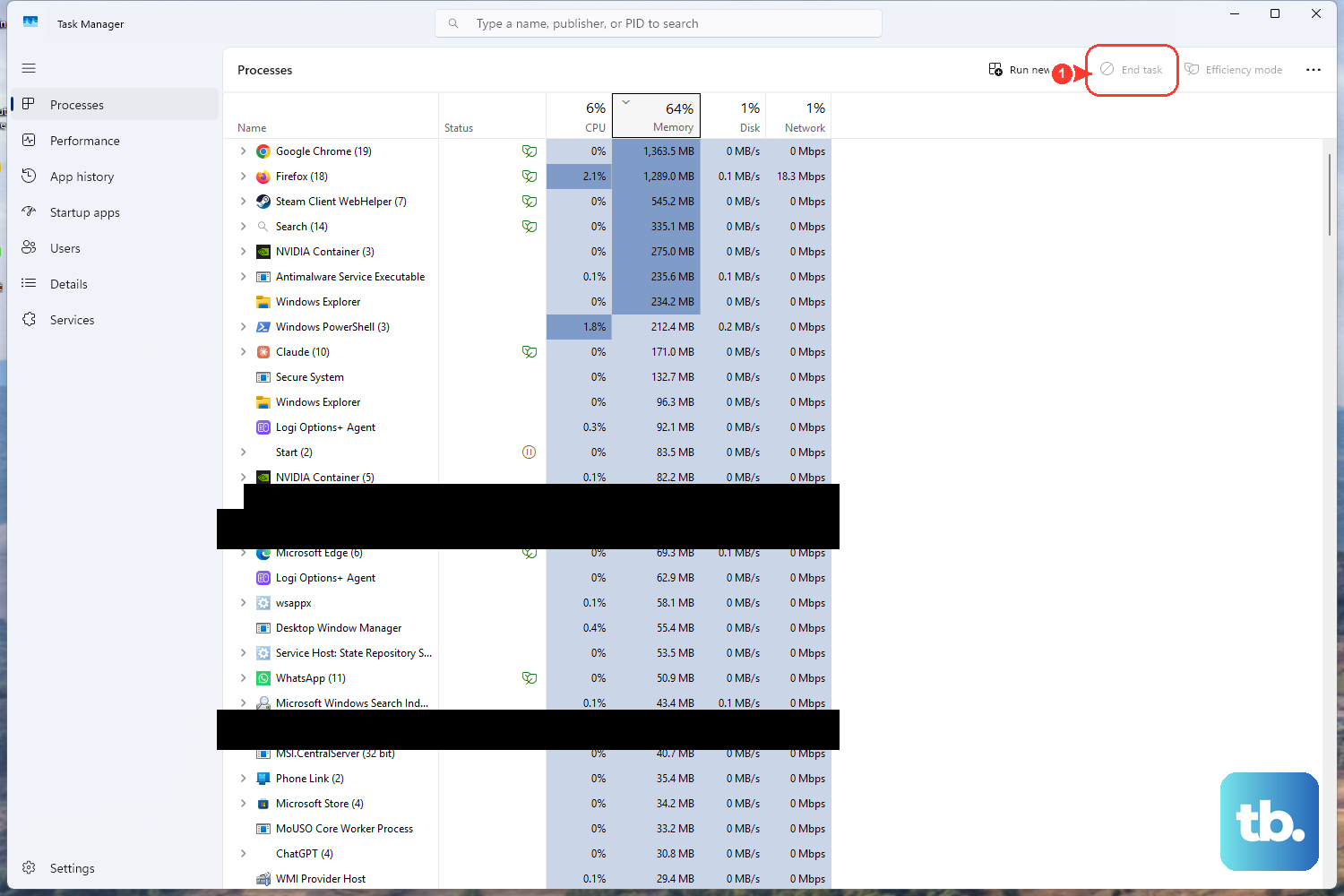
If clicking the Chrome icon does nothing, a hidden chrome.exe is often still running and blocking a new window from opening. Closing it usually fixes a Chrome that "won't launch."
- 1.Press Ctrl + Alt + Delete.
- 2.Click Task Manager.
- 3.Under the Processes tab, look for "Google Chrome" or "chrome.exe".
- 4.Select it and click End task.
- 5.Reopen Chrome and try again.
Restart Your Computer
Other programs or low memory can interfere with Chrome in ways that are hard to spot. A reboot clears them out and is worth doing early, before you start changing settings.
Restart your computer, then reopen Chrome and try loading the page again. If Chrome opens normally afterward, you are done.
Close Tabs, Extensions, and Apps to Free Memory
If Chrome opens but a page crashes, freezes, or shows "Aw, Snap!", you may simply be out of memory. Too many tabs, other running apps, and active downloads all compete for resources.
Close every tab except the one showing the error. Next, quit other apps or programs that are running, and pause any app or file downloads.
Remove extensions you don't need. Select More (the three-dot menu) > Extensions > Manage extensions, then select Remove on anything you no longer use.
Then press Ctrl + q to quit Chrome, reopen it, and reload the affected tab. To bring back what you had open, press Ctrl + Shift + t to restore previously closed tabs.
Update Chrome to the Latest Version
An out-of-date version is a common source of crashes and loading errors. Chrome usually updates itself in the background when you close and reopen it, but a long-running session can leave you behind.
Open Chrome, select More (the three-dot menu) at the top right, then Help and About Google Chrome. Chrome automatically checks for updates on this page.
Select Relaunch to apply the update, or Not now to apply it the next time you restart Chrome. Chrome saves your open tabs and windows and reopens them after it restarts, but Incognito windows won't reopen. If there is no Relaunch button, you are already on the latest version. On Windows, close all Chrome windows and tabs before you relaunch.
If your problem is specifically a failed update with an error code, restart and try again first. Error 3 or 11 means the update server is unavailable, Error 4 or 10 means the update check failed to start, and Error 7 or 12 means the download failed. "Updates are disabled by administrator" points to a policy set on the machine.
Make sure your antivirus isn't blocking updates, then turn off Compatibility mode by right-clicking the Chrome icon > Properties > Compatibility and unchecking Run this program in compatibility mode for.
Test the Page in Incognito Mode
This is a quick diagnostic rather than a permanent fix. Extensions are disabled by default in Incognito, so it tells you fast whether an add-on or a setting in your normal profile is to blame.
Open the problem website in an Incognito window. If it loads there but not in your regular window, an extension or cached data in your normal profile is the cause, which points you to the next two fixes.
Remove Extensions, Then Add Them Back One at a Time
A single bad or untrusted extension can cause crashes, freezes, and connection errors. The reliable way to find the culprit is to clear them all, then reintroduce them.
Uninstall all your extensions, then add them back one by one, testing after each, until the problem reappears and identifies the offender. As a faster first pass for connection errors, disable all extensions. If that solves it, re-enable them one at a time.
Clear Your Browsing Data (Cache and Cookies)
Corrupted cache or cookies can break page loading even when your connection is fine. Clearing them is a standard fix for sites that won't display correctly.
Select More (three dots) > Delete browsing data. Choose a time range such as All time, then select Cookies and other site data and Cached images and files, plus browsing history if you want.
Click Delete data, then reload the page.
Check That Antivirus or Firewall Isn't Blocking Chrome
Security software can stop Chrome from opening at all, or block it from connecting to sites. If Chrome still fails after the steps above, this is often why.
Check your antivirus and firewall settings, allow Chrome to run, then reopen it. If pages still won't load, check that your device is connected to Wi-Fi or ethernet, and reboot your modem and router. If that doesn't help, contact your internet provider.
Reset Chrome Settings to Default
If your search engine, homepage, or new tab page changed on their own, or pop-ups appeared, your settings may have been altered. Resetting returns them to a known-good state.
Open Chrome, click More (three dots) at the top right, then select Settings. Select Reset settings, then Restore settings to their original defaults, and click Reset settings to confirm.
This is not a full wipe. It does not delete your bookmarks or passwords, and it leaves fonts and accessibility settings alone. It does reset your default search engine, homepage and startup tabs, the new tab page, pinned tabs, and content settings, clears cookies and site data, and disables extensions and themes. If you're signed in, the reset applies on all devices where you use that profile. Re-enable only the extensions you trust via More > Extensions > Manage extensions.
Remove Malware and Unwanted Programs
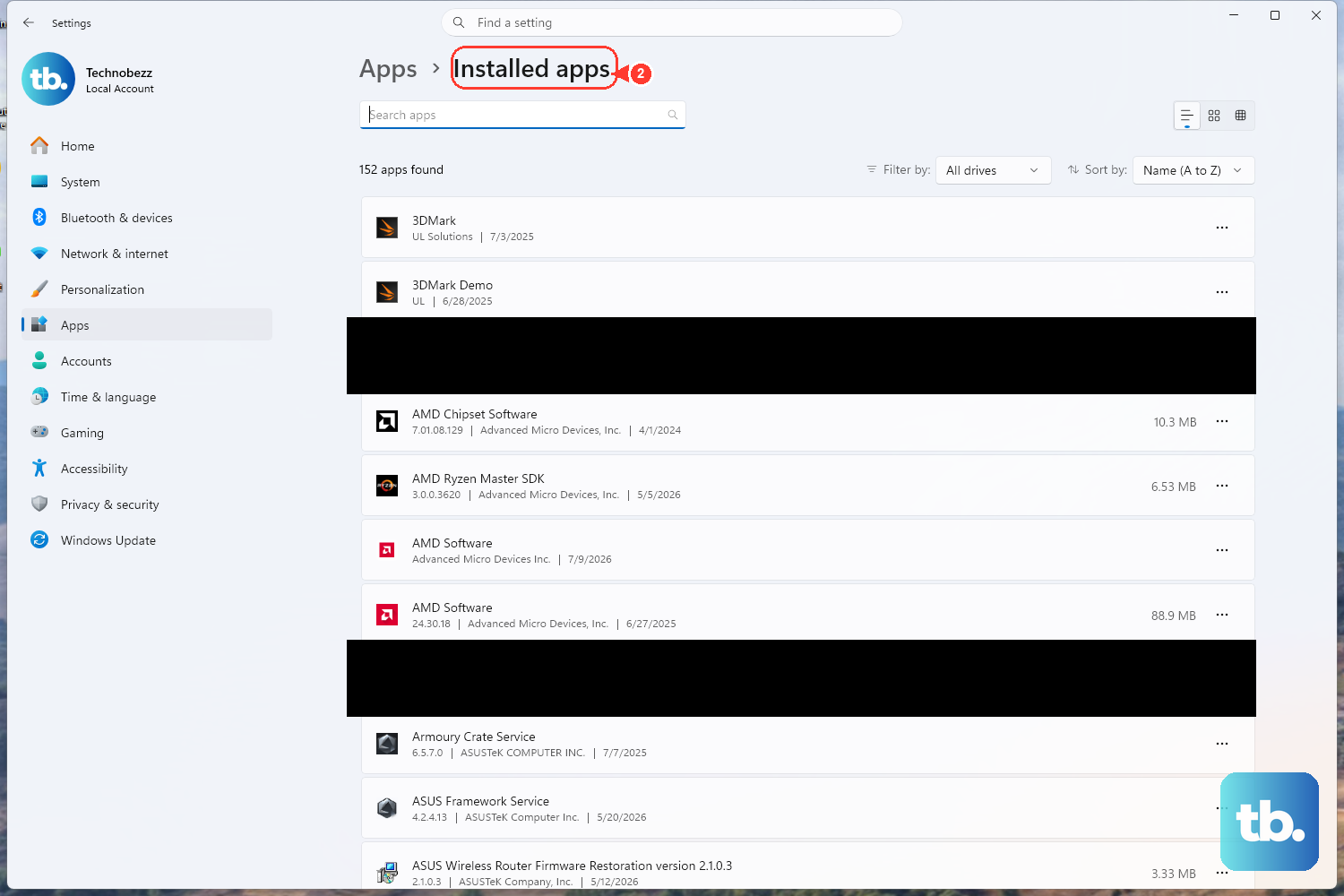
If pop-ups, injected ads, or a hijacked search engine keep coming back, unwanted software on the computer is likely the cause. It can also interfere with Chrome updates.
Go to the Start menu, then Settings > Apps > Installed apps. Select the unwanted app, then select Uninstall.
Back in Chrome, reset your settings as described in the previous section, then re-enable only the extensions you trust.
To curb intrusive ads, go to More > Settings > Privacy and security > Site settings > Additional content settings > Intrusive ads, and choose your default.
Fix a Corrupt Chrome Profile
If you see a "Profile error occurred" message, or Chrome crashes only on one profile, that profile's data folder is likely corrupted. Recreating it clears the problem.
- 1.Fully close Chrome, ending any lingering
chrome.exein Task Manager first, or the files will be locked. - 2.Open File Explorer and paste
%LOCALAPPDATA%\Google\Chrome\User Datainto the address bar. - 3.Rename or delete the affected profile folder. The main profile is named "Default"; additional ones are "Profile 1", "Profile 2", and so on.
- 4.Reopen Chrome. It creates a fresh profile.
If you were signed in and syncing, sign back in to your Google Account to restore bookmarks, passwords, and addresses. Renaming rather than deleting keeps a copy of the old folder in case you need anything from it.
Uninstall and Reinstall Chrome
If nothing above works, a clean reinstall replaces any corrupted program files. This is the last resort for persistent crashing or a Chrome that still won't open.
Close all Chrome windows and tabs first.
On Windows 11: Start menu > Settings > Apps > Installed apps. Next to Google Chrome, click More, then Uninstall. Click Uninstall to confirm, then click Yes to allow the app to make changes to your device.
On Windows 10: Start menu > Settings > Apps. Under Apps & features, select Google Chrome, click Uninstall, then confirm.
To clear a corrupted install completely, check Also delete your browsing data before confirming. This removes profile information such as bookmarks and history from the computer, so leave it unchecked unless you want a clean wipe. Data synced to your Google Account can still remain on Google's servers.
Reinstall by downloading a fresh copy from the Google Chrome download page.
If the normal download or updates kept failing, use a standalone (offline) installer when you reinstall. Confirm your system meets the requirements too: Windows 10 or later with an Intel Pentium 4 or later processor that supports SSE3, or Windows 11 or later on an ARM-based PC. Older systems can no longer update Chrome.
Turn Off Hardware Acceleration
If pages still crash, show white screens, or hang only in Chrome after everything above, hardware acceleration may be the cause. Turning it off can fix graphics and rendering problems.
At the top right, click More (the three-dot menu) and select Settings. Click System, then turn off Use hardware acceleration when available.
Restart Chrome.
Frequently Asked Questions
Does resetting Chrome delete my bookmarks and passwords?
No. Resetting settings does not delete saved bookmarks or passwords, and it does not change fonts or accessibility settings. It does reset your search engine, homepage, startup and new tab pages, pinned tabs, and content settings, clears cookies and site data, and disables your extensions and themes, which you re-enable manually.
Why is there no "Relaunch" button under About Google Chrome?
If the Relaunch option is missing, you are already running the latest version of Chrome. No further action is needed.
What do the Chrome keyboard shortcuts during a crash do?
Ctrl + q quits Chrome entirely. After you reopen it, Ctrl + Shift + t reopens previously closed tabs, so you can recover the session you had before the crash.
Will uninstalling Chrome erase my data?
Only if you choose to. The Also delete your browsing data checkbox in the uninstall dialog removes your bookmarks and history from the computer. Leave it unchecked to keep that data. Anything synced to your Google Account may still be stored on Google's servers either way.
What do the Chrome update error numbers mean?
Error 3 or 11 means the update server is unavailable, Error 4 or 10 means the update check failed to start, and Error 7 or 12 means the download failed. "Update failed: Updates are disabled by administrator" means updates are controlled by a policy on the computer, not a network or download fault.
Why does deleting the profile folder fail with locked files?
Windows keeps the User Data folder locked while Chrome is running, including hidden background processes. Fully close Chrome and end any remaining chrome.exe in Task Manager before you rename or delete the profile folder.