

You head to Gmail to check your mail, type your details, and nothing happens. Maybe the password is rejected, maybe a code never arrives, or maybe you cannot even remember which email address you used to sign up.
The good news is that most sign-in problems have a clear fix, and Google gives you several ways back into your account. Wrong guesses during recovery will not kick you out, and there is no limit to how many times you can attempt to recover your account, so you can keep trying.
Work through the steps below in order. The quickest, most common fixes come first, with the exact pages to visit for each situation.
Confirm You Are on the Right Sign-In Page
Before anything else, make sure you are actually on Google's own page. To sign in on a computer, go to mail.google.com, then enter your Google Account email or phone number followed by your password.
If you see Gmail's description page instead of a login box, click Sign in in the top right. To switch accounts, click Use another account.
One safety rule matters here. Only ever enter your password or verification codes at accounts.google.com. Google never asks for your password or codes by email, phone call, or message, and you cannot call Google for help signing in. Google also does not work with any service that claims to offer account or password support.
Reset Your Password When You Have Forgotten It
A forgotten password is the single most common reason you cannot sign in. Recovery happens through Google's dedicated page.
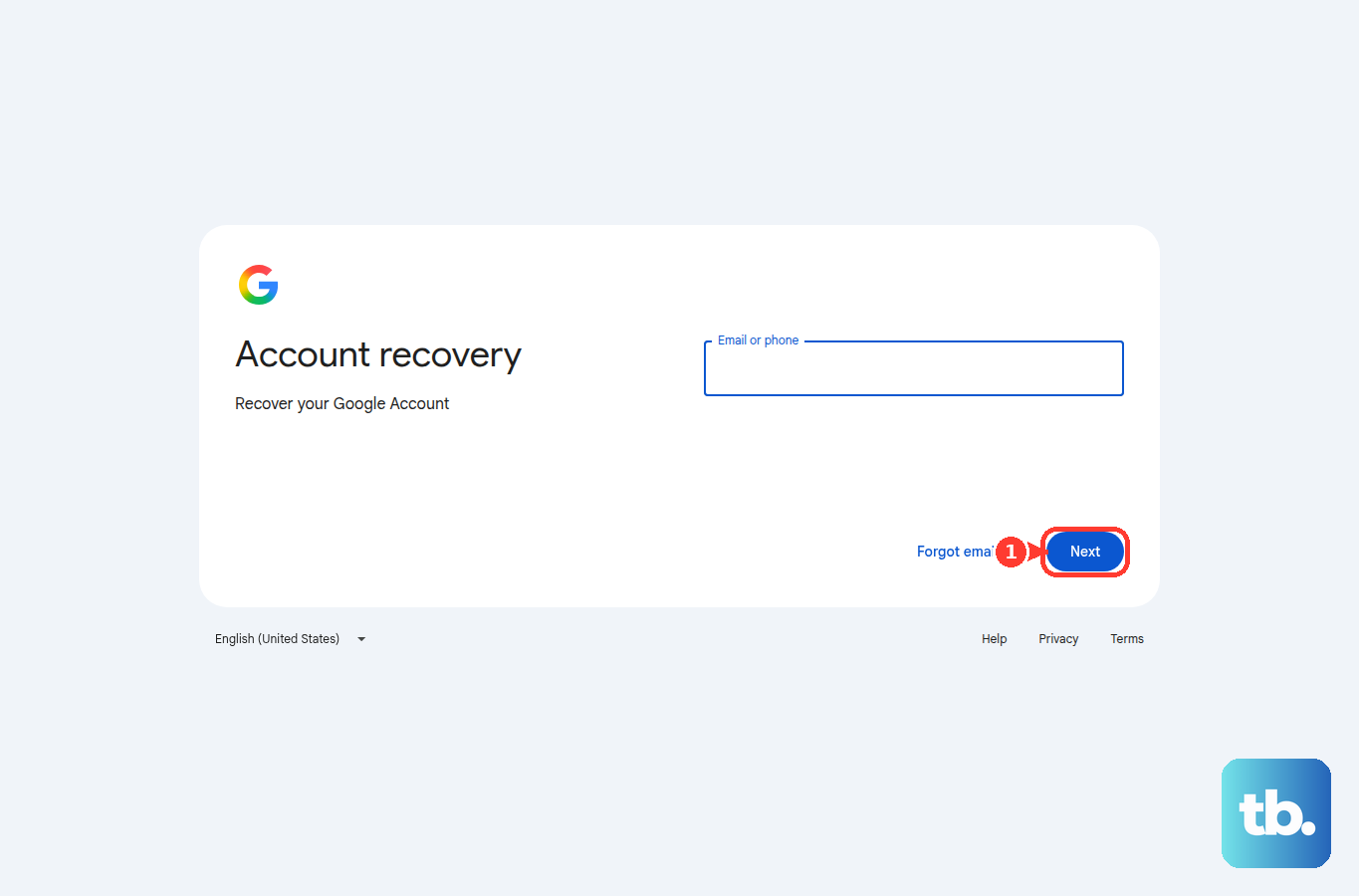
- 1.Go to the account recovery page at accounts.google.com/signin/recovery.
- 2.Enter the email address (username) for the account you cannot access, then select Next.
- 3.Follow the options Google offers. Google usually sends a verification code to your recovery phone or recovery email.
- 4.Use Try another way to move to a different verification option if the first one does not work.
- 5.Answer the questions to confirm the account is yours, answering as many as you can rather than skipping. Take your best guess if unsure; wrong guesses will not end the process.
- 6.When prompted, set a strong new password you have not already used with this account.
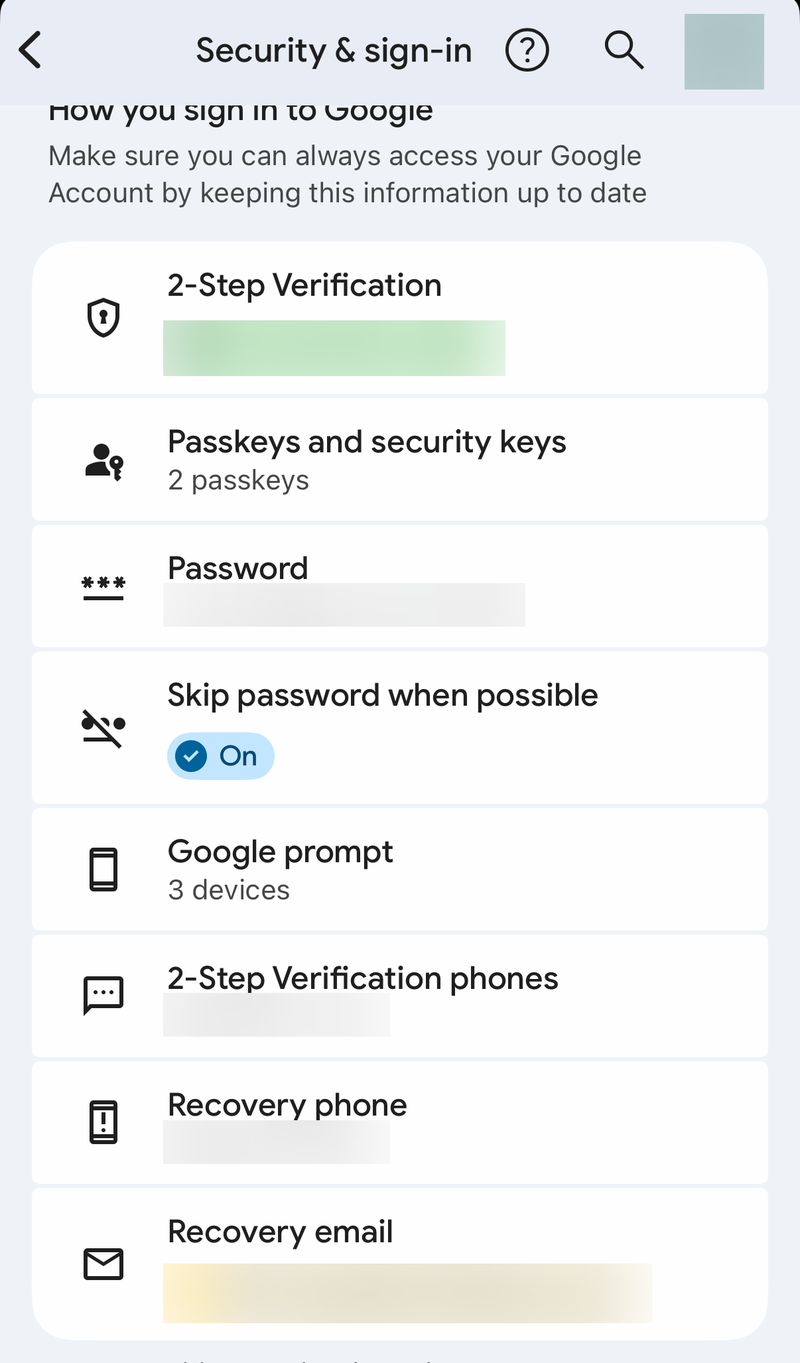
If you remember the password and simply want to change it, open your Google Account and click Security & sign-in. Under How you sign in to Google, select Password, sign in again if asked, enter the new password, and click Change Password.
Improve Your Odds of Passing Recovery
If verification keeps failing, small details make a real difference. Return to the account recovery page and keep these in mind.
Use a computer, phone, or tablet you regularly sign in from, ideally with the same browser and in a usual location such as home or work.
When asked for a password, enter the most recent one you recall. If you cannot remember it, use an older password you do remember, or make your best guess.
Watch uppercase and lowercase, and avoid typos.
Google may send a code to the address of the account you are trying to recover. Select Try another way if you cannot check that inbox.
Try not to skip questions; a best guess beats a blank.
If you see the message "Google couldn't verify this account belongs to you," you can simply try again. If you are expecting a reply from Google, check your Spam folder for an email titled "Your Google support inquiry." If recovery ultimately fails after every attempt, you can create a replacement Google Account.
Recover a Forgotten Username or Email
If the problem is that you cannot remember the email address you sign in with, recover the username first. You need the recovery phone number or recovery email address for the account, plus the full name on the account.
Go to accounts.google.com/signin/usernamerecovery.
Enter the recovery phone number or recovery email address linked to the account, then continue.
Complete any verification prompt shown on screen.
Confirm your full name when asked.
Google then shows the usernames tied to that recovery email or phone after you verify it.
Fix Recovery Codes That Never Arrive by Text
SMS codes sometimes stall before they reach you. Try these in order.
If you requested several codes, only the one that arrived last works.
Turn your phone off and on a few times to clear communication issues with your carrier.
If shortcode messages are blocked, ask your mobile carrier to unblock messages from Google.
If you recently moved your number to a new carrier, texts may not work right away, so wait before trying again.
If you have hit the daily limit on recovery code requests, wait 24 hours and try again.
If a particular recovery option is temporarily disabled after too many attempts, use a different option until the re-enable date shown on screen.
If codes still will not come through, ask your carrier to reset your text-messaging settings, or select Try another way to use a different verification method.
Get Past 2-Step Verification When You Lost Your Phone
If you know your password but cannot complete the second step, you likely have more options than the screen first shows.
On the 2-Step Verification screen, select Try another way to reveal other options.
Approve a Google prompt on another phone that is already signed in to your account.
Or use another phone number you previously added in the 2-Step Verification section of your account.
Or enter a backup code you saved earlier.
Or use a hardware security key added to your account.
Or use a passkey created on another device. If a passkey prompt appears and you cannot use it, tap Try another way to return to your other sign-in choices.
If you once checked "Don't ask again on this computer" on a device, you may be able to sign in from that device without the second step, then manage your verification methods afterward. If you have none of these methods, follow the account recovery steps and answer the identity-confirmation questions.
Sign In With a Backup Code
Backup codes are a reliable fallback when your phone is unavailable.
On the sign-in screen, select Try another way.
Choose Enter one of your 8-digit backup codes.
Enter one of your unused codes. Each code works only once and becomes inactive after you use it.
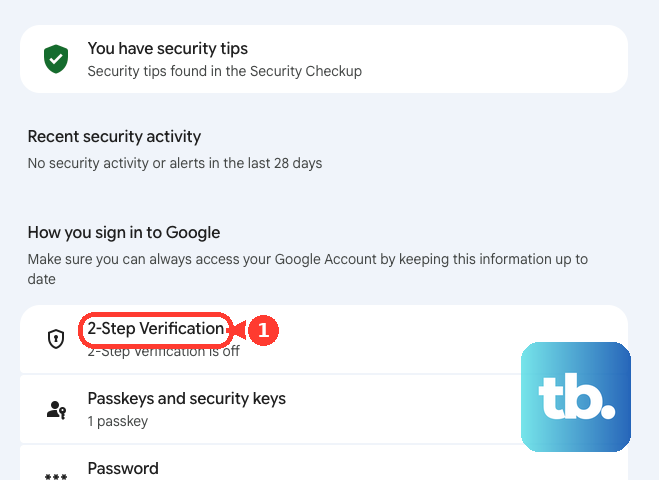
Once you are back in, create a fresh set so you are never caught out again. In your Google Account, select Security & sign-in, then under How you sign in to Google click 2-Step Verification (sign in again if asked). Under Backup codes, click Continue, then click Get backup codes or Refresh to create a new set of 10. Creating new codes automatically makes the previous set inactive.
Use the Account Recovery Form When Your Recovery Options Are Gone
If you cannot access your recovery email or phone at all, start at the account recovery page and enter your email address. When Google offers a method you cannot use, select Try another way until you reach the questions that confirm the account is yours.
Answer as many questions as possible and make sure your answers are accurate. Answer from a computer or browser you have used to sign in before to improve your chances.
If you set up a recovery contact (a trusted person with a Google Account) before you were locked out, you may be able to choose them from the list of options. Tap Get number and give that number to your contact right away, because it expires in 15 minutes. If more checks are still needed afterward, your account may go on a temporary security hold before access is restored. You cannot add a recovery contact while you are locked out.
If a reset link or code has expired, return to the password recovery page and follow the steps again. With none of your 2-Step Verification methods available, recovery through identity questions can take additional time.
Secure a Hacked or Compromised Account
If you suspect someone else is using your account, or a recovery hint behind the asterisks looks unfamiliar, treat it as compromised. First regain access through the account recovery page (use username recovery if you are unsure which account was affected), then lock it down.
In your Google Account, select Security & sign-in, then on the Recent security events panel choose Review security events. For anything that was not you, select No, it wasn't me and follow the prompts.
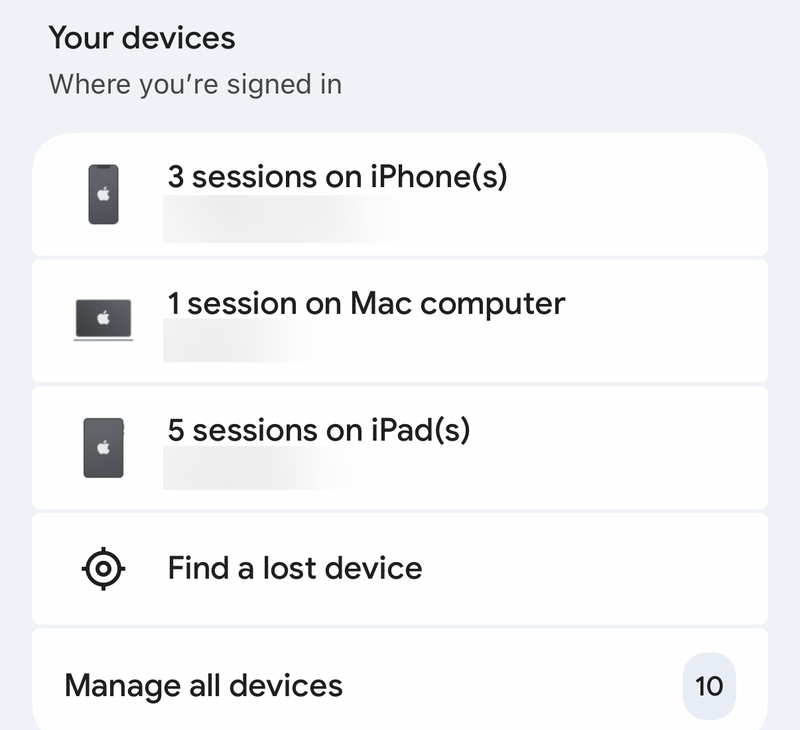
Check connected devices under Your devices > Manage all devices. For any device you do not recognize, select Don't recognize a device? and follow the steps on screen.
Change your password and turn on 2-Step Verification.
Secure Gmail by reviewing and removing anything you did not set up: mail delegation, automatic mail forwarding, scheduled emails, filters, labels, remote access (IMAP/POP), automatic replies, and blocked addresses. Also check Sent for messages you did not write.
Review Apps with access to your account and remove anything unfamiliar.
Run Security Checkup, remove harmful software with trusted anti-virus tools, update your browser, and set a device screen lock.
If financial or personal information was exposed, contact your bank and local authorities.
Choose the Right Path in Google's Troubleshooter
If you are still unsure which situation matches yours, Google's troubleshooter at support.google.com/accounts/troubleshooter/2402620 routes you to the exact steps. Select the option that fits: forgot password, forgot username, know your details but cannot sign in, suspect someone else is using the account, trouble with 2-Step Verification, cannot reset with a text code, a work or school account managed by an admin, an account for a kid under 13, or trouble signing in from a third-party service.
Frequently Asked Questions
Can I call Google to get back into my account?
No. You cannot call Google for sign-in help, and Google does not work with any service claiming to offer account or password support. Handle everything through the official recovery pages at accounts.google.com.
Will wrong answers during recovery lock me out?
No. Wrong guesses will not kick you out, and there is no limit to how many times you can attempt recovery. If you see "Google couldn't verify this account belongs to you," you can simply try again.
The recovery email never showed up. Where is it?
Check your Spam folder, then request it again. Replies from Google's support team are titled "Your Google support inquiry." If you cannot get a code sent to an email address, select Try another way to use a different option.
I got several verification texts. Which code do I use?
Only the code that arrived last works. If texts will not arrive at all, turn your phone off and on a few times, or ask your carrier to reset your text-messaging settings or unblock messages from Google.
Does resetting my password sign me out everywhere?
Mostly. It signs you out everywhere except devices you use to verify it is you when you sign in, devices with third-party apps you granted account access, and smart-home devices you granted access.
I requested too many codes and now an option is unavailable. What now?
A recovery option can be temporarily disabled after too many incorrect attempts and is re-enabled on the date shown on screen. Use a different recovery option in the meantime. If you hit the daily code-request limit, wait 24 hours and try again.