You select your Wi-Fi network, type the password, and Windows throws back the same stubborn message: "Can't connect to this network." Sometimes it loops endlessly; other times it connects for a minute and drops. The frustrating part is that the fix is rarely one single thing, which is why working through a logical order matters. The solutions below start with the safest, automated repairs and only escalate to deeper resets if the simple stuff fails.
Let Windows Diagnose the Problem First
Before you touch any commands or settings, hand the problem to the built-in troubleshooter. It runs diagnostics and attempts to repair the most common connection faults automatically, which makes it the safest possible starting point. There is no risk here, so always try this before anything more involved.
On Windows 11, run the automated Network and Internet troubleshooter through the Get Help app. Microsoft surfaces this as a "Run the troubleshooter in Get Help" link, or you can open the Get Help app directly and search for the network troubleshooter.
On Windows 10, the path lives in Settings.
Open Start > Settings > Network and Internet.
Select Status from the left-hand menu.
Scroll down and select Network troubleshooter.
Let it run fully and apply any fix it suggests, then try connecting again. If the message persists, move on.
Run the Dedicated Network Adapter Troubleshooter (Windows 11)
Windows 11 ships a second, more targeted tool aimed specifically at the adapter hardware and its settings. It is worth running separately because it checks things the general troubleshooter may skip. This remains available in current Windows 11 builds, so do not skip it assuming it has been removed.
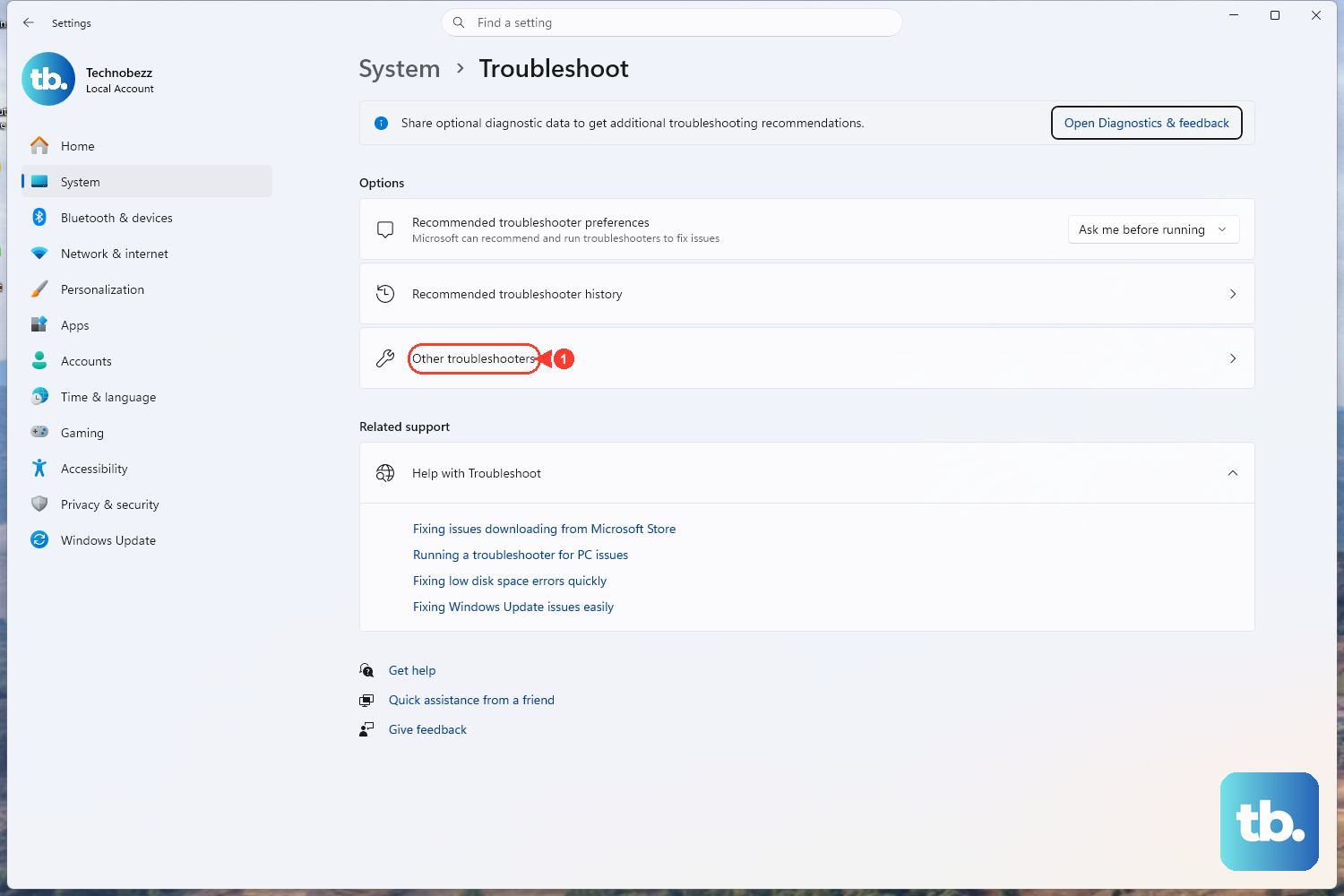
Go to Settings > System > Troubleshoot > Other troubleshooters.
Next to Network Adapter, select Run.
Follow any prompts it presents and let it finish before re-testing your connection. If you are on Windows 10, the Status > Network troubleshooter from the previous fix already covers this ground, so you can move straight to the next step.
Install Pending Windows Updates (and Driver Fixes)
A "Can't connect to this network" error sometimes traces back to an outdated network adapter driver, and Windows Update is the official channel for delivering those driver fixes alongside system patches. Installing what is waiting can quietly resolve the issue without any manual driver hunting.
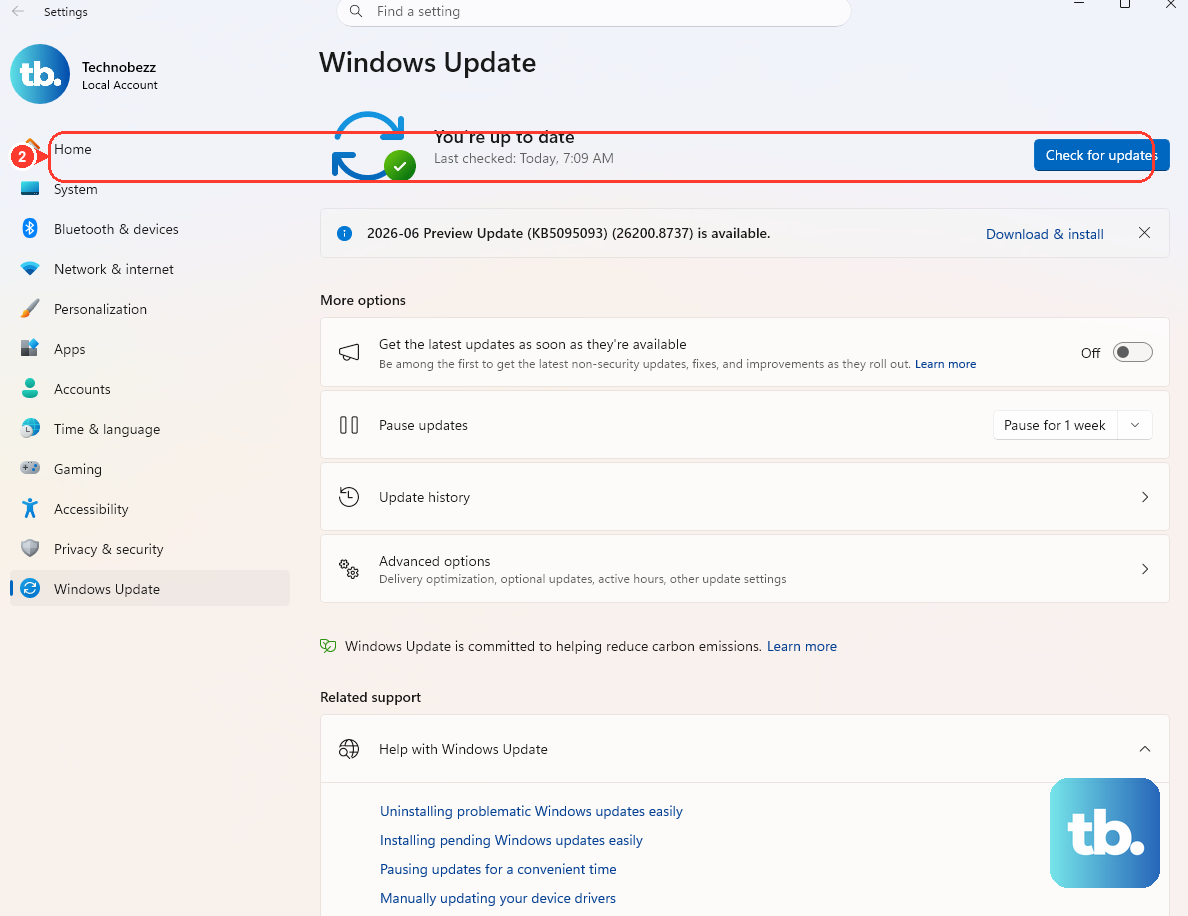
Open Start > Settings > Windows Update.
Select Check for updates.
Download and install anything available, then restart if you are prompted to.
After the restart, reconnect and see whether the network now accepts you. Keeping the system current is often enough on its own.
Power Cycle Your Modem and Router
If your PC seems fine but every device struggles, the problem may sit upstream with your hardware. A proper power cycle forces a fresh connection to your internet service provider and clears temporary faults in the equipment. The order of unplugging and plugging back in matters, so follow it closely.
Unplug the power cable for the router from the power source.
Unplug the power cable for the modem from the power source.
Wait at least 30 seconds or so.
Plug the modem back into the power source.
The lights will blink; wait for them to stop blinking.
Plug the router back into the power source.
Give the network a minute to come fully back online, then attempt the connection again from your PC.
Forget the Network and Reconnect Cleanly
Windows stores a saved profile for each network you join, and that profile can become corrupted or fall out of sync if the network's settings changed. Removing the profile and re-adding it from scratch often clears the rejection. The wording is identical on Windows 10 and Windows 11.
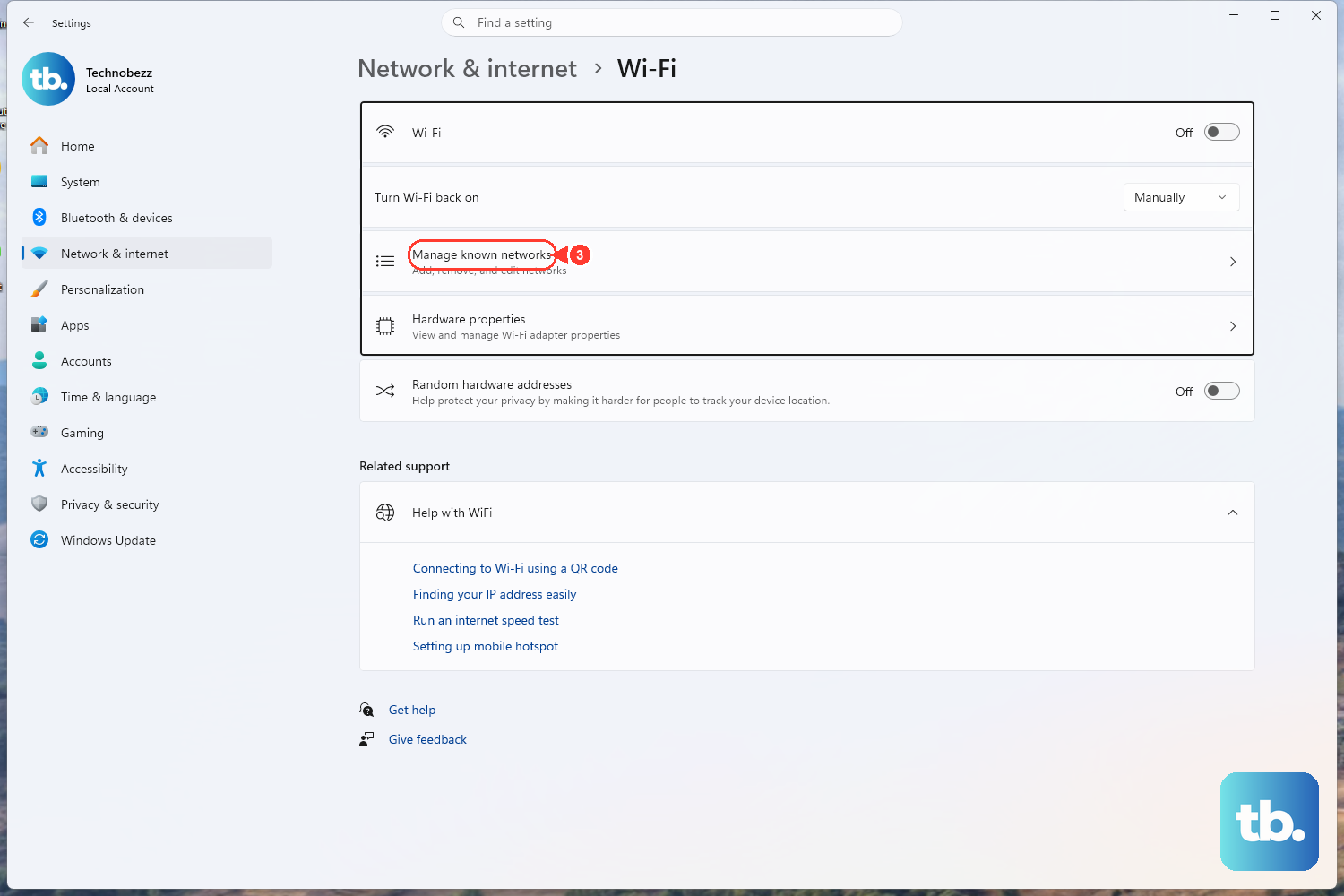
Open Settings > Network & internet > Wi-Fi.
Select Manage known networks.
Select your Wi-Fi network and click Forget.
Now reconnect by selecting the network from the Wi-Fi list and entering the password again. Because you are starting with a clean profile, a previously bad saved configuration can no longer get in the way.
Reset the Network Stack from Command Prompt
When the connection issue lives deeper in the Windows networking layer, a short sequence of commands can rebuild the affected components. These reset the Winsock catalog and TCP/IP settings, then release, renew, and flush your address and DNS cache. Run them in the exact order shown, and reproduce each command precisely.
First, open an elevated prompt.
Select Search on the taskbar and type command prompt.
When the Command Prompt button appears, to the right of it select Run as administrator > Yes.
Then run these commands in this order, pressing Enter after each one:
- 1.netsh winsock reset
- 2.netsh int ip reset
- 3.ipconfig /release
- 4.ipconfig /renew
- 5.ipconfig /flushdns
Once all five have completed, check whether the connection problem is fixed. This same command set is what Microsoft lists for both Wi-Fi and Ethernet connection issues.
Reinstall the Network Adapter Driver in Device Manager
If a driver has become corrupted, uninstalling it and letting Windows lay down a fresh copy can revive the adapter. This is a deliberate uninstall-and-reinstall; Windows automatically installs the latest driver again when the PC restarts, so the adapter is only briefly absent.
Select Search on the taskbar.
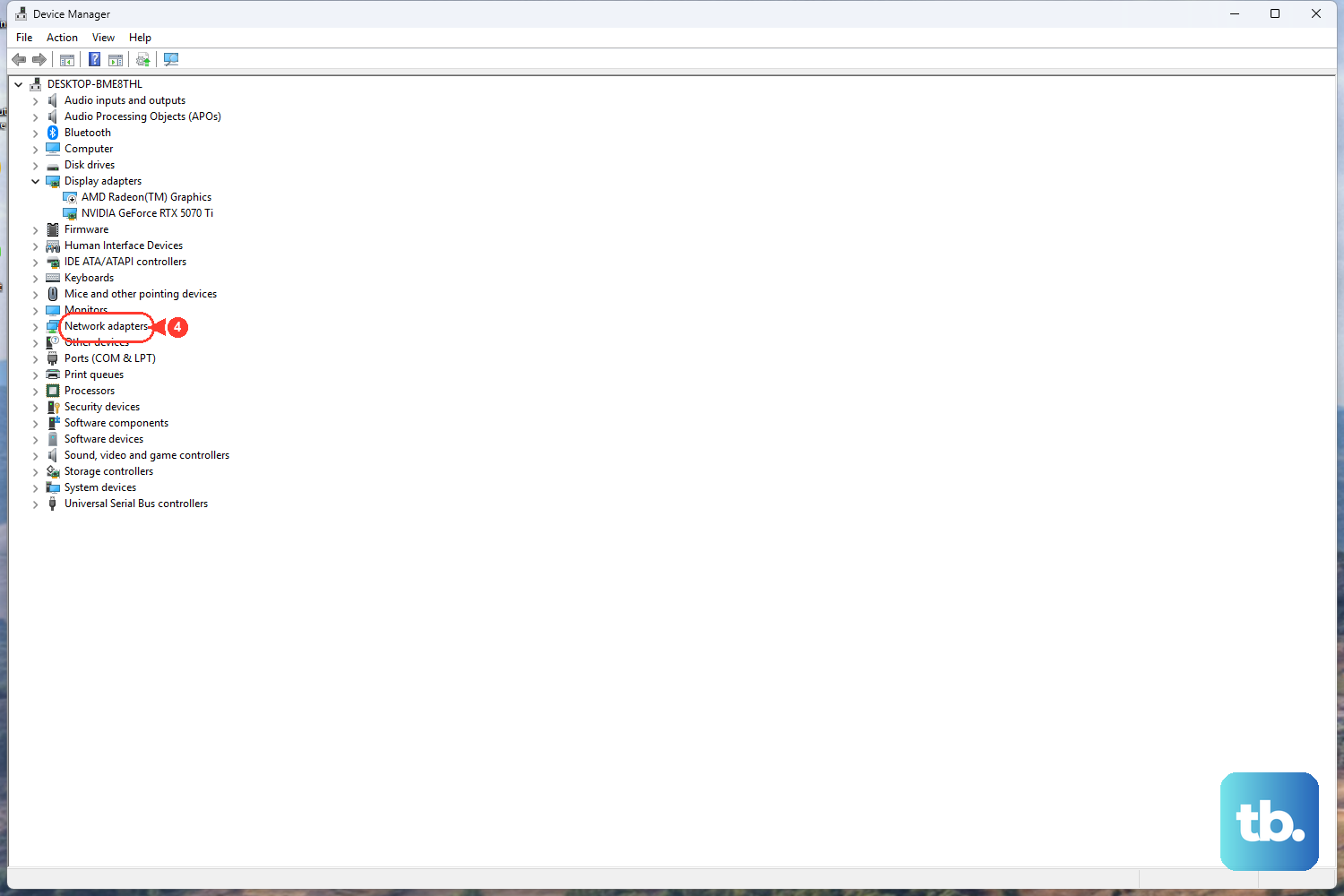
Type device manager, and select Device Manager from the results.
Expand Network adapters and locate your network adapter.
Select it, then press and hold (or right-click) and choose Uninstall device.
Check the Attempt to remove the driver for this device check box and select Uninstall.
Select Start > Power > Restart.
On restart, Windows reinstalls the adapter driver for you, and the connection often behaves normally afterward.
Switch to a Public DNS Server
Some connection failures come down to DNS, the system that translates names into addresses, rather than the Wi-Fi link itself. You can change which DNS server your network uses through the IP assignment settings. Leaving this on Automatic (DHCP) lets the router supply the DNS automatically and is the recommended choice, but Manual lets you specify your own.
Go to Settings > Network & internet > Wi-Fi > Manage known networks and choose your network.
For a wired connection, select Ethernet then your connection instead.
Next to IP assignment, select Edit.
Choose Automatic (DHCP) to let the router set the IP and DNS automatically, or choose Manual to enter a Preferred DNS and Alternate DNS yourself.
If you go Manual, enter the public DNS addresses you intend to use, then save and reconnect.
When Nothing Else Works: Network Reset
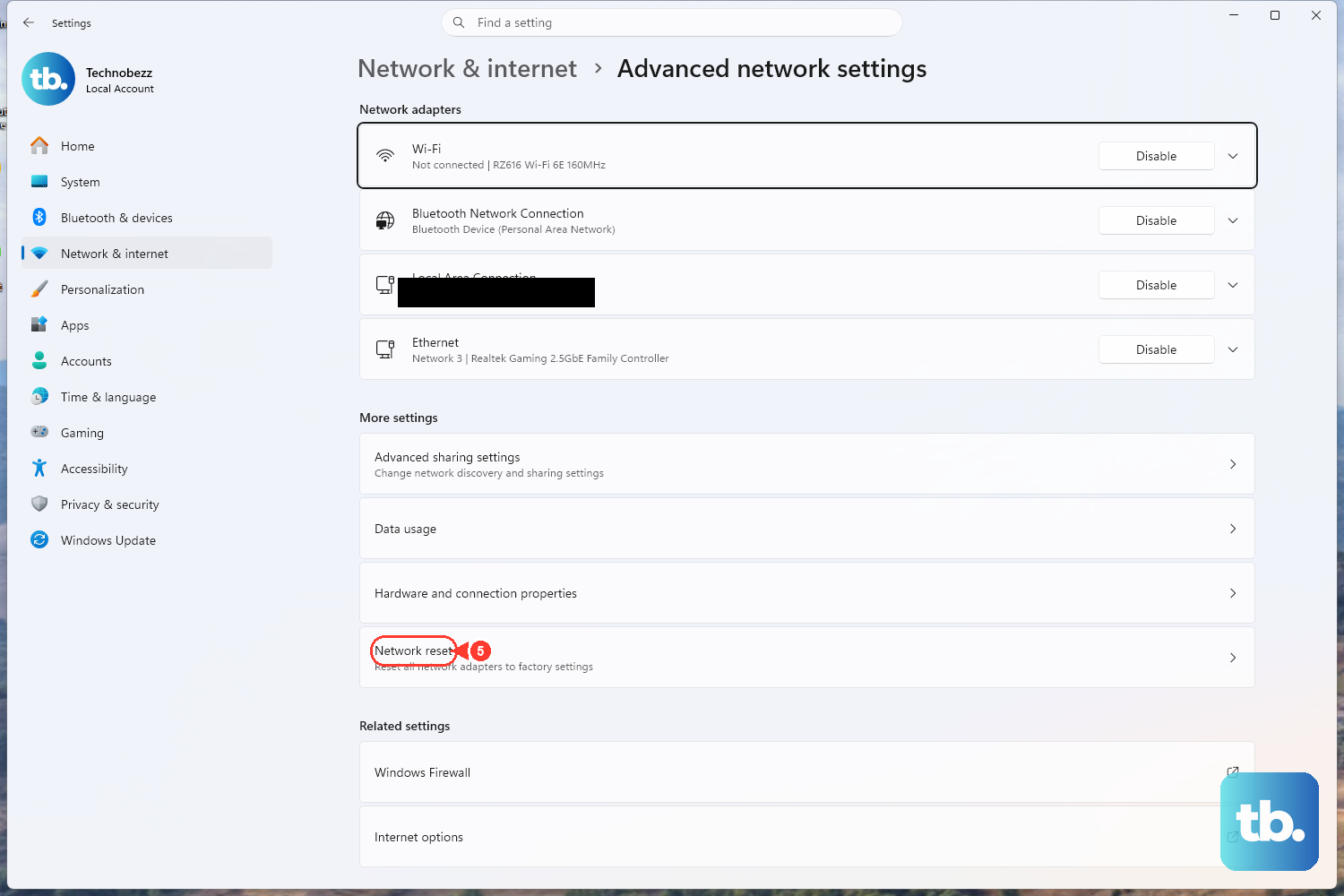
Network reset removes and reinstalls all your network adapters and returns their settings to defaults. Because it wipes your networking configuration, treat it strictly as a last resort and only after the earlier steps have failed. Be aware that afterward you may need to reinstall and set up other networking software such as VPN clients or Hyper-V virtual switches.
On Windows 11, go to Start > Settings > Network & internet > Advanced network settings > Network reset. On Windows 10, go to Start > Settings > Network & internet > Status > Network reset. On the Network reset screen, select Reset now > Yes to confirm.
After the reset completes and the PC restarts, set up your Wi-Fi connection again from scratch and re-add any VPN or virtual networking tools you rely on.
Frequently Asked Questions
Which fix should I try first?
Start with the built-in troubleshooter, since it runs diagnostics and repairs most connection problems automatically with no risk. On Windows 11 that is the Network and Internet troubleshooter in the Get Help app; on Windows 10 it is at Settings > Network and Internet > Status > Network troubleshooter.
Do I have to run the Command Prompt commands as administrator?
Yes. Open Command Prompt by searching for it on the taskbar and selecting Run as administrator, then confirm with Yes. The reset commands need elevated permissions to change the Winsock catalog and TCP/IP settings.
Is uninstalling the network driver safe?
It is safe as part of this procedure because Windows automatically reinstalls the latest driver when you restart. After selecting Uninstall device and checking "Attempt to remove the driver for this device," just go to Start > Power > Restart and let Windows reload the adapter.
Will Network reset delete my files?
No. Network reset only removes and reinstalls your network adapters and resets their settings to defaults; it does not touch personal files. It can, however, require you to reinstall and set up other networking software such as VPN clients or Hyper-V virtual switches, so use it only as a last resort.
What if the same error appears on every device?
If multiple devices fail to connect, the issue likely sits with your modem or router rather than your PC. Power cycle the equipment by unplugging the router, then the modem, waiting at least 30 seconds, plugging the modem back in until its lights stop blinking, and then plugging the router back in.











