
Your iPhone or Mac doesn't see the Canon PIXMA TS6420a when you try to AirPrint. The printer is on, the WiFi light is steady, but it just won't appear. This is the most common complaint with this 2023 model, and it almost always comes down to a network or Bonjour configuration issue.
The fastest fix: make sure your Apple device and the printer are both on the same wireless band. The TS6420a supports both 2.4 GHz and 5 GHz, and if your iPhone is on a different band than the printer, AirPrint discovery can't happen. Switch your phone to the same WiFi band as the printer and try again.
If that didn't do it, here's the rest of the process.
Enable Bonjour on the TS6420a
Bonjour is the protocol AirPrint uses to find printers on your network. If it's disabled on the printer, AirPrint won't work at all. On the TS6420a touchscreen, tap Setup > Device settings > LAN settings > Other settings > Bonjour. Make sure it's set to Enable.
If it was off, turn it on and the printer will restart its network service. Try AirPrint again after a few seconds.
Wake the Printer Before Printing
The TS6420a has a deep sleep mode that kicks in after about 15 minutes of idle time. While asleep, the printer stops broadcasting Bonjour, so AirPrint can't see it. Tap any button on the front panel to wake it up, wait about 10 seconds for it to fully wake, then try printing again.
You can also extend the sleep timer in Setup > Device settings > Other settings > Sleep settings if this is a recurring issue.
Confirm You're on the Same Network
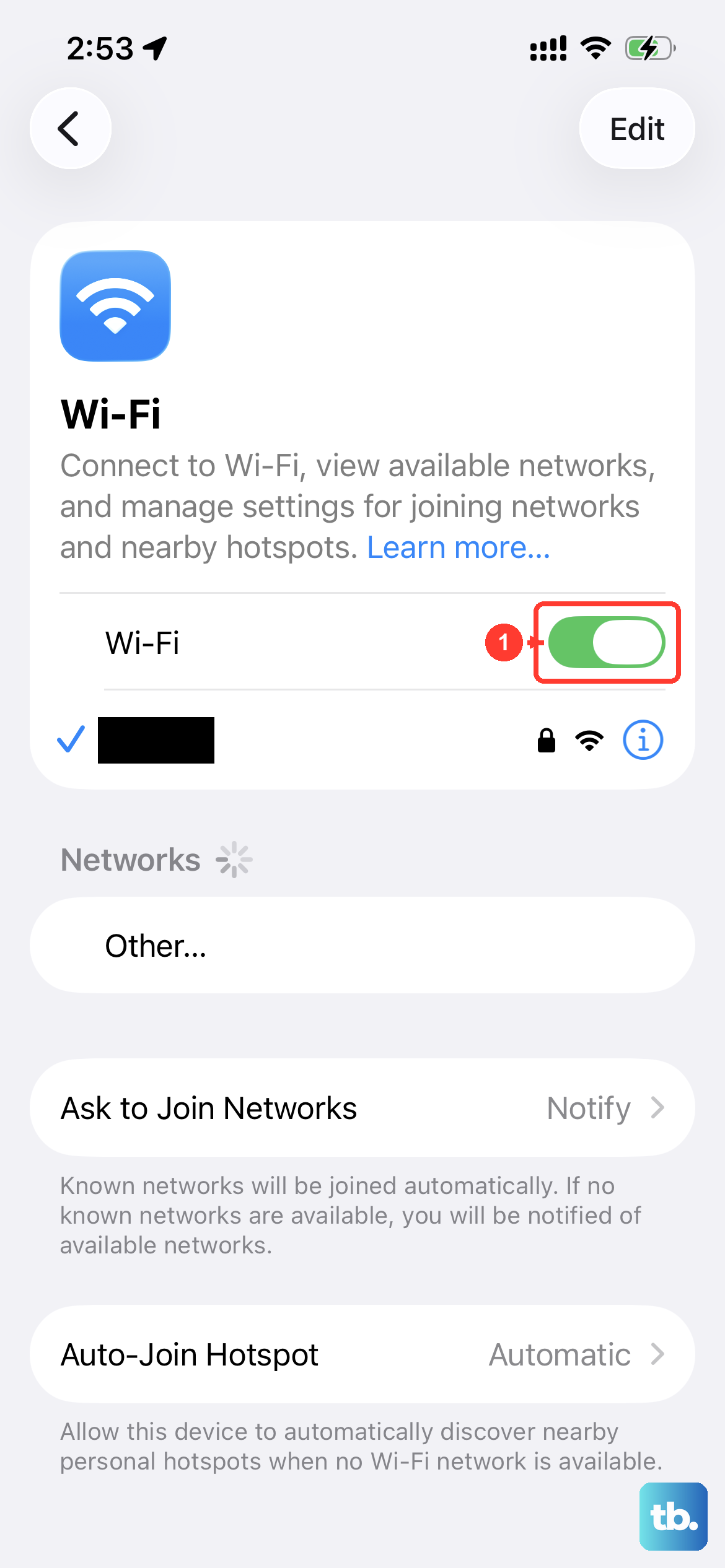
This sounds obvious, but it's easy to overlook. Check the WiFi name on the printer by going to Setup > Device settings > LAN settings > Wi-Fi. Then check your iPhone or Mac in Settings > Wi-Fi and make sure the names match exactly.
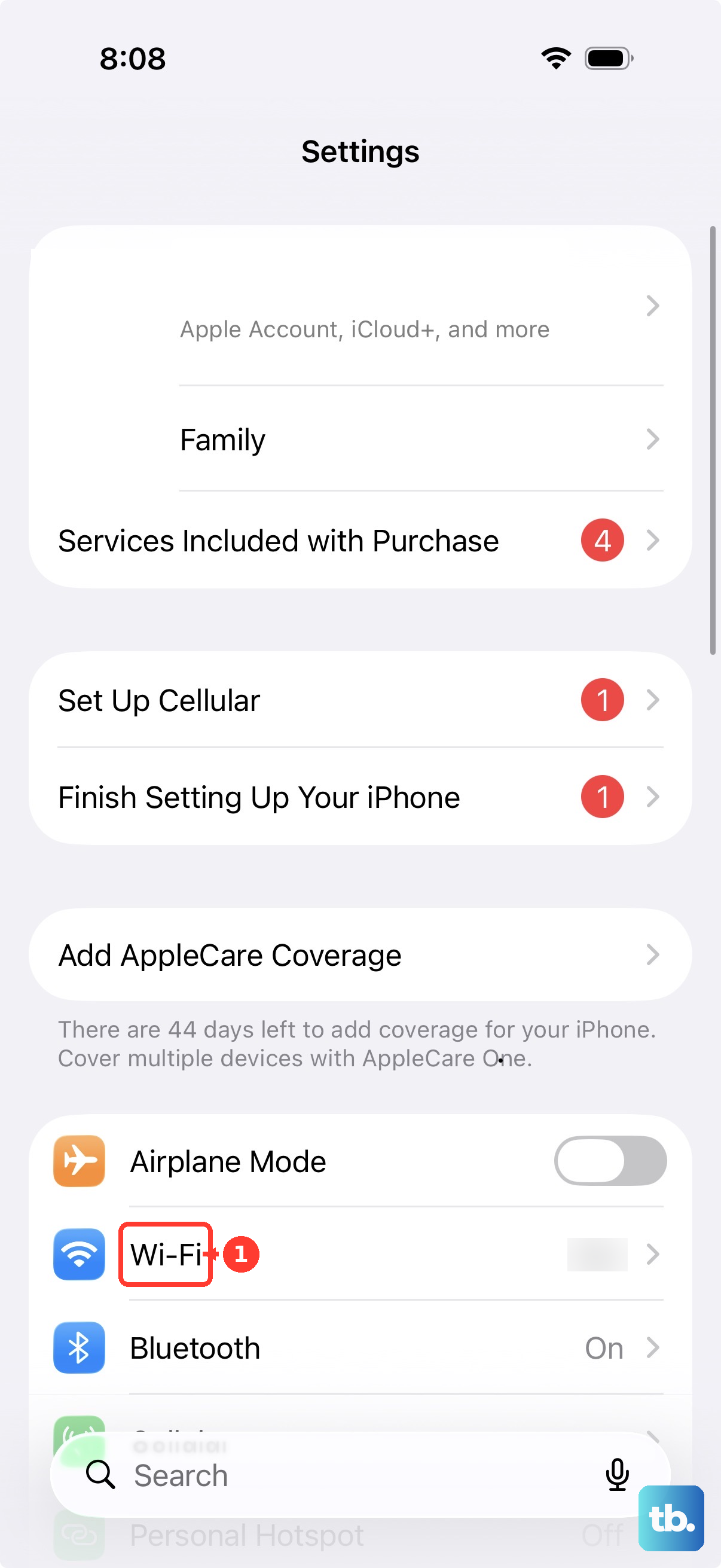
If you have separate SSIDs for 2.4 GHz and 5 GHz, you might be connected to the wrong one. Switch to the matching band and try AirPrint again.
Grant Local Network Permission on iOS
Starting in iOS 14, apps need explicit permission to discover devices on your local network. If you tapped "Don't Allow" when a printing app asked, iOS silently blocks AirPrint. Open Settings > Privacy & Security > Local Network on your iPhone or iPad.
Make sure the toggle is on for the app you're printing from (Safari, Mail, Photos, or whichever app you're using). Try AirPrint again.
Switch to WPA2 on Your Router
The TS6420a has a known issue with WPA3 networks, especially ones that require PMF (Protected Management Frames). The printer connects fine but stops appearing in AirPrint lists. Open your router's settings and switch from WPA3 to WPA2 or WPA2/WPA3 transitional mode. Save the change.
After the router updates, try AirPrint again. If it works, you've found the issue. You can leave the router on transitional mode or check if it has a PMF-optional setting.
Enable mDNS Forwarding on Mesh Networks
Mesh routers like Eero, Orbi, and TP-Link Deco often have mDNS forwarding disabled by default. AirPrint relies on mDNS, so it won't work across mesh nodes without this setting turned on. Open your router's app and look for settings labeled Bonjour, mDNS, Multicast, or IGMP Snooping. Enable mDNS forwarding.
Wait about a minute for the mesh to update. Then try AirPrint again.
Turn Off VPN Before Printing
If your iPhone or Mac is connected to a VPN, AirPrint traffic gets routed through the VPN tunnel and never reaches the printer on your local network. Toggle the VPN off in Settings > VPN on iPhone or System Settings > VPN on Mac. Try AirPrint again.
The printer should appear within seconds once the VPN is off.
Update Firmware via Canon PRINT
Canon releases firmware updates that fix AirPrint compatibility after iOS or macOS updates. Open the Canon PRINT app on your phone (it's the one you used to set up the printer). Tap your printer, then go to Maintenance > Firmware Update. If an update is available, install it.
The update takes about 5 minutes and the printer reboots automatically. After that, AirPrint usually works again.
Reset the Network Settings on the Printer
If nothing else has worked, reset just the network configuration on the TS6420a. This clears any corrupted AirPrint cache without affecting your other printer settings. On the touchscreen, tap Setup > Device settings > LAN settings > Reset LAN settings. Confirm the reset.
The printer wipes its WiFi config and reboots. Reconnect to your WiFi using the Canon PRINT app. AirPrint should start working after the printer rejoins the network with a fresh state.