
You go to print from your iPhone, tap Share and then Print, and your Canon PIXMA TR8620a doesn't appear in the list. Or it shows up, you select it, and the job hangs at "Sending" before timing out. AirPrint relies on Bonjour (mDNS) to find printers on the local network, and on this specific model, the problem usually comes down to a network configuration conflict.
The fastest fix is checking which Wi-Fi band your iPhone is connected to. The TR8620a supports 2.4 GHz Wi-Fi only. If your iPhone is on the 5 GHz band, the two devices won't see each other. Switch your phone to the 2.4 GHz network, and AirPrint usually appears within seconds.
Connect Your iPhone to the 2.4 GHz Band
Open your iPhone's Wi-Fi settings. If you see separate network names, connect to the one without "5G" in the name. If you're on a mesh system like Eero, Orbi, or TP-Link Deco that uses a single SSID for both bands, you can't manually pick which band your phone connects to. In that case, open your router's app and look for an option to temporarily pause the 5 GHz radio. This forces your iPhone onto the 2.4 GHz band where the TR8620a can see it.
Enable Bonjour on the Printer
Bonjour is Apple's discovery protocol, and the TR8620a has a setting for it. If it got disabled somehow, AirPrint won't work at all. On the printer's touchscreen, tap Setup > Device settings > LAN settings > Other settings > Bonjour. Confirm Bonjour is set to Enable. If you had to turn it on, the printer will restart its network service automatically.
Wake the Printer Before You Try Again
The TR8620a goes into deep sleep after about 15 minutes of inactivity. While it's asleep, it stops broadcasting AirPrint availability to the network. Tap any button on the front panel to wake it up. Wait about 10 seconds for it to fully wake before opening the print dialog on your phone. You can extend the sleep timer in Setup > Device settings > Other settings > Sleep settings if this becomes a recurring issue.
Switch Your Router to WPA2 Temporarily
This is a common problem with the TR8620a on newer mesh routers. The printer connects to Wi-Fi fine on networks using WPA3, but AirPrint discovery often fails because of Protected Management Frames (PMF). Open your router's app and look for the wireless security setting. Switch it from WPA3 to WPA2 or WPA2/WPA3 transitional. Save the change, wait a minute, and try AirPrint again. If AirPrint starts working, leave the router on transitional mode. The TR8620a runs perfectly fine on WPA2.
Turn Off the VPN on Your iPhone
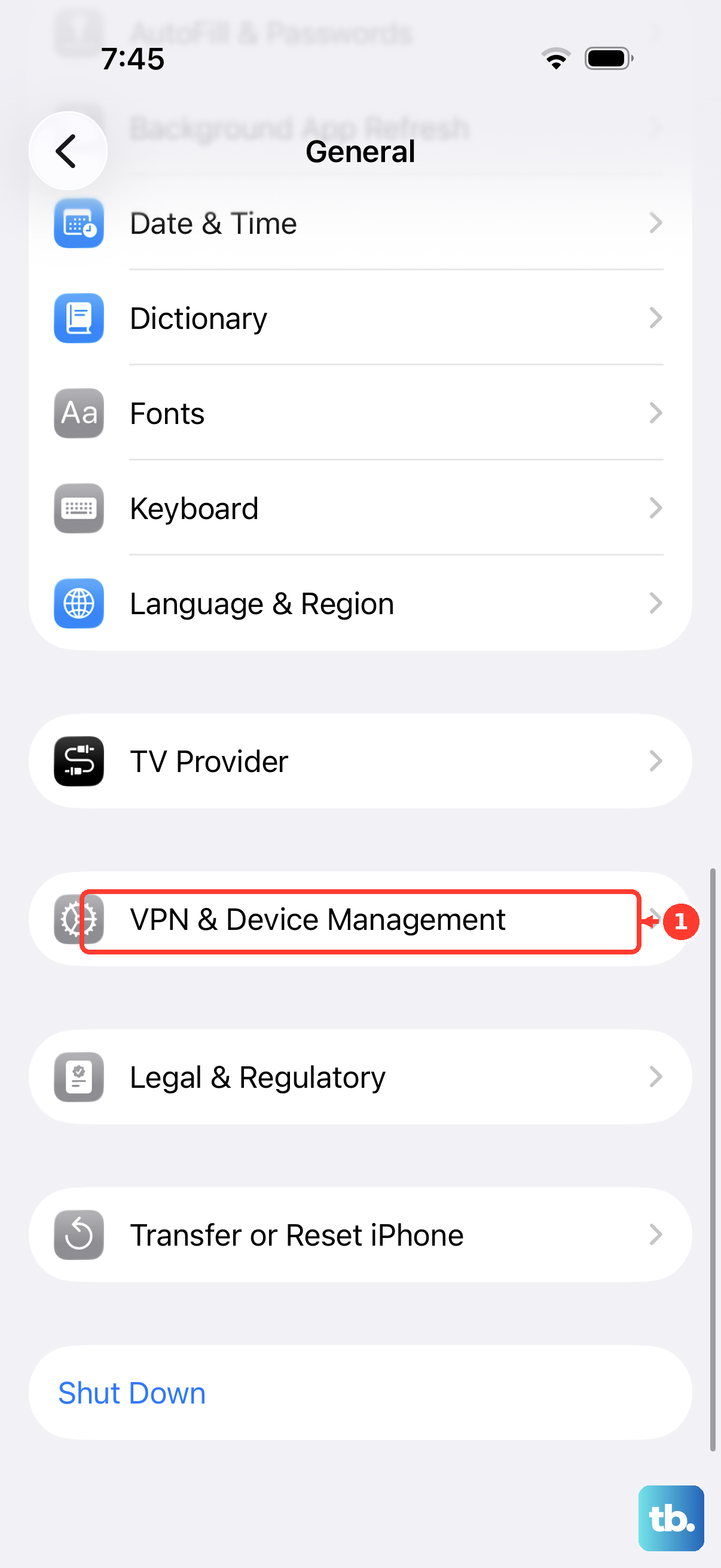
If your iPhone has a VPN enabled, all network traffic routes through the VPN tunnel. That includes AirPrint's Bonjour discovery packets, which means they never reach the printer on your local network. Open Settings > VPN & Device Management and toggle the VPN off. Try printing again.
Allow Local Network Access in iOS Privacy Settings
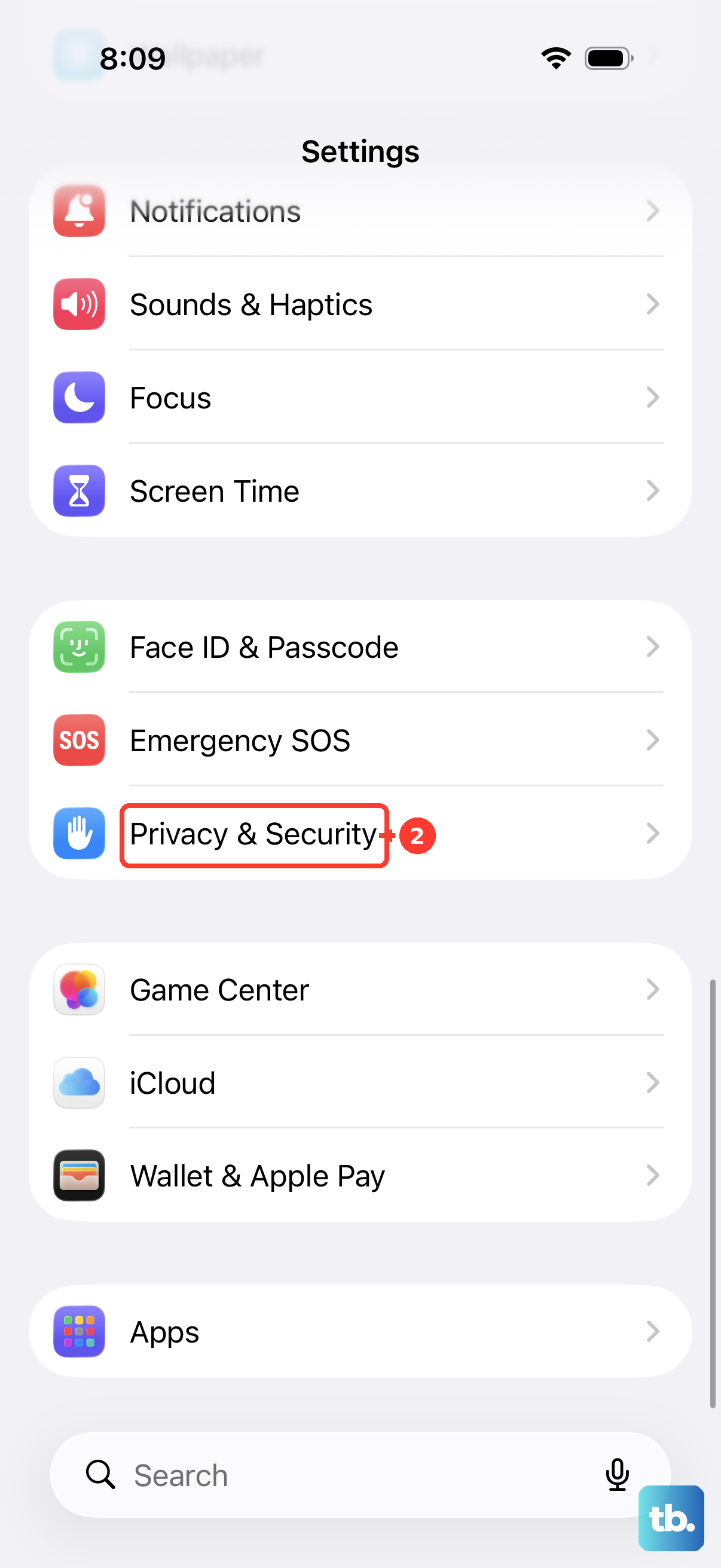
iOS 14 and later require apps to ask for permission before they can discover local devices. If you tapped "Don't Allow" when prompted by Safari, Mail, or the Canon PRINT app, iOS quietly blocks AirPrint access. Open Settings > Privacy & Security > Local Network. Scroll through the list of apps and make sure the toggle is on for whatever app you're printing from. Try AirPrint again.
Restart the Printer and Router
Bonjour services can hang on the printer side, and the router's DHCP table can get stale. Turn the TR8620a off by holding the power button for three seconds until it shuts down. Unplug your router. Wait 30 seconds. Plug the router back in and let it fully boot. Power the printer back on and wait about 60 seconds for it to initialize. Try AirPrint again.
Update the Firmware Through Canon PRINT
Canon has released firmware updates for the TR8620a that specifically improve Bonjour and AirPrint stability. Open the Canon PRINT app on your iPhone, tap your printer, then go to Maintenance > Firmware Update. Install any available update. The process takes about five minutes and the printer reboots automatically.
Reset the Printer's LAN Settings
If nothing else has worked, reset just the network configuration on the printer. This clears any hung Bonjour services and cached IP data. On the touchscreen, tap Setup > Device settings > LAN settings > Reset LAN settings. Confirm the reset. The printer reboots and wipes its Wi-Fi configuration. Reconnect the TR8620a to your Wi-Fi network using the Canon PRINT app, and AirPrint should start working with a fresh network state.