Your Brother printer says it's connected, the paper tray is full, and the cables look fine, yet every document you send just sits there while Windows 11 stamps the printer with an "Offline" status. That offline label is rarely about a dead printer; it is usually a stuck setting, a frozen print job, or a confused service that needs a nudge. The fixes below are ordered from the safest and fastest checks to the more involved repairs, so start at the top and stop as soon as your Brother machine wakes back up.
Start With the Printer Itself and Its Display
Before touching any Windows setting, look at the Brother machine. A printer that is reporting a hardware problem can show as offline on your PC until the problem is cleared, so the display panel is the first thing to read.
Confirm the Brother machine is turned on, then check its display for an error message such as a paper jam or an empty ink or toner indicator. Brother's official guidance is to resolve any error shown on the display first, because the machine can report itself offline while a hardware error is active.
Also confirm the physical connection while you are there. For a USB model, make sure the cable is seated at both ends; for a wireless model, confirm the Wi-Fi connection is active. Once the display is clear and the connection is solid, move on.
Clear the "Use Printer Offline" Setting the Brother Way
By far the most common cause of this problem is a single checkbox that Windows can toggle on by itself. Brother documents an exact path to turn it back off.
- 1.Right-click the icon for your Brother machine and select
See what's printing. - 2.Open the
Printermenu at the top of the queue window. - 3.Clear the check mark next to
Use Printer Offline.
If Use Printer Offline appears grayed out and you cannot click it, choose Open As Administrator from the Printer menu and authorize the change, then clear the offline option. This is Brother's documented method and it resolves the majority of offline cases on the spot.
Double-Check the Offline Toggle Through Windows Settings
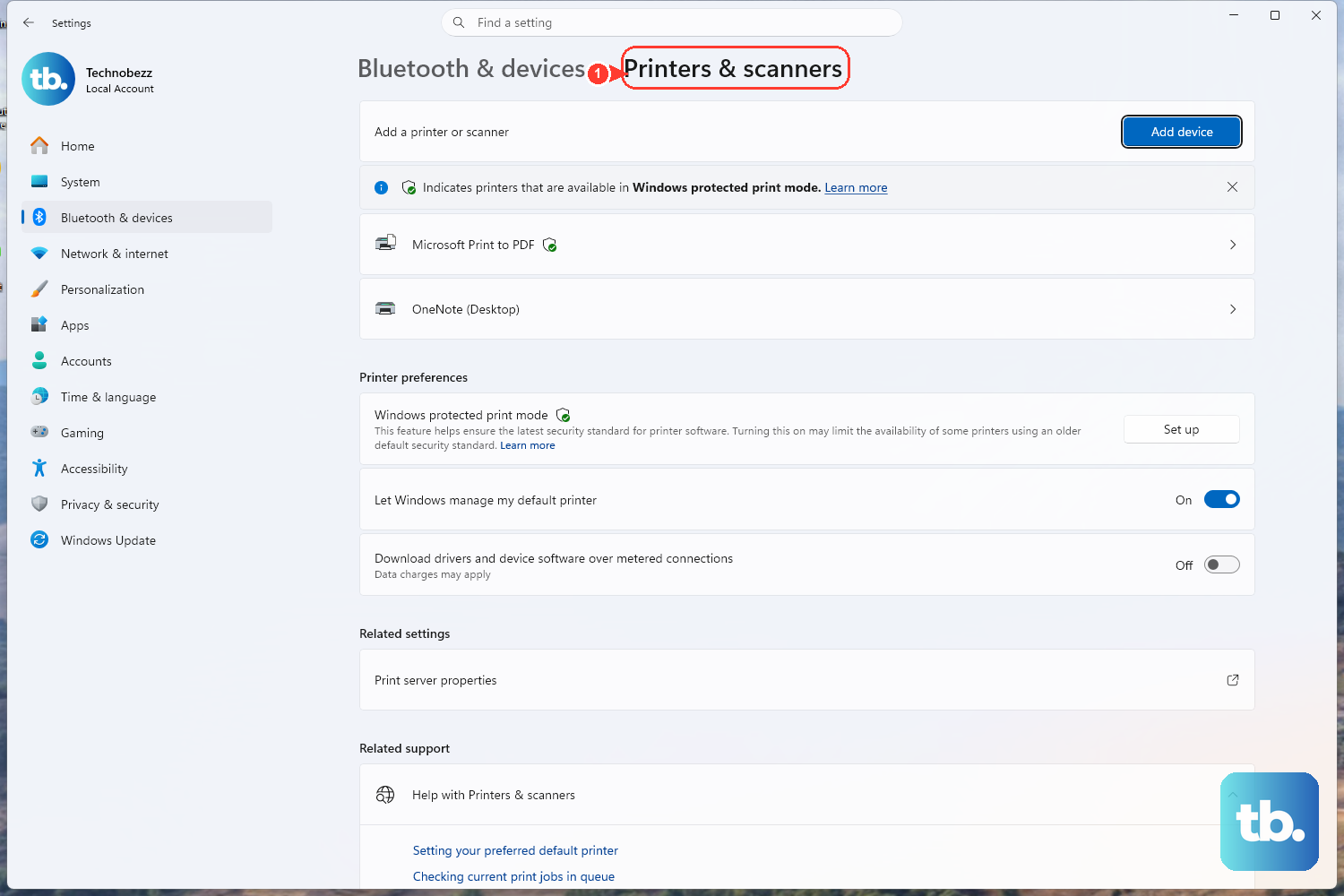
Windows keeps its own view of the same setting, so it is worth confirming the offline box is clear from inside the Settings app as well. The path differs slightly depending on your Windows version.
On Windows 11, go to Start > Settings > Bluetooth & devices > Printers & scanners, select your Brother printer, then choose Open print queue. On Windows 10, go to Start > Settings > Devices > Printers & scanners, select the printer, then choose Open queue.
Once the queue window is open, click the Printer menu and confirm that Use Printer Offline is not selected. If it still shows a check mark, clear it here too.
Power-Cycle the Brother Machine
A full power cycle clears a temporary offline state that no setting change will fix on its own. This is Microsoft's official step and it takes under a minute.
- 1.Turn off your printer and unplug it.
- 2.Wait 30 seconds.
- 3.Plug your printer back in.
- 4.Turn the printer back on.
Give the machine a moment to finish booting and reconnect, then send a test print. A surprising number of offline states never come back after this single reset.
Flush Out a Stuck Print Job
One job that failed to send can jam the whole queue and hold the printer in an offline state. Clearing the queue removes that blockage.
On Windows 11, open the printer's page in Settings > Bluetooth & devices > Printers & scanners, select Open print queue, click the ... (ellipsis), and choose Cancel all. On Windows 10, select Open queue, then right-click each print job and select Cancel (you can also use the Document > Cancel menu).
With the queue empty, try printing a single page. If a corrupted job was the culprit, the printer should now report as ready.
Restart the Print Spooler Service
The Print Spooler is the background service that manages every print job on your PC. When it gets stuck, printers can show offline even though everything else looks correct, and a restart fixes that.
- 1.Press
Windows key + R, typeservices.msc, and press Enter. - 2.Scroll down to the service named
Print Spooler. - 3.Right-click
Print Spoolerand selectRestart.
Microsoft documents this service by its display name, Print Spooler, so that is the exact entry to look for in the Services list. After the restart, check the printer status again.
Let Windows Diagnose It Automatically
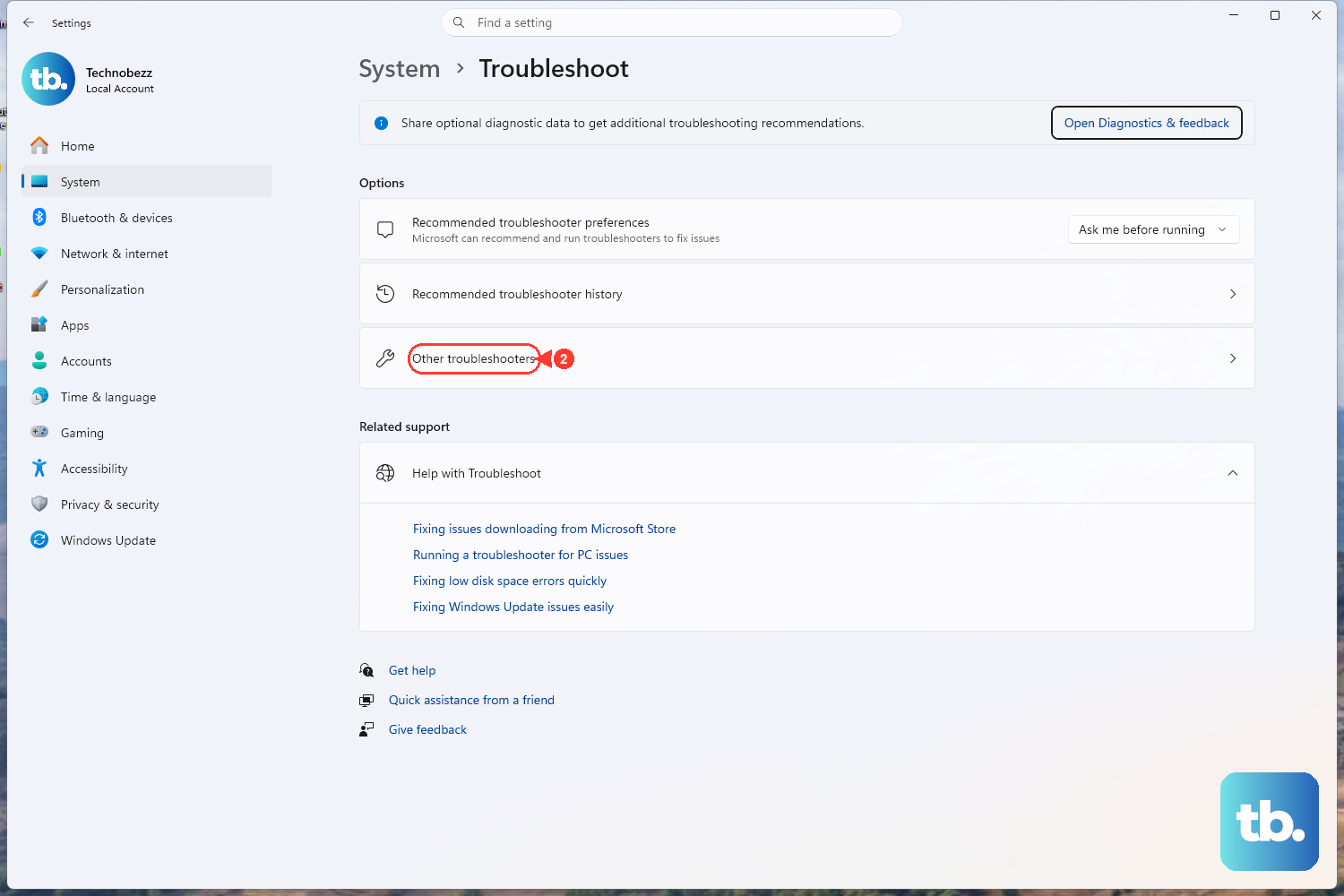
Windows includes an automated printer troubleshooter that runs diagnostics and attempts an automatic fix, and on Windows 11 it now lives inside the Get Help app. Microsoft recommends starting here when an offline printer will not respond to manual steps.
Open the Get Help app and run the printer troubleshooter. Microsoft also provides two official deep links that launch the relevant tool directly: aka.ms/OfflinePrinter to run the offline-printer troubleshooter, and aka.ms/PrinterConnection to run the printer-connection troubleshooter.
Let the troubleshooter finish its checks. If it finds a fixable issue, it will apply the change for you and report what it did.
Make the Brother Printer Your Default
If Windows is routing print jobs to a different device, your Brother machine can appear stuck or offline while another printer quietly receives the jobs. Setting it as the default removes that ambiguity.
On Windows 11, go to Start > Settings > Bluetooth & devices > Printers & scanners, select your Brother printer, then choose Set as default. The status should change to show it as the default.
On Windows 10, go to Start > Settings > Devices > Printers & scanners and set your Brother printer as the default. Make sure the Let Windows manage my default printer option is not selected, otherwise Windows may switch the default back on its own.
Look for a Duplicate Printer Entry
Windows sometimes creates a second copy of your Brother printer, and printing to the wrong copy can look exactly like an offline failure. A duplicate entry can appear when a driver is installed more than once, and the extra copy may not work.
Look through your list of printers for any duplicate Brother entries. Identify the copy whose status is not offline and instead shows idle or ready, then print using that one. If a duplicate is the issue, pointing your jobs at the working copy is all it takes.
Reinstall Brother's Full Driver and Software Package
If the printer stays offline after everything above, a fresh driver install is Brother's official next step. This also reinstalls Brother's own monitoring tool, which gives you better visibility into the machine's status.
Download the Full Driver & Software Package from the Downloads section at support.brother.com and reinstall it. That package includes Brother's Status Monitor utility, which reports the printer's live status from your desktop.
After reinstalling, send a test print and watch the Status Monitor to confirm the machine reports as ready. A clean driver install combined with a working status tool resolves the offline cases that survive every earlier step.
Frequently Asked Questions
Why does my Brother printer keep going offline by itself?
The most frequent reason is the Use Printer Offline setting being switched on, often after a stuck print job or a temporary connection drop. Clearing that setting through Brother's "See what's printing" menu, then power-cycling the printer, resolves most repeat offline cases. A hardware message on the printer's own display can also force it offline until you clear the error.
Where is the offline setting on Windows 11 versus Windows 10?
On Windows 11 you reach the printer queue through Settings > Bluetooth & devices > Printers & scanners, then Open print queue. On Windows 10 the path is Settings > Devices > Printers & scanners, then Open queue. In either version, open the Printer menu inside the queue window to confirm Use Printer Offline is unchecked.
How do I restart the print service that handles my jobs?
Press Windows key + R, type services.msc, and press Enter to open the Services console. Find the service named Print Spooler, right-click it, and select Restart. This clears a stuck spooler that can hold your printer in an offline state.
Is there an automatic tool from Microsoft for this?
Yes. Windows includes an automated printer troubleshooter that now runs through the Get Help app, which performs diagnostics and attempts a fix on its own. You can launch it directly using Microsoft's official links aka.ms/OfflinePrinter or aka.ms/PrinterConnection.
Where do I get a fresh Brother driver if reinstalling is the only fix left?
Download the Full Driver & Software Package from the Downloads section at support.brother.com and reinstall it. That package also includes Brother's Status Monitor utility, which reports the printer's live status from your desktop once the install completes.