Your headphones say connected, the Bluetooth icon looks happy, and yet the music keeps coming out of your laptop speakers (or nothing plays at all). It is one of the more confusing audio problems on a Windows PC because everything appears to be working. The good news is that the cause is almost always a simple routing or settings issue, and the fixes below move from the quickest checks to the deeper driver work, so you rarely need to go far down the list. These steps apply to both Windows 11 and Windows 10, with the path for each noted wherever they differ.
It is worth confirming the basics with a quick quick sound test. If neither channel plays a tone, check the selected output device and volume settings before moving on to connection and driver checks.
Start by confirming where Windows is actually sending the sound
This is the single most common reason a connected Bluetooth device stays silent: Windows is still routing audio to the PC speakers even though your headphones show as paired. Checking the active output device takes ten seconds and fixes the problem more often than anything else.
Open Start > Settings > System > Sound.
Under Output, select your Bluetooth headphones or speaker as the output device.
On Windows 10 this control is labeled Choose your output device; on Windows 11, confirm the Bluetooth device is set as the Output.
If selecting the device immediately brings the sound back, you are done. If it was already selected, move on to the volume check below.
Rule out volume and mute before going further
Silent audio is sometimes just silence. In Settings > System > Sound, make sure the main volume slider is raised and that the device is not muted. It is an easy thing to overlook when you are focused on the Bluetooth side of the problem.
Keep in mind that some apps carry their own independent volume controls that have to be raised separately, so a muted player can stay silent even when the system volume is up. Finally, raise the volume on the Bluetooth device itself, since many headphones and speakers have hardware buttons that are easy to leave turned down.
Let Windows diagnose it for you
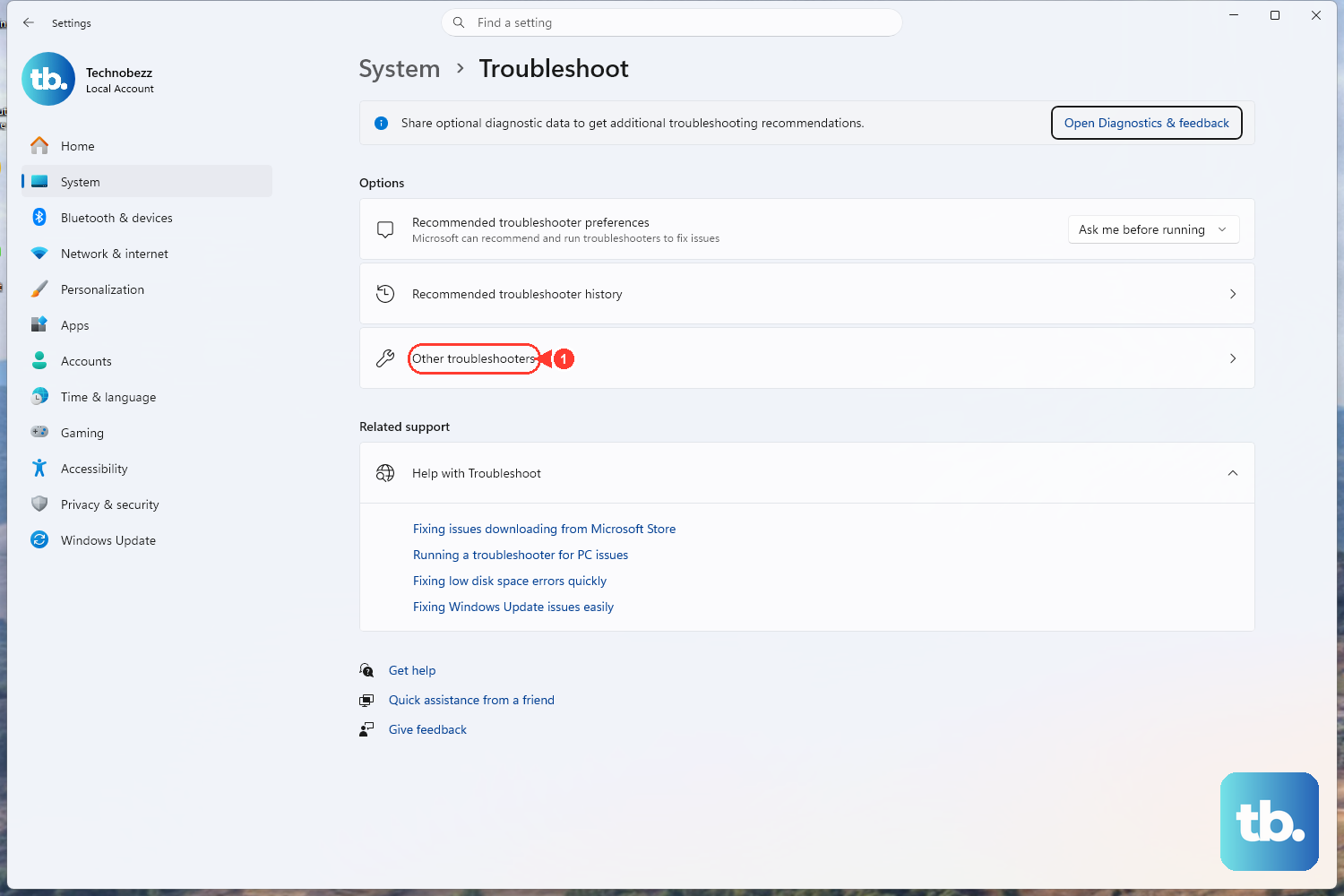
Before you start changing settings by hand, give the built-in automated troubleshooters a chance. They run diagnostics and attempt to fix common problems on their own, which can save you the rest of this list.
On both Windows 10 and Windows 11, open the Get Help app and run the Bluetooth troubleshooter.
To start it manually on Windows 11, go to Start > Settings > System > Troubleshoot > Other troubleshooters, then next to Bluetooth select Run.
On Windows 10, go to Start > Settings > Update & Security > Troubleshoot, then under Find and fix other problems select Bluetooth and choose Run the troubleshooter.
If the connection itself checks out but sound still will not play, run the audio troubleshooter next. Open the Get Help app and run the audio troubleshooter.
To start it manually on Windows 11, go to Start > Settings > System > Troubleshoot > Other troubleshooters, then next to Audio select Run.
On Windows 10, go to Start > Settings > Update & Security > Troubleshoot > Additional troubleshooters, select Playing Audio, then choose Run the troubleshooter.
Reset the Bluetooth radio with a quick toggle
Turning Bluetooth off and on again clears a surprising number of glitches, including a connection that links but never carries audio.
Open Settings > Bluetooth & devices (Windows 11) or Settings > Devices > Bluetooth & other devices (Windows 10).
Turn Bluetooth off, wait about 10 seconds, then turn it back on.
Confirm that Airplane mode is off, since it disables the Bluetooth radio entirely.
Unpair the device and pair it fresh
If the toggle did not help, removing the device and adding it again rebuilds the connection from scratch. A fresh pairing reestablishes the audio connection that actually carries sound, which is the part most likely to be stuck when everything else looks fine. If the device still produces no audio after re-pairing, check the manufacturer documentation to confirm it supports stereo audio (A2DP) playback over Bluetooth.
On Windows 11: go to Settings > Bluetooth & devices, select the device, choose More options (...) > Remove device, then select Add device and pick your headphones or speaker from the list.
On Windows 10: go to Settings > Devices > Bluetooth & other devices, select the device > Remove device > Yes, then choose Add Bluetooth or other device > Bluetooth and reselect it.
Make the Bluetooth device the default for playback
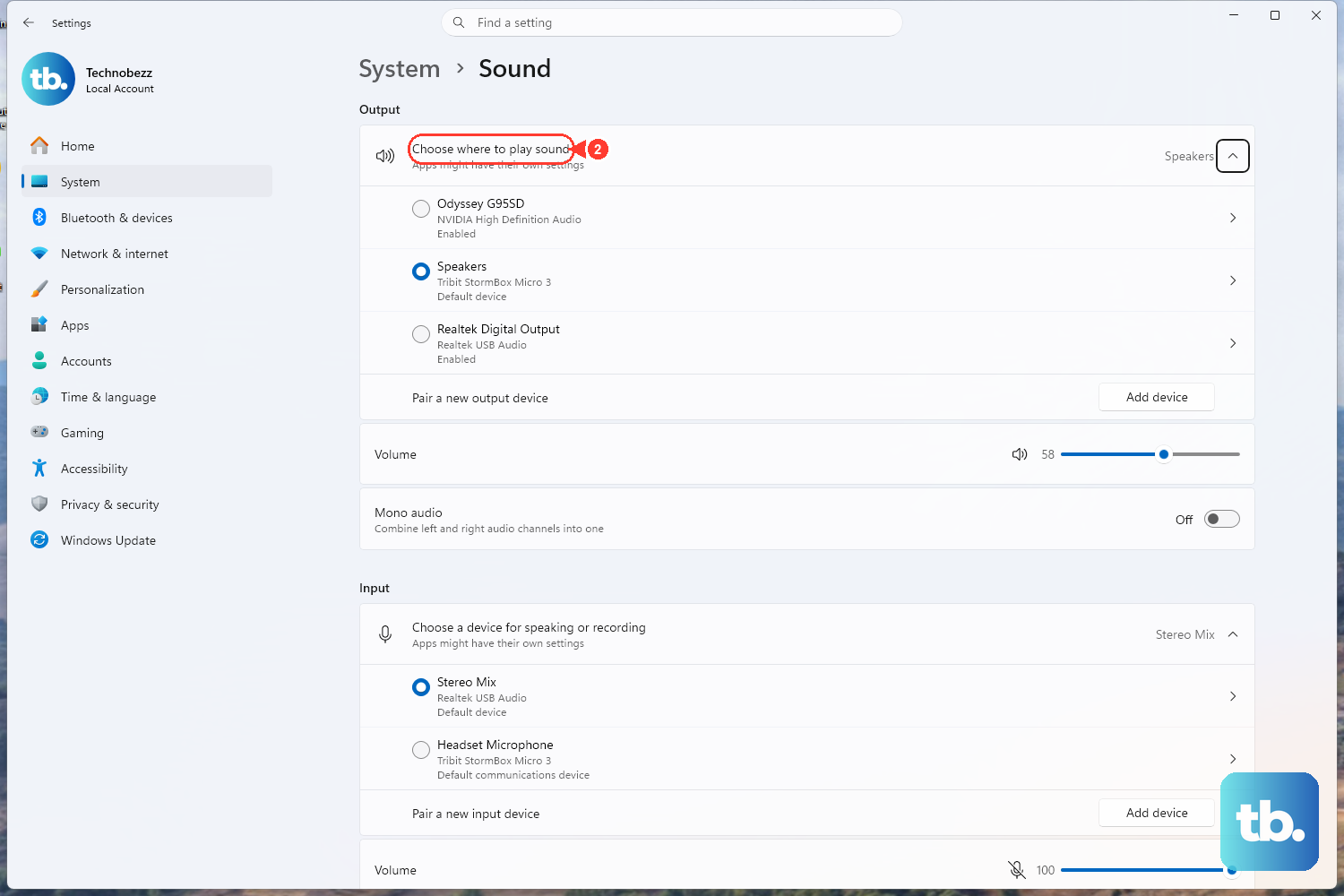
Even after the device is selected as your output, Windows keeps a separate list of playback devices, and the wrong one can be flagged as default. Setting your headphones as the default playback device makes sure new audio is sent there automatically.
Open Settings > System > Sound and open the additional sound settings, which bring up the classic dialog with a Playback tab listing your devices.
On Windows 11 this link is labeled More sound settings; on Windows 10 it appears as the Sound Control Panel.
In the Playback tab on Windows 11, right-click your Bluetooth device and choose Set as default. On Windows 10, select your Bluetooth device, then select Set Default.
Restart the Windows audio services
The Windows audio stack runs as background services, and if one of them has hung, output can drop silently while the device still shows connected. Restarting them is safe and often clears the blockage.
- 1.Select Start, type services.msc and press Enter to open the Services console.
- 2.Right-click Windows Audio and select Restart.
- 3.Right-click Windows Audio Endpoint Builder and select Restart.
- 4.Test your audio afterward.
The audio stack also depends on the Remote Procedure Call (RPC) service. Leave it running; do not stop or change it while you are in the Services console.
Match the audio format to a standard quality setting
A mismatched audio format can cause complete silence over Bluetooth even when the connection is solid. Setting the format to a common, widely supported value often restores sound right away.
Open the Playback tab in the sound settings described above, select your Bluetooth device, open its Properties, go to the Advanced tab, and set the default format to the DVD Quality option.
Apply the change and test playback again.
Update the Bluetooth and audio drivers
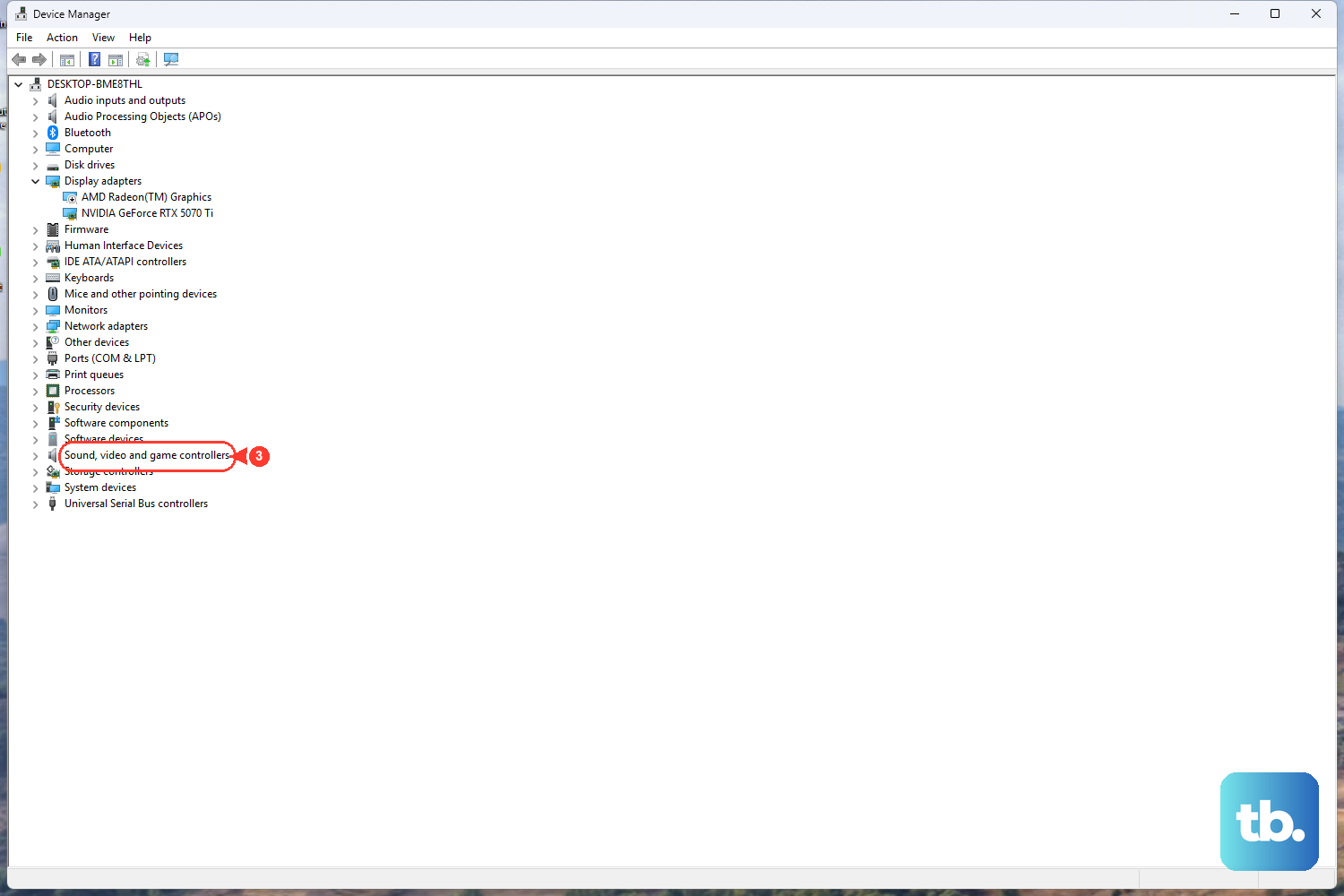
If sound is still missing after the settings checks, an outdated or faulty driver is the next suspect. Updating the Bluetooth driver comes first because it governs the link itself.
Select Start, type Device Manager and open it.
Expand Bluetooth, right-click your Bluetooth adapter and select Update driver.
Choose Search automatically for drivers and follow the prompts.
Restart the PC.
If Windows reports that the best driver is already installed, a newer version may still be available on your PC manufacturer website.
Next, do the same for the audio driver: open Device Manager, expand Sound, video and game controllers, right-click your audio device, select Update driver > Search automatically for drivers, follow the prompts and restart.
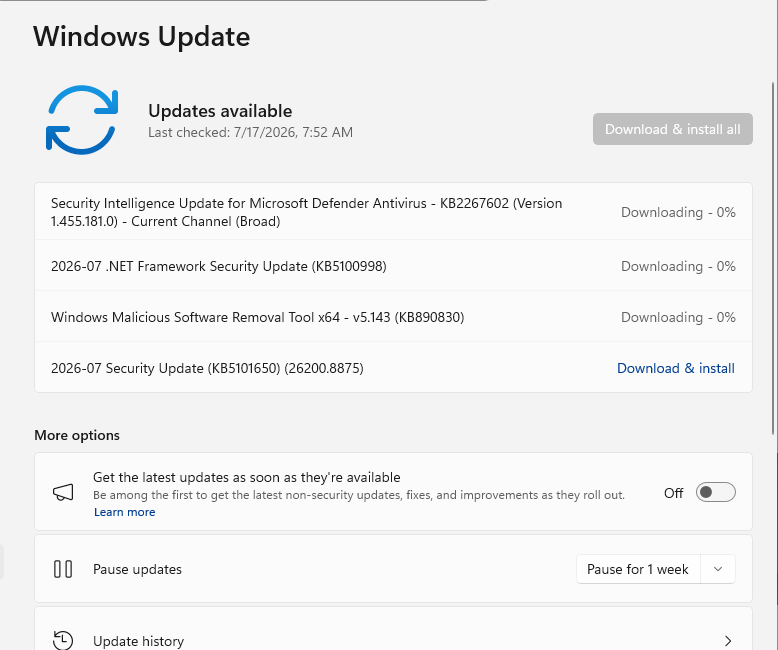
You can also pull driver updates through Windows Update, at Settings > Windows Update > Check for updates on Windows 11, or Settings > Update & Security > Windows Update on Windows 10.
Roll back the driver if sound broke right after an update
If your Bluetooth audio was working until a recent driver or Windows update, the new driver may be the problem rather than the cure. Windows can revert to the previous version.
Open Device Manager and expand Sound, video and game controllers.
Right-click your audio device > Properties > Driver tab > Roll Back Driver.
Restart the PC.
This option only appears when a previous driver version is available, so if it is grayed out there is nothing to roll back to.
Reinstall the driver as a last resort
When nothing above works, uninstalling the driver and letting Windows put it back can clear a corrupted installation. Windows reinstalls the driver automatically after you restart, so the device should not be left without one. Save your work before you begin, since a restart is required.
For Bluetooth: open Device Manager > Bluetooth, right-click the adapter > Uninstall device, then restart the PC.
For audio: open Device Manager > Sound, video and game controllers, right-click the audio device > Uninstall device, then restart.
In both cases Windows reinstalls the driver for you on reboot.
Frequently Asked Questions
Why does my Bluetooth show connected but play no sound?
The most common reason is that Windows is still sending audio to your PC speakers instead of the Bluetooth device, even though the headset shows as connected. Open Settings > System > Sound and select your Bluetooth headphones or speaker under Output. If that does not fix it, re-pairing the device rebuilds the audio connection that actually carries sound.
Which fix should I try first?
Start with the quickest, safest checks: confirm the Bluetooth device is the selected output, then make sure nothing is muted and the volume is up on both the PC and the device. After that, run the built-in Bluetooth and audio troubleshooters in the Get Help app, which can diagnose and fix common problems automatically before you touch any drivers.
Is restarting the Windows audio services safe?
Yes. In the Services console (services.msc) you can right-click Windows Audio and Windows Audio Endpoint Builder and select Restart without risk. Just leave the Remote Procedure Call (RPC) service alone, because the audio stack depends on it.
What if updating the driver says the best driver is already installed?
Windows checks its own driver library, which may not have the newest version. A more recent Bluetooth or audio driver is often available directly from your PC manufacturer website, so check there if the automatic search reports no update.
Do these steps work the same on Windows 10 and Windows 11?
The fixes apply to both, though some menu paths differ. For example, Bluetooth settings live at Settings > Bluetooth & devices on Windows 11 and Settings > Devices > Bluetooth & other devices on Windows 10. Each step above lists the path for your version where they are not the same.