
When your ASUS TUF Gaming A15's webcam shows a black screen, isn't detected by apps, or gives an error, it can stop your gaming streams or video calls cold. The good news is, it's almost always a software or settings issue you can fix yourself.
It takes seconds to confirm the camera works with an online online camera test. If the preview stays black there too, keep reading, because the steps below target exactly that.
Check for a Physical Camera Shutter
First, take a close look at the bezel above your screen. Some TUF models come with a built-in privacy shutter, a small plastic slider you can move to cover the lens. Make sure it's slid completely open. If your model doesn't have one, you'll just see the camera lens itself.
Close Other Apps Using the Camera
Only one program can access the webcam at a time. If you have Discord, OBS, or the Xbox Game Bar running in the background, they might be holding onto the camera. Close everything, then try opening just the app you need, like Zoom or the built-in Camera app.
Check Windows Camera Privacy Settings
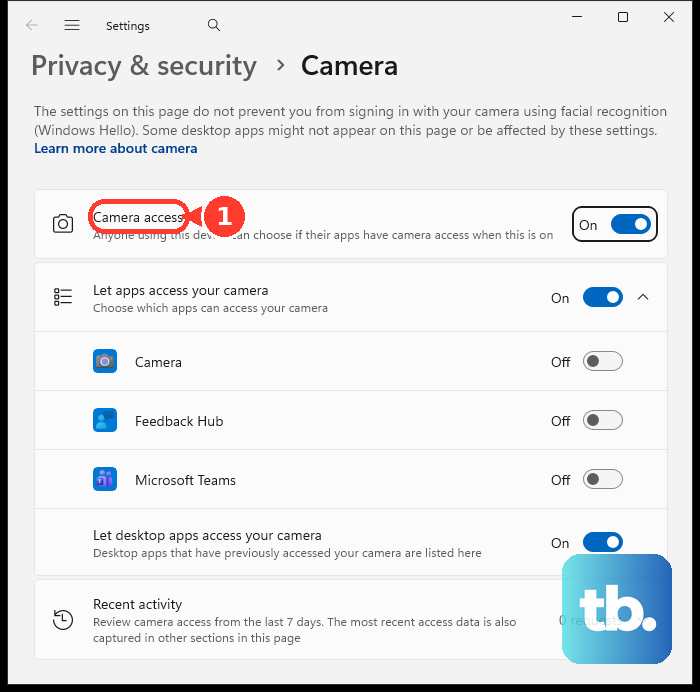
Windows has a master privacy switch for the camera. Press the Windows key and type "camera privacy" to open the settings. Make sure "Camera access" is turned on. Then, scroll down to ensure the specific app you're trying to use (like Chrome or Teams) is also toggled on in the list of allowed apps.
Test with the Windows Camera App
Open the Camera app from your Start menu. This is the simplest test. If the camera works perfectly here, then the hardware is fine and the problem is with your other application's settings. If the Camera app also fails, the issue is with Windows or the driver.
Update Your Camera Drivers
Outdated or corrupted drivers are a common culprit. Press the Windows key + X and select Device Manager. Look for "Cameras," "Imaging devices," or "Sound, video and game controllers" and expand the category. Right-click your ASUS camera and select "Update driver." Choose "Search automatically for drivers."
If Windows doesn't find a new driver, you should get the latest one directly from ASUS. Go to the ASUS support site, enter your TUF A15's exact model number, and download the latest camera driver from the driver list. I've seen this resolve detection issues on several TUF models.
Reinstall the Camera Driver Completely
If updating didn't help, a clean reinstall might. Back in Device Manager, right-click the camera device again, but this time select "Uninstall device." Check the box that says "Attempt to remove the driver for this device" if you see it. Restart your laptop. Windows will automatically reinstall a fresh driver on startup.
Check for Conflicts in Armoury Crate
Your TUF A15's Armoury Crate software controls system performance. While it doesn't directly manage the webcam, switching between performance modes (like Silent, Performance, or Turbo) can reset system processes. Try switching to a different mode and then back, or simply close Armoury Crate entirely to see if it's interfering.
Run a System File Check
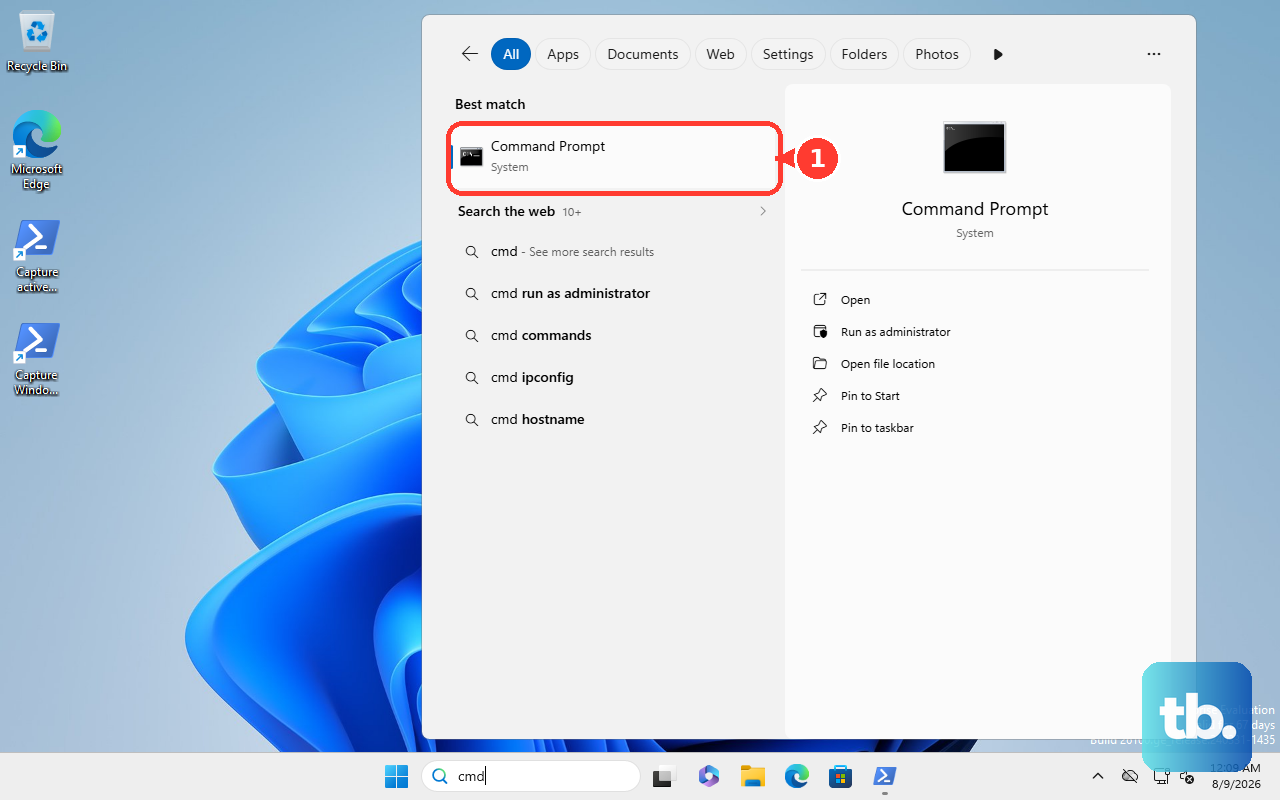
Corrupted Windows system files can cause all sorts of hardware issues. Open Command Prompt as an administrator (search for "cmd," right-click it, and select "Run as administrator"). Type the command sfc /scannow and press Enter. This will scan and repair protected system files, which can sometimes restore camera functionality.
Perform a Windows Update
Finally, make sure Windows itself is completely up to date. Go to Settings > Windows Update and click "Check for updates." Install any available feature or quality updates. After the update and a restart, also check "Advanced options" > "Optional updates" for any driver updates that might be listed there.