
When your ASUS TUF Gaming A15 can't find Bluetooth devices, your wireless headset, mouse, or controller suddenly becomes useless. The Bluetooth menu might show nothing, or it spins endlessly while searching. It's a common Windows hiccup, but you can almost always fix it yourself.
Toggle Bluetooth On and Off
First, click the notification center icon in your taskbar and make sure the Bluetooth tile is lit up. If it's on, turn it off, wait a moment, and turn it back on. This quick reset of the Bluetooth radio can clear up a temporary glitch that's preventing device discovery.
Restart Your TUF A15
If toggling doesn't work, give your laptop a full restart. This is the most reliable way to reload the Bluetooth driver and all related Windows services. I'd start with this one, as it fixes the issue more often than not, especially if the problem started after the laptop woke from sleep.
Forget and Re-Pair Your Device
Go to Settings > Bluetooth & devices. Find the device that won't connect, click the three dots next to it, and select Remove device. Now, put your headset or mouse into its pairing mode, usually by holding a button until a light flashes. Click Add device on your laptop and select it from the fresh list.
Run the Windows Bluetooth Troubleshooter
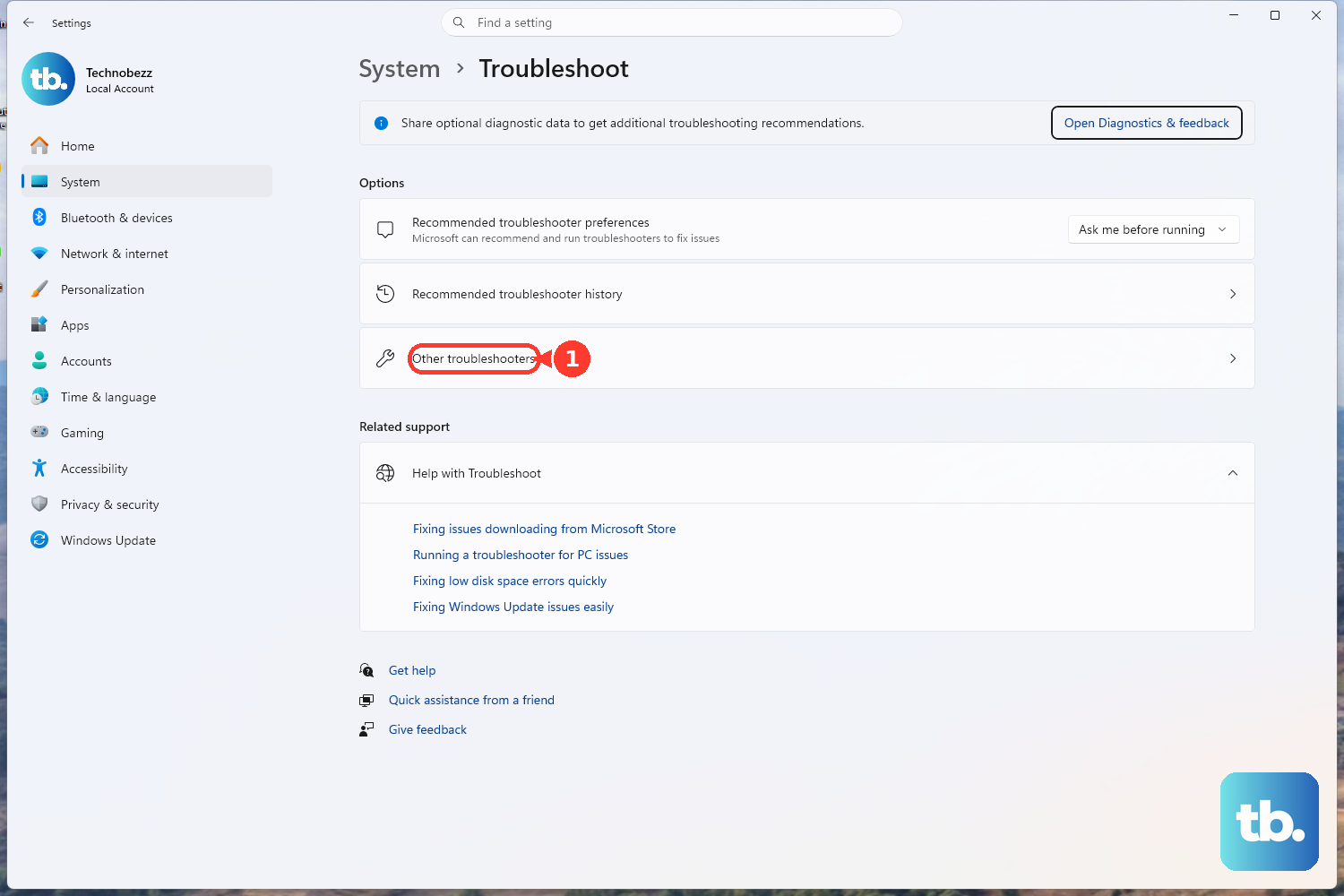
Windows has a built-in tool for this. Go to Settings > System > Troubleshoot > Other troubleshooters. Find the Bluetooth option and click Run. The troubleshooter will scan for common configuration problems and try to apply fixes automatically, which can save you a lot of time.
Update Your Bluetooth Drivers
Outdated or corrupted drivers are a frequent culprit. Press the Windows key + X and select Device Manager. Expand the Bluetooth section, right-click on your adapter (it might be listed as Intel, Realtek, or MediaTek), and choose Update driver > Search automatically for drivers.
If that doesn't find an update, you should get the driver directly from ASUS. Visit the ASUS support site, enter your TUF A15 model number, and download the latest Bluetooth driver from the driver section. Installing this can resolve compatibility issues that Windows Update misses.
Check for Windows Updates
Head to Settings > Windows Update and click Check for updates. Install any available feature or quality updates. Microsoft regularly patches Bluetooth connectivity and audio issues in these updates, so staying current is important for wireless stability.
Restart the Bluetooth Support Service
Sometimes the background service that manages Bluetooth stops running. Press Windows + R, type services.msc, and hit Enter. Scroll down to find Bluetooth Support Service, right-click it, and select Restart. Also, double-click it to ensure the Startup type is set to Automatic.
Reinstall the Bluetooth Adapter in Device Manager
This is a more thorough driver fix. Go back to Device Manager under Bluetooth. Right-click your Bluetooth adapter and select Uninstall device. Check the box that says "Attempt to remove the driver for this device" if you see it. After it uninstalls, restart your laptop. Windows will detect the hardware on boot and reinstall a fresh driver.
Check for Signal Interference
Your TUF A15's powerful components and nearby electronics can interfere with the 2.4GHz Bluetooth signal. If you're using a wireless mouse dongle or have USB 3.0 devices plugged in, try unplugging them temporarily. Also, move your Bluetooth device closer to the laptop, as the metal chassis can sometimes limit the signal range.
If you use Armoury Crate, try switching from a high-performance mode like Turbo to Silent or Windows mode. The aggressive power and fan profiles in Turbo mode can sometimes affect wireless chip behavior, though this is less common.