
When your ASUS ROG Zephyrus G16 is plugged in but the battery percentage just won't budge, it's a frustrating roadblock. This can be caused by anything from a simple software setting to a failing power adapter. Let's walk through the fixes, starting with the most common culprits.
Check Your ASUS Adapter and Port
First, take a close look at your ASUS power brick and cable. Look for any kinks, fraying, or damage, especially near the connectors. Make sure the brick's LED is lit when it's plugged into the wall outlet.
For the Zephyrus G16, ensure you're using the correct barrel plug charger that came with it or a compatible high-wattage replacement. While some models support USB-C charging, it often doesn't provide enough power for gaming and may only slow-charge or maintain the battery.
Perform a Full Power Cycle
Shut down your laptop completely, don't just put it to sleep. Once it's off, unplug the charger and hold down the power button for a full 60 seconds. This drains any residual power and resets the hardware power controller.
After the minute is up, plug the charger back in and press the power button normally to turn it on. I've seen this simple reset clear up false "plugged in, not charging" statuses on many ROG laptops.
Review Armoury Crate Power Settings
Open the Armoury Crate app, which is central to your G16's operation. Navigate to the Device tab, then select Power & Performance. Look for a setting called Battery Health Charging or similar.
ASUS includes this feature to prolong battery lifespan by limiting the maximum charge, often to 60%, 80%, or 100%. If it's enabled and set below your current battery level, it will intentionally stop charging. You can disable it or set it to 100% for a full charge.
Update or Reinstall Battery Drivers
Press the Windows key, type Device Manager, and open it. Expand the Batteries section. You'll see entries like Microsoft ACPI-Compliant Control Method Battery.
Right-click on each battery-related device and choose Uninstall device. Don't restart when prompted. After uninstalling all of them, go to the Action menu at the top and select Scan for hardware changes. Windows will reinstall the drivers, which can resolve communication errors with the battery.
Generate a Battery Health Report
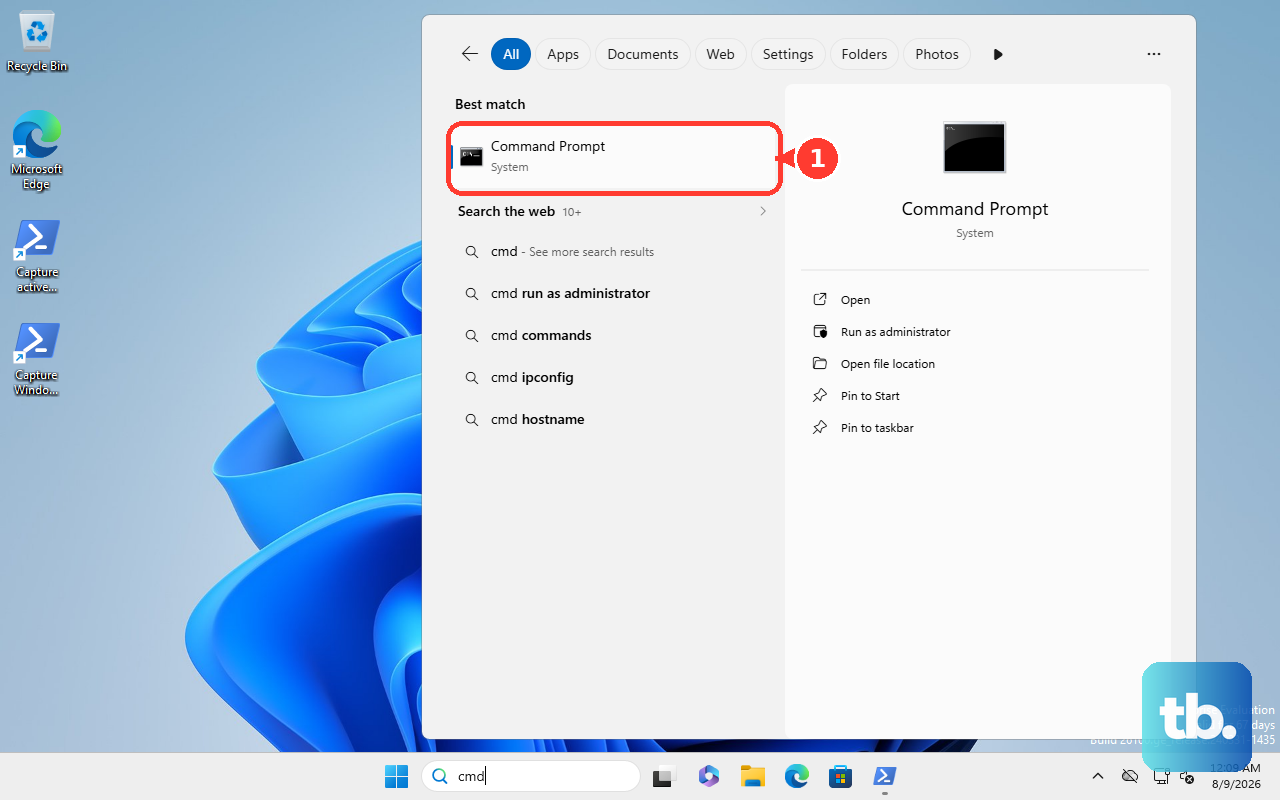
To check if the battery itself is the problem, open Command Prompt as an administrator. Type the command powercfg /batteryreport and press Enter.
This generates an HTML file in your user folder. Open it to see detailed stats. Compare the DESIGN CAPACITY with the FULL CHARGE CAPACITY. If the full charge capacity is significantly degraded (e.g., below 50% of design), the battery may be failing and need replacement.
Check for BIOS and Firmware Updates
Outdated system firmware can cause power management bugs. Open MyASUS software, which should be pre-installed on your G16. Go to the Customer Support section and then Live Update.
Check for any available BIOS, EC (Embedded Controller), or chipset driver updates. The EC firmware in particular handles charging logic. Follow the on-screen instructions carefully to install any updates, as a BIOS update requires the laptop to be plugged in and shouldn't be interrupted.
Test with a Different Charger
If you have access to another compatible ASUS charger, try it. The original high-wattage adapters for gaming laptops can fail under constant thermal stress. A weak or faulty adapter might provide enough power to run the laptop but not enough to actually charge the battery.
Ensure any replacement charger meets or exceeds the wattage requirement of your specific G16 model, which is typically 200W or higher. Using an underpowered charger is a common reason for this issue.
Inspect and Clean the Charging Port
Power off and unplug your laptop. Visually inspect the barrel charging port on the side of the G16. Use a bright light to look for any debris, lint, or bent pins inside the port.
You can gently use a wooden toothpick or a blast of compressed air to dislodge any dust. Be very careful not to scratch or damage the central pin. A poor physical connection here will prevent charging.
Manage GPU Mode and Performance Profiles
Your Zephyrus G16 has a MUX switch that lets you change how the NVIDIA GPU is used. Switching between modes in Armoury Crate (like Eco, Standard, or Ultimate) sometimes requires a reboot.
If you recently changed this setting without restarting, it can cause system instability, including power reporting issues. Try setting your GPU mode to Standard or Optimized in Armoury Crate and then performing a full restart of your laptop while plugged in.