
When you plug your ASUS ROG Zephyrus G16 into an external monitor and the screen stays black, it's usually a quick settings or driver fix. Let's get that second screen working.
Start with a free monitor test to check the panel with fullscreen test patterns. What you see there tells you whether to blame the display, the cable, or the source.
Press Windows + P First
This is the fastest thing to try. Press the Windows + P keys together to bring up the projection menu. Make sure it's not set to "PC screen only." Choose Duplicate or Extend to send the signal to your external display.
Check Your Cable and Ports
Unplug the cable from both your laptop and the monitor, then plug it back in firmly. I'd recommend trying a different cable if you have one, as they can fail. Also, double-check that your monitor is set to the correct input source, like HDMI 1 or DisplayPort 2.
Restart With the Cable Connected
With the monitor plugged in, go ahead and restart your Zephyrus G16. Some laptops only properly detect external displays during the boot sequence. A restart forces the graphics hardware to re-initialize and often picks up the connection.
Update Your Graphics Drivers Directly
For the NVIDIA GPU in your G16, it's best to get drivers straight from NVIDIA's website or the NVIDIA app, not just through Armoury Crate or Windows Update. HDMI and DisplayPort output fixes are common in new driver releases.
Use the Detect Function in Windows
Head to Settings > System > Display. Click the Detect button. If Windows sees your monitor, you can then adjust its resolution and refresh rate. Try a standard setting like 1920x1080 at 60Hz if the monitor isn't displaying correctly.
Toggle the GPU MUX Switch in Armoury Crate
Open the Armoury Crate software and look for the GPU mode setting. If it's set to "Ultimate" (discrete GPU only) or "Eco" (integrated GPU only), try switching it to the other mode. You will need to restart for this change to take effect, and it can resolve external display issues.
Try a Different Video Port
The Zephyrus G16 typically has multiple video outputs. If you're using the HDMI port, try a USB-C port with a DisplayPort adapter instead, or vice versa. If one port works and the other doesn't, it helps narrow down where the problem might be.
Disable and Re-enable the GPU in Device Manager
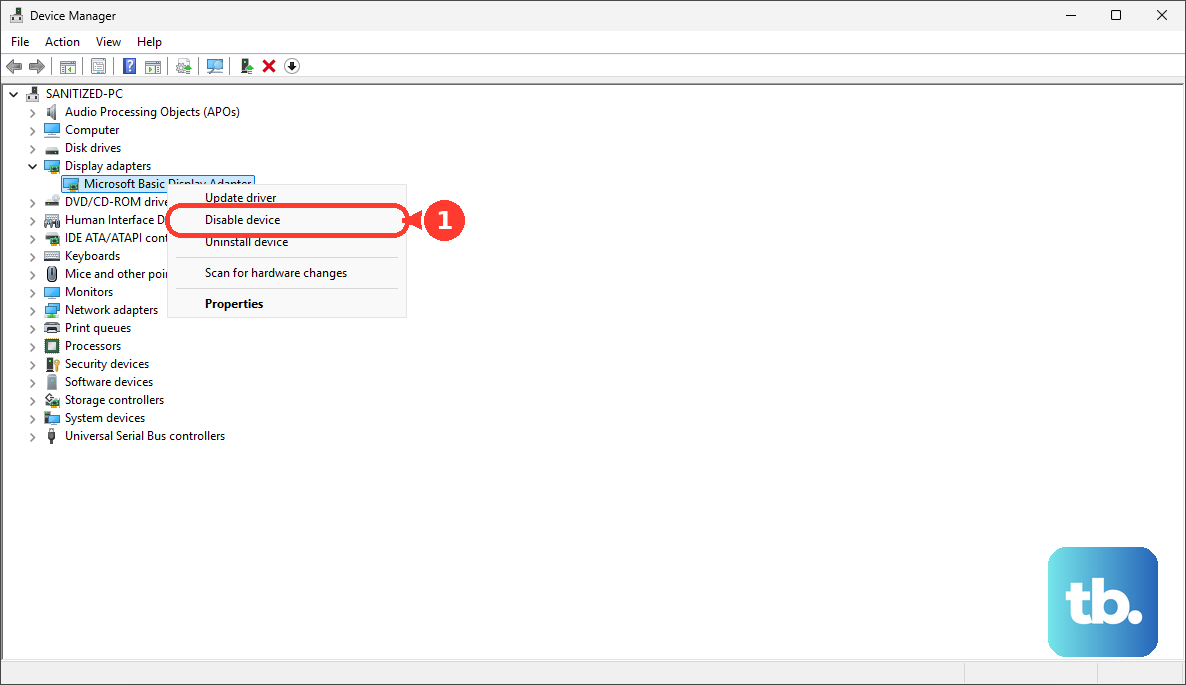
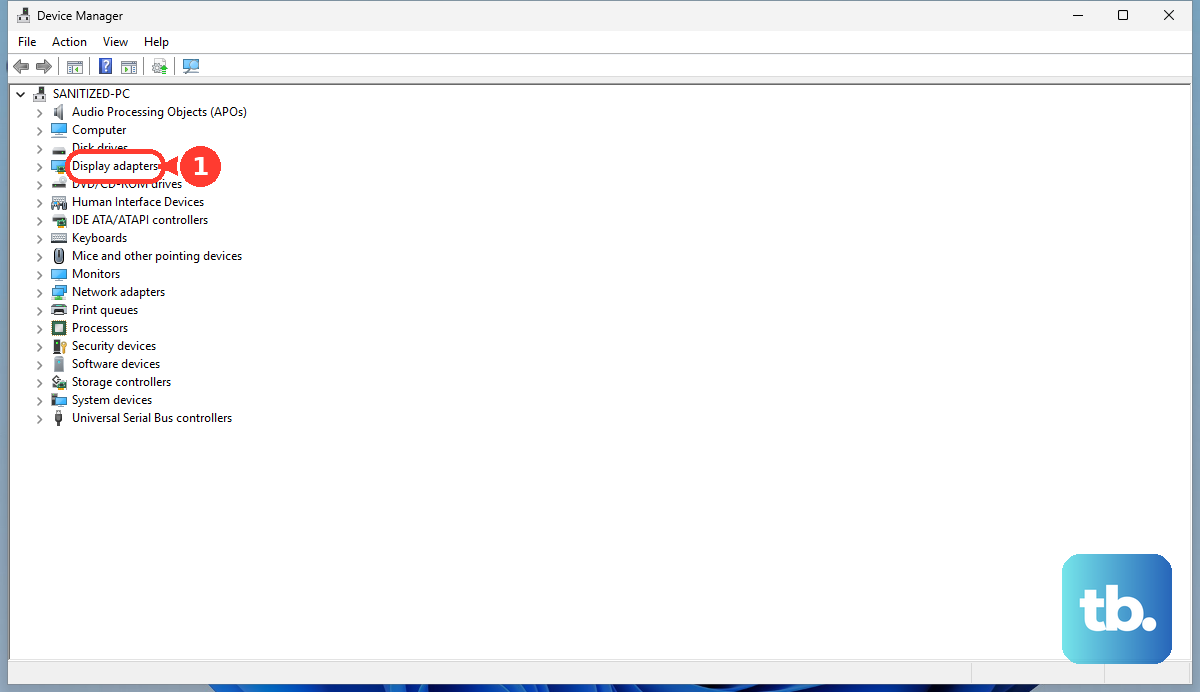
Open Device Manager, expand Display adapters, right-click on your NVIDIA GeForce GPU, and select Disable device. Wait about ten seconds, then right-click it again and choose Enable device. This refreshes the driver and can kick-start a dormant video output.
Check for BIOS Updates and Settings
Restart your laptop and press F2 repeatedly as it boots to enter the BIOS. Look for any settings related to display output or primary graphics. Also, check the ASUS support site for your specific G16 model. A BIOS update can sometimes address display compatibility problems.