
The built-in gamepad on your ASUS ROG Ally X just stops responding. You're in the middle of a session and the joysticks go dead. Armoury Crate SE shows the controller as disconnected, and the Command Center won't open.
It is worth testing the pad in a online controller test before troubleshooting the game. Working inputs there mean the fault sits in the console or app pairing.
The fastest fix is a soft reset. Hold the power button for a full 10 seconds. Wait a few seconds after it shuts off, then press the button again to boot up.
This clears whatever temporary state the controller driver got stuck in. Most of the time, that's all you need.
What causes the built-in gamepad to disconnect
Armoury Crate SE crashing is the most common reason. On the original 2024 ROG Ally X, the controller input routes through ACSE, so if the app freezes or crashes, the gamepad goes with it. This happens more often after a Windows update.
Windows can also glitch the driver during sleep or wake cycles. Aggressive battery saver settings in Silent mode sometimes cut power to the USB bus the controller relies on. Driver corruption from an interrupted update is another possibility.
Soft reset the ROG Ally X
This is the 10-second fix that works in the vast majority of cases. Press and hold the power button until the device completely powers down, which takes about 10 seconds. Don't just tap it for a normal shutdown, hold it until the screen goes black.
Wait 10 seconds, then press the power button again to boot up. When the ROG Ally X loads back into Windows, the controller should be fully responsive. If it worked, you're done and can get back to gaming.
If the controller drops out again during the same session, Armoury Crate SE likely crashed without taking the whole system down. A soft reset still clears that state, so it's worth doing as a first step every time this happens.
Restart Armoury Crate SE after a crash
When Armoury Crate SE crashes, the controller goes dead even though Windows itself is fine. You'll notice the Command Center button does nothing and the ACSE overlay won't appear.
Press Ctrl + Alt + Del using an on-screen keyboard or a connected USB keyboard. Open Task Manager, find Armoury Crate SE in the list of background processes, and end the task. Then launch Armoury Crate SE from the Start menu.
The controller should come back to life as soon as ACSE reloads. Keeping Armoury Crate SE updated to version 1.5 or later significantly reduces the frequency of these crashes. You can check for updates in the ACSE update center or through MyASUS.
Check the controller status in Windows
Sometimes the gamepad is physically fine but Windows lost track of it. Press the Windows key and type joy.cpl, then hit Enter to open the Game Controllers panel. This is the quickest way to see if the OS recognizes the built-in gamepad.
You should see ASUS ROG Ally Controller in the list. If it shows "Not connected," Windows has lost the driver binding. Right-click it, select Properties, and go to the Test tab to see if any input registers at all.
If the controller doesn't appear in joy.cpl after a soft reset, the driver needs a nudge. Open Device Manager, expand Human Interface Devices, and look for the ROG Ally controller entry. Right-click it, select Uninstall device, then restart the Ally X. Windows will reinstall the driver automatically on boot.
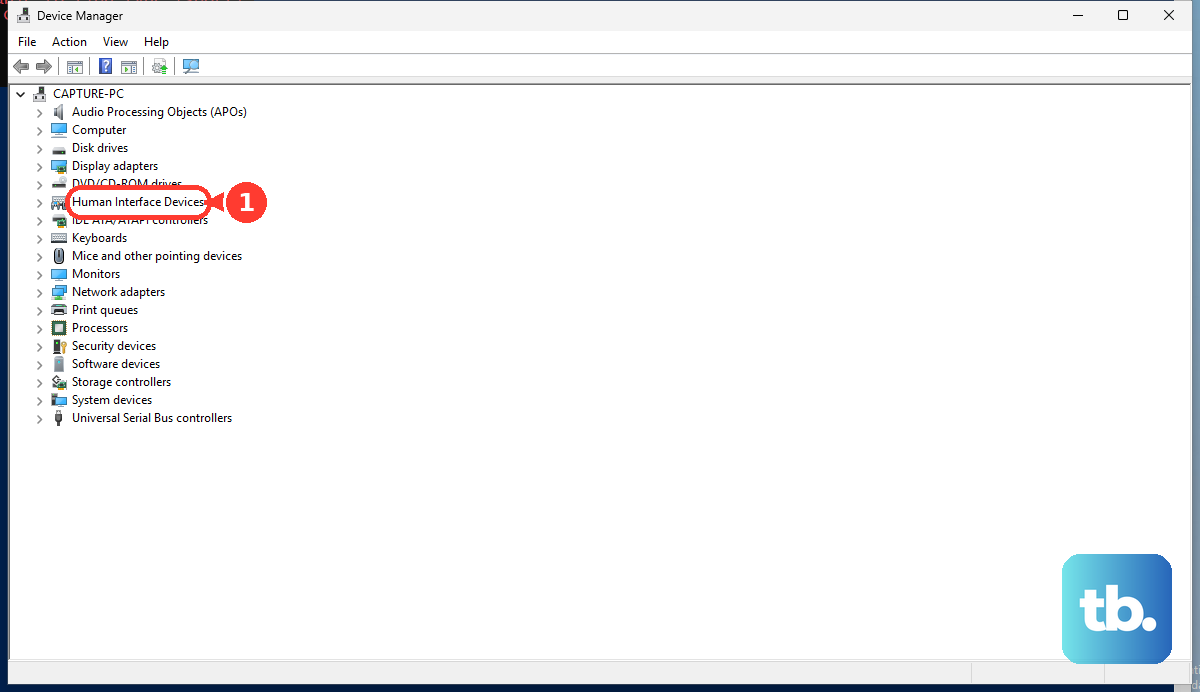
Update the gamepad firmware
ASUS has released several firmware updates for the ROG Ally X that specifically address controller disconnection issues and joystick calibration. Open MyASUS or the Armoury Crate SE update center and check for available firmware updates.
Install any new controller firmware you see and restart the device. This is especially important if you're still on the original firmware from 2024. The newer builds fix a lot of the early instability.
Disable USB power saving for the controller
Windows has a habit of turning off devices to save power, and it sometimes picks the wrong ones. In Device Manager, expand Human Interface Devices and find the ROG Ally gamepad entry. Right-click it and select Properties, then go to the Power Management tab.
Uncheck "Allow the computer to turn off this device to save power." Click OK and restart the system. This is a common fix if the controller stops responding after the device has been in sleep mode or running on battery for a while in Silent mode.
A full factory reset of the ROG Ally X
If the soft reset, driver reinstall, and firmware updates don't get the gamepad working reliably, something deeper in Windows is likely corrupted. The factory reset on the ROG Ally X gives you a completely clean slate without needing a separate recovery drive.
Navigate to Windows Settings > System > Recovery > Reset this PC. Choose "Keep my files" if you want to preserve your game installs and personal data, or "Remove everything" for a completely fresh start. The process reinstalls Windows and all ASUS drivers, including the controller driver.
After the reset finishes, update Windows fully and install the latest Armoury Crate SE from the Microsoft Store or ASUS support site. The built-in gamepad should be fully recognized on the first boot. The original 2024 ROG Ally X runs standard Windows 11, this isn't the ROG Xbox Ally X (2025) with the Game Bar shell, so standard Windows troubleshooting applies.