You pop in your AirPods Pro 2, take a call, and the person on the other end says you sound muffled, distant, or that they can't hear you at all. Voice memos come out faint, "Hey Siri" stops responding, and you're left wondering whether one earbud has quietly given up. The good news is that the AirPods Pro 2 absolutely have working microphones built in, so a sudden drop in call quality is almost always something you can fix yourself.
If you are not sure whether the mic is dead or just misconfigured, open a quick mic test first. A moving level meter means the hardware is healthy, which rules out the worst case before you touch any settings.
Each AirPod carries its own microphone, and Apple's tech specs list dual beamforming microphones, an inward-facing microphone, and a speech-detecting accelerometer used for calls and "Hey Siri." That means the hardware to capture your voice is sitting in both earbuds. The fixes below start with the quickest, safest checks and only move toward a reset, a full re-pair, or service if nothing earlier works.
Make Sure Nothing Is Covering the External Microphones
Before you change a single setting, look at how the earbuds sit. On AirPods Pro, the official guidance is to avoid blocking or covering the external microphones, because blocked or covered microphones may cause temporary high-pitched squeals, chirps, feedback, or other audio performance issues.
Check that nothing is sitting over the microphone openings: lint or pocket debris, a thick aftermarket case on the earbuds, the rim of your phone case pressing against an AirPod, or even your own fingers during a call. Clearing an obstruction is the single easiest fix and often the only one you need, so rule it out first.
Clean the Microphone and Speaker Mesh
Earwax, dust, and skin oils collect in the fine mesh over time and can smother both the speaker and the microphone. A gentle clean often restores call clarity without any settings changes at all.
Remove the silicone ear tips and inspect the microphone and speaker meshes for visible debris.
Then Clean the meshes with a dry cotton swab.
For a deeper clean, dip a soft-bristled brush in a little micellar water and brush each mesh in circles for about 15 seconds.
Do not run AirPods Pro under water, and do not use sharp or abrasive materials on the mesh.
Let the AirPods dry for at least two hours before charging or using them again.
Take your time with the mesh and resist the urge to dig at it with anything pointed. Letting them fully dry matters, so don't rush them back into the case while there's still any moisture present.
Choose Which AirPod Acts as the Microphone
By default, the Microphone setting is set to Automatic, so that either of your AirPods can act as the microphone. That's usually ideal, but if one side seems faulty during calls, you can lock the microphone to the side you trust.
On the AirPods settings screen on your iPhone or iPad, you can set Microphone to Always Left or Always Right instead of Automatic. Picking a known-good AirPod forces the system to use that side every time, which is a useful diagnostic step as well as a workaround. If switching to one specific side fixes your calls, that points to a problem with the other earbud's microphone.
Charge Both AirPods and the Case, Then Test
A low battery on one earbud can make that side, and its microphone, drop out mid-call. It's worth confirming both AirPods actually have charge before you assume the mic itself is broken.
Make sure the charging case is charged.
Place both AirPods in the case and let them charge for a while.
Open the case near your device and check each AirPod's charge level.
Once both sides show a healthy charge, put them in and test a call again.
If one AirPod consistently refuses to charge or always reads far lower than the other, that imbalance can explain why one side keeps cutting out during calls.
Update the AirPods Firmware
Apple delivers firmware updates for AirPods automatically, but only under the right conditions. The update installs while the AirPods are charging and in Bluetooth range of an iPhone, iPad, or Mac that's connected to Wi-Fi, so leaving them in the case near your device on Wi-Fi gives the update a chance to apply.
To confirm what version you're on, check it on your iPhone or iPad. Go to Settings, then Bluetooth, tap the Info button next to your AirPods, and look in the About section for the firmware version. Make sure your iPhone or iPad is on the latest iOS or iPadOS first, since the host device handles delivering the update to the earbuds.
Run the Ear Tip Fit Test and Check Audio Balance
A poor seal or a skewed left-right balance can make sound and microphone behavior seem wrong even when the hardware is fine. Two quick tests rule both out.
First, run the seal check. Go to Settings, then Bluetooth, tap the Info button next to your AirPods, choose Ear Tip Fit Test, tap Continue, then tap Play. This confirms whether your current ear tips are forming a proper seal in each ear.
Next, confirm your audio isn't shifted to one side. Go to Settings, then Accessibility, then Audio/Visual, then Balance, and make sure the balance is set in the middle. A balance slider that's drifted toward one ear can make the other side feel dead, which is easy to mistake for a microphone fault.
Reset Your AirPods Pro 2
If the cleaning, charging, and settings checks haven't helped, a reset clears the earbuds' current pairing state and gives them a fresh start. Resetting erases the AirPods' pairing and any custom settings, so you will set them up again afterward. Follow the official sequence exactly, since the timing and button hold matter.
- 1.Put the AirPods in the case and close the lid.
- 2.Wait 30 seconds.
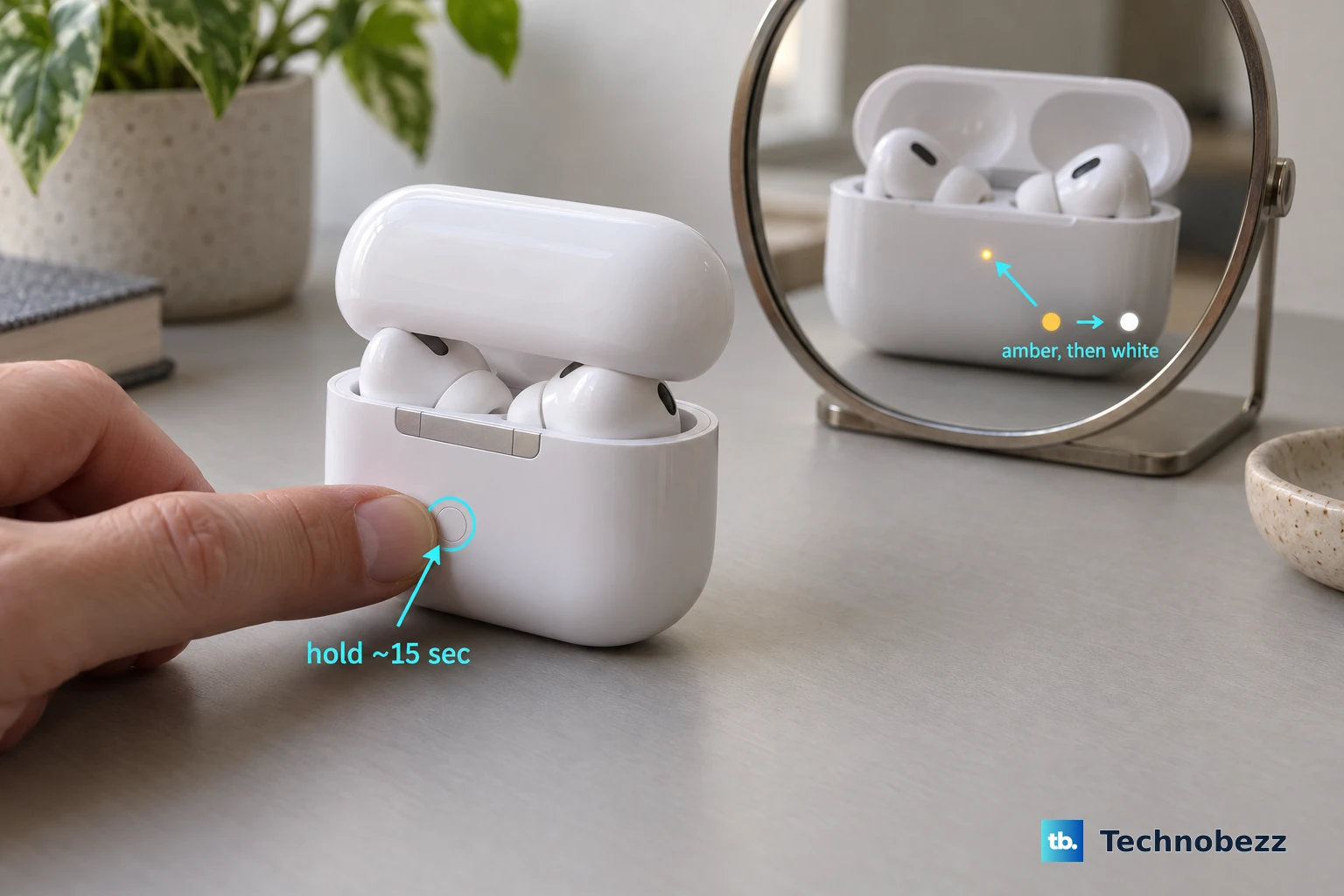
- 3.Open the lid, then press and hold the setup button on the back of the case for about 15 seconds, until the status light on the front of the case flashes amber, then flashes white.
- 4.Follow the on-screen steps to reconnect.
Watch the status light closely. You're waiting for it to flash amber and then flash white, which confirms the reset took before you reconnect.
Forget the AirPods and Re-Pair Them
If a reset alone doesn't restore your microphone, removing the AirPods from your device entirely and pairing them again clears out any lingering connection problem. This wipes the device's saved record of the earbuds along with their custom settings, so you will need to set them up from scratch.
On your iPhone or iPad, go to Settings, then Bluetooth.
Tap the Info button next to your AirPods in the My Devices list.
Tap Forget This Device, then confirm.
Open the case lid next to your unlocked device and follow the prompts to re-pair.
After re-pairing, place a test call right away so you can tell whether the fresh connection brought the microphone back to life.
Get Service From Apple Support
If an AirPod still isn't working after the steps above, the next move is to let Apple look at it. Apple directs you to reset your AirPods and, if the problem continues, to use the support page's help options to describe what's happening and get service options.
You can also book an appointment at an Apple Store or Apple Authorized Service Provider. By the time you reach this point you'll have ruled out blockages, dirt, battery, firmware, fit, balance, and the connection itself, which gives support a clear picture and points toward a genuine hardware issue.
Frequently Asked Questions
Do both AirPods Pro 2 earbuds have a microphone?
Yes. Each AirPod contains a microphone, and Apple's tech specs list dual beamforming microphones, an inward-facing microphone, and a speech-detecting accelerometer used for calls and "Hey Siri." By default the Microphone setting is Automatic, so either AirPod can act as the microphone.
Why do people say I sound muffled or far away on calls?
The most common cause is something covering the external microphones, since blocked or covered microphones can cause squeals, chirps, feedback, or other audio performance issues. Debris in the microphone mesh is the next thing to check, so clear any obstruction and clean the mesh with a dry cotton swab before trying anything more involved.
How do I check which firmware version my AirPods are running?
On your iPhone or iPad, go to Settings, then Bluetooth, tap the Info button next to your AirPods, and scroll to the About section to find the firmware version. Firmware updates install automatically while the AirPods are charging and in Bluetooth range of a device connected to Wi-Fi.
What does the reset sequence for AirPods Pro 2 look like?
Put the AirPods in the case, close the lid, and wait 30 seconds. Open the lid, then press and hold the setup button on the back of the case for about 15 seconds, until the status light on the front of the case flashes amber, then flashes white, and follow the on-screen steps to reconnect.
Can I force calls to use only one AirPod's microphone?
Yes. On the AirPods settings screen on your iPhone or iPad, change the Microphone setting from Automatic to Always Left or Always Right. This forces a known-good AirPod to be used for the microphone, which both works around a faulty side and helps you confirm which earbud is the problem.