
Your AirPods Max microphone isn't picking up your voice. People say you sound muffled on calls, cut out halfway through a sentence, or your voice comes through as robotic distortion. This usually isn't a hardware failure. It's fixable in a few minutes with the right settings.
To separate a hardware fault from a settings problem, try a microphone test in your browser. Record a few seconds and play it back, and you will know exactly what you are dealing with.
The quickest thing to test is the microphone assignment. Open Settings > Bluetooth, tap the (i) next to your AirPods Max, and look for Microphone. It's almost always set to Automatic by default. Switch it to Always Left and try a call. Then try Always Right. If one side sounds clean and the other doesn't, you've found which mic capsule is working and can keep it set to that side permanently.
Why the AirPods Max Mic Drops or Muffles
A few different things cause this problem and they share similar symptoms.
- Automatic mic switching glitch: iOS picks the wrong side during a call and the transition sounds garbled
- Condensation inside the ear cup: the mesh headband is known to trap moisture in humid environments and that humidity can reach the mic openings
- Blocked mic grilles: the small openings on the ear cups collect dust and skin oil over time, especially if you use them during workouts
- Bluetooth codec handoff failure: the phone switches between HFP (headset profile for calls) and AAC (music) and the swap sometimes leaves the mic in a bad state
- iOS mic permission dropped: the Phone or FaceTime app may have lost permission during a silent system update
Clean the Mic Openings on the Ear Cups
AirPods Max have several small mesh-covered microphone openings on each ear cup. One sits near the bottom and another near the top on each side. They're easy to miss because the mesh is tiny and flush with the surface.
Take a dry, soft-bristle brush (a clean toothbrush works fine) and gently sweep across both ear cups focusing on the mesh areas. Don't use anything sharp or wet. If the buildup is stubborn, a piece of scotch tape pressed against the mesh can lift oils and dust without driving anything deeper into the capsule. Do this for both the left and right cups even if only one side seems problematic.
Check App Permissions After iOS Updates
AirPods Max can send clean audio while the app on your phone simply doesn't have permission to use the mic anymore. iOS 26 and later versions have been known to revoke app mic permissions after major point updates without notifying you.
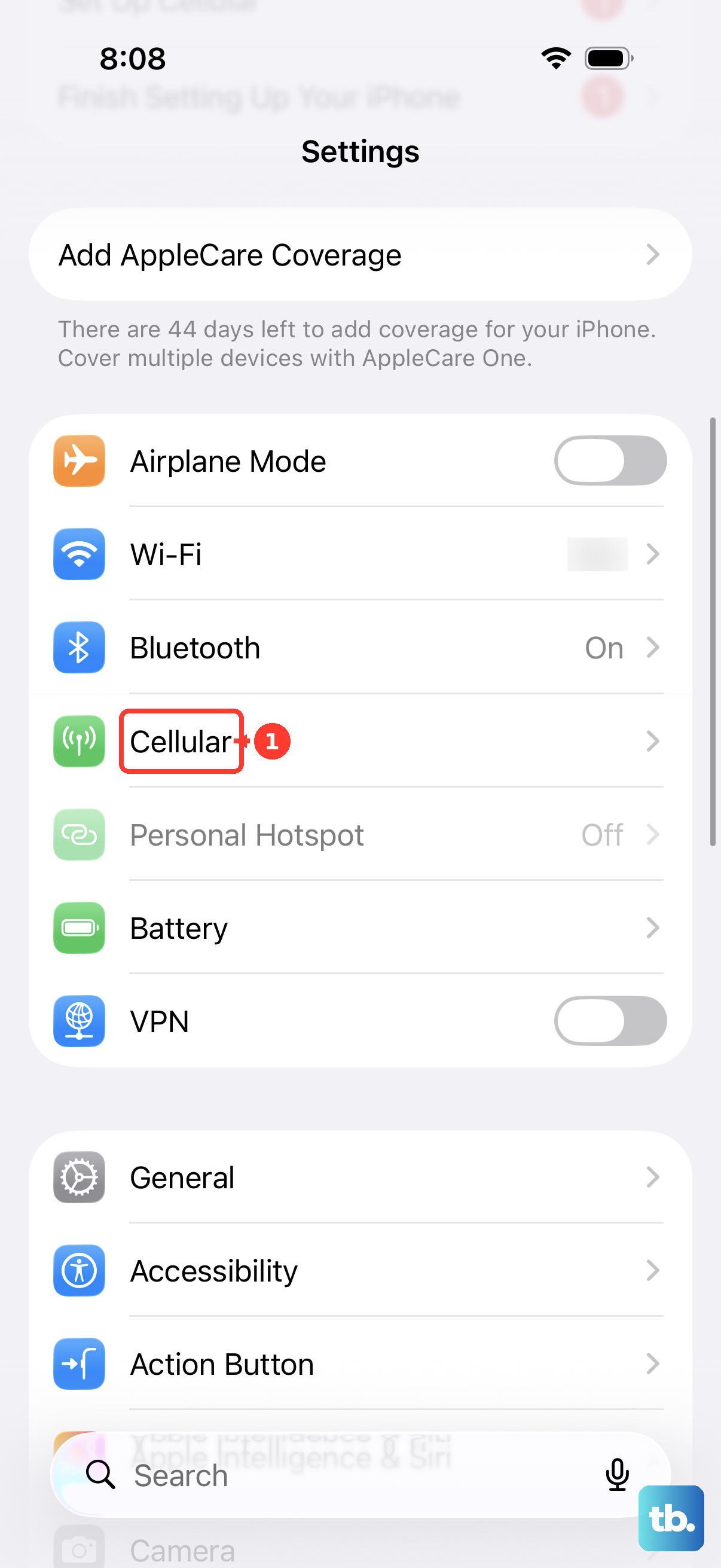
Go to Settings > Privacy and Security > Microphone. Make sure the app you're using (Phone, FaceTime, Zoom, Teams, WhatsApp) has the toggle switched on. For Phone calls specifically, also check Settings > Cellular and verify call-related settings look normal.
Force Restart Your iPhone
Stuck audio routing between the headphones and the phone's Bluetooth stack happens more often than you'd think. Press and release Volume Up, press and release Volume Down, then hold the Side button until the Apple logo appears. After the phone comes back up, the AirPods Max should reconnect automatically. Place a quick test call to see if the mic came back.
Reset the AirPods Max
The reset method on AirPods Max is different from any other AirPods model. Hold the noise control button on the top left ear cup and the Digital Crown at the same time. Keep holding them for about 15 seconds. The status light on the right ear cup will flash amber, then white. When the white light appears, release both controls.
This clears the internal pairing state and any mic routing conflicts between the two ear cups. You'll need to re-pair the headphones afterward by opening the Bluetooth menu on your iPhone and selecting AirPods Max again.
Test the Mic in Voice Memos First
If the problem only shows up in Zoom or Teams but regular calls seem fine, test the mic using the built-in Voice Memos app. If Voice Memos records your voice cleanly, the AirPods Max mic hardware and the Bluetooth connection are working perfectly. The issue is specific to that third party app.
Try reinstalling the problematic app or look for an in-app audio device picker. As a useful diagnostic, make a FaceTime audio call too. FaceTime uses AAC for both directions, which bypasses the low quality HFP profile. If FaceTime sounds clean but regular phone calls sound awful, you're hearing the codec switch, not a defective mic.
Consider the Condensation Issue
AirPods Max are known to collect condensation inside the ear cups, especially in humid environments or during longer listening sessions. The mesh headband traps moisture and over time that humidity reaches the microphone membranes. If you live in a humid climate or wear these for workouts, this is a likely contributor.
After each session, wipe down the ear cups and headband with a dry lint free cloth. Let the headphones air out on a stand instead of folding them into the Smart Case. The Smart Case puts them into a low power state but doesn't let moisture evaporate, which can prolong the issue.
Check for Firmware Updates
Apple pushes firmware updates to AirPods Max silently while they're connected to your iPhone. Put them on the USB-C charger (they use direct USB-C charging, no case cradle), leave them within Bluetooth range of your iPhone, and make sure your iPhone is on Wi-Fi. Leave them charging for at least 30 minutes with the phone unlocked.
Then check Settings > Bluetooth > tap (i) next to AirPods Max > scroll to Version. Compare it against the current version listed on Apple's AirPods firmware page. If you're more than one minor version behind, leave them plugged in next to your phone overnight. The update usually completes during that window.
If Only One Side Works
If you've tried all of the above and one specific ear cup consistently can't pick up your voice while the other records cleanly, the microphone capsule on that side likely has a hardware issue. This is especially common if you've owned the headphones for over two years or exposed them to significant moisture. Apple covers this under the standard one year limited warranty. If you have AppleCare+, accidental damage is also covered. Either way, you'll want to book a Genius Bar appointment. The ear cushions themselves are user replaceable through Apple for $69 per pair if they're worn or starting to smell, but a dead mic requires service on the headphone unit itself.