
When you plug your Acer Nitro V 15 into an external monitor and the screen stays black, it's usually a quick settings or connection fix. I'd start by checking the basics first, as that solves most cases.
If the fault comes and goes, an online online monitor test helps you reproduce it on demand with solid colors and gradient patterns.
Check Your HDMI Cable and Port
Unplug the HDMI cable from both your laptop and the monitor, then plug it back in firmly. A loose connection is a common culprit. If you have a spare HDMI cable, try it. Cables can fail without any obvious damage.
Make sure your monitor is powered on and set to the correct input source. Use the monitor's physical buttons to cycle through inputs until you find the one labeled HDMI, which is where your laptop's signal should be.
Use the Windows + P Shortcut
With the monitor connected, press the Windows + P keys on your Nitro V 15. This brings up the projection menu. Try selecting Duplicate to mirror your laptop screen, or Extend to use the monitor as a second display.
If it's set to "PC screen only," your laptop won't send any video signal out. Cycling through these options can often wake up the external display immediately.
Restart Your Laptop While Connected
A simple restart can force the graphics hardware to re-detect connected displays. Shut down your Nitro V 15 completely, ensure the HDMI cable is plugged into both the laptop and monitor, then power the laptop back on.
Some systems only check for external monitors during the boot sequence, so starting fresh with everything connected is a reliable first step.
Update Your Graphics Drivers
Outdated or corrupted display drivers are a frequent cause of HDMI issues. Since the Nitro V 15 has dedicated NVIDIA graphics, you should get drivers directly from NVIDIA.
Visit the NVIDIA website, use their auto-detect tool, and download the latest Game Ready Driver. During installation, choose the "Custom" option and check the box for a clean installation to remove old driver files.
Adjust Display Settings in Windows
Go to Settings > System > Display. Click the Detect button. If Windows sees your monitor, it will appear as a second screen. You can then drag it into position and set the appropriate resolution.
If the monitor shows up but displays incorrectly, try setting its resolution to 1920x1080 (a very common standard) as a test to see if a higher setting is causing the problem.
Try a Different Video Port or Adapter
The Acer Nitro V 15 may have other video outputs besides HDMI, like a USB-C port that supports DisplayPort. If your monitor has a DisplayPort input, try using a USB-C to DisplayPort cable instead.
If the alternate port works but the HDMI port does not, it could indicate a hardware issue with the specific HDMI port on your laptop.
Test with a Different Monitor or TV
To completely rule out your primary monitor as the source of the trouble, connect your Nitro V 15 to another display, like a living room TV. If the image appears on the second screen, you know the problem lies with the first monitor's settings or input port.
Refresh the Display Adapter in Device Manager
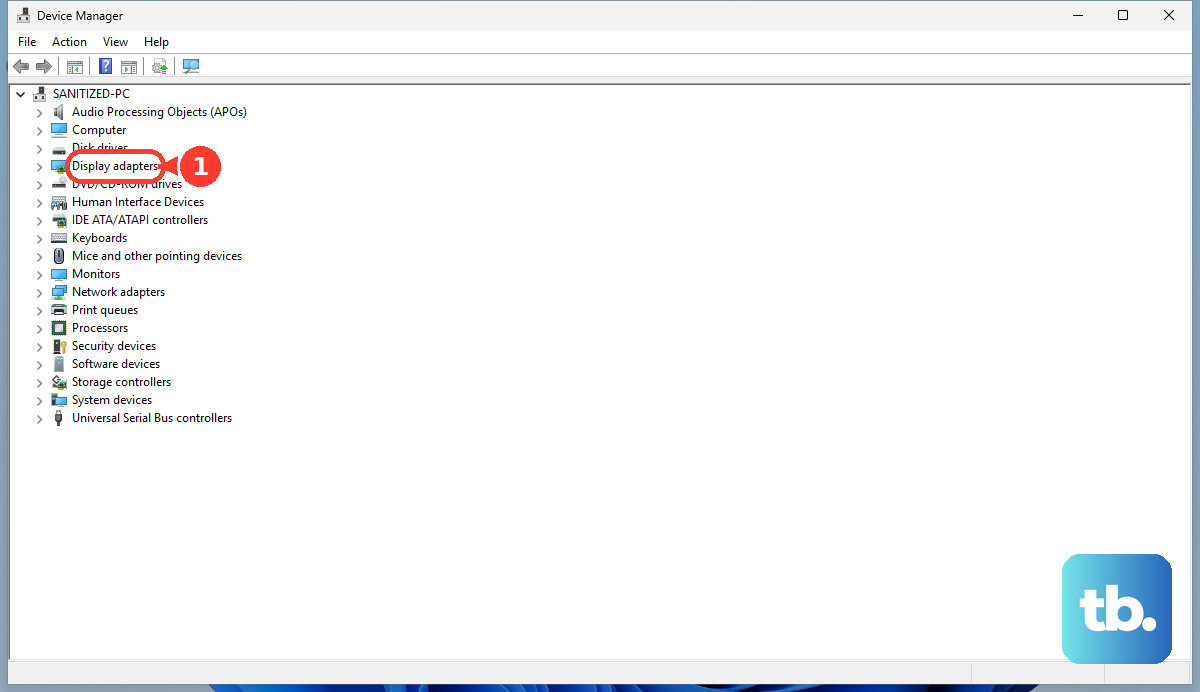
Press Windows + X and select Device Manager. Expand the Display adapters section, right-click on your NVIDIA GeForce GPU, and select Disable device. Confirm any prompt, wait about 10 seconds, then right-click it again and choose Enable device.
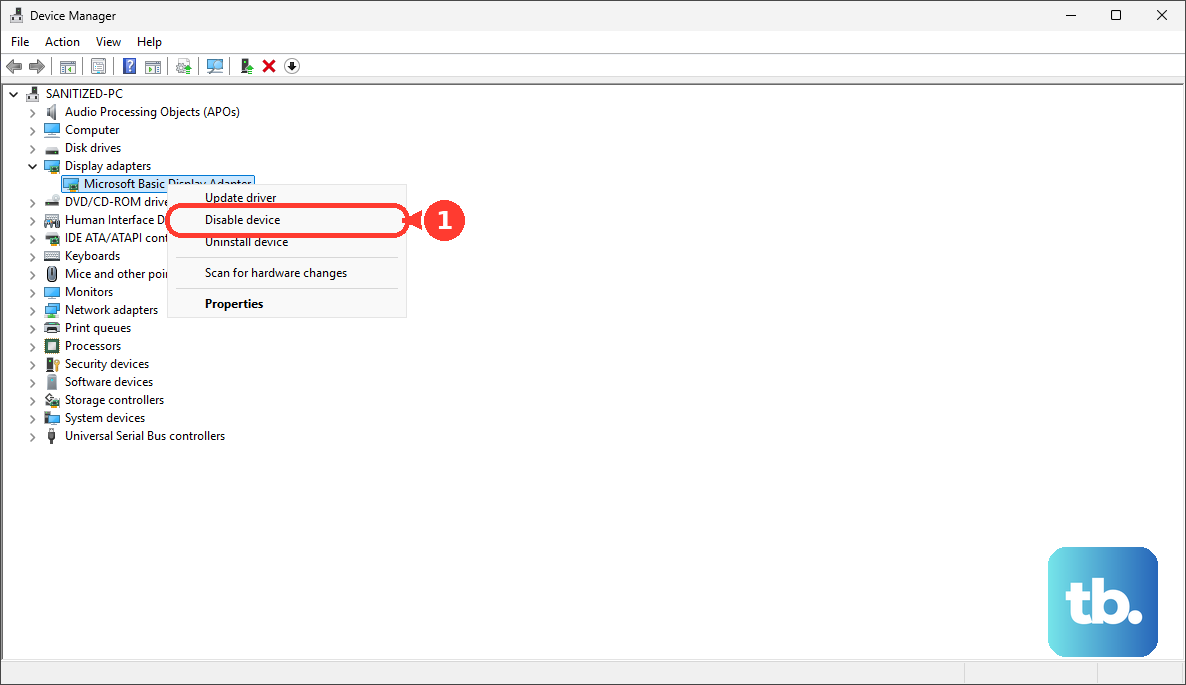
This resets the graphics driver and can clear up output issues without needing a full reboot.
Check for BIOS Settings Related to Display
On the Acer Nitro V 15, you can enter the BIOS by pressing the F2 key repeatedly as soon as you power on the laptop. Once in the BIOS, look through the menus for any settings related to display output, primary display, or graphics configuration.
While it's less common, a BIOS update or reset can sometimes change a setting that manages external displays. If you find a relevant setting, ensure it's enabled, save and exit the BIOS.