
When your Acer Aspire 5 15's screen stays black but you can hear fans or see power lights, it's a real roadblock. The issue could be a simple glitch, a loose connection inside, or a setting that got flipped. Let's get it working again.
A browser based online monitor test cycles solid colors and gradients across the whole screen, which helps you confirm whether the panel itself shows the fault.
Perform a Hard Reset
This is the first thing I'd try. It clears any temporary power glitches that can prevent the display from initializing. Unplug the AC adapter and remove the battery if your model has a removable one.
Hold down the power button for a full 60 seconds. This drains all residual power from the motherboard. After a minute, reconnect the battery and power adapter, then press the power button normally to turn it on.
Check the Physical Display Connection
If the laptop was recently moved or serviced, the internal display cable might have come loose. This ribbon cable connects the motherboard to the laptop's own screen.
You'll need to open the bottom panel to check it, which requires a small Phillips screwdriver. Once inside, locate the cable connector near the hinges, gently unseat it, and firmly reconnect it. Be very careful with the delicate latch mechanism.
Connect to an External Monitor
This is a crucial diagnostic step. Use the HDMI port on your Aspire 5 to connect to a TV or external monitor. Turn on the external display first, set it to the correct HDMI input, then turn on the laptop.
If you see your desktop on the external screen, it means the laptop's core hardware is working. The problem is isolated to the laptop's built-in display, its cable, or the related settings.
Adjust the Display Output Key
Your Aspire 5 has a dedicated key to manage displays, usually the F5 or F6 key with a monitor icon. Press and hold the Fn key, then tap this display key.
This cycles through modes like laptop screen only, duplicate, extend, and second screen only. Tap it a few times while connected to an external monitor to see if you can get any image to appear on either screen.
Boot into Safe Mode
A corrupted display driver can cause a black screen on startup. To test this, you need to boot into Windows Safe Mode, which uses a basic display driver.
Force the laptop off by holding the power button for 10 seconds. Turn it back on, and as soon as you see the Acer logo, force it off again with the power button. Repeat this three times until you see the "Preparing Automatic Repair" screen.
From there, go to Advanced options > Startup Settings > Restart. After the restart, press 4 or F4 to enable Safe Mode. If the display works in Safe Mode, a driver or software conflict is the likely culprit.
Update or Reinstall Display Drivers
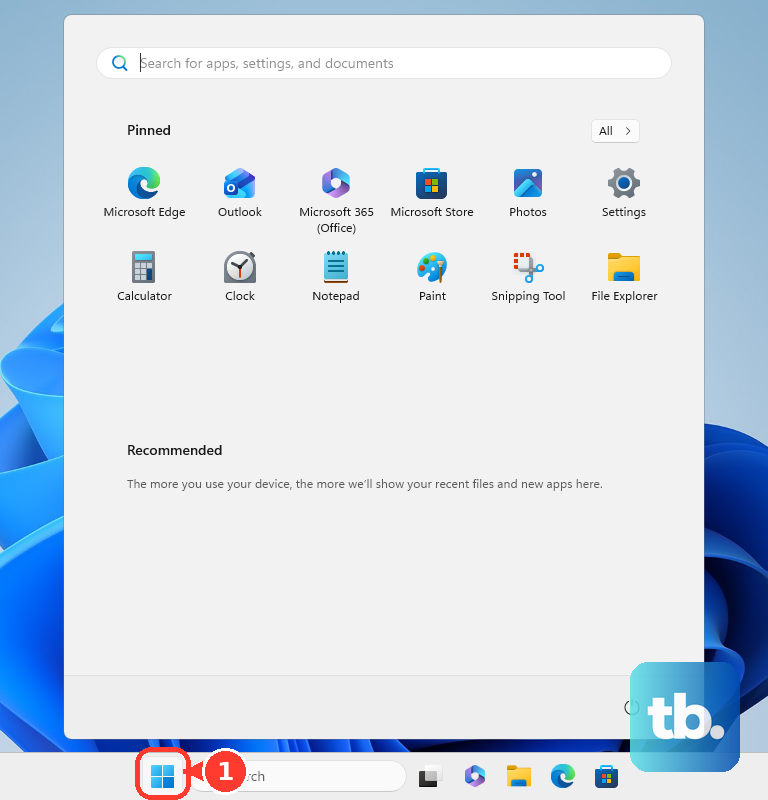
Since the display worked in Safe Mode, the standard graphics driver is the problem. In Safe Mode, open the Start Menu, type "device manager," and open it. Expand Display adapters.
Right-click on your Intel, AMD, or NVIDIA graphics device and select Uninstall device. Check the box that says "Delete the driver software for this device" if present, then restart. Windows will install a basic driver, and you can then download the latest one from Acer's support site for your exact model number.
Use Acer Care Center for Diagnostics
Acer includes a useful tool called Acer Care Center. If you can get to the login screen but the screen goes black after, try signing in blindly. Press the Windows key, type "care," and press Enter to launch it.
Inside the app, look for a diagnostics or hardware check section. Run the display diagnostic test if one is available. The tool can also check for critical BIOS or driver updates that might resolve the issue.
Reset the BIOS to Defaults
A misconfigured BIOS setting can affect display output. To reset it, restart your Aspire 5 and immediately press the F2 key repeatedly to enter the BIOS setup utility.
Inside the BIOS, look for an option labeled "Load Defaults," "Restore Settings," or "Exit" with a load defaults choice. Select it, confirm, and save and exit. The laptop will reboot. Don't change other BIOS settings unless you know what they do.
Check for a Windows Update Corruption
Sometimes a failed Windows update can cause display issues. Using the external monitor method, navigate to Settings > Windows Update > Update history > Uninstall updates.
Look for recent quality updates or feature updates and uninstall them one at a time, restarting after each, to see if it resolves the black screen. You can also use the built-in recovery by pressing Alt + F10 during boot to access Acer's recovery manager and try a refresh or system restore.