
When your Xiaomi 14T Pro's microphone stops picking up your voice, it can turn simple calls, voice notes, and video recordings into a frustrating experience. The issue could be a simple software hiccup, a blocked microphone port, or a deeper app permission problem. Let's start by figuring out exactly which microphone is affected.
A fast way to narrow this down is a browser based mic test. If the meter responds when you talk, the mic itself is fine and the problem sits in software or settings.
Test Your Xiaomi 14T Pro Microphone
Your phone has multiple microphones for calls, video recording, and noise cancellation. Open the Voice Recorder app that came pre-installed on your phone. Tap the record button and speak at a normal volume for about 10 seconds, then play it back. If the recording is muffled or silent, you've confirmed the issue.
You can also make a quick test call to your voicemail or a friend. Ask them if they can hear you clearly or if your voice sounds distant. Another good test is to open the Camera app, switch to video mode, and record a short clip while talking. Check the video's audio playback to see if the sound is clear.
Remove Your Phone Case and Check for Blockages
This is the easiest fix to try first. Some cases, especially rugged or poorly designed ones, can partially cover the microphone holes. Take the case off your Xiaomi 14T Pro and test the microphone again with a quick voice recording.
Next, take a close look at the bottom edge of your phone near the USB-C port and the top edge near the earpiece. You'll see several small pinholes. These are your microphone and noise-cancellation ports. Use a can of compressed air to gently blow out any lint or dust, or carefully use a dry, soft-bristled toothbrush to clear any debris.
Disconnect Bluetooth and Audio Accessories
If you have wireless earbuds, a smartwatch, or a car stereo connected via Bluetooth, your phone might be routing all audio through that device. Swipe down from the top of your screen to open the Quick Settings panel and tap the Bluetooth icon to turn it off temporarily.
Now, try making a test call or recording without any accessories connected. I've seen this solve the problem more often than you'd think, especially if you recently used headphones for a call or music.
Force Restart Your Phone
A simple reboot can clear out temporary glitches that might be affecting the audio subsystem. For the Xiaomi 14T Pro, press and hold the Power button for about 15 seconds. Keep holding it until you see the phone's screen go black and the Xiaomi or HyperOS logo reappear.
This forces a fresh start for all system processes, including those handling the microphones. Once it boots back up, test the microphone immediately with the Voice Recorder app.
Check App Microphone Permissions
In Android 14 with HyperOS, apps need explicit permission to use your microphone. If the problem is only happening in specific apps like WhatsApp, Telegram, or Zoom, their permissions might have gotten revoked.
Go to Settings > Apps > Manage apps. Find the app giving you trouble and tap on it. Select Permissions and look for the Microphone permission. Make sure it's set to "Allow" instead of "Deny." While you're here, you can also check for and remove any problematic bloatware that might be interfering with audio services.
Update Your Phone's Software
Xiaomi frequently releases updates that fix bugs, including audio-related ones. The powerful Dimensity 9300+ chipset in your phone sometimes needs software tweaks for optimal performance across all functions.
Open Settings > About phone > HyperOS version. Tap "Check for updates." If an update is available, install it. It's a good idea to plug in your 120W charger during this process, as the update can take a few minutes and you don't want the phone to shut down mid-update.
Clear Cache for Camera and Voice Recorder Apps
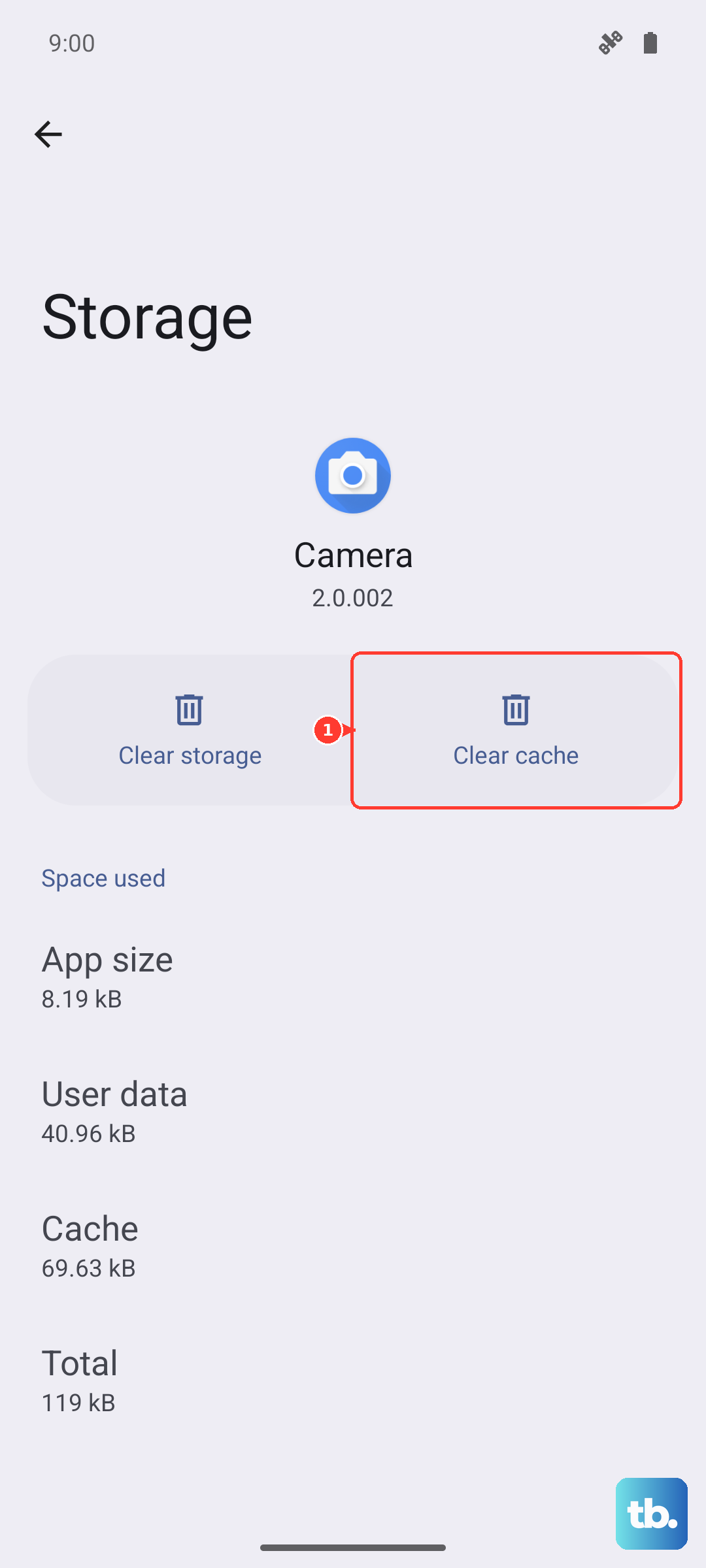
Corrupted app cache data can cause features like the microphone to malfunction. Go back to Settings > Apps > Manage apps. Find the "Camera" app and tap on it.
Tap on Storage usage at the bottom, then select Clear cache. Do not tap "Clear data," as that will reset the app to its default settings. Repeat this exact process for the "Voice Recorder" app. This clears temporary files without deleting your photos or recordings.
Reset All Settings
If the microphone is still not working, you can try resetting your phone's system settings to their defaults. This won't delete your personal data like photos or messages, but it will reset Wi-Fi passwords, Bluetooth pairings, and custom display settings.
Navigate to Settings > About phone > Factory reset. Here, choose the option that says Reset all settings. Confirm your choice and enter your lock screen PIN if prompted. Your phone will reboot, and you'll need to reconfigure some preferences, but it can resolve deeper configuration conflicts.
Check for Hardware Damage
Consider if your phone has suffered any recent physical damage. The Xiaomi 14T Pro uses Gorilla Glass 5, which is durable but not immune to cracks from drops. A significant impact could damage the internal microphone components.
Also, think about exposure to liquids. While the phone has some splash resistance, it's not fully waterproof. Moisture ingress can easily corrode or short the delicate microphone components. If you suspect hardware damage, the microphone will likely need professional replacement.