Your laptop is crawling through web pages while your phone, tablet, and smart TV all pull down video and load sites without a hiccup on the same network. That single-device slowdown is frustrating precisely because it rules out the router and the internet plan; if everything else is fast, the problem lives somewhere on the one PC that is struggling. The good news is that Windows gives you a stack of built-in tools to work through, and you can start with the safest, lowest-effort options before touching anything advanced.
The fixes below are ordered from easiest and safest to most thorough. Work down the list in order and test your connection after each one; most slow-on-one-PC cases clear up well before you reach the bottom. Everything here applies to both Windows 10 and Windows 11, with the small differences in menu paths called out where they matter.
Start With the Built-In Network Troubleshooter
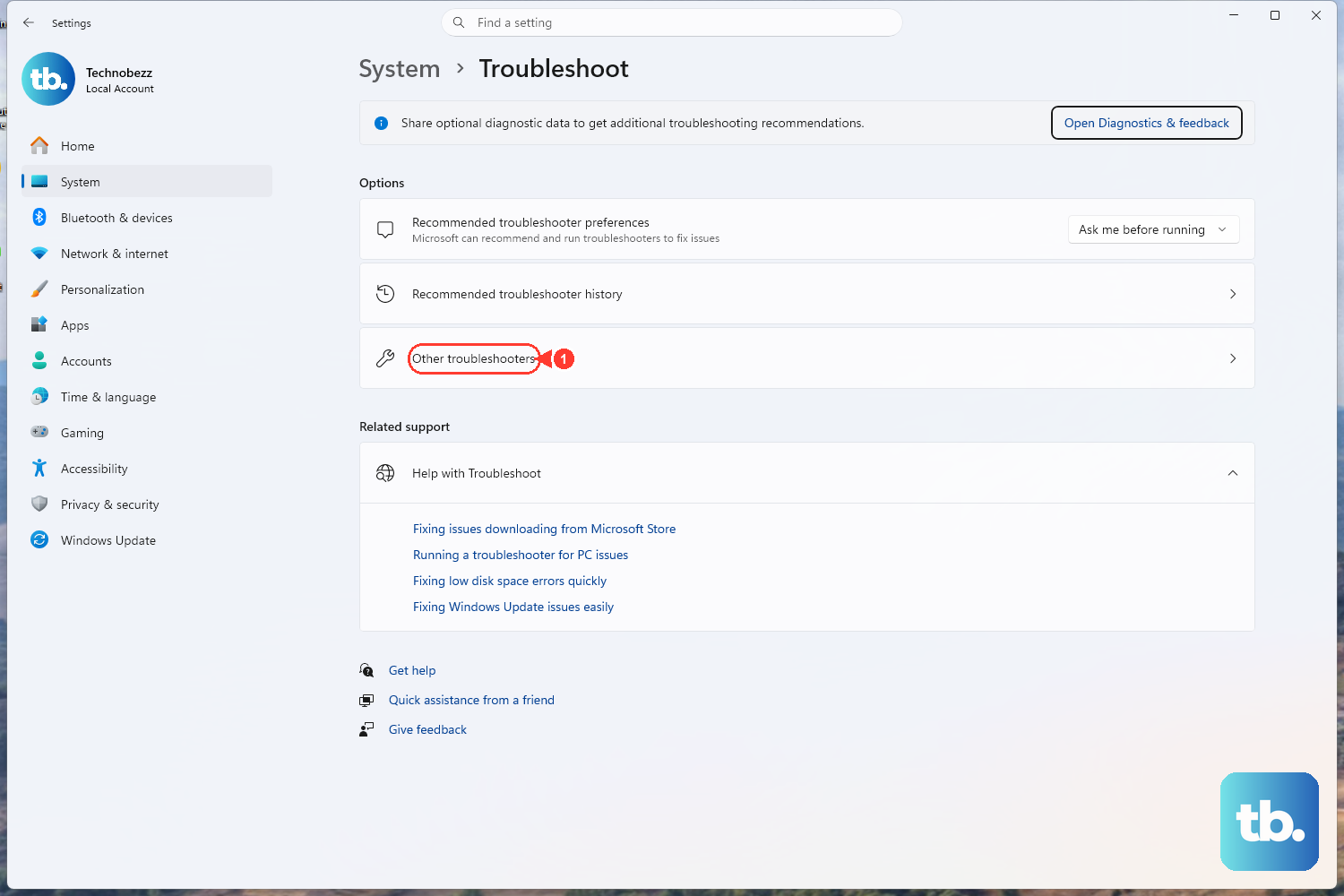
Before you type a single command, let Windows run its own diagnostic. The automated network troubleshooter checks for common connectivity problems and attempts to fix most of them for you, which makes it a sensible first move.
On Windows 11, open the Get Help app and run the Network and Internet troubleshooter; it runs diagnostics and tries to repair issues automatically.
On Windows 10, the built-in tool lives in Settings instead. Go to Start > Settings > Network & Internet > Status, then select Network troubleshooter and follow the prompts.
If the troubleshooter reports that it fixed something, reconnect and test a few sites. If it finds nothing or the slowness persists, move on to the command-line steps.
Clear the DNS Cache and Re-Request Your IP Address
A handful of quick commands can refresh how your PC talks to the router. Flushing the DNS resolver cache and forcing a fresh IP address from the router is a common thing to try when one machine lags while other devices are fine.
First, open an elevated Command Prompt. Select Search on the taskbar, type Command prompt, and when the Command Prompt button appears, select Run as administrator to its right, then choose Yes.
Now type each of the following and press Enter after each one, in this order:
- 1.
ipconfig /flushdns - 2.
ipconfig /release - 3.
ipconfig /renew
The first command clears the stored DNS records, the second drops your current address, and the third asks the router for a new one. Once all three finish, load a couple of pages and see whether speeds improve.
Update the Network Adapter Driver in Device Manager
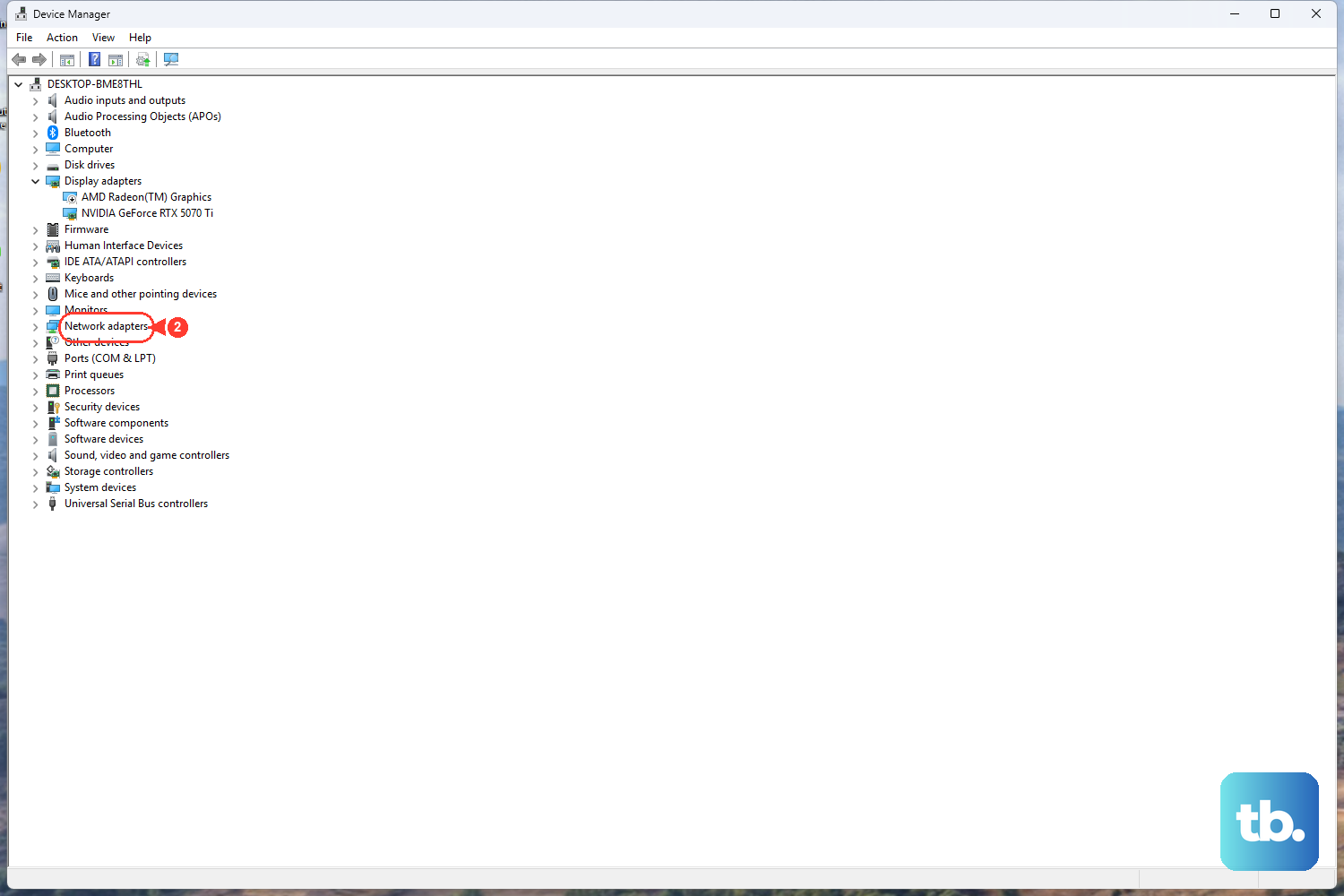
An outdated or incompatible network driver is one of the things that can hold back a single PC's Wi-Fi while everything else on the network behaves. Letting Windows search for a newer driver is straightforward and reversible.
Begin by right-clicking Start and choosing Device Manager.
Next, expand Network adapters.
Then right-click your Wi-Fi adapter.
Select Update driver.
Choose Search automatically for drivers (this option is labeled Search automatically for updated driver software on some builds).
Windows will look for a newer driver and install it if one is found. This works the same way on Windows 10 and Windows 11. After it finishes, test your connection again.
Switch to a Different DNS Server
If pages crawl even when the connection itself looks healthy, the DNS server your PC is using may be the bottleneck. You can point Windows at a different DNS server manually.
Open Settings > Network & internet > Wi-Fi and select your network. (For a wired connection, go to Ethernet and select your connection instead.)
Next to IP assignment, select Edit.
Choose Manual.
Turn on IPv4.
Enter your chosen addresses in the Preferred DNS and Alternate DNS boxes.
One note on versions: the DNS over HTTPS setting appears only in Windows 11, not in Windows 10. The manual DNS entry itself is available in both. Save your changes and check whether pages load faster.
Reset Winsock and the TCP/IP Stack
When the basics have not helped, you can rebuild the lower layers of Windows networking. This resets the Winsock catalog and the TCP/IP stack back to a clean state, and it requires an administrator Command Prompt (open it the same way as before). Because it returns core networking components to their defaults, restart the PC afterward and be ready to reconnect to your network.
Type netsh winsock reset and press Enter.
After that, type netsh int ip reset and press Enter.
There is also a fuller TCP/IP reset that writes a log file. Use netsh int ip reset c:\resetlog.txt to save the log to that path, or use netsh int ip reset resetlog.txt if you do not want to specify a directory. You must be logged on as an administrator to run these. Restart the PC afterward so the changes take full effect.
Reinstall the Network Adapter Driver
If the adapter is still misbehaving after a driver update, removing it and letting Windows put it back can clear up a stubborn driver issue. Windows reinstalls the adapter automatically on restart, so you will not be left without a network card, but you will lose your connection until the PC has restarted, so save any open work first.
Search the taskbar for Device Manager and open it.
Once it opens, expand Network adapters.
Right-click your adapter and choose Uninstall device.
Check Attempt to remove the driver for this device.
Select Uninstall.
Restart the PC; the adapter is reinstalled automatically.
After the restart, reconnect to your network and test your speeds once more.
The Last Resort: A Full Network Reset
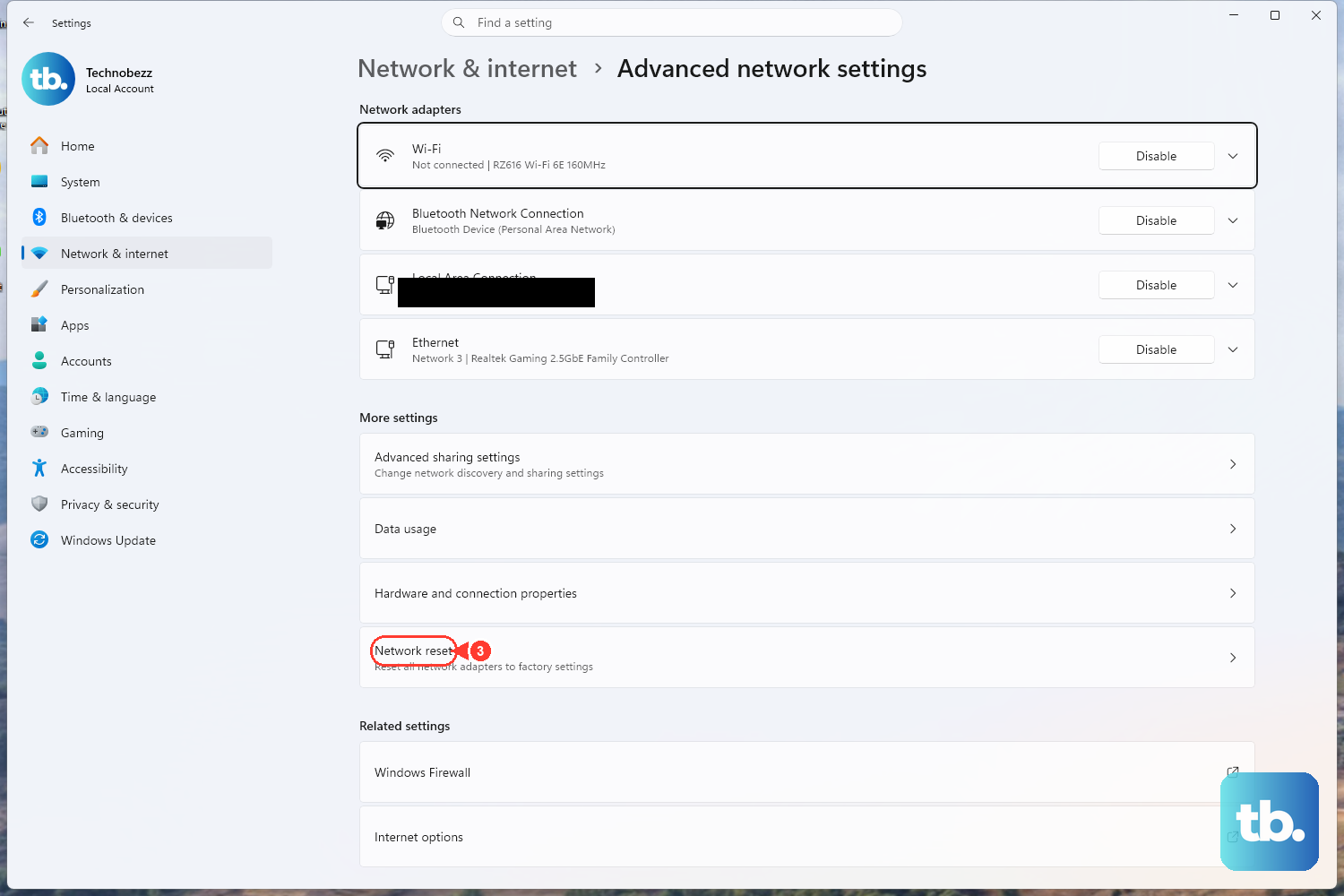
If nothing above has worked, a network reset wipes the slate clean. It removes and reinstalls all of your network adapters and sets other networking components back to their defaults, so save it for last. It does not touch your personal files or installed programs.
Be aware that after the reset you may need to reconnect to your Wi-Fi and re-enter your password, so have that handy first.
On Windows 11, go to Start > Settings > Network & internet > Advanced network settings > Network reset, then select Reset now and choose Yes.
On Windows 10, go to Start > Settings > Network & internet > Status > Network reset, then select Reset now and choose Yes. The PC restarts on its own to complete the process.
Frequently Asked Questions
Why is only my PC slow when every other device on the same Wi-Fi is fast?
When the rest of your devices connect normally, the router and internet service are almost certainly fine, which points the problem at the single PC. Windows provides several built-in fixes to work through, starting with the automated network troubleshooter and moving up to driver updates and network stack resets if needed.
What is the safest fix to try first?
Start with the built-in network troubleshooter, since it is an automated diagnostic that changes nothing on its own beyond what it repairs. On Windows 11 you launch it from the Get Help app; on Windows 10 it is at Start > Settings > Network & Internet > Status > Network troubleshooter.
Will a network reset delete my files or apps?
A network reset only affects networking: it removes and reinstalls all network adapters and returns other networking components to their defaults. It does not touch your personal files or installed programs, but you may need to reconnect to Wi-Fi and re-enter your password afterward, so reserve it for after the other steps.
Do these steps work the same on Windows 10 and Windows 11?
The commands and most paths are identical across both versions. The main differences are where the troubleshooter and Network reset live in Settings, both noted above, and the DNS over HTTPS option, which appears only in Windows 11.
Do I need to be an administrator to run the command-line fixes?
Yes. The ipconfig, netsh winsock reset, and netsh int ip reset commands require an administrator Command Prompt. Open it by searching for Command prompt on the taskbar, selecting Run as administrator, and choosing Yes.