Get a Wi-Fi extender if one room is the problem and your router is otherwise doing its job. It is the cheaper fix, often under $100. Get a mesh system if several rooms or a whole floor are weak, or if your router is several years old, because a mesh kit replaces your router's Wi-Fi instead of stretching a tired signal further.
Speed is the trade-off most people don't see coming. A standard extender repeats everything over the air, so devices connected to it usually get less speed than they would near the router, which shows up most with video calls, big downloads and gaming. Mesh loses less, especially tri-band kits with a third band that can carry traffic between units, and anything you can connect with a cable loses the least of all.
How the two stack up
An extender is a patch on the network you already have. Mesh is a new network built from several units that act as one, which is why it costs more and why it copes better as the list of weak spots grows.
| Wi-Fi extender | Mesh system | |
|---|---|---|
| Best for | One weak room or dead spot | Several weak rooms, more than one floor, or an aging router |
| Price (as of September 2026) | $54.99 to $149.99 list at NETGEAR, often on sale for less | $299.99 (eero 6+) to $799.99 (eero Pro 7) for an eero three-pack at list price |
| Speed through it | Lower than a direct router connection, most noticeable under heavy use | Drops less with a dedicated backhaul band, least with Ethernet |
| Network name | Often a second name, such as one ending in _EXT | One name across the whole home |
| Your router | Stays in charge | Usually replaced by the main mesh unit |
| Setup | Plug in partway to the weak room, finish in an app or browser | Main unit to the modem, then place satellites using an app |
Why extenders slow down and mesh slows down less
An extender picks up your router's signal and rebroadcasts it. When it receives and resends on the same band, every piece of data crosses the air twice, and both trips share that band's airtime. Part of its capacity goes to listening to the router, leaving less for your devices. That is why a device on an extender usually gets a lower speed than one on the main router: its data takes an extra wireless hop.
Newer Wi-Fi 6 and Wi-Fi 7 extenders narrow that gap, particularly with a matching router, but the extra hop never goes away. TP-Link's rule of thumb holds for every brand: the more wireless hops, the slower the speed. That is also why chaining one extender off another is a poor plan. Connect each extender to the router directly, and TP-Link advises against more than two in a single chain.
Mesh faces the same physics but handles the hop better. Tri-band kits add a third band that can carry traffic between units, leaving more airtime for your devices, though on newer 6 GHz models that band may also serve devices. Dual-band kits like the eero 6+ or Deco BE25 share their bands with your devices, so their wireless hop still costs some speed, though you do get one network that moves devices to the best unit. Ethernet backhaul beats every wireless option because there is no wireless hop between units at all.
One easy win applies to both. Plugging a smart TV, console or desktop into the Ethernet port on an extender or mesh unit gets around the speed loss of connecting to it wirelessly.
One network name or two
Many extenders broadcast a network of their own. A TP-Link extender, for example, either copies your router's Wi-Fi name or adds _EXT to the end of it. With two names, your phone won't necessarily switch to the stronger one as you walk through the house, so you end up switching by hand.
Giving the extender the same name as the router doesn't fully fix it. Some devices might stay connected to the router even when the extender offers a stronger signal, which can hurt performance. Mesh is built for this. The whole home runs on one network name, and the system steers your phone or laptop toward a better unit as you move, though each device decides when to switch.
There is a middle path. Extenders built for EasyMesh join an EasyMesh router's network under the same name and pass devices between them, which gets you mesh-style roaming while you keep your router.
What you'll pay for each
As of September 2026, NETGEAR sells its extenders on its own extender store from $54.99 for a basic Wi-Fi 5 plug-in to $149.99 for its Wi-Fi 7 Nighthawk extender, with Wi-Fi 6 models between $79.99 and $129.99. Most were marked down when we checked, the cheapest to $29.99.
Mesh costs more because you're buying several units. eero sells the Wi-Fi 6 eero 6+ on its online store for $139.99 for one unit and $299.99 for a three-pack, which eero rates for up to 4,500 square feet (on sale for $94.99 and $194.99 during an early Prime Big Deal Days promotion in late September). The Wi-Fi 7 eero 7 costs $169.99 for one and $399.99 for three, and the tri-band eero Pro 7 runs $299.99 for one and $799.99 for three.
A single mesh unit on its own is just a router, so the fair comparison is one extender against a two- or three-pack. If one extender fixes your only weak room, it wins on price by a wide margin. If you'd need two or three extenders, a mesh kit often costs little more and gives you one network instead of several. For budget picks, see our list of the best mesh routers under $200.
Your current router decides a lot
An extender only repeats what your router sends, so it inherits the router's age, speed and quirks. If your router is several years old or already struggles in the next room, an extender props up the weakest part of your network. A mesh kit replaces it instead: the main unit connects to your modem and becomes your router, and the satellites carry that newer Wi-Fi around the house.
If you'd rather keep a router you like, Deco and eero can both run alongside it. Deco's access point mode and eero's bridge mode keep the mesh coverage, but you give up the mesh system's own routing features, such as Deco's parental controls, port forwarding and address reservations, or some of eero's advanced security and filtering tools.
If you already own a TP-Link Archer router, check whether it runs EasyMesh. An EasyMesh router works with the extenders on TP-Link's EasyMesh device list, and TP-Link says OneMesh extenders work with it too, except on EasyMesh DSL modem-routers such as the Archer VX1800v. Update the router's firmware first, since some models gain EasyMesh through an update. Deco is a separate family, so an Archer router or RE extender can't join a Deco mesh, and devices won't roam between the two.
When a cable beats both
If you can run Ethernet to the weak room, do it. An extender with an Ethernet port can switch to access point mode, plug into your router by cable, and broadcast Wi-Fi right where you need it with no wireless hop back to the router. On a TP-Link extender, the setting is under More > Operation Mode in the Tether app or Advanced > System Tools > Operation Mode in a browser, and TP-Link walks through the rest in its access point setup steps.
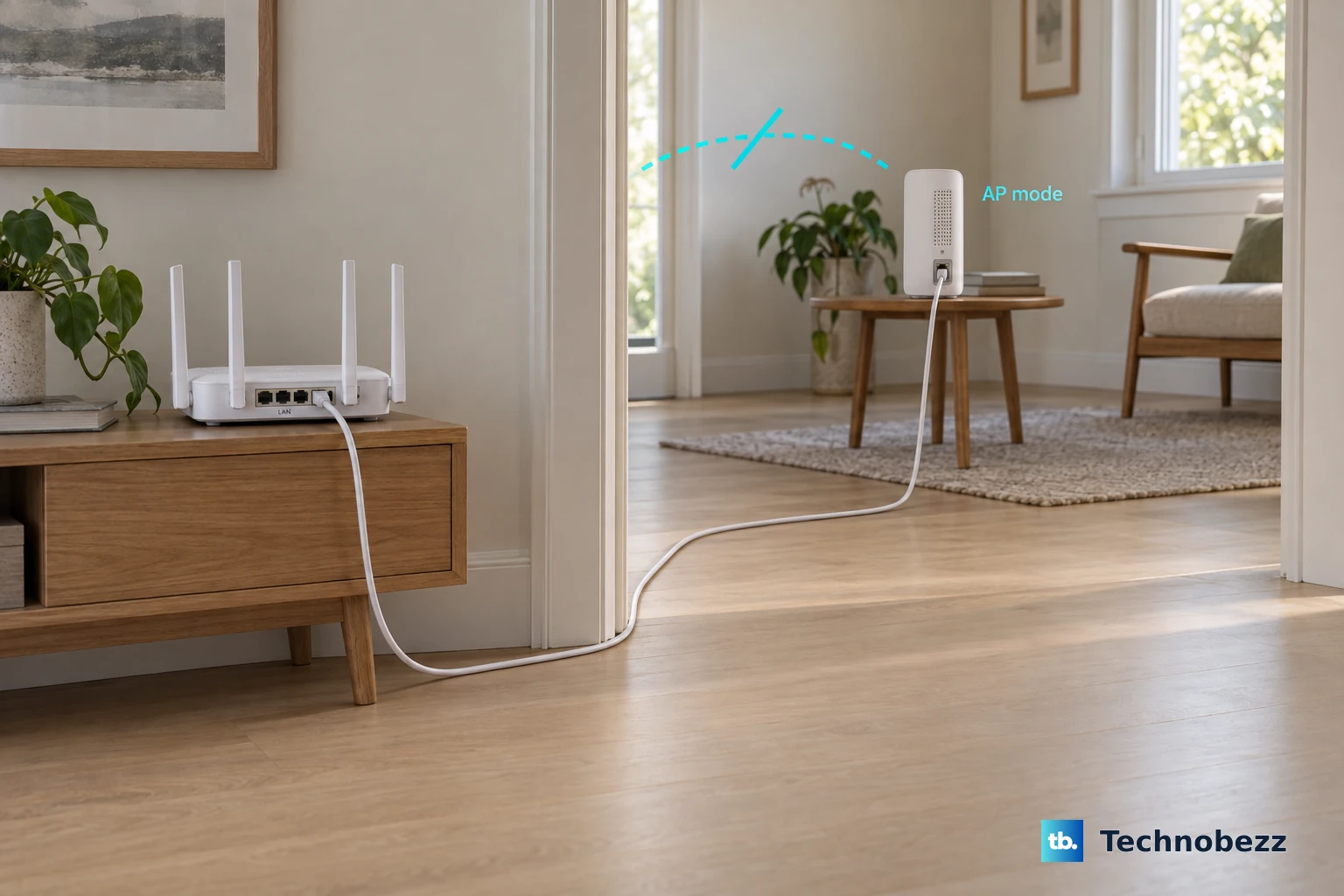
Mesh units work the same way with wired backhaul. On a Deco system, set every unit up wirelessly first, then connect the cables; the wired link takes over on its own, and wired and wireless units can share one network. In router mode, plug each satellite into the main Deco's LAN port or a switch connected to it, never straight into the modem. eero units can be hardwired too if your home has Ethernet runs.
No Ethernet in the walls? Powerline adapters send network traffic over your electrical wiring, but both adapters must be on the same electrical circuit. MoCA adapters turn the coax cable already in your walls, the kind used for cable TV, into a wired network link, which works if you have a coax outlet near the router and another in the weak room. Either one stands in for a long Ethernet run, so the extender or mesh unit at the far end gets a wired connection back to the router.
Placement makes or breaks either one
- Put an extender about halfway to the weak room, never in the dead zone itself, because it needs a strong signal to repeat.
- Start roughly 25 to 40 feet from the router for models with external antennas, or 20 to 35 feet for internal-antenna models, and move closer if walls are in the way.
- Keep it about four feet off the floor and away from microwaves, cordless phones, refrigerators, mirrors and large metal surfaces.
- On TP-Link extenders, a red signal light generally means it's getting a poor signal from the router.
Mesh satellites follow the same logic. Place them between the main unit and the weak area, out in the open rather than inside a cabinet or down in the dead zone. More units won't help if each one can barely hear the rest of the network.
With TP-Link gear, the Tether and Deco apps can draw a coverage heatmap from your floor plan. Open Tether Lab from the menu in the Tether app, or More > Deco Lab in the Deco app, and choose Wi-Fi Coverage Heatmap. A newer Signal Test has you walk from room to room while your phone records real signal strength, and TP-Link has verified it on phones including the iPhone 13 mini, Galaxy S23 Ultra and Pixel 9 Pro XL. The heatmap maps Wi-Fi signal, so confirm with a speed test in the problem room once you've settled on a spot.
The verdict for most homes
If one room is weak and the rest of the house is fine, buy an extender, place it partway toward that room, and plug anything that stays put into its Ethernet port. It's the cheapest fix that works. If your router runs EasyMesh, a matching EasyMesh extender gets you most of the mesh experience for extender money.
For everyone else, buy mesh. Two or more weak rooms, a second floor that drops calls, or a router you've had for years all point the same way. Choose a tri-band kit if you can't run cables and several people stream at once, and give the units a wired link through Ethernet, powerline or MoCA wherever you can. For specific picks, start with our guide to the best mesh Wi-Fi systems.
Frequently Asked Questions
Can I add an extender to my mesh system?
You can, but another unit from the same mesh family is the better buy. A standalone extender can create a separate network name and break the single network that makes mesh worth having.
Will an extender or mesh system make my internet faster?
Neither raises the speed coming into your home, which your internet plan sets. Both bring the speed you already pay for to rooms that weren't getting it.
Why won't my smart plug or camera connect to my mesh network?
Many smart home devices only use 2.4 GHz Wi-Fi, and their setup apps expect your phone on the same band. A Deco mesh uses one name for 2.4 GHz and 5 GHz, so your phone often lands on 5 GHz and pairing fails. Create a separate 2.4 GHz network under More > IoT Network in the Deco app and connect those devices to it.
How many mesh units do I need?
TP-Link suggests one unit per 1,500 to 2,000 square feet as a starting point, with more for thick walls or extra floors. eero rates each eero 7 for up to 2,000 square feet.