
If your Vivo X200 Pro is refusing to send pictures or group texts, it's a frustrating roadblock. MMS issues are usually tied to your mobile data connection or a specific setting that's gotten out of whack. Let's get your multimedia messages flowing again.
Start With a Simple Restart
Before diving into settings, give your phone a fresh start. Press and hold the power button for about 12 seconds until you feel it vibrate and see the Vivo logo appear. This force restart can clear out any temporary software glitch that's hanging up the messaging service.
Confirm Your Mobile Data is On and Working
MMS doesn't travel over WiFi or standard SMS. It requires an active mobile data connection. Swipe down from the top of your screen to open the Quick Settings panel and make sure the mobile data icon is enabled. You should see 4G or 5G in your status bar.
If you have a strong signal but data seems slow, try sending the MMS while disconnected from WiFi. Some networks can interfere with the carrier's MMS gateway. I'd start by toggling mobile data off and back on in your settings.
Check the MMS Settings in Your Messages App
The stock messaging app on Funtouch OS has its own settings for multimedia. Open the Messages app, tap the three-dot menu in the top right, and go to Settings. Look for an option labeled Multimedia messages or Advanced.
Inside, ensure Auto-retrieve MMS is turned on. If you're traveling, you might also need to enable Roaming auto-retrieve. Some users have reported that disabling "Group messaging" and re-enabling it can kickstart a stuck configuration.
Verify Your APN Settings
This is a very common culprit. The Access Point Name (APN) tells your phone how to connect to your carrier's data and MMS services. An incorrect MMS proxy or port here will block all picture messages.
Go to Settings > Mobile network > Access Point Names. Select the APN your phone is currently using. You need to check the fields for MMSC, MMS proxy, and MMS port. These must be exactly what your carrier specifies.
Don't guess these values. A quick web search for "[Your Carrier] APN settings 2024" or a call to their support will get you the right info. Once you have it, tap each field to edit, save the APN, and restart your phone.
Clear the Cache for Your Messaging Apps
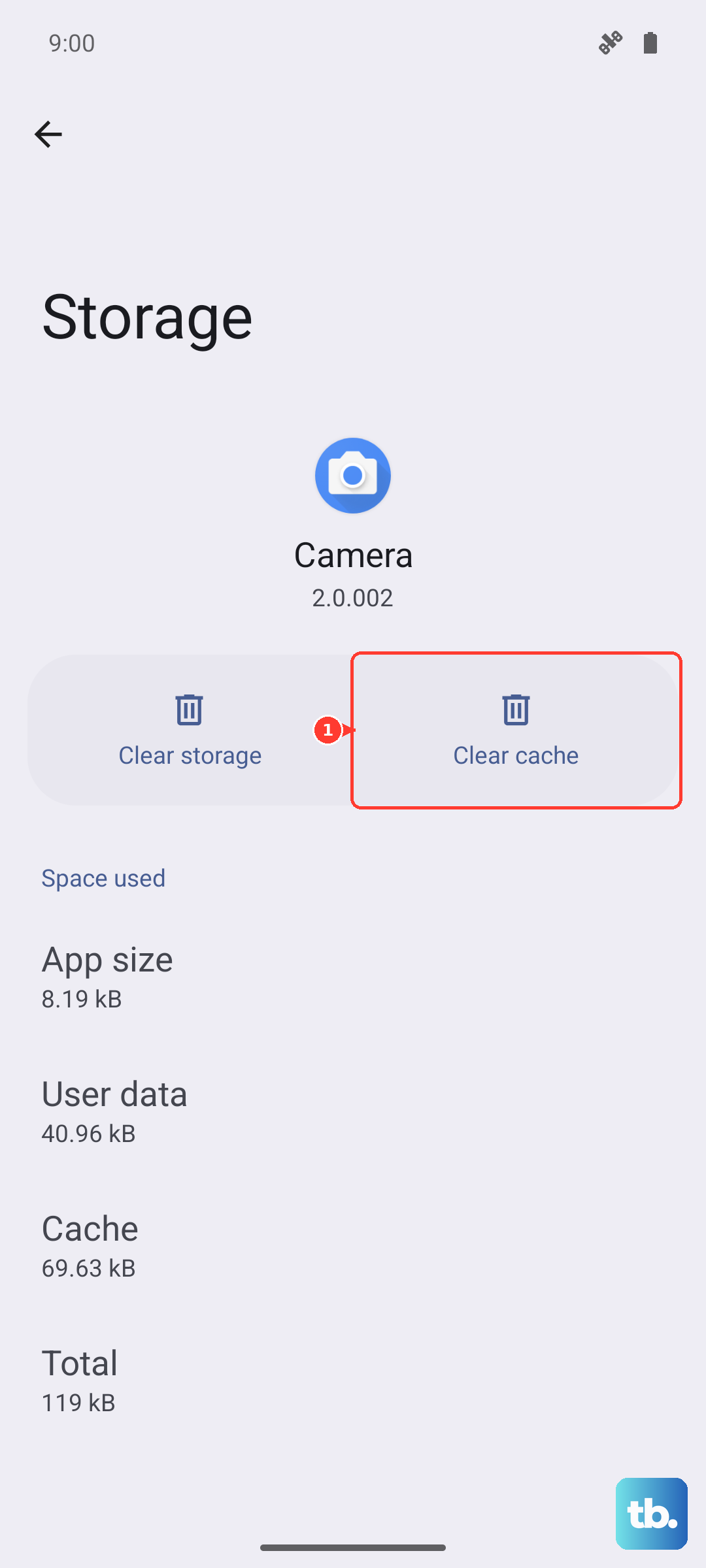
Corrupted temporary files can cause all sorts of odd behavior. Go to Settings > Apps > Manage apps. Find and tap on Messages (the stock app). Then, tap Storage usage.
Tap Clear cache. This won't delete any of your actual messages. If the problem persists, you can try Clear data, but be warned: this will erase your entire SMS/MMS message history within that app, so only do this if you're okay with that loss.
Look For a System Messaging Service
Sometimes the issue lies with a background service, not the main app. In your Settings > Apps > Manage apps list, tap the three-dot menu and select Show system. Now look for services with names like IMS Service, Messaging Service, or Carrier Services.
Tap into any that seem related and use the Clear cache option on their storage page. Avoid clearing data on system services unless you're certain of what it does, as it may reset other network-related features.
Ensure You Have Enough Storage Space
Your Vivo X200 Pro needs a little free space to process and store incoming MMS messages. If your storage is critically full, it can fail silently. Go to Settings > Storage to check your available space.
Try to keep at least a few hundred megabytes free. You can quickly free up space by clearing old downloads or the cache of large apps like social media.
Update Your Phone's Software
An outdated system can have bugs that break MMS. Vivo releases updates for Funtouch OS that often include connectivity improvements. Go to Settings > System upgrade and tap Check for updates.
If an update is available, download and install it. Your phone will restart. After updating, test your MMS again, as the fix could be included in the latest patch.
Reset Your Network Settings
This is a more comprehensive step if nothing else has worked. It will wipe all your network information, including saved WiFi passwords, Bluetooth pairings, and cellular settings, and return them to factory defaults.
On your X200 Pro, go to Settings > System management > Backup and reset > Reset phone. Here, select Reset network settings. Confirm the reset and let your phone reboot. Afterwards, you'll need to reconnect to WiFi and re-pair Bluetooth devices, but your APN should reconfigure automatically.
Try a Different Messaging App
If the issue is isolated to Vivo's stock messaging app, using an alternative can be a great workaround. Google Messages is a reliable option available on the Play Store and often receives better RCS and MMS support directly from carriers.
Download and install Google Messages, then open it and set it as your default app when prompted. Send a test picture message. If it goes through, you've confirmed the problem is with the pre-installed app, and you can continue using the new one.