
That "Unfortunately, the keyboard has stopped" message popping up on your Vivo X200 Pro is a real conversation killer. It's a common Android hiccup, but with Funtouch OS 15, there are a few specific paths to get you typing again.
The quickest fix is often just restarting the keyboard app itself. Head to Settings > Apps > Manage apps. You might need to tap the three-dot menu and select Show system to find it. Look for "Vivo Input Method" or "Jovi Input Method," tap on it, and hit Force stop. Give it a second, then try opening any app that uses the keyboard.
Restart Your Vivo X200 Pro
If the app restart didn't do the trick, a full phone reboot is the next logical step. It clears out any temporary system glitches that might be interfering. Just press and hold the power button until the power menu appears, then tap Restart. If the screen is completely unresponsive, you can force a restart by holding the power button down for about 12 seconds until you feel it vibrate and see the Vivo logo.
Clear the Keyboard's Cache and Data
Corrupted temporary files can cause all sorts of app misbehavior. Clearing the cache is safe and won't delete your personal data, but clearing the data will reset the keyboard to its default settings, so you'll lose any custom dictionaries or preferences.
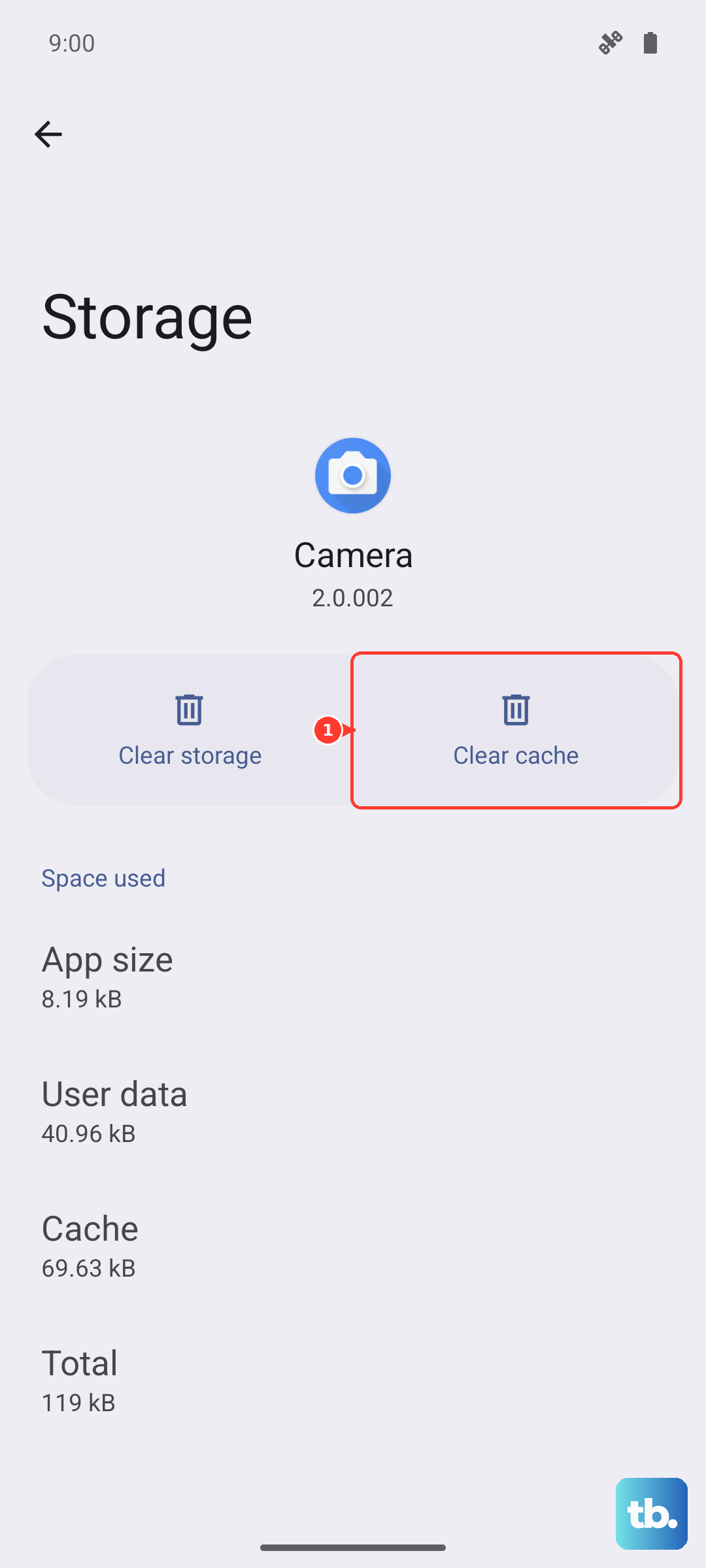
Go back to Settings > Apps > Manage apps, find your Vivo keyboard app again, and tap Storage usage. Tap Clear cache first and test the keyboard. If it's still failing, come back here and tap Clear data. You'll need to grant the keyboard permissions again the next time you use it.
Check for App and System Updates
An outdated keyboard app or system software can lead to conflicts, especially after other apps update. Open the Google Play Store, tap your profile icon, and go to Manage apps & device. See if there's an update available for "Vivo Input Method" or any third-party keyboard you use.
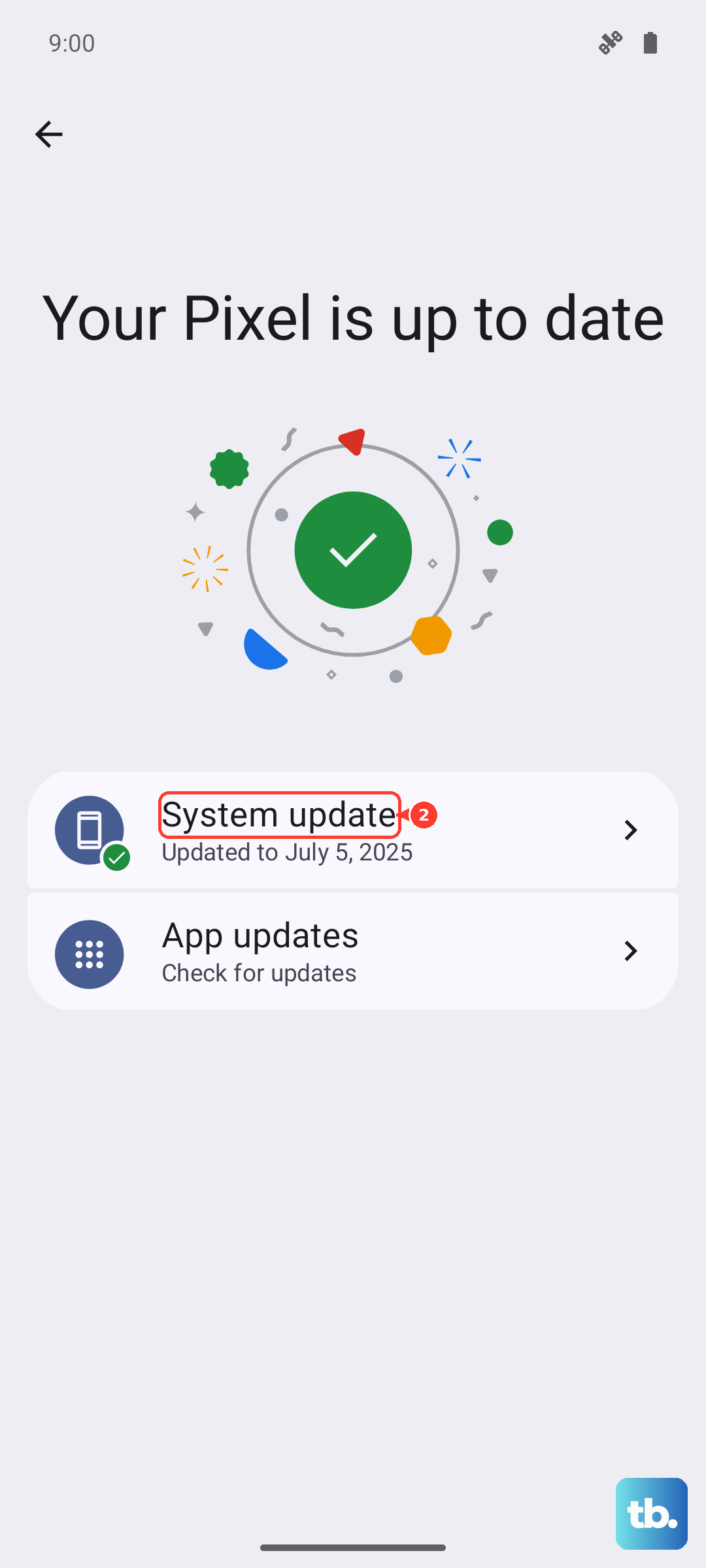
Also, check for a system update. Vivo's software update commitment can be inconsistent, but it's worth a look. Go to Settings > System upgrade to see if any updates are pending. Installing an update can fix known bugs causing keyboard crashes.
Try a Different Keyboard App
This is a great way to see if the problem is with the Vivo software itself or something deeper in the system. Installing a popular third-party keyboard like Gboard or SwiftKey from the Play Store gives you an immediate workaround. Once installed, you'll need to enable it by going to Settings > System management > Keyboard and switching your default input method.
Boot Into Safe Mode
If the keyboard works fine with a third-party app, the issue might be with Vivo's own software. If it still crashes, a recently installed third-party app could be the culprit. Booting into Safe Mode temporarily disables all apps you've installed.
Press and hold the power button until the power off menu appears. Then, press and hold the Power off option on your screen. A prompt to reboot to Safe Mode will pop up, tap OK. If your keyboard works normally here, you'll need to find the problematic app by uninstalling recent downloads one by one.
Reset All Settings
This is a more thorough step before considering a factory reset. It will revert all your system settings, like Wi-Fi passwords, Bluetooth pairings, and display preferences, back to factory defaults without touching your personal photos, messages, or apps.
On your X200 Pro, navigate to Settings > System management > Backup and reset > Reset all settings. Enter your lock screen password if prompted. This process takes about a minute and will reboot your phone.
Check for Conflicting Accessibility Services
Sometimes, services like password managers, screen readers, or other tools that interact with text input can conflict with the keyboard. Go to Settings > Shortcuts & accessibility > Accessibility. Look at the list of installed services and try turning them off one by one, testing the keyboard after each, to see if one is causing the crash.
Consider a Factory Reset
This is the last resort. A factory reset will wipe your Vivo X200 Pro completely back to its out-of-the-box state. Given the 6000mAh battery means you probably have a lot of daily use stored on here, you must back up everything important first using Google Drive or Vivo's own cloud service.
To proceed, go to Settings > System management > Backup and reset > Erase all data (factory reset). Follow the prompts. After the reset, set up the phone as new before restoring your backup to see if the issue persists without your old data in the mix.