
If your Vivo X200 Pro's camera app is crashing, freezing, or just showing a black screen, start with a simple restart. Press and hold the power button until the shutdown menu appears, then tap Restart. I've seen this clear up temporary software glitches that can lock up the camera system.
To know whether you are fixing hardware or software, try a camera test in the browser. A working preview narrows the problem down to the app you were using.
Key Points
- Restart and Force Restart: A simple reboot or a force restart can resolve most temporary camera glitches.
- Check for Software Updates: Outdated system software is a common cause of camera app instability.
- Clear the Camera App's Cache and Data: Corrupted app data can cause crashes and black screens.
- Check App Permissions: The camera needs permission to access your phone's storage and camera hardware.
- Disable Battery Optimization for Camera: Aggressive power saving can prematurely close the camera app.
- Boot into Safe Mode: This helps determine if a third-party app is interfering with the camera.
- Check for Physical Damage or Obstructions: A damaged lens or case can block the camera.
- Reset App Preferences: This resets all app permissions and defaults without deleting your data.
- Perform a Factory Reset: A last resort to eliminate deep-seated software conflicts.
Give the phone a full minute to reboot completely before trying the camera again. If the phone is completely frozen and won't show the power menu, you'll need to force restart it. Press and hold the power button for 12 seconds or more until you feel the phone vibrate and see the Vivo logo appear.
Check for Software Updates
Outdated system software is one of the most common reasons for camera problems. Vivo releases updates through Funtouch OS to fix bugs and improve performance, including for the Zeiss-tuned camera system. Open Settings > System update and tap on Check for updates.
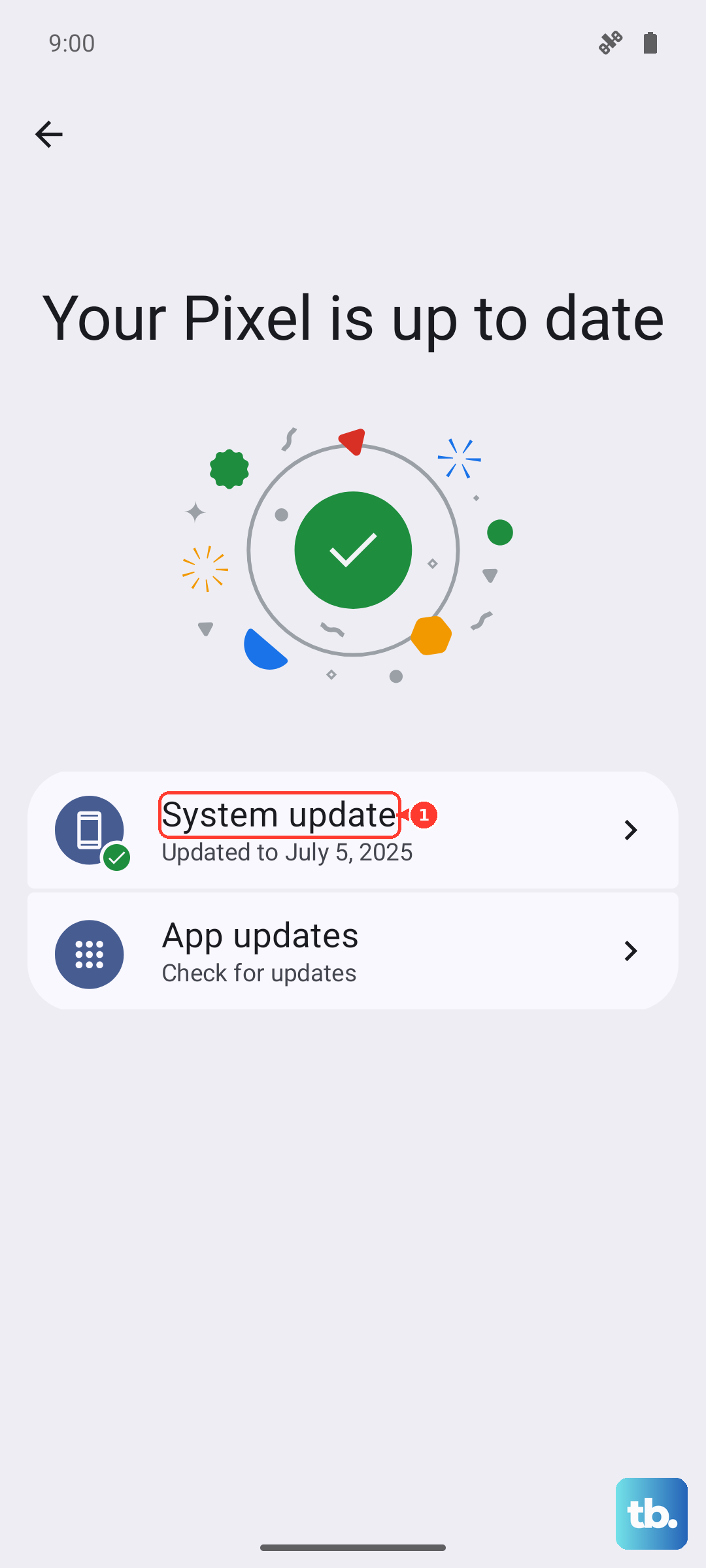
If an update is available, install it. Make sure your phone is connected to Wi-Fi and has at least 50% battery, or plug in the included 90W charger. After the update finishes, restart your phone once more to ensure all the new software components load correctly.
Clear the Camera App's Cache and Data
Corrupted temporary files or app data can cause the camera to crash or show a black screen. Clearing this data is safe and won't delete your photos. Go to Settings > Apps > Manage apps.
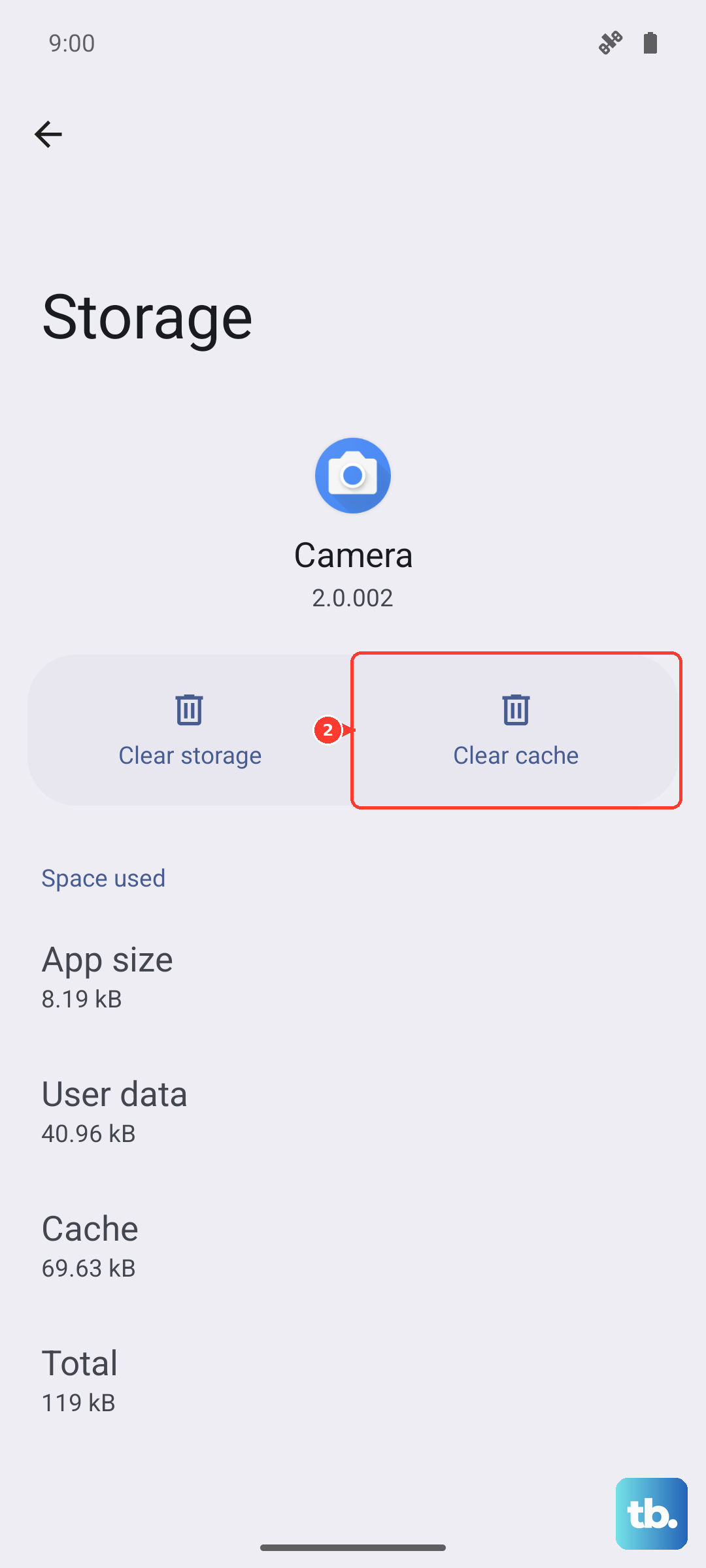
Find and tap on Camera in the list. Then, go to Storage > Clear cache. Try the camera again. If it still fails, go back to the same menu and tap Clear data or Clear storage. This will reset the camera app to its default settings, so you may need to reconfigure any custom modes or settings you had.
Verify Camera Permissions
The camera app needs explicit permission to access your phone's hardware and storage. If these were accidentally revoked, the app won't work. Go to Settings > Apps > Permissions > Camera.
Make sure the Camera app is listed and has permission granted. Also, check the storage permission. Go to Settings > Apps > Permissions > Files and media and ensure the Camera app has permission set to "Allow" so it can save your photos and videos.
Disable Battery Optimization for the Camera
Funtouch OS has aggressive battery management to help that large 6000mAh battery last. Sometimes, it can be too aggressive and close the camera app in the background, causing issues when you launch it. To prevent this, go to Settings > Battery > Background power management.
Look for the Camera app in the list. Tap on it and change the setting to "Don't optimize" or "Allow background activity." This tells the system to leave the camera app alone and can prevent it from freezing when you switch between apps.
Boot into Safe Mode
If the camera only fails in certain apps or after installing new software, a third-party app might be the culprit. Booting into Safe Mode temporarily disables all apps you've installed. Press and hold the power button until the power menu appears; if that opens your voice assistant instead, press and hold the power button and Volume up together (power and Volume down on Samsung phones).
Then, press and hold the "Power off" option on your screen. A prompt will appear asking if you want to reboot into Safe Mode. Tap OK. If the camera works perfectly in Safe Mode, you know a downloaded app is causing the conflict. Start by uninstalling recent apps, especially other camera apps, social media, or photo editors.
Inspect for Physical Issues
Take a close look at the camera module on the back of your X200 Pro. Check all the lenses for cracks, deep scratches, or smudges. Gently clean them with a dry, soft microfiber cloth. Also, check if your phone case is improperly aligned and blocking any part of the camera lens or the flash.
Try removing the case entirely and test the camera. Look for any signs of water damage or impact around the camera bump. Physical damage to the sensors or lenses requires a professional repair to fix.
Reset App Preferences
This is a broader fix that resets all app permissions, default apps, and background restrictions to their factory settings. It won't delete any of your personal data or apps. Go to Settings > System management > Reset > Reset app preferences.
Tap Reset. After your phone reboots, you'll need to grant permissions again the first time you use any app. Launch the camera and grant it the permissions it requests. This can resolve conflicts where system settings have become corrupted.
Perform a Factory Reset
If every other step has failed, a factory reset is the final software solution. This will erase all data on your phone, so it's crucial to back up everything important first. Use Google Drive, your computer, or Vivo's own cloud backup. Once backed up, go to Settings > System management > Reset > Erase all data (factory reset).
Follow the on-screen instructions. After the reset is complete, set up your phone as new without restoring a backup immediately. Test the camera right away. If it works, you can then gradually restore your data. If the camera still doesn't work after a factory reset, the issue is likely with the hardware itself.