
When your Vivo X200 Pro keeps closing apps, it interrupts everything from messaging to using that excellent Zeiss camera. The issue usually stems from a software hiccup in Funtouch OS 15 or a conflict with one of your apps. I'd start with a simple restart, as it clears out temporary glitches that can cause this.
Press and hold the power button for about 12 seconds until you feel the phone vibrate and the Vivo logo appears on screen. This force restart is often the quickest fix for random app crashes.
Update Your Apps and System Software
Outdated apps are a common culprit for instability. Open the Google Play Store, tap your profile icon, and go to Manage apps & device. Install any pending updates listed there.
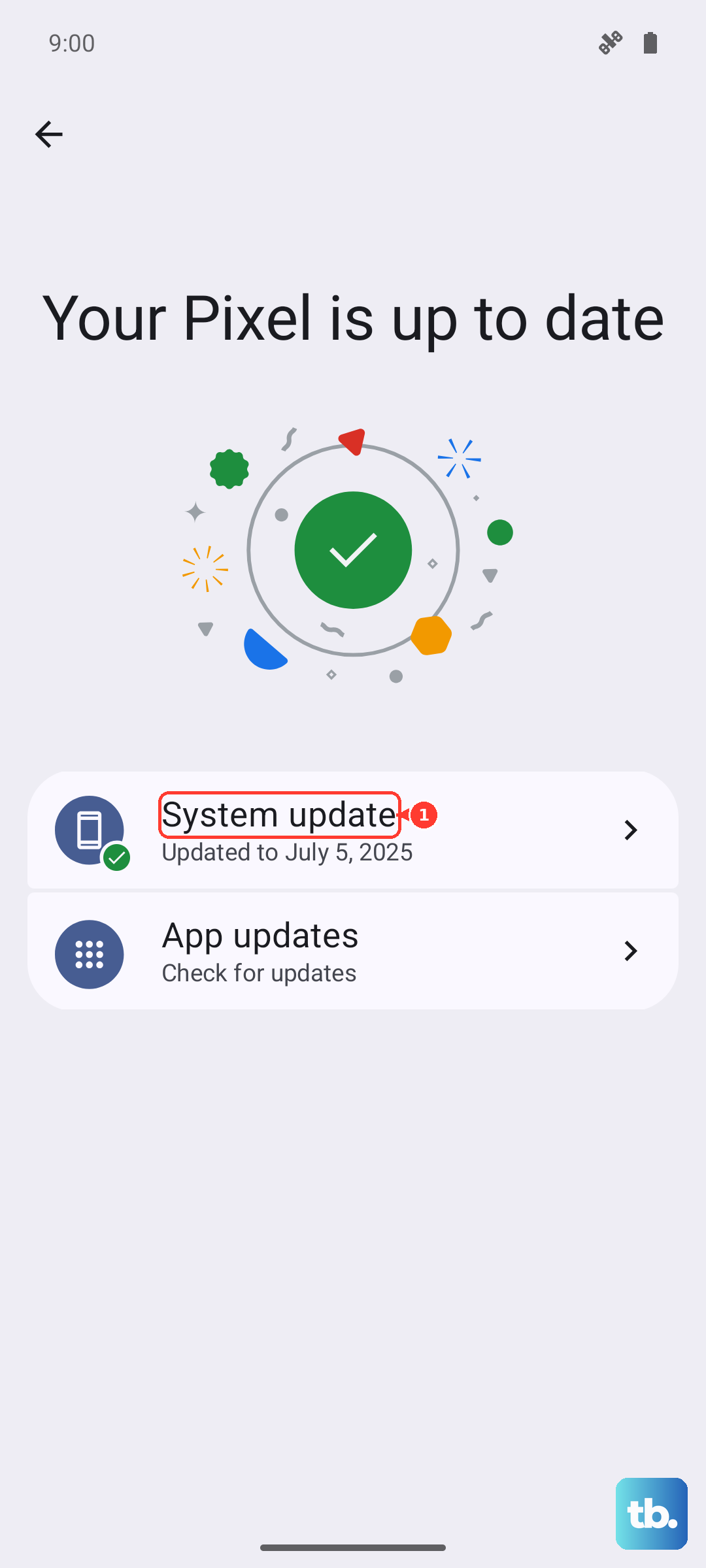
It's just as important to check for system updates. Vivo releases patches that can resolve underlying compatibility issues. Go to Settings > System update to see if a newer version of Funtouch OS is available.
Check Your Phone's Storage and Memory
The X200 Pro has a large 6000mAh battery, but it also needs free storage to run smoothly. If your internal storage is nearly full, apps won't have room to operate. Head to Settings > Storage to see how much space you have left.
Consider offloading photos and videos to the cloud or a computer. Also, close apps you're not using by swiping them away from the recent apps view. Having too many running in the background can overload the phone's memory.
Clear an App's Cache and Data
If a specific app, like your camera or social media, keeps closing, its stored data might be corrupted. Clearing the cache is a safe first step that won't delete your login info.
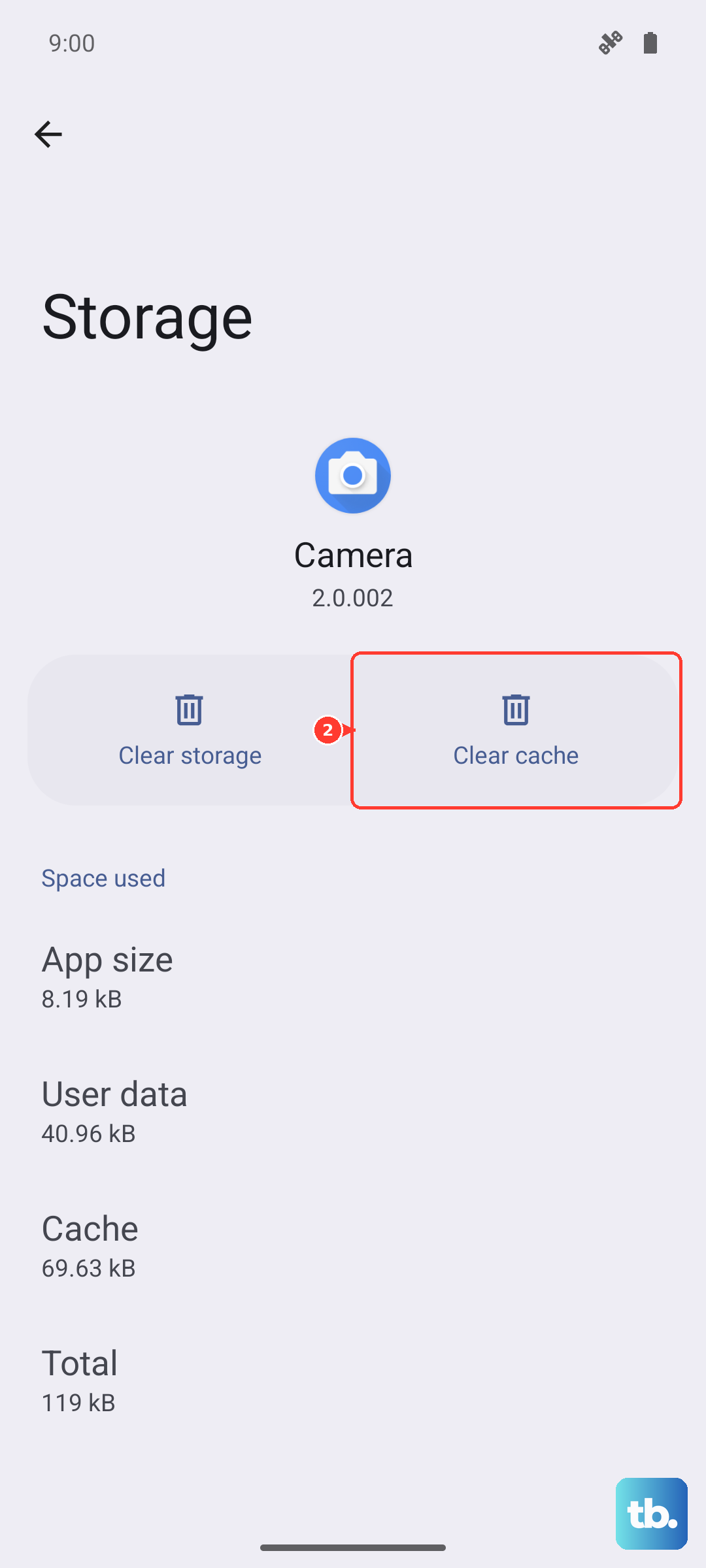
Go to Settings > Apps and select the problematic app. Tap on Storage, then hit Clear Cache. If the problem persists, you can try Clear Data, but be aware this will reset the app to its freshly installed state.
Review App Permissions and Battery Settings
Funtouch OS has aggressive battery optimization to help achieve that two-day battery life. Sometimes, it can be too aggressive and close apps in the background. For your essential apps, you can adjust this.
Go to Settings > Battery > Background power management. Find the app that's closing and set it to "Allow background activity." Also, check the app's permissions in Settings > Apps to ensure it has what it needs to run.
Uninstall and Reinstall the Problem App
When an app is consistently faulty, a fresh install can work wonders. Press and hold the app's icon on your home screen and tap Uninstall. Then, head back to the Google Play Store to download it again.
This process gives you a clean slate, free of any corrupted files that may have built up from previous updates. It's a reliable fix for a single misbehaving app.
Boot into Safe Mode
If apps are crashing across the board, a third-party app you installed might be the cause. Booting into Safe Mode temporarily disables all downloaded apps.
Press and hold the power button until the power menu appears. Then, long-press the "Power off" option on your screen. You'll get a prompt to reboot into Safe Mode. If the crashes stop in Safe Mode, you know a downloaded app is to blame.
You'll need to uninstall recently added apps one by one to find the offender. Restart your phone normally to exit Safe Mode.
Reset All App Preferences
This is a broader reset that doesn't delete your personal data. It reverts all your app settings back to default, including permissions, notifications, and background restrictions.
Navigate to Settings > System management > Reset > Reset app preferences. Tap to confirm. You'll need to re-grant permissions the next time you use each app, but it can resolve widespread conflicts.