
You're staring at your Tecno Spark 30 Pro, and that Wi-Fi icon just won't turn blue. It's stuck on "Saved" or "Connecting," or maybe it connects but nothing loads. I've seen this happen a lot with budget phones, and the good news is it's almost always a software glitch you can fix yourself. Let's get you back online.
Toggle Wi-Fi and Restart Your Phone
Start with the simplest fix. Swipe down from the top of your screen to open the Quick Settings panel. Tap the Wi-Fi icon to turn it off, wait a few seconds, then tap it again to turn it back on. This forces the phone to re-scan for networks and can clear up a temporary hiccup.
If that doesn't work, restart your phone. Press and hold the power button until the power menu appears, then tap "Restart." This is the most basic fix for any weird software behavior on your Spark 30 Pro, and it solves a surprising number of Wi-Fi issues.
Use Airplane Mode to Reset All Radios
This trick works on any phone. Turning on Airplane Mode shuts down all wireless connections at once. Swipe down for Quick Settings and tap the airplane icon. Leave it on for about 15 seconds, then turn it off.
This forces your Wi-Fi, mobile data, and Bluetooth to reconnect from scratch. It's a more thorough version of just toggling Wi-Fi and often works when the simple toggle doesn't.
Forget the Network and Re-enter the Password
Your phone might be holding onto old or corrupted login info for your network. To fix this, go to Settings > Network & Internet > Wi-Fi. Tap on the name of your network and select "Forget."
Now, find your network in the list again, tap it, and carefully type in your password. This is crucial if you've recently changed your Wi-Fi password or gotten a new router. Your phone won't connect if it's trying to use an old password.
Check for Simple Mistakes
It sounds obvious, but it's worth double-checking. Make sure you're selecting the correct network name from the list, especially if you have a lot of nearby networks. When typing the password, remember it's case-sensitive.
Also, check if other devices in your home can connect to the Wi-Fi. If they can't, the problem is with your router, not your phone. If they can, then we know the issue is isolated to your Tecno Spark 30 Pro.
Turn Off Bluetooth to Prevent Interference
Bluetooth and Wi-Fi can sometimes interfere with each other because they both use the 2.4GHz radio band. This can be more noticeable on budget hardware. Swipe down and turn off Bluetooth from the Quick Settings panel.
See if your Wi-Fi connects immediately after. If it does, you've found the conflict. You can usually turn Bluetooth back on afterward, but you might need to manage them separately if the problem returns.
Disable Smart Network Switching in HiOS
Your Spark 30 Pro has a feature that tries to be helpful by switching to mobile data when Wi-Fi is weak. Sometimes, it's too aggressive and prevents a proper connection. Go to Settings > Network & Internet > Wi-Fi.
Tap the three-dot menu in the top right and go to "Advanced." Look for an option called "Switch to mobile data" or "Smart network switch" and make sure it's turned off. This tells your phone to stick with Wi-Fi.
Check Power Saving and Data Saver Modes
Battery-saving features can limit background network activity to save power. If you have Power Saving mode enabled, it might be restricting your Wi-Fi. Go to Settings > Battery and disable any power saving modes.
Also, check Settings > Network & Internet > Data Saver. If Data Saver is on, it could be blocking background data for apps even on Wi-Fi. Turn it off to see if that's the culprit.
Update Your Phone's Software
Running outdated software can cause all sorts of bugs, including Wi-Fi problems. Tecno releases updates to fix these issues. Go to Settings > System > System update and tap "Check for updates."
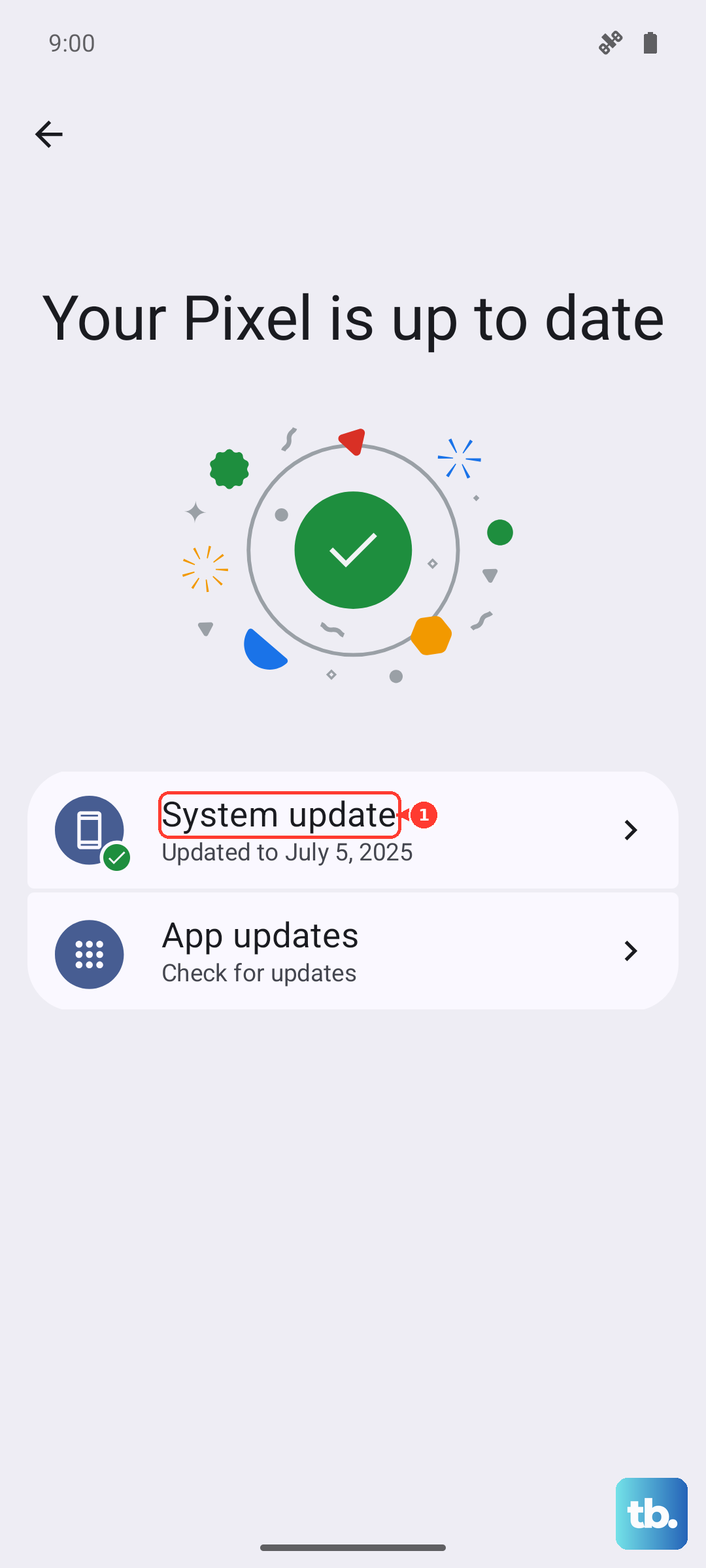
If an update is available, install it. Make sure your phone is charged above 50% and connected to mobile data or another Wi-Fi network to download it. Keeping your Spark 30 Pro updated is key for stability.
Verify Your Date and Time Settings
This is a sneaky one that many people overlook. If your phone's date and time are incorrect, it can break the security certificates needed to connect to a secured Wi-Fi network. Go to Settings > System > Date & time.
Make sure the "Use network-provided time" or "Automatic date & time" option is switched on. This lets your phone sync the correct time from your carrier or network.
Reset Your Network Settings
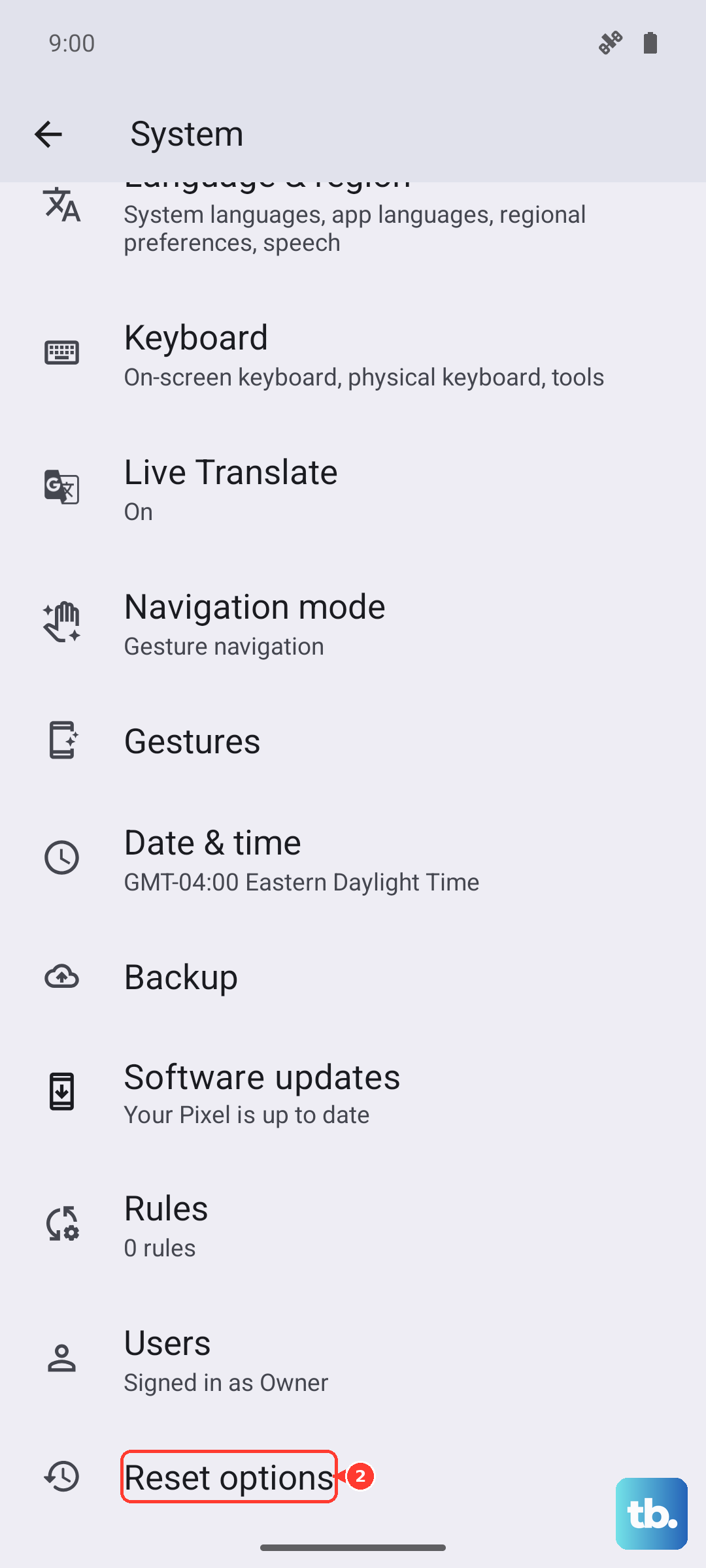
If you're still stuck, resetting network settings is a strong step that won't delete your personal data. This clears all saved Wi-Fi networks, Bluetooth pairings, and mobile data settings. You'll have to reconnect to everything afterward.
To do this, go to Settings > System > Reset options. Tap "Reset Wi-Fi, mobile & Bluetooth" and confirm. After your phone reboots, try connecting to your Wi-Fi again from scratch.
Restart Your Wi-Fi Router
The problem might not be your phone at all. Unplug your router and modem from the power outlet. Wait a full 60 seconds, this is important to let the memory clear. Then, plug the modem back in, wait for it to fully start up, then plug the router back in.
Once all the lights are stable, try connecting your Tecno Spark 30 Pro again. If other devices were also having trouble, a router restart was almost certainly needed.
Boot Into Safe Mode to Check for Apps
A third-party app you installed could be causing the issue. To test this, you need to boot into Safe Mode, which temporarily disables all downloaded apps. Press and hold the power button until the power menu appears.
Then, tap and hold the "Power off" option on your screen. You should see a prompt to reboot into Safe Mode. Tap "OK." If Wi-Fi works perfectly in Safe Mode, a recently installed app is likely blocking it. You'll need to uninstall apps one by one to find the culprit.