
When your Tecno Spark 30 Pro stops listening to your voice commands, it can feel like a step backwards. The convenience of hands-free control is suddenly gone. Let's get it working again.
I'd start by checking the most common culprit. Open the Settings app and go to Google > Settings for Google apps > Search, Assistant & Voice > Voice. Make sure "Hey Google" is toggled on. If it's already on, try toggling it off and back on to refresh the connection.
Verify Your Google Assistant Settings
Google Assistant is the default voice assistant on your Spark 30 Pro. Its settings are spread across a few places in HiOS 14, so it's easy for one to get switched off.
First, open the Google app and tap your profile picture in the top right. Go to Settings > Voice. Here, ensure "Hey Google" and "Voice Match" are both enabled. Voice Match is what allows the phone to recognize your specific voice.
While you're there, check the "Hands-free" setting. Make sure your phone is set to work while the screen is off or locked. If this is off, Assistant will only listen when the phone is unlocked and the Google app is open.
Check for Microphone Blockages
The Spark 30 Pro has multiple microphone ports for noise cancellation and clear audio pickup. If one is blocked, voice recognition can fail.
Look at the bottom edge of the phone near the USB-C port and at the top near the earpiece. Check if the tiny holes are clogged with lint from your pocket. A can of compressed air or a soft, dry toothbrush can clear this out gently.
Also, take a look at your phone case. Some thicker cases, especially if they aren't designed specifically for this model, can partially cover the microphone grilles. Try removing the case and testing "Hey Google" to see if that's the issue.
Review App Permissions and Battery Optimization
Android 14 and HiOS can be aggressive about putting apps to sleep to save battery. This can sometimes affect background services like the voice assistant listener.
Go to Settings > Apps > Google. Tap on Permissions and make sure the Microphone permission is granted. Then, go back and tap Battery. Set the battery usage to "Unrestricted" to prevent HiOS from putting the Google app to sleep.
You should do the same for the "Google Play services" app, as it's critical for Assistant functionality. Find it in the same Apps list, go to its Battery settings, and set it to Unrestricted as well.
Retrain Your Voice Model
Background noise, a different speaking style, or even a software update can throw off the voice model. Retraining it is a quick fix.
In the Google app, go to Settings > Voice > Voice Match. You should see an option to retrain the voice model. Tap it and follow the prompts, speaking the phrases clearly in your normal voice.
Do this in a relatively quiet room. The Helio G100 processor handles this task fine, but training with less background noise gives it a cleaner sample to work with.
Disable Conflicting Accessibility Features
Certain accessibility services can interfere with the always-listening function of Google Assistant. It's worth checking if you have any enabled.
Go to Settings > Additional settings > Accessibility. Look at the list of installed services. If you see anything like "Sound Notifications" or "Live Transcribe" turned on, try disabling it temporarily to test if Assistant starts working.
Also, check the "Text-to-speech output" settings. Sometimes an issue with the selected speech engine (like Google's Text-to-speech engine) can cause a conflict.
Perform a Software Refresh
A simple restart can clear out temporary glitches that might be affecting the microphone or Assistant services. Press and hold the Power button and Volume Down button together for about 10 seconds until you feel a vibration and see the Tecno logo.
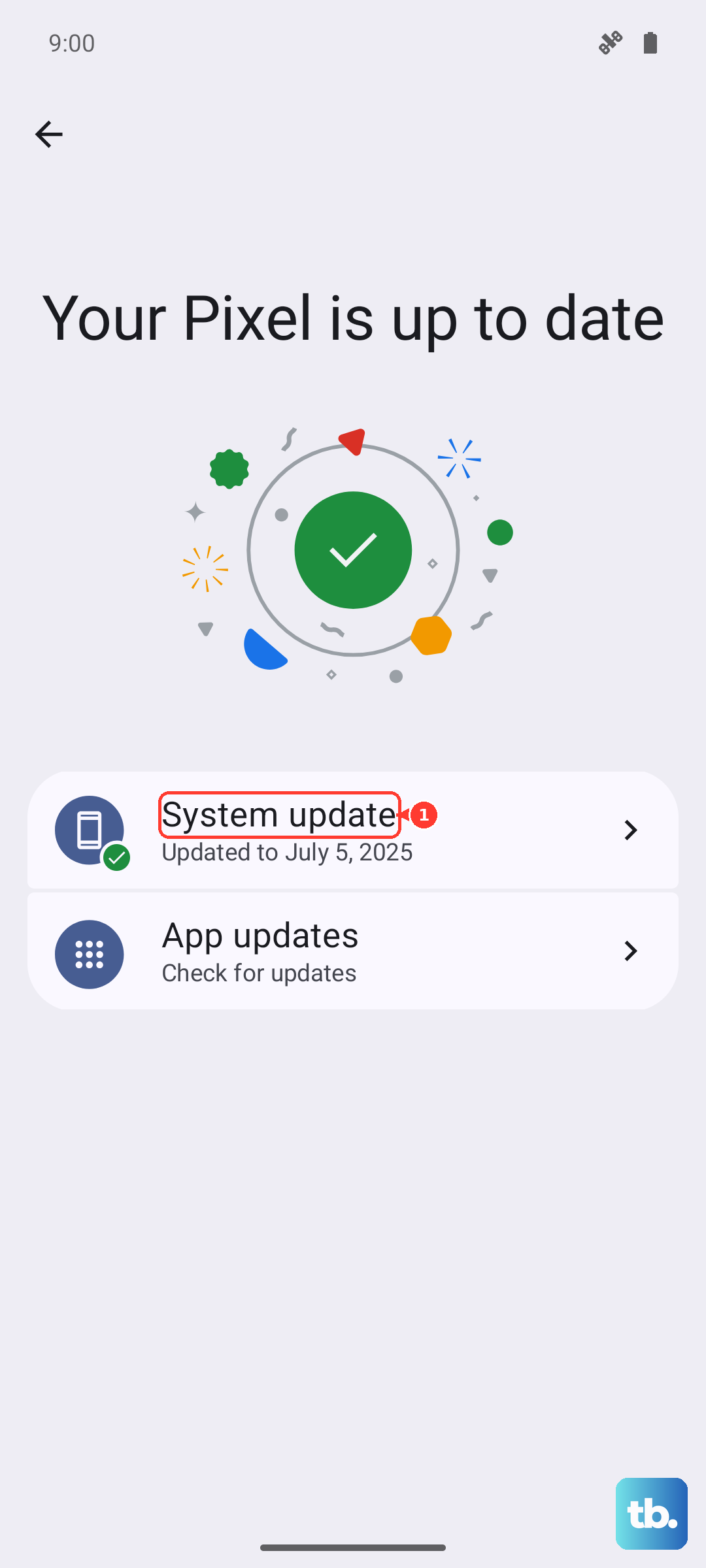
Next, check for a system update. HiOS updates can include fixes for audio and voice recognition bugs. Go to Settings > System > System updates to see if anything is available. The included 33W charger is perfect for getting your phone topped up quickly before an update.
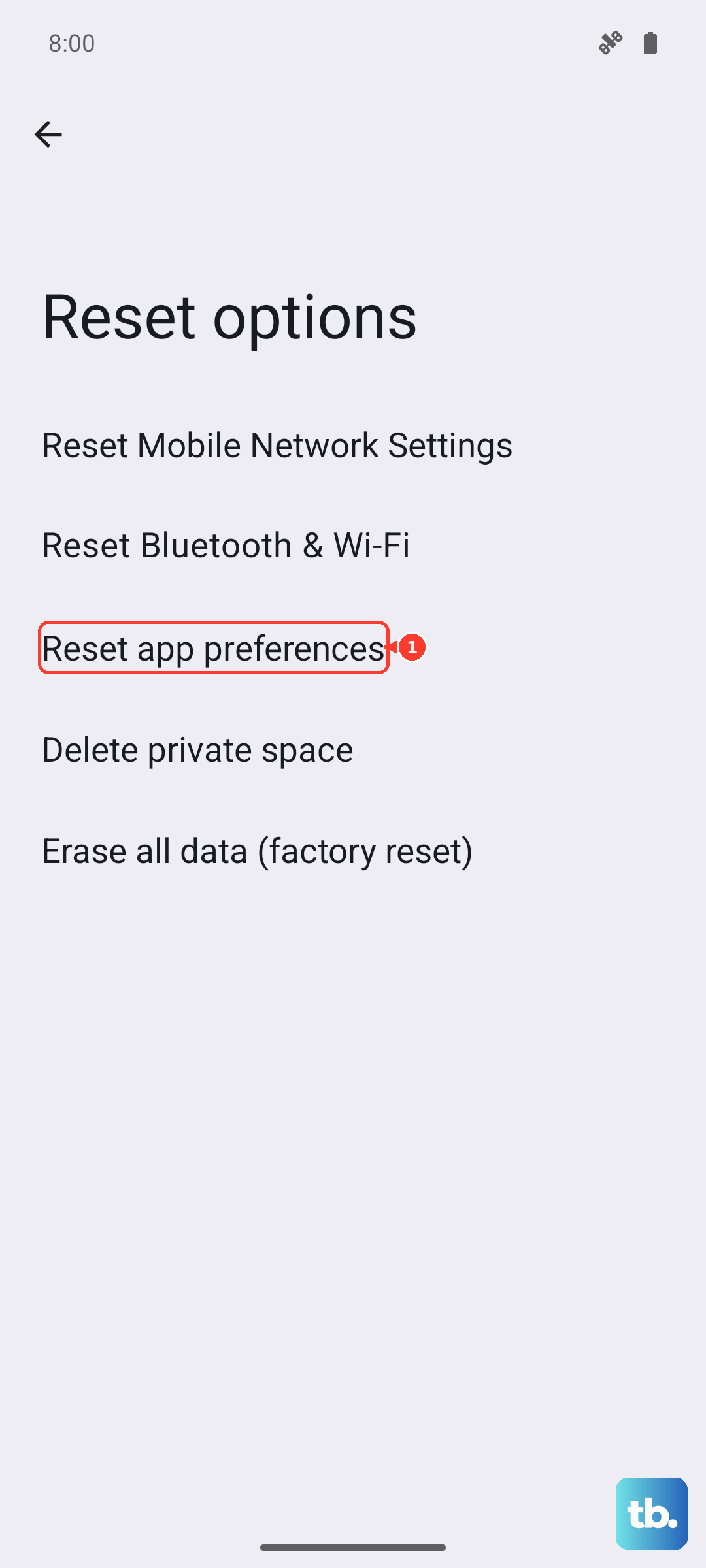
If the problem persists, you can try resetting app preferences. This won't delete your data. Go to Settings > System > Reset options and tap "Reset app preferences". This resets all app permissions, notifications, and default apps back to their factory state.
Consider a Clean Start for the Google App
Sometimes the app's local data gets corrupted. You can clear its cache and data without harming your account.
Go to Settings > Apps > Google. Tap on Storage & cache. First, tap "Clear cache". Test Assistant. If it still doesn't work, go back and tap "Clear storage" or "Manage space", then "Clear all data".
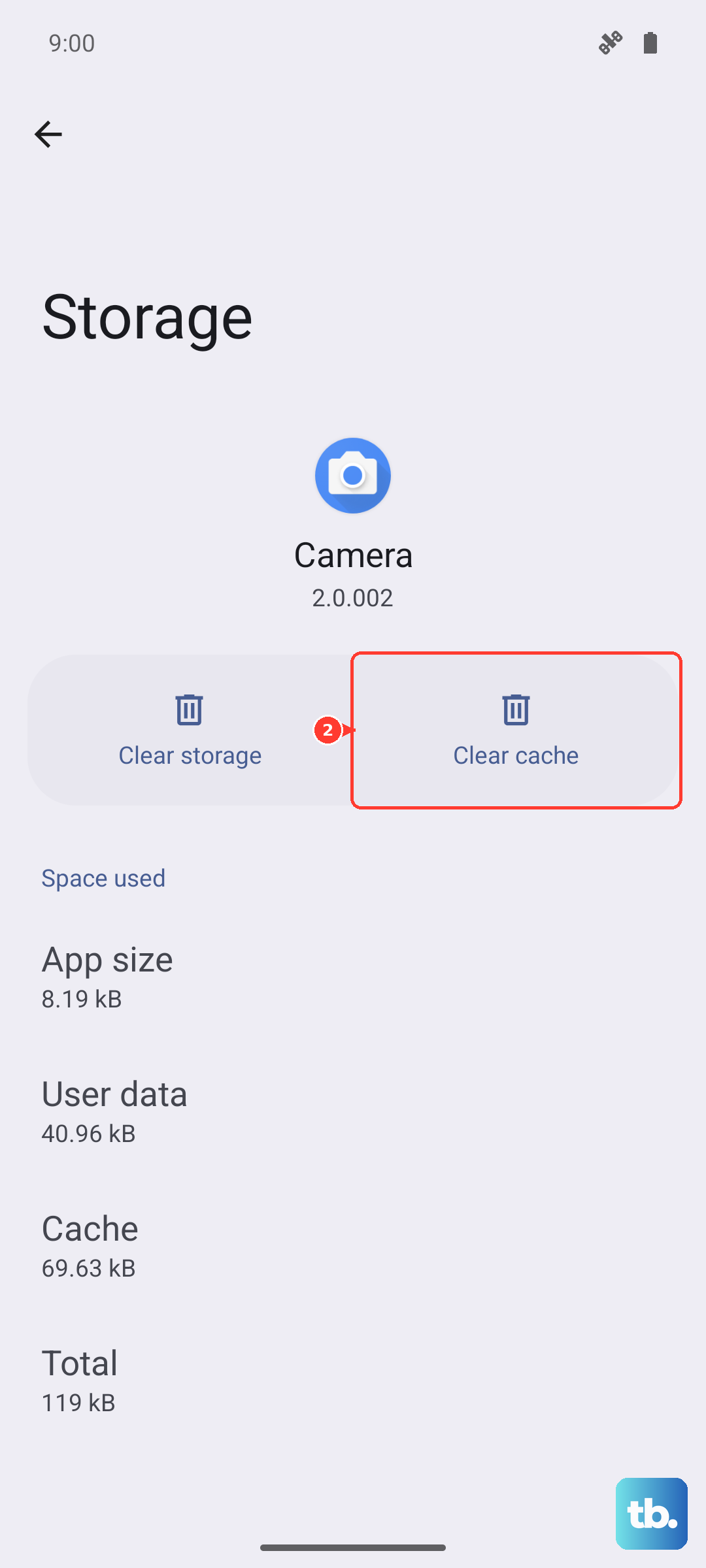
Remember, clearing data will sign you out of the Google app and erase any local preferences. You'll need to sign back in and go through the "Hey Google" setup again, but this often resolves stubborn issues.