So your Tecno Spark 30 Pro won't charge. You plug it in, but the battery icon just sits there, or maybe it shows a charging symbol but the percentage doesn't budge. It's a frustrating spot to be in, but I've found most charging problems with this phone are pretty easy to fix yourself.
Whether you're dealing with a loose cable, a clogged port, or a software hiccup in HiOS 14, we'll walk through the solutions. Let's start with the quickest fix that works more often than you'd think.
Force Restart Your Phone
This should always be your first move. A simple force restart clears out any temporary software glitches that might be blocking the charging circuit. It takes about 10 seconds and doesn't erase any of your data.
For the Tecno Spark 30 Pro, press and hold the Power button and the Volume Down button together. Keep holding them for about 10 to 15 seconds, until you feel the phone vibrate and see the Tecno logo appear on the screen.
Once it boots back up, plug it in with the original 33W charger. See if the charging indicator shows up now.
Clean the USB-C Charging Port
This is the single most common fix for any phone that won't charge, and the Spark 30 Pro is no exception. Lint, dust, and pocket debris get packed into that USB-C port every single day. Eventually, there's so much gunk that the cable's connector can't reach the metal contacts inside.
Grab a bright light and look directly into the port. If you see a dark mat of lint, you've found your culprit. Turn the phone off first for safety. Then, take a wooden toothpick or a plastic flosser pick and gently scrape around the edges of the port to pull the debris out.
Avoid using anything metal, like a paperclip or SIM ejector tool, as you could easily scratch or damage the delicate pins. You can also try gently blowing into the port or using a can of compressed air from a few inches away. Give the phone a few gentle taps with the port facing down to dislodge anything stubborn.
Check Your Cable and Charger
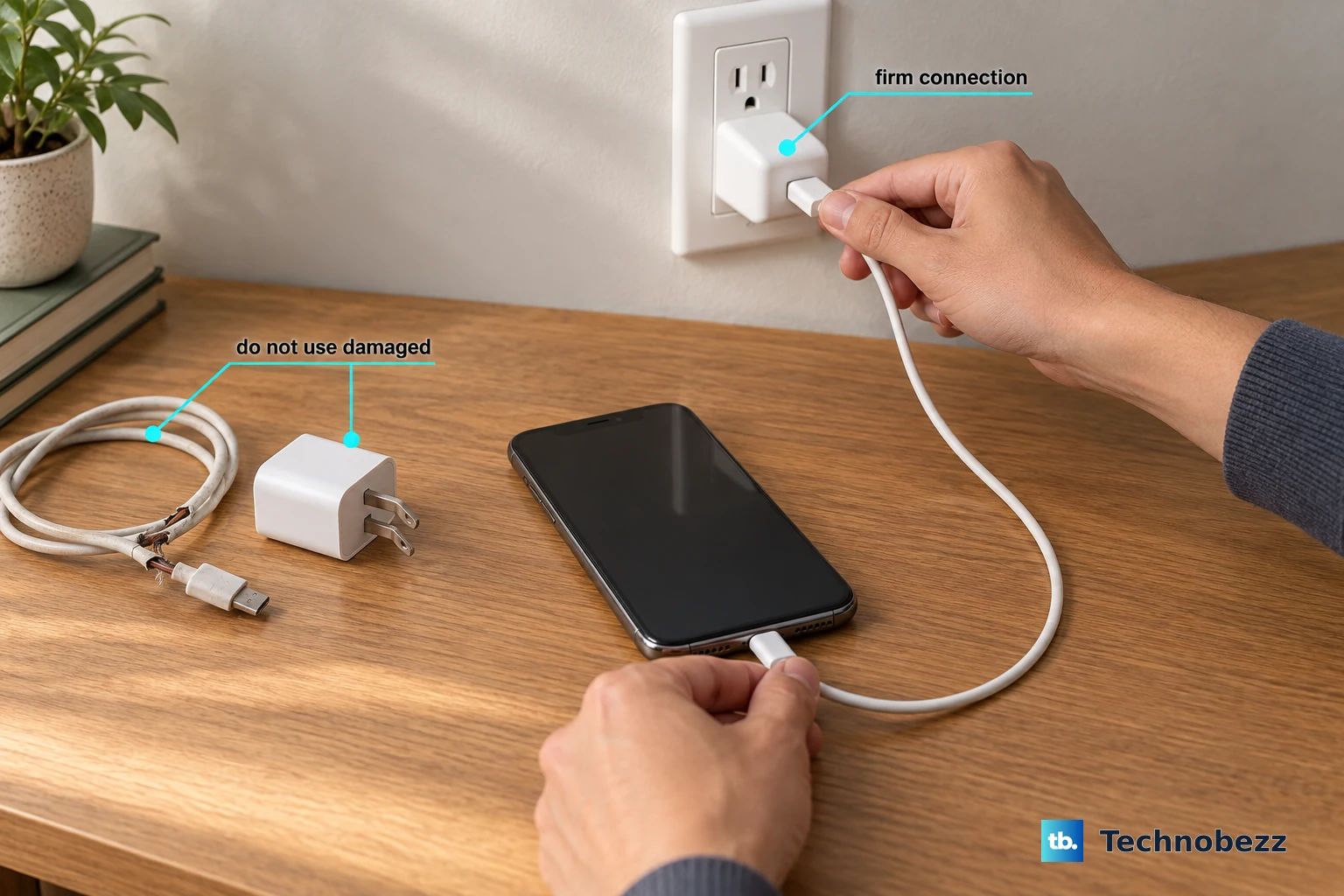
You need to figure out if the problem is with your accessories. The Spark 30 Pro comes with a 33W wired charger in the box, which is decently fast for a budget phone. Start by testing each piece individually.
First, try a different USB-C cable. Make sure it's a good quality one capable of handling higher wattages. Then, try a different wall adapter. Plug your cable into a computer's USB port or a different outlet entirely. If your phone starts charging with a different combo, you know which part failed.
Also, remove the phone case. Some thicker cases, especially if they're misaligned, can prevent the USB-C plug from being fully inserted. I'd recommend using the included case, but just take it off for this test.
Wait If the Battery Is Fully Drained
If you let the battery run down to absolute zero, the phone might not show any signs of life immediately when you plug it in. This is a safety feature. Don't panic.
Leave it connected to the wall charger (not a slow computer port) for at least 30 minutes. Don't touch it or try to turn it on during this time. After a half-hour, check for a charging icon or LED light. If you see nothing, try the force restart method again while it's still plugged in.
Check for Software Updates
Sometimes a bug in Android 14 or Tecno's HiOS skin can interfere with power management. Tecno isn't known for frequent updates, but they do release patches for major issues.
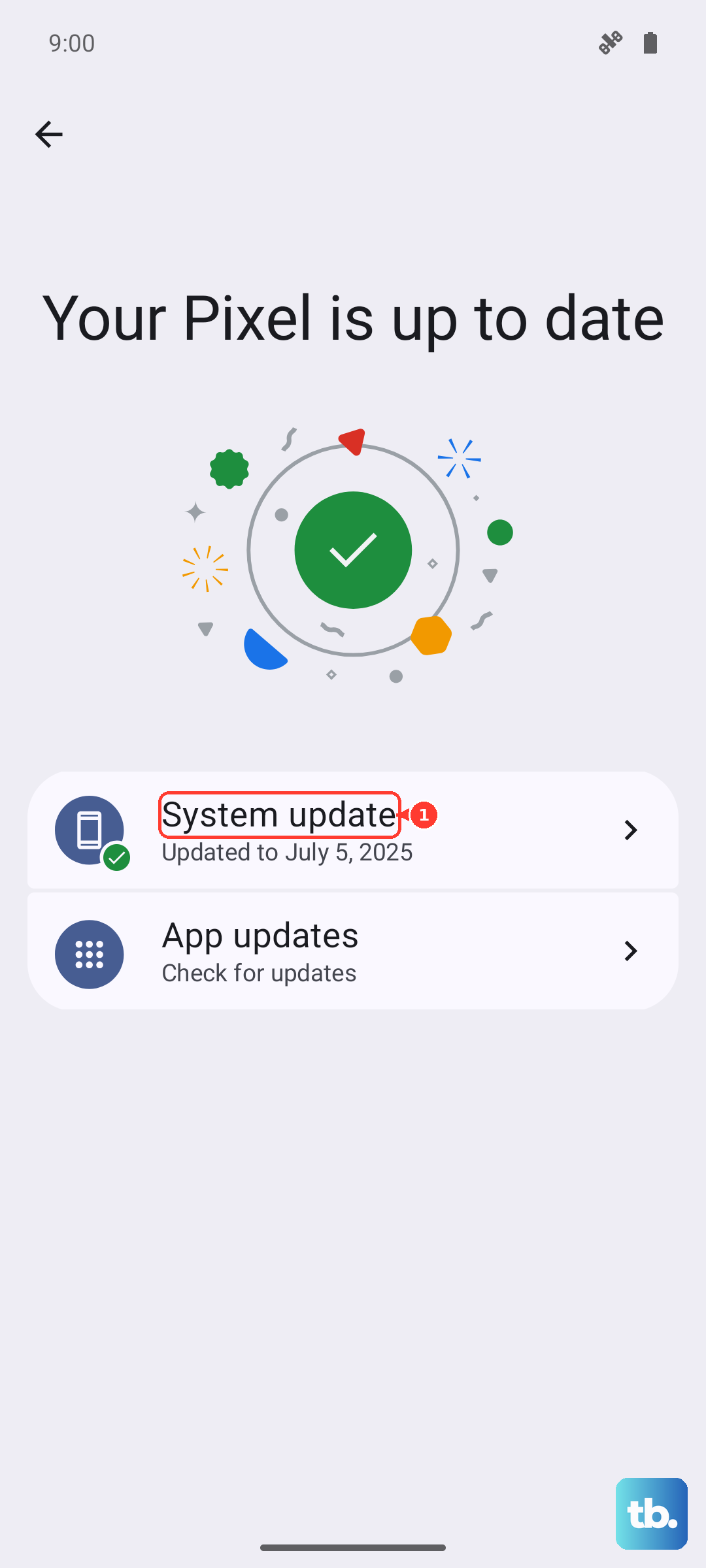
Go to Settings > System > System update. Tap "Check for updates." If an update is available, download and install it. It's a good idea to plug your phone in while updating to ensure it doesn't run out of power mid-process.
Boot Into Safe Mode
If a recently downloaded app is causing trouble, it could be running in the background and preventing proper charging. Booting into Safe Mode temporarily disables all third-party apps so you can test.
To enter Safe Mode on the Spark 30 Pro, press and hold the power button until the power menu appears. Then, tap and hold the "Power off" option on your screen. A prompt will ask if you want to reboot to Safe Mode. Tap "OK."
Once the phone restarts and "Safe Mode" appears in the bottom corner, try charging it. If it charges normally in Safe Mode, you know a downloaded app is the problem. You'll need to uninstall apps one by one, starting with the most recent, to find the culprit.
Inspect for Physical Damage or Overheating
Take a close look at the USB-C port on your phone. Are any of the tiny metal pins bent, broken, or missing? Is there any visible corrosion or moisture? Physical damage usually means a repair is needed.
Also, feel the back of the phone. Is it unusually hot? The Helio G100 processor inside can get warm under load. If the phone is too hot, it will automatically stop charging to protect the battery. Let it cool down completely on a flat, hard surface (not on a bed or couch) before trying to charge again.
Try Charging with the Phone Off
This is a great diagnostic step. Turn your Spark 30 Pro completely off. Then, plug in the charger. If the battery icon appears on the black screen and it starts charging, you know the hardware is fine.
The issue is likely a software conflict or a background process in HiOS. Charging with the phone off is also the fastest way to get a boost, as no power is being used by the screen or apps.
Consider a Factory Reset (Last Resort)
If you've tried everything else and the phone still refuses to charge reliably, a software corruption might be the root cause. A factory reset will wipe your phone back to its original out-of-the-box state.
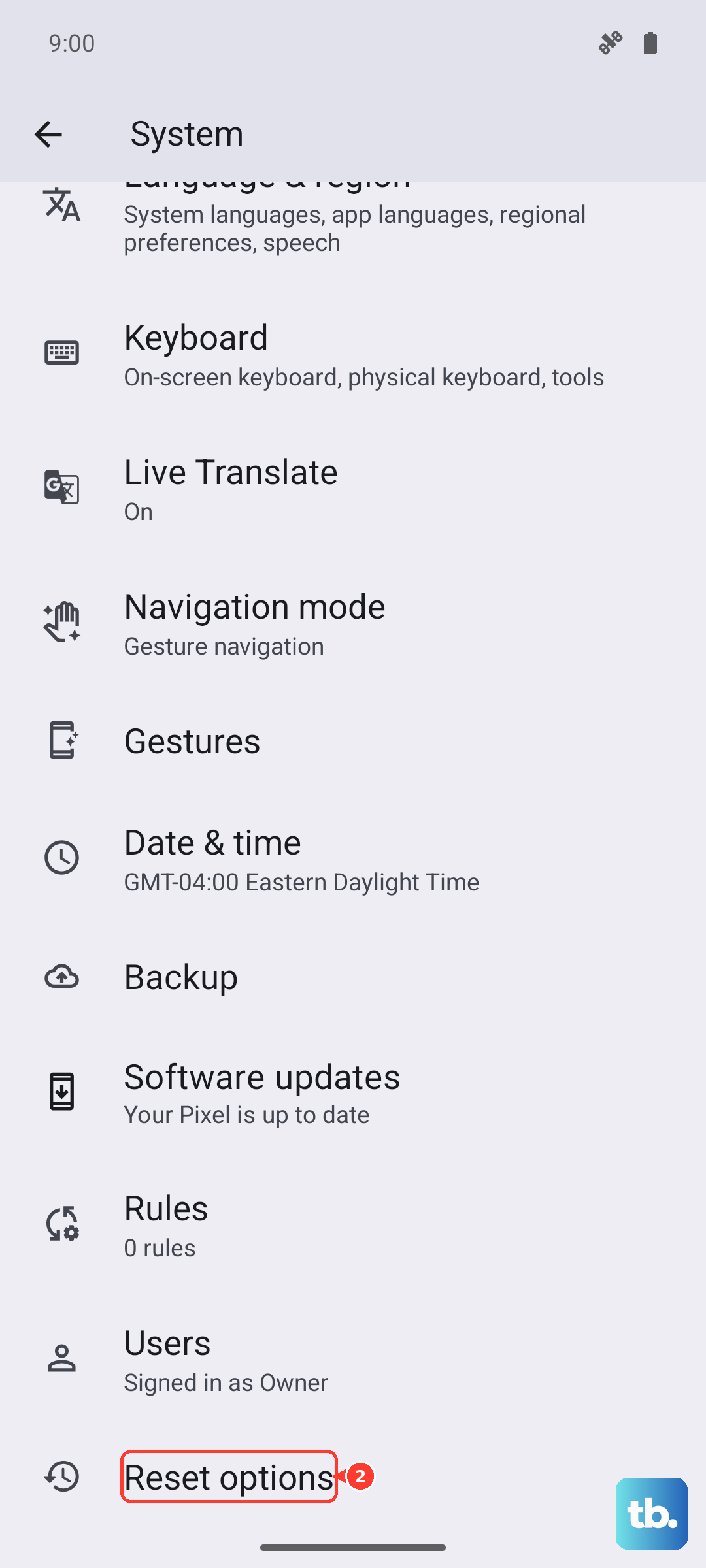
This will erase all your personal data, so you must back up everything important first. To perform the reset, go to Settings > System > Reset options > Erase all data (factory reset). Follow the prompts. After the reset is complete, set the phone up as new and immediately test the charging. If it still doesn't work, the issue is almost certainly hardware-related.