
When your Tecno Spark 30 Pro can't download a picture or video someone sent you, it can leave you out of the loop. This is usually a problem with your mobile data settings, a temporary app glitch, or a network configuration hiccup. The good news is you can almost always fix it yourself without needing a trip to a repair shop.
Let's start with the simplest things you can try, which often solve the problem in under a minute.
Restart Your Phone
A quick restart clears out temporary software bugs that might be blocking the MMS service. Just press and hold the power button until the power menu pops up, then tap "Restart." If the phone is completely unresponsive, you can force a restart by holding the power and volume down buttons together for about 10 seconds until you see the Tecno logo.
Check Your Mobile Data Connection
MMS messages don't download over Wi-Fi. They require an active mobile data connection. Swipe down from the top of your screen to open the quick settings panel and make sure the mobile data icon is turned on. Also, check your signal bars. If you have very low signal, try moving to a different location.
Close and Reopen Your Messages App
Sometimes the app itself just gets stuck. Swipe up from the bottom of your screen and hold to see your recent apps. Find the Messages app and swipe it all the way up or off the screen to close it completely. Then, tap its icon again to relaunch it and see if the MMS downloads.
Enable MMS Auto-Download in Your App
Your messaging app might be set to ask for permission before downloading MMS to save data. You'll need to change this setting. Open your default Messages app, tap the three-dot menu in the top right, and go to Settings.
Look for an option like "Multimedia messages," "Advanced," or "Chat features." Inside that menu, find and turn on "Auto-download MMS" or "Auto-retrieve." This tells your phone to grab those files as soon as they arrive.
Verify Your APN Settings
This is a very common fix for the Spark 30 Pro. APN (Access Point Name) settings are like an address your phone uses to connect to your carrier's multimedia service. If they're wrong, MMS won't work.
Go to Settings > Network & internet > Mobile network > Access Point Names. You should see a list, with one selected (usually your carrier's name). Tap it to view the details.
You need to make sure the "MMSC" field is filled in correctly. The exact address is different for every carrier. The quickest way is to search online for "[Your Carrier Name] APN settings 2024" and compare what you see. If anything is missing or looks wrong, you may need to add a new APN profile with the correct info from your carrier's website.
Clear the Cache for Your Messages App
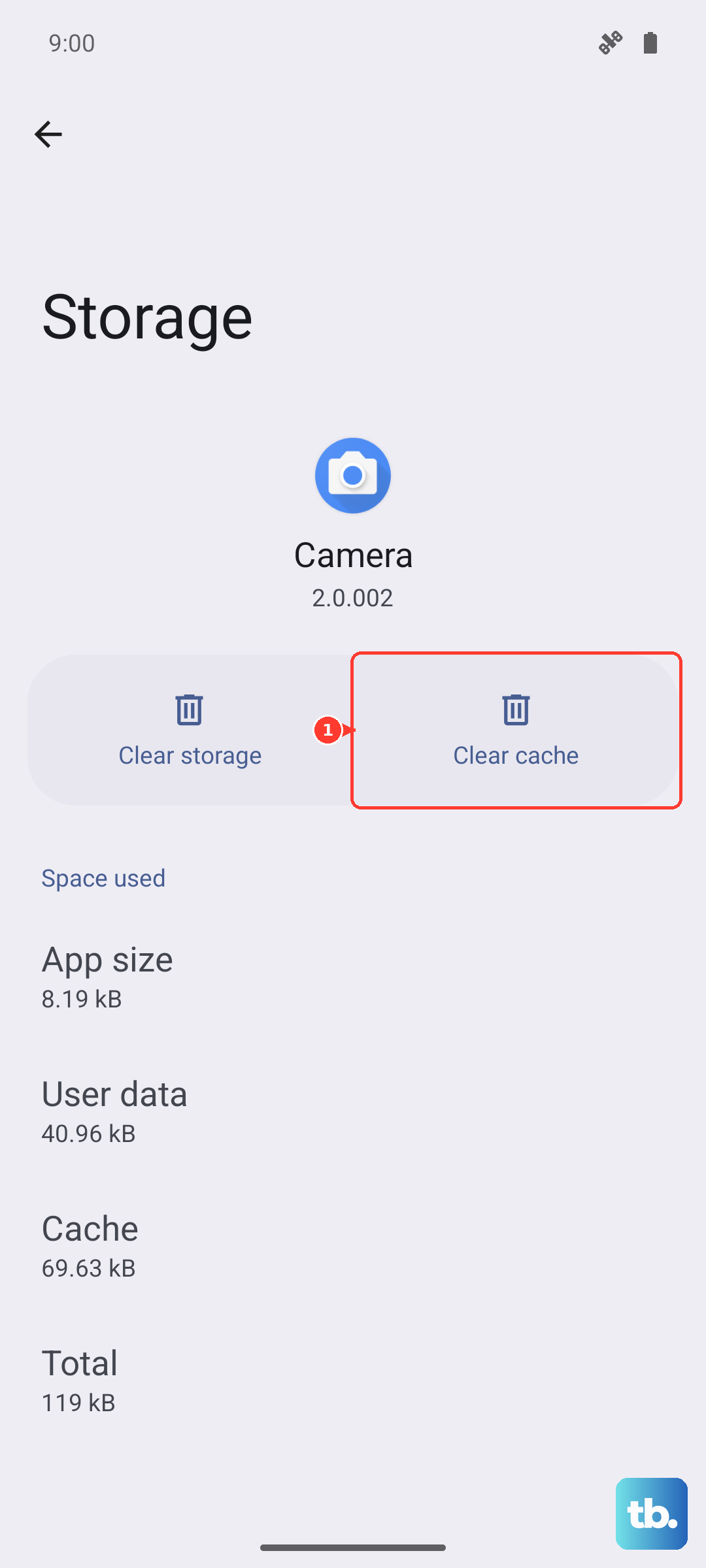
Corrupted temporary files can cause all sorts of app problems. Clearing the cache is safe and won't delete your texts. Go to Settings > Apps > Manage apps. Find and tap on your "Messages" app (it might be called "Messaging").
Tap on Storage usage, then tap "Clear cache." After doing this, force close the app again (as described earlier) and reopen it to see if the MMS comes through.
Check for a Software Update
Running an old version of HiOS or Android can have bugs that affect messaging. Tecno does release updates to fix these kinds of issues. Go to Settings > System > System update and tap "Check for updates."
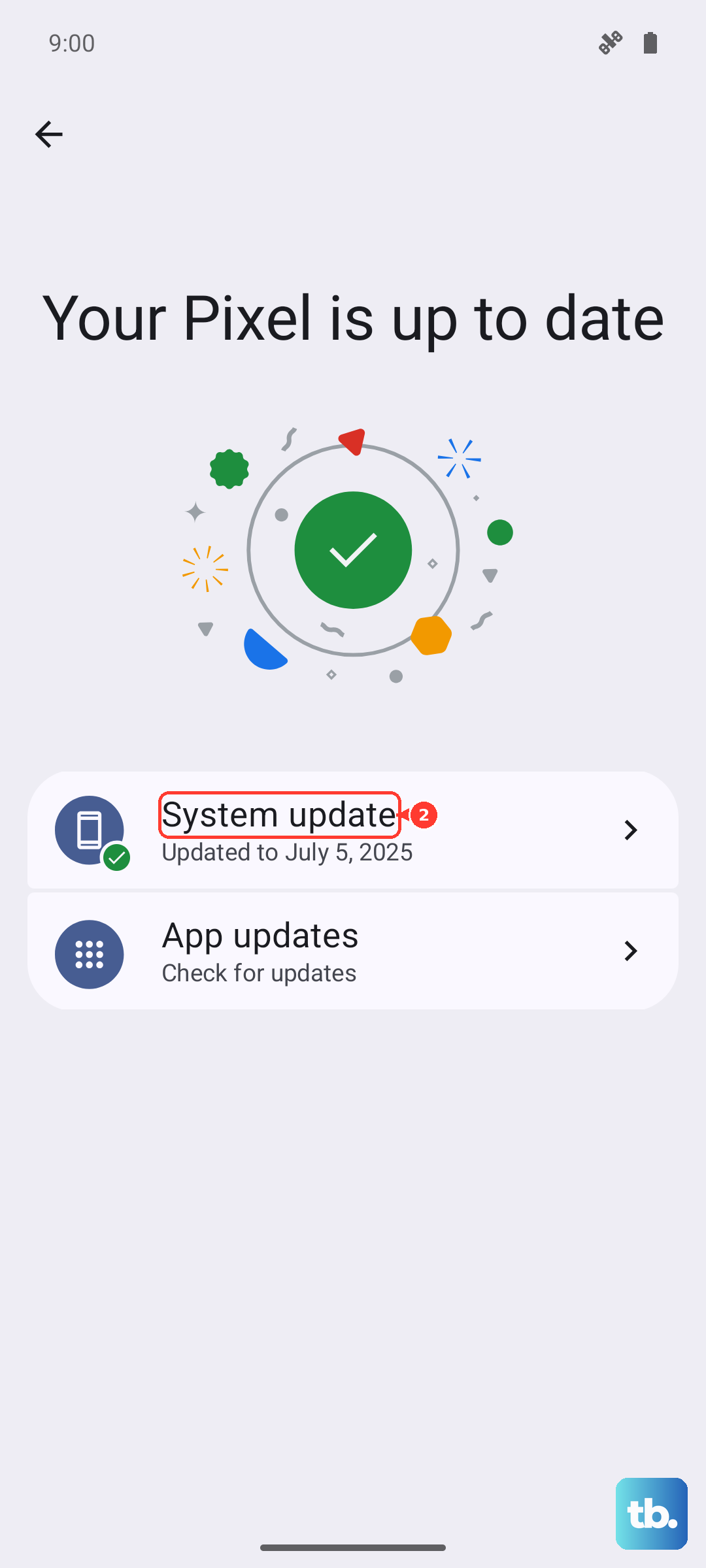
If an update is available, I'd recommend installing it while connected to Wi-Fi. The Helio G100 processor in the Spark 30 Pro handles updates fine, but it's a good idea to let it complete without interruption.
Reset Your Network Settings
This is a more thorough step that resets all Wi-Fi, mobile data, and Bluetooth connections back to factory defaults. It won't erase your photos or apps, but you will have to reconnect to Wi-Fi networks and re-pair Bluetooth devices.
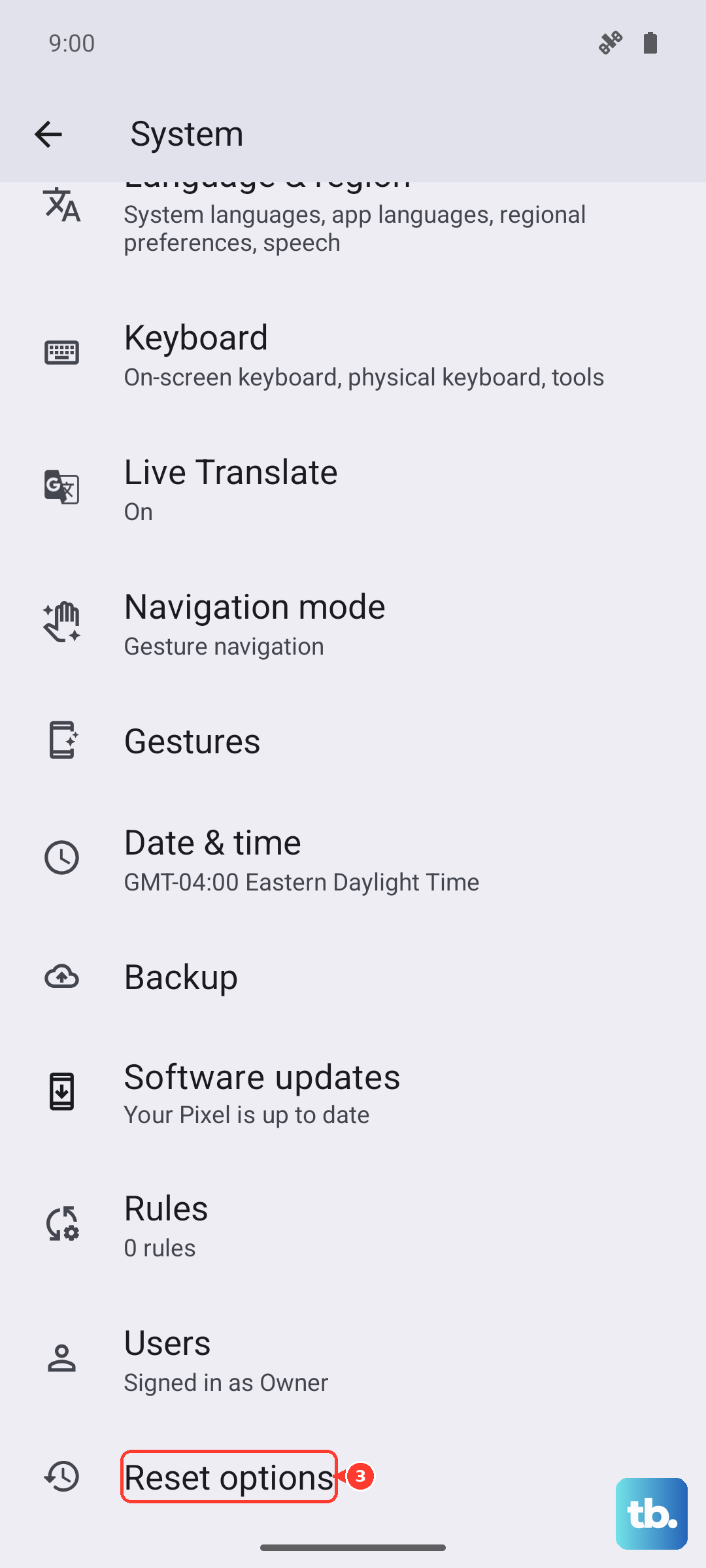
On your Spark 30 Pro, go to Settings > System > Reset options. Tap on "Reset Wi-Fi, mobile & Bluetooth." Confirm the action, and your phone will reboot. After it comes back on, re-enable mobile data and test the MMS.
Try a Different Messaging App
Sometimes the issue is with Tecno's pre-installed messaging app. You can test this by using a popular alternative like Google Messages. Download it from the Play Store, set it as your default app when prompted, and ask your friend to send the MMS again.
If it downloads in the new app, you know the problem is with the original software. You can either keep using the new app or use this knowledge to continue troubleshooting the stock one.
Ensure You Have Enough Storage Space
The Spark 30 Pro can come with a lot of pre-installed apps taking up space. If your phone's internal storage is completely full, it may not have room to save the incoming picture or video. Go to Settings > Storage to see how much free space you have.
If it's critically low, consider removing some of the unused pre-installed bloatware or moving photos to an SD card or cloud service. Freeing up even a few hundred megabytes can make a difference.
If you've worked through all these steps and the MMS still won't download, your final step should be to contact your mobile carrier's support. There's a small chance the issue is on their end with your specific account or a local tower, and they can often push a refresh to your line that fixes it immediately.