
When your Tecno Spark 30 Pro starts restarting on its own, it can be incredibly disruptive. This is often a software hiccup, but with the Helio G100 processor being a budget chip, it can sometimes struggle under load, leading to instability. The good news is you can usually fix this yourself without a trip to a repair shop.
Before you start, it's a good idea to back up anything important. You can use Google Drive or connect your phone to a computer to copy photos and files. This protects your data in case you need to take more serious steps later.
Perform a Force Restart
This is the quickest fix for a frozen phone or random reboots caused by a temporary glitch. It's like giving your phone a fresh start without deleting anything. For the Tecno Spark 30 Pro, press and hold the Power button and the Volume Down button together for about 10 seconds.
Keep holding until you see the Tecno or HiOS logo appear on the screen, then let go. The phone will boot up normally. I'd start with this one, as it resolves most minor software freezes instantly.
Check for a Problematic App
A newly installed or recently updated app is a common culprit. Think about if the restarting began after you downloaded something new. To check, you can boot into Safe Mode, which temporarily disables all third-party apps.
To enter Safe Mode on the Spark 30 Pro, press and hold the power button until the power menu appears. Then, tap and hold the "Power off" option on your screen. A prompt to reboot to Safe Mode should appear, tap "OK". If the phone runs smoothly in Safe Mode, a downloaded app is likely the problem.
You'll need to uninstall apps one by one, starting with the most recent, to find the offender. Restart normally to exit Safe Mode.
Update Your Apps and System Software
Outdated apps can conflict with Android 14 or HiOS 14, causing crashes. Open the Google Play Store, tap your profile icon, and go to Manage apps & device. Tap "Update all" to get everything current.
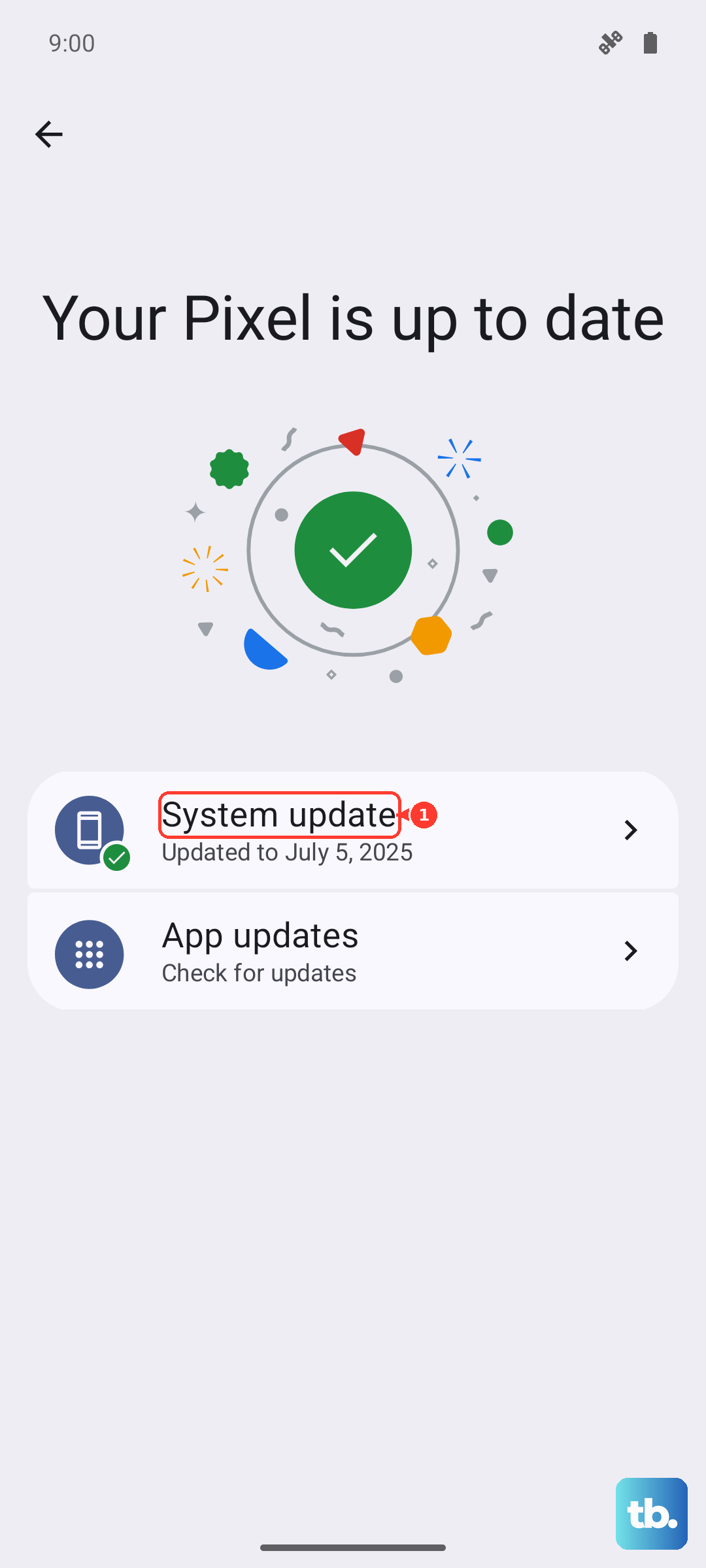
Next, check for a system update. Go to Settings > System > System update. If an update is available, download and install it. These updates often include critical stability patches that can stop random reboots.
Free Up Storage and RAM
The Spark 30 Pro can come with pre-installed apps and ads in HiOS that use up background resources. Low storage or maxed-out RAM can force the system to restart. First, check your storage in Settings > Storage.
If you're below 1GB of free space, start cleaning. Uninstall apps you don't use. You can also review the pre-installed apps (bloatware) and disable or uninstall what you can in Settings > Apps. This frees up RAM and storage, which can significantly improve stability on a budget device.
Check for Overheating
The Helio G100 chip can get warm during intensive use like gaming or video recording. If the phone gets too hot, it will automatically restart to protect its components. Feel the back of the phone. Is it unusually hot to the touch?
If it is, stop using it immediately and let it cool down. Remove the case if you're using one, as it can trap heat. Avoid using the phone while it's charging with the 33W charger, as fast charging generates additional heat. Using it in direct sunlight can also trigger this.
Inspect Your SIM and SD Cards
A loose or faulty SIM card can sometimes cause system instability. Power off your phone completely. Use the SIM eject tool that came in the box to open the tray on the side of the phone.
Carefully remove the SIM card and, if you have one, the microSD card. Give the metal contacts a gentle wipe with a dry, soft cloth and reinsert them firmly. A poorly seated card can cause the phone to reboot as it tries and fails to read it.
Reset All Settings
If the problem continues, a settings reset can help. This won't delete your photos, apps, or personal files, but it will revert all your system settings to default. Things like Wi-Fi passwords, Bluetooth pairings, and display preferences will be erased.
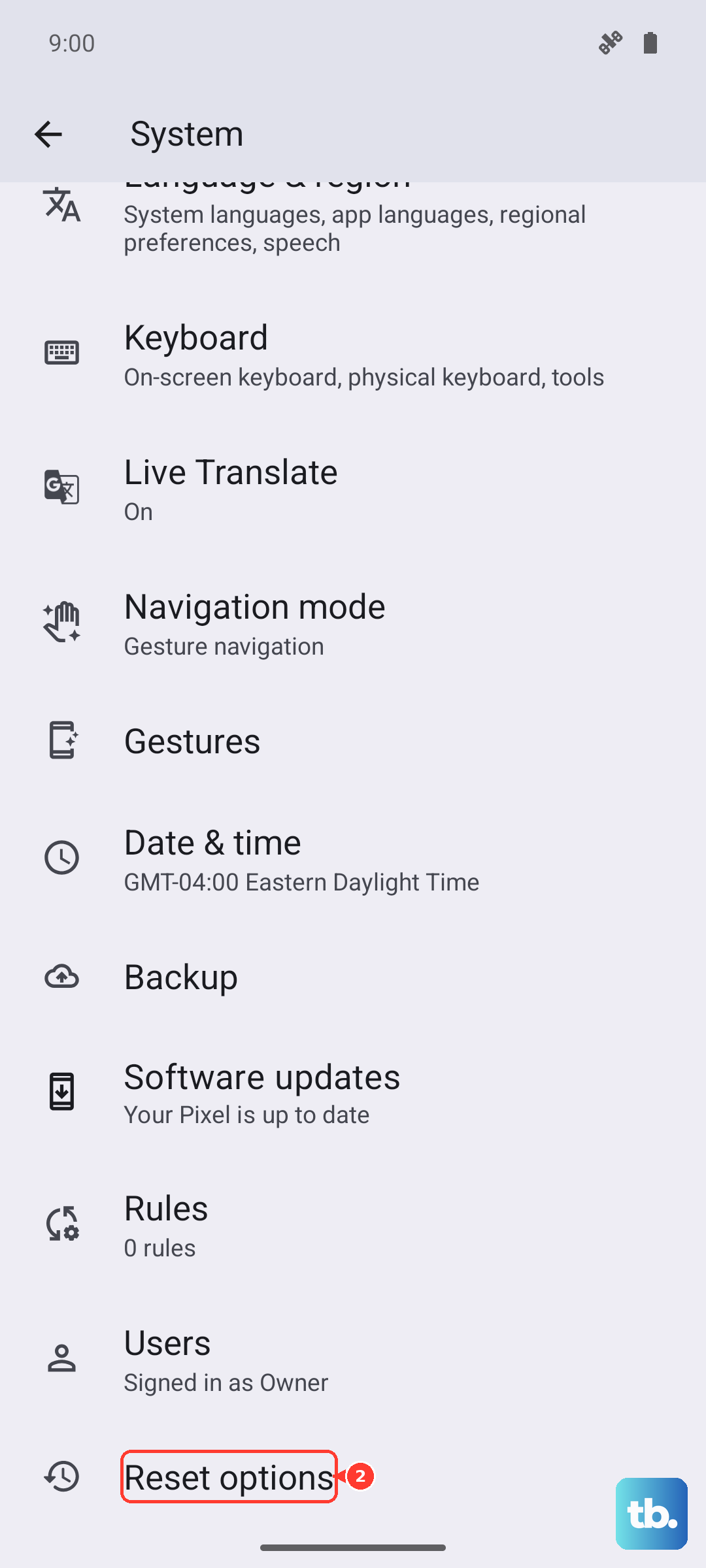
Go to Settings > System > Reset options. Tap on Reset all settings and enter your PIN or password to confirm. After the phone reboots, you'll need to reconfigure your preferences, but it often clears up deep software conflicts.
Boot into Recovery Mode for a Deeper Fix
For persistent restart loops, you can use Android's Recovery Mode. First, power the phone off completely. Then, press and hold the Power button and Volume Up button simultaneously.
Hold them until the Tecno logo appears, then release. You should see the Android recovery menu. Use the volume buttons to navigate and the power button to select. Choose "Wipe cache partition." This clears temporary system files that might be corrupted.
After it completes, select "Reboot system now." Do not select "Factory data reset" here unless you are prepared to erase everything.
Perform a Factory Reset
This is your last resort before considering a hardware issue. A factory reset will erase all data and return the phone to its out-of-the-box state. Ensure you have backed up everything important first.
You can do this from within the settings if the phone is stable enough. Go to Settings > System > Reset options > Erase all data (factory reset). Follow the prompts to confirm. After the reset, set up the phone as new without restoring a backup immediately to see if the restarting stops.