
When your Tecno Spark 30 Pro's hotspot stops working, it can leave your other devices stranded without internet. Whether other gadgets can't see the network, fail to connect, or get kicked off after a minute, there are a few straightforward things to check on your phone.
I'd start with the quickest fix. Open your Settings app and tap on Connections & sharing, then select Personal Hotspot. Turn the toggle off, wait about ten seconds, and then turn it back on. This simple reset often clears up a temporary software hiccup that's preventing the feature from starting correctly.
Restart Your Tecno Spark 30 Pro
A full restart can clear out glitches in the network stack. Press and hold the Power button and the Volume Down button together for about ten seconds, until you feel a vibration and see the Tecno logo. This force restart is more thorough than a standard shutdown and is a good first step for any connectivity issue.
Verify Your Mobile Data Connection
The hotspot feature piggybacks on your phone's cellular data. First, make sure you're not in Airplane mode. Then, pull down the notification shade and check that mobile data is turned on. You need a decent signal for the hotspot to work reliably, so if you're in a basement or a rural area with weak reception, that could be the culprit.
It's also worth double-checking your data plan with your carrier. Some very basic or older prepaid plans don't include tethering permissions. A quick call to customer service can confirm if hotspot access is enabled on your account.
Check the Hotspot Configuration
Sometimes the settings themselves get changed. Go back to Settings > Connections & sharing > Personal Hotspot. Look at the network name (SSID) and password. If the password is very simple or contains special characters, try changing it to something more complex using only letters and numbers.
Also, check the "Turn off hotspot automatically" setting. If this is enabled and no devices are connected for a set period, your phone will shut the hotspot down. You can extend this timer or disable the feature entirely if you need a persistent connection.
Forget the Network on the Connecting Device
The problem might not be with your Spark 30 Pro, but with the laptop, tablet, or other phone trying to join it. On that device, go into its Wi-Fi settings and find your phone's hotspot network name in the list of saved networks. Tap on it and select "Forget" or "Remove network."
Then, search for available Wi-Fi networks again, select your phone's hotspot, and enter the password fresh. This clears any corrupted connection data that was preventing a successful link.
Reset Your Phone's Network Settings
This is a more comprehensive fix for persistent issues. On your Spark 30 Pro, go to Settings > System > Reset options. Tap on Reset Wi-Fi, mobile & Bluetooth. This will erase all saved Wi-Fi passwords, paired Bluetooth devices, and reset your cellular network settings to default.
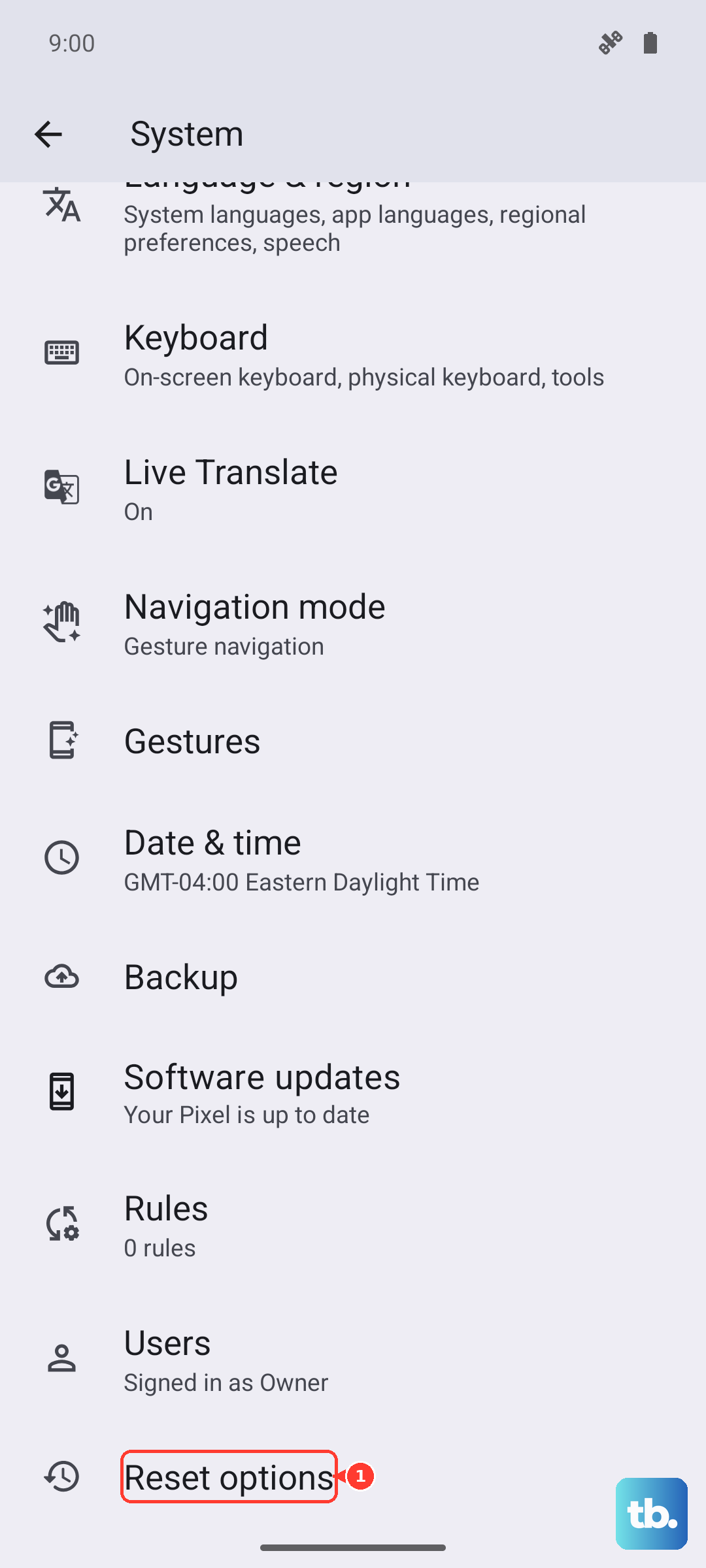
You'll have to re-enter your Wi-Fi passwords and re-pair Bluetooth accessories afterward, but it often resolves deep-seated network conflicts that simpler resets can't touch.
Look for Software Updates
Bugs in the HiOS software or the Android system can sometimes break features like the hotspot. Tecno releases updates to fix these kinds of problems. Go to Settings > System > System updates and tap "Check for updates."
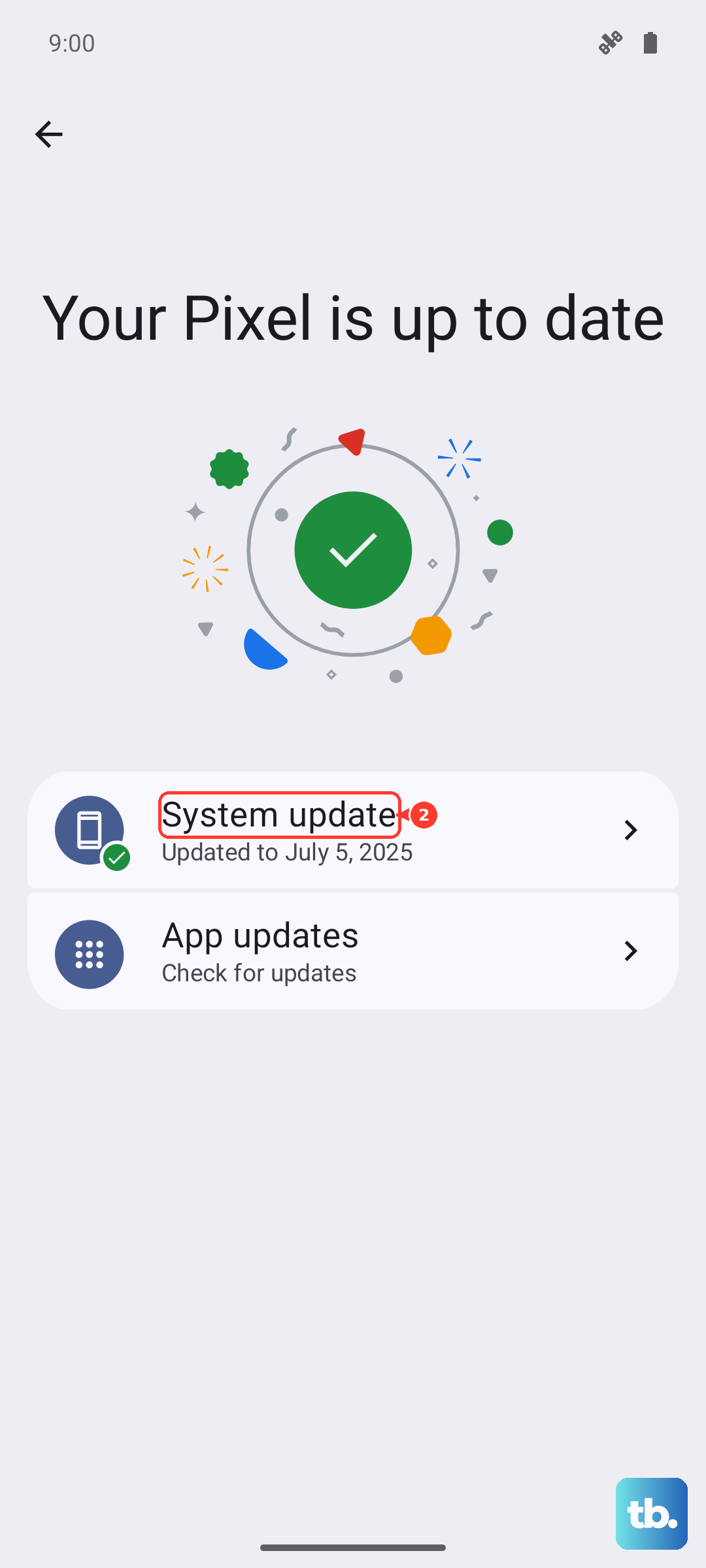
If an update is available, download and install it. It's a good idea to be on Wi-Fi and have your phone plugged into its included 33W charger during this process. Keeping your phone updated is one of the best ways to ensure stability, especially since the Spark 30 Pro may only get one or two major OS updates.
Try USB Tethering as an Alternative
If the Wi-Fi hotspot is being stubborn, you can share your internet via a USB cable. Connect your Spark 30 Pro to your computer using a USB-C cable. On your phone, go to the Personal Hotspot settings again. You should see a USB tethering option. Enable it.
Your computer should then recognize the phone as a network adapter. This method can be more stable than Wi-Fi and doesn't drain your phone's battery as quickly, since it charges through the connection.
Review Installed Apps and Bloatware
The Tecno Spark 30 Pro comes with a fair amount of pre-installed software. Some of these apps can run background processes that interfere with system functions. It's worth going through your app list and uninstalling or disabling any apps you don't recognize or use.
Freeing up RAM and stopping unnecessary background activity can sometimes improve network performance. Be careful not to disable any critical system apps, but removing obvious promotional or game trial apps is generally safe.