You plug a headset into your Tecno Spark 30 Pro or tap to connect your earbuds, and nothing happens. The audio keeps blasting from the dual speakers, one side plays and the other stays silent, or the phone insists it is still in earphone mode long after you pulled the plug. It is a frustrating place to be on a phone built around premium audio with Dolby Atmos and Hi-Res sound, but the fix is almost always small.
A browser based online headphone test makes this easy to confirm. If both sides play test tones correctly there, the headphones are fine and the problem is in the device or app.
The Spark 30 Pro runs Android 14 with TECNO's HiOS skin, and the headphone and Bluetooth controls all live in the built-in Settings app, so there is no separate companion app to wrestle with. Work through the fixes below in order. They start with the quickest, safest checks and move toward the official reset and repair paths only if nothing else clears it. The Settings paths follow HiOS and can shift slightly between point releases, so if a label sits one tap away from where it is described, look just above or below it.
Power-cycle the connection before anything else
Most wireless dropouts are a stale connection, not a broken one. Re-establishing the link between the phone and the headset clears the majority of "connected but no sound" cases in seconds.
Swipe down to open Quick Settings and turn Bluetooth off, then back on.
Confirm the headphones show as paired and connected, not just paired.
Restart both the phone and the headset, then try playing audio again.
While you are there, make sure the headphones are charged and sitting within range of the phone. A headset low on battery often pairs but refuses to pass audio, which looks exactly like a software fault.
Make sure the sound is actually being sent to the headset
Android can hold a headset as connected while still routing music to the speaker. There is a per-device toggle that decides this, and when it is off, the phone behaves as if the headphones are not there.
Go to Connected devices > Saved devices > [your headphones] > Settings (the gear icon).
Turn on Media audio for music and video, and Phone audio if you also take calls through the headset.
Raise the media volume and test again.
If sound was coming only from the speaker, this toggle is very often the entire problem. It is worth checking before you try anything more involved.
Reseat a wired headset and clear out the port
The Spark 30 Pro uses a USB Type-C port for wired audio. A loose or dirty connection is the usual reason a plugged-in headset plays nothing, plays only on one side, or leaves the phone stuck in earphone mode.
Unplug the headset and firmly reinsert the plug a few times, making sure it seats all the way in.
Test a different, known-good headset to rule out a faulty cable or earpiece.
If the port still misbehaves, blow compressed air into it and gently rotate a snugly fitting cotton swab to lift out dust and lint. Avoid any liquid or water.
Lint packed into the port is one of the most common hardware-looking faults that turns out to be cosmetic. Only clean a 3.5mm jack if your particular unit actually has one; otherwise focus on the USB-C port and a known-good USB-C headset or cable.
Forget the headphones and pair them from scratch
If toggling Bluetooth did not help, the saved pairing profile itself may be corrupted. Removing it and creating a fresh one gives the phone a clean handshake.
In Quick Settings, long-press the Bluetooth tile to open its full settings.
Tap the gear icon next to your headphones, then choose Forget.
Go to Settings > Connected devices > Pair new device and select the headset to add it again. If you are asked for a passcode, try 0000 or 1234.
Put the headphones into their own pairing mode first so the phone can find them during the scan.
Force a restart to clear a stuck audio service
A background audio service that has hung will block sound to any output until it is reset. A full restart is the cleanest way to do that, especially if the phone is frozen or acting strangely.
Press and hold the Power button for about 10 to 15 seconds until the phone restarts on its own. Once it is back up, reconnect the headphones and test again. This single step resolves a surprising number of intermittent audio glitches.
Boot into Safe Mode to expose a misbehaving app
If a recently installed app, often an equalizer or audio enhancer, is hijacking the sound, Safe Mode will reveal it. Safe Mode loads the system without any third-party apps.
- 1.Switch the phone off.
- 2.Press and hold the Power/Lock key and wait about 5 seconds until the logo appears.
- 3.Press the Volume Down key and release it when the Safe Mode watermark appears.
Now test your headphones. If they work normally in Safe Mode, a third-party app is the culprit. Restart the phone to leave Safe Mode, then uninstall any audio or equalizer apps you added around the time the trouble started.
Wipe the Bluetooth app's cache and data
HiOS keeps the Bluetooth function running as a system app, and its stored data can become corrupted over time. Clearing it forces the phone to rebuild those files.
Go to Settings > Apps & Notifications > See all apps.
Use the 3-dot menu to show system apps, then open Bluetooth.
Tap Storage & cache, then choose Clear Cache, followed by Clear storage.
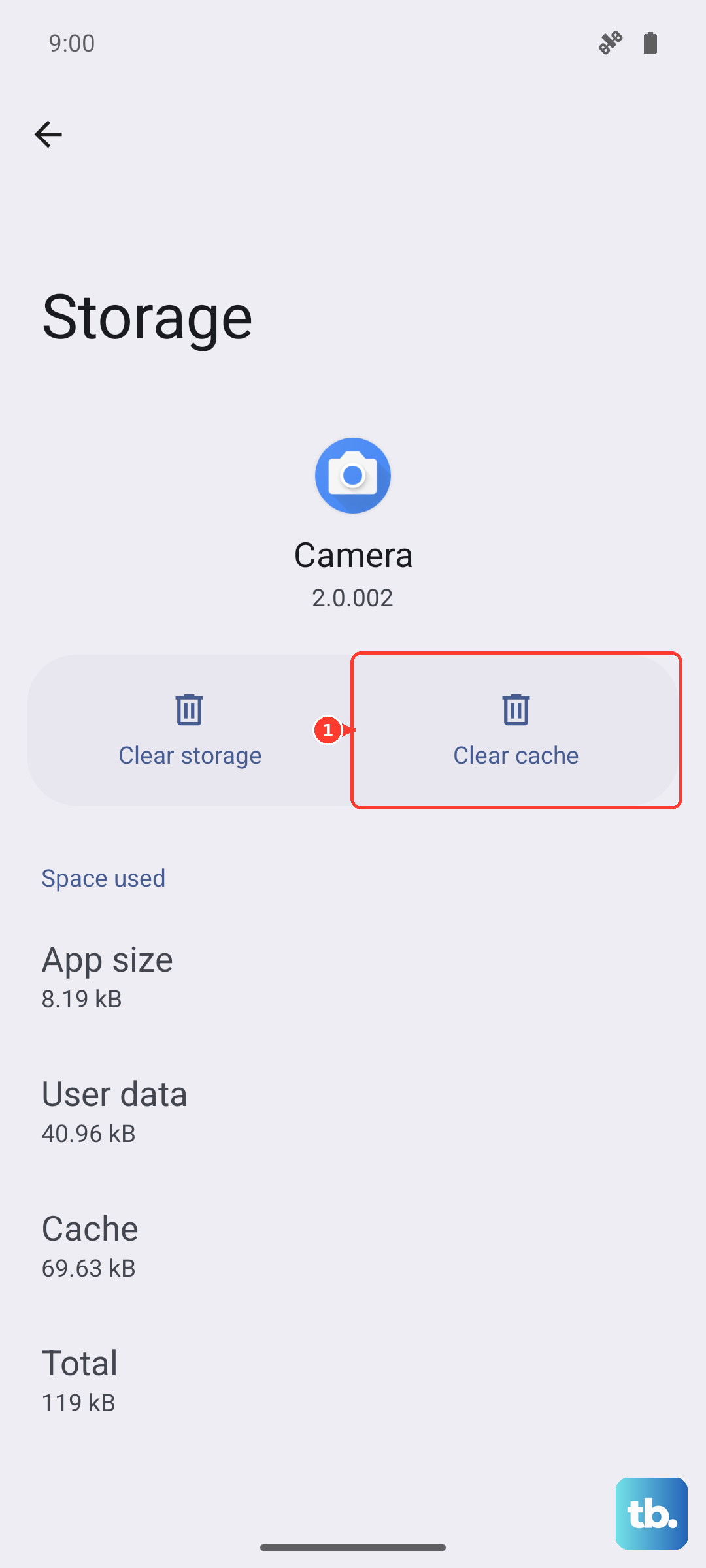
Restart the phone and pair your headphones again afterward, since clearing storage resets the Bluetooth function to its defaults.
Reset your Wi-Fi, mobile, and Bluetooth settings
When pairing keeps failing despite everything above, resetting all connection settings restores them to a known-good state without touching your personal content.
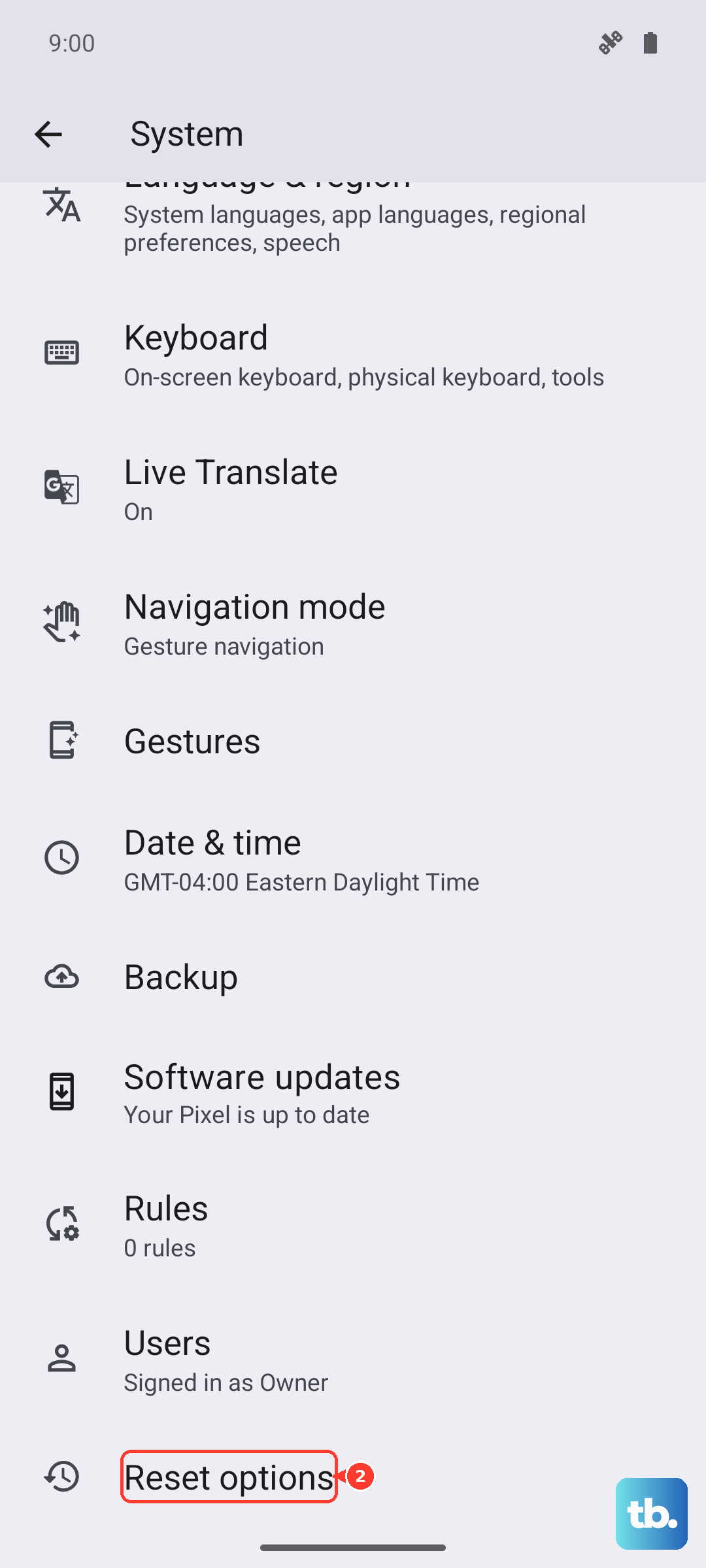
Go to Settings, scroll to the bottom, and open Reset options, then choose Reset Wi-Fi, Mobile & Bluetooth and confirm. This removes every saved Bluetooth device, so you will need to pair your headphones again afterward. It does not delete your photos, messages, or files.
Install pending HiOS and Android updates
Audio and Bluetooth bugs are frequently fixed in software updates, so it is worth making sure the phone is current before considering anything drastic.
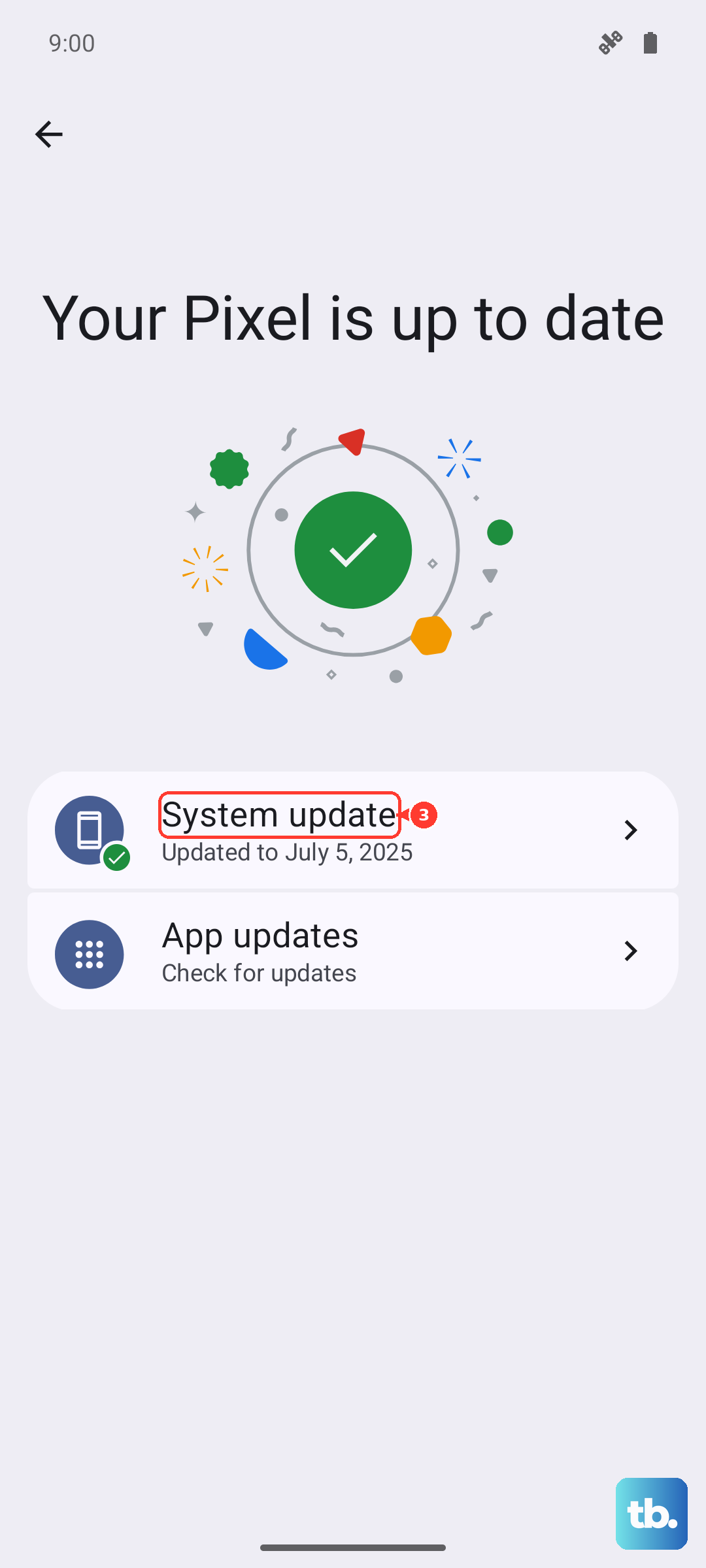
Open Settings > System > System Update and tap Online update (or Check for Updates), then download and install over Wi-Fi. Before you start, connect to Wi-Fi and charge the phone to at least 75 percent so the install does not interrupt. If an update is waiting, let it complete and then re-test your headphones.
Factory reset as a last resort, then reach Carlcare
If none of the above restores sound, a factory data reset clears any deep software fault. This erases the phone, so back up everything you want to keep first.
Go to Settings > System > Reset options > Factory data reset. The official warning reads, verbatim, "Clicking on Reset data will erase all data from your phone's internal storage. However, if you installed an SD card on your phone, everything on it will remain untouched."
Set the phone up again and test the headphones before restoring all your apps. If they still fail after a clean reset, the issue is most likely a hardware fault. At that point, contact Carlcare, TECNO's official after-sales service brand, for repair or warranty service; you can use its service-center locator and warranty check through the official TECNO support hub.
Frequently Asked Questions
Does the Tecno Spark 30 Pro support both wired and wireless headphones?
Yes. TECNO's official specifications confirm the phone has a USB Type-C port and premium audio with Stereo Dual Speakers, Dolby Atmos, and Hi-Res Audio, so wired USB-C headsets and Bluetooth headphones both work.
Why does audio still play through the speaker when my headphones are connected?
The phone is connected but not routing media to the headset. Open Connected devices > Saved devices > [your device] > Settings and turn on Media audio, then raise the media volume.
Will resetting my connection settings delete my photos and files?
No. Reset Wi-Fi, Mobile & Bluetooth only removes saved Bluetooth devices and connection settings; it does not delete personal files. You will simply need to pair your headphones again afterward.
Does a factory reset erase the contents of my SD card?
According to TECNO's own warning, a factory data reset erases everything in the phone's internal storage, but anything on an installed SD card remains untouched. Even so, back up your internal data before resetting.
How do I get my Spark 30 Pro repaired if headphones still fail?
If audio does not return even after a factory reset, treat it as a likely hardware fault and contact Carlcare, TECNO's official service brand. You can check your warranty and find a service center through the official TECNO support hub.