Your Tecno Spark 30 Pro lights up with notifications all day, yet the one email you were waiting on never arrives in Gmail, or the reply you just sent sits stuck and refuses to leave. Email trouble on an Android phone is almost always a sync, sign-in, storage, or software hiccup rather than a broken phone, and the Spark 30 Pro (Android 14 with TECNO's HiOS) handles mail through Google's Gmail app, so the fixes are the standard, well-documented ones. Work through the steps below in order; they start with the quickest, safest checks and only move toward a reset or a support visit if nothing earlier sticks.
Confirm the Spark 30 Pro is actually online
Email cannot sync without a working connection, and a phone that looks connected can still be sitting on dead Wi-Fi. According to the official guidance, sync needs an internet connection, so test it directly rather than trusting the signal icon.
Open a web browser and try to load any website.
If nothing loads, connect to a Wi-Fi network or turn on mobile data.
Toggle Airplane mode off, then on and off again to reset the radios.
Switch between Wi-Fi and mobile data to confirm which connection is the problem.
Once a web page loads normally, give Gmail a moment and check whether mail starts flowing again before moving on.
Power the phone off and on again
The manufacturer lists a simple restart first for sync problems, because it clears the temporary glitches that quietly block sending and receiving. Open the power menu, choose Power off, wait a few seconds, then turn the Spark 30 Pro back on. Reopen Gmail afterward and let it refresh.
Make sure Gmail sync is switched on
If mail simply is not coming in, the per-account sync toggle inside Gmail may have been turned off. The official steps are to tap Menu and then Settings, select your account, and under "Data usage," make sure the box next to "Sync Gmail" is checked.
After enabling it, be patient. Sync can take up to 15 minutes, and longer if the device has not been used for a while, so do not assume it failed if mail is not instant.
Switch on auto-sync and trigger a manual sync
Beyond Gmail's own setting, the phone has a system-wide sync switch that needs to stay on. The guidance is to keep auto-sync turned on in the device's account and sync settings.
Go to Settings > About phone > Google Account > Account sync.
Choose your account.
Tap More > Sync now.
This pushes the phone to reconnect with Google's servers immediately instead of waiting for the next scheduled cycle.
Test your account login from another device
If the account itself is in a bad state, no amount of toggling on the phone will help. The official advice is to make sure you can sign in to your Google Account in other ways and on another device, so open Gmail in a computer browser and confirm you can get in.
If you hit a sign-in error there too, sync will never work on the phone until that clears. If you use 2-Step Verification, keep your second-factor method, such as your phone prompt, handy so you can approve the sign-in.
Bring the Gmail app up to date
An outdated Gmail app carries old bugs, and the latest fixes for email problems arrive through updates. The official recommendation is to make sure you have the most recent version of the Gmail app, so open the Play Store and update Gmail to clear issues that break sending and receiving.
Clear out storage so mail can land
When the phone runs low on space, syncing stops working, so new mail has nowhere to go. Free up room in a couple of places.
Uninstall apps you no longer use and delete downloaded files you do not need.
In Gmail, delete emails with large attachments.
In Gmail, empty Trash and Spam to reclaim the space they hold.
With breathing room restored, let the account sync again and see whether messages resume.
Remove the account, then add it back
When sync keeps failing despite everything above, re-authenticating the account often restores the flow. The official account-sync guidance is to remove and then re-add your account to the phone through the device's account settings. Before you remove it, confirm you know the current password, and have your 2-Step Verification method ready if you use it, so you can sign straight back in.
Wipe Gmail's local data as an app-level reset
If the Gmail app alone is misbehaving, clearing its stored data is a heavier but still recoverable step. The official path is Settings > Apps > See All Apps > Gmail > Storage & cache > Clear storage, then restart the device.
Be aware this erases drafts, signatures, and settings stored in the app; most of it is restored once the app re-syncs with your account, but treat it as a last resort for the app rather than a routine fix.
Read the bounce message when mail will not send
If the problem is outgoing mail rather than incoming, Gmail usually tells you why. When a message fails to deliver, you get a bounce notification, and the official advice is to read the error message in that bounce email to understand why it could not be delivered.
Most often it points to a wrong or outdated recipient address, so double-check you are using the recipient's current email before trying again.
Install the latest HiOS and Android 14 system update
A stale system build can break account services even when the app is fine. TECNO's official service guidance is to open the settings, select system, and select system update, that is, Settings > System > System update (some Android menus phrase the equivalent path as Settings > System > Software update).
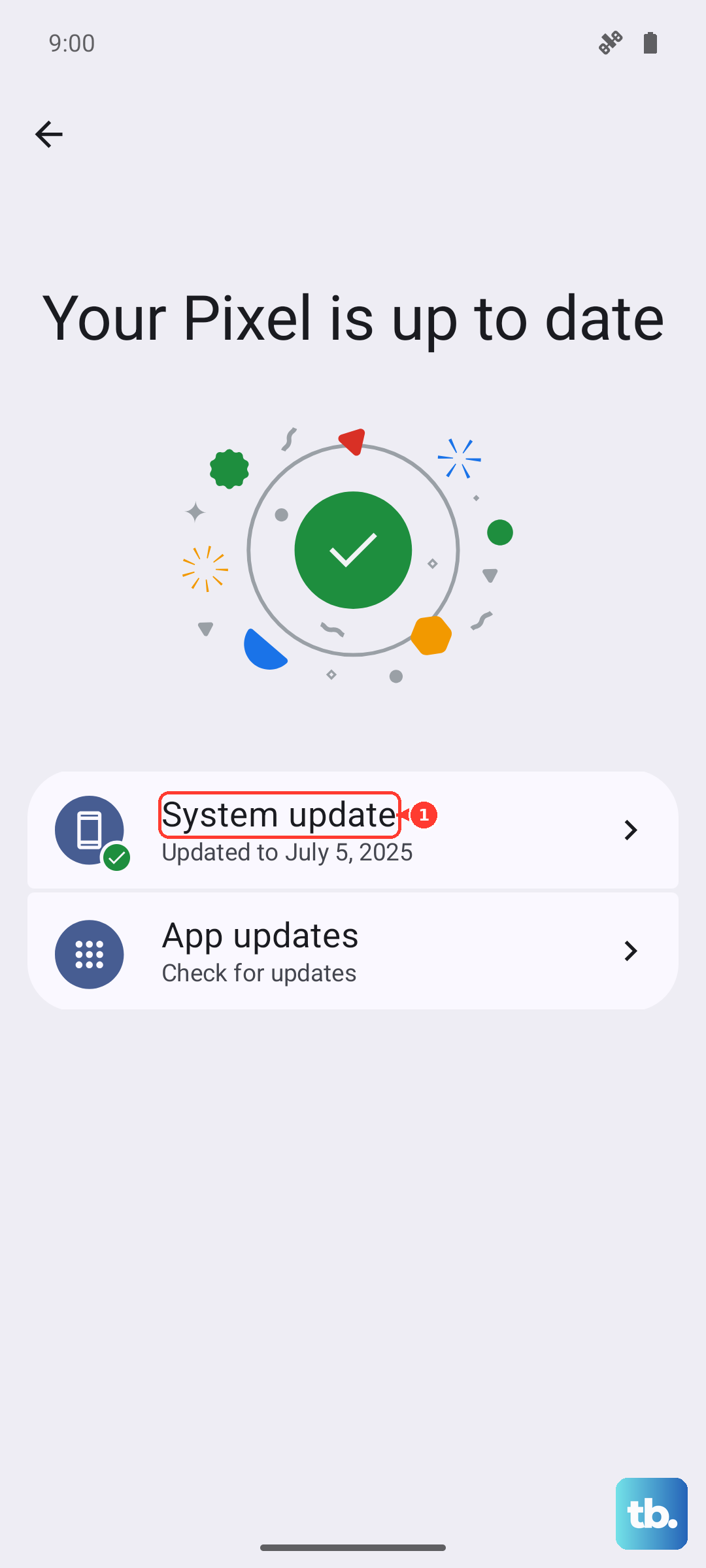
Before updating, back up your data and connect to a strong Wi-Fi network with enough battery and free storage so the install can finish cleanly.
Force a restart when the phone or Gmail freezes
If the Spark 30 Pro or the Gmail app has locked up and will not respond, a forced restart clears it without touching your data. Per the official TECNO support method, hold down the power and volume down buttons for 5 seconds, which should work on TECNO devices; alternatively you can force restart most Android phones by holding the power button for about 10 to 15 seconds.
TECNO does not publish a separate Spark 30 Pro-specific sequence, so use whichever of these brings the screen back, then reopen Gmail.
Factory reset the Spark 30 Pro as a final step
A factory reset wipes the phone clean and should only come after everything else has failed. Resetting your phone will delete all of the data on your phone, so back up to your Google account or cloud first. The official TECNO path is:
- 1.Open Settings.
- 2.Go to System.
- 3.Tap Reset options.
- 4.Choose Factory data reset.
- 5.Tap Reset phone.
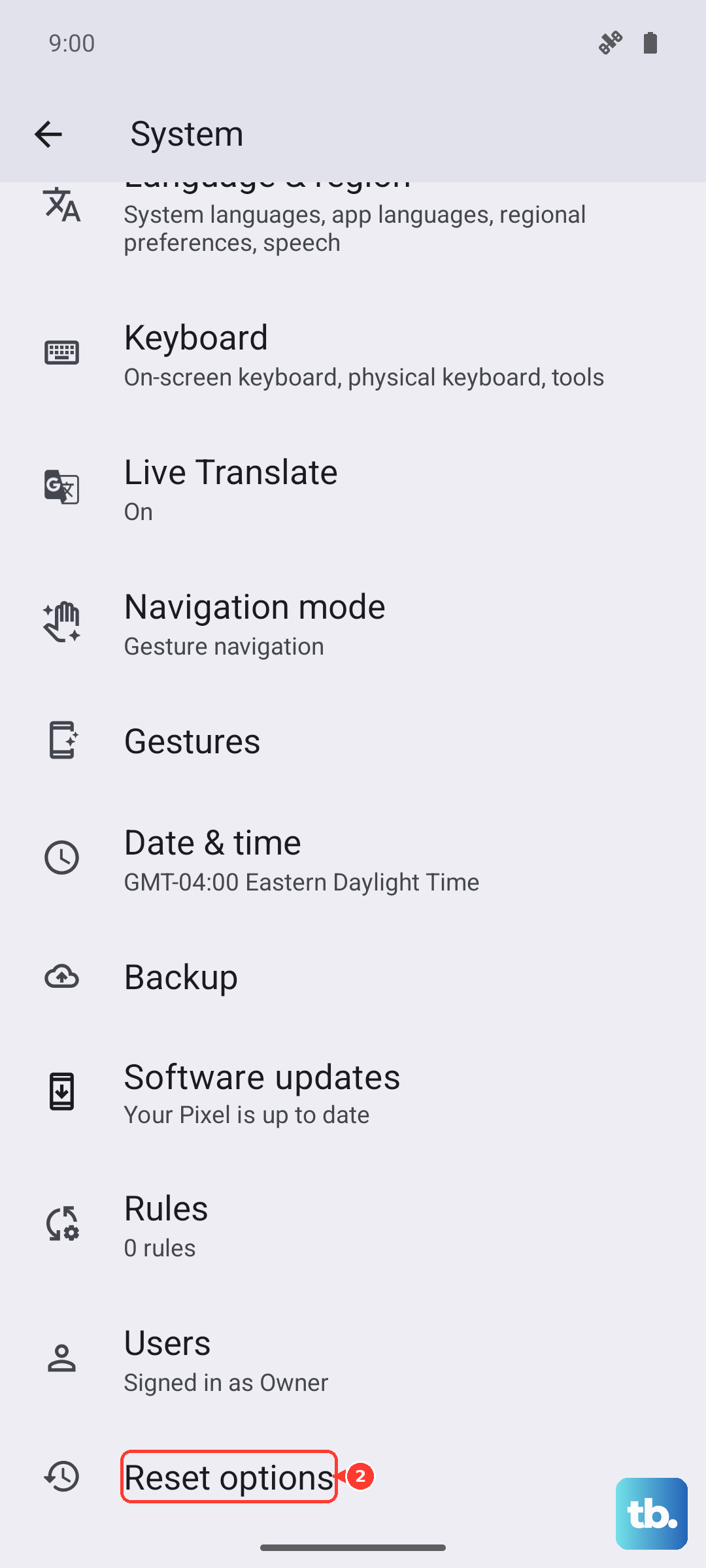
If the phone is too unresponsive to reach that menu, you can reset through recovery mode: press and hold the power and volume up buttons, then use the volume buttons to highlight and the power button to select "wipe data/factory reset." After the reset, sign back in and re-add your email account.
Reach official TECNO and Carlcare support
If email still fails after a reset, the issue may need hands-on diagnostics or a software repair. Use the pre-installed Carlcare app on the Spark 30 Pro, or contact Carlcare, the official, dedicated service network for TECNO, for diagnostics, software repair, or warranty service. TECNO's support hub also links to Carlcare and to downloadable user guides if you want to confirm a step before booking.
Frequently Asked Questions
Why is my Tecno Spark 30 Pro not receiving emails even though it shows online?
Start by confirming the connection actually works by loading a web page, then check that "Sync Gmail" is checked under Gmail's Settings > your account > Data usage, and that device auto-sync is on. Remember that sync can take up to 15 minutes, and longer if the phone has not been used recently.
How do I manually sync my email on the Spark 30 Pro?
Go to Settings > About phone > Google Account > Account sync, choose your account, then tap More > Sync now. This forces the phone to reconnect with Google's servers right away instead of waiting for the next automatic cycle.
Will clearing Gmail storage delete my emails?
Clearing storage (Settings > Apps > See All Apps > Gmail > Storage & cache > Clear storage) erases local drafts, signatures, and settings, not the emails stored on your account. Most of it is restored once the app re-syncs, but treat it as a last resort for the app.
My emails will not send. What should I check first?
When a message fails, Gmail returns a bounce notification; read the error message in that bounce email to learn why it could not be delivered. The most common cause is a wrong or outdated recipient address, so verify you have the correct one before resending.
What is the safest way to reset the phone if email still fails?
Back up your data first, since a factory reset deletes everything on the phone. Then use Settings > System > Reset options > Factory data reset > Reset phone, and if the phone is unresponsive, use recovery mode with the power and volume up buttons to select "wipe data/factory reset." If problems continue, contact Carlcare through the pre-installed app.