
Having your Tecno Spark 30 Pro drop calls mid-conversation is incredibly annoying. It usually boils down to a weak signal, a software hiccup in HiOS, or a setting that needs adjusting. Since this phone runs on a budget processor, it can sometimes struggle with maintaining a stable connection under poor network conditions.
Let's run through the most effective fixes, starting with the quickest ones you can try right now.
Toggle Airplane Mode On and Off
The fastest way to refresh your cellular connection is by using Airplane Mode. This forces your phone to disconnect from the network and reconnect, which can clear up temporary glitches.
Swipe down from the top of your screen to open the Quick Settings panel. Tap the Airplane Mode icon to turn it on, wait about 10 seconds, and then tap it again to turn it off. You should see the signal bars disappear and reappear.
Check Your Signal Strength
This is the most common culprit. Look at the signal bars in the top-right corner of your screen. If you only have one or two bars, your call is likely to drop.
Try moving to a different room, near a window, or even stepping outside. Buildings, walls, and even weather can significantly impact the signal strength on any phone, especially in areas with weaker coverage.
Perform a Force Restart
A simple reboot can clear out minor software bugs in HiOS that might be affecting your calls. If your phone is frozen or unresponsive, you'll need to force restart it.
Press and hold the Power button and the Volume Down button together for about 10 to 15 seconds. Keep holding until you feel a vibration and see the Tecno logo appear on the screen, then release the buttons.
Review Your Do Not Disturb and Focus Settings
Check that you haven't accidentally enabled a mode that blocks calls. Swipe down from the top to open the Quick Settings panel and look for the Do Not Disturb icon (a crescent moon). If it's highlighted, tap it to turn it off.
You can also go into Settings > Sound & vibration > Do Not Disturb to make sure no schedules or rules are active that could be interfering.
Ensure Date and Time Are Set Automatically
Incorrect time settings can sometimes cause issues with network authentication. It's an easy thing to check and fix.
Open Settings > Additional settings > Date & time. Make sure the switch for "Automatic date & time" is turned on. This lets your phone sync the correct time from your network.
Check Your Blocklist
It's worth verifying you haven't accidentally blocked the number you're trying to call, or that an unknown number isn't blocked. Open your Phone app and tap the three-dot menu in the top corner.
Go to Settings > Blocked numbers. Review the list and if you see a number that shouldn't be there, tap the 'X' next to it to remove it from the blocklist.
Verify Mobile Data and Network Mode
First, ensure your mobile data is actually enabled. Go to Settings > Mobile network and make sure "Mobile data" is switched on.
You can also try switching your preferred network type. In the same Mobile network menu, tap on your SIM card and look for "Preferred network type". Try switching from "5G/4G/3G/2G" to just "4G/3G/2G" to see if it provides a more stable calling connection.
Update Your Software
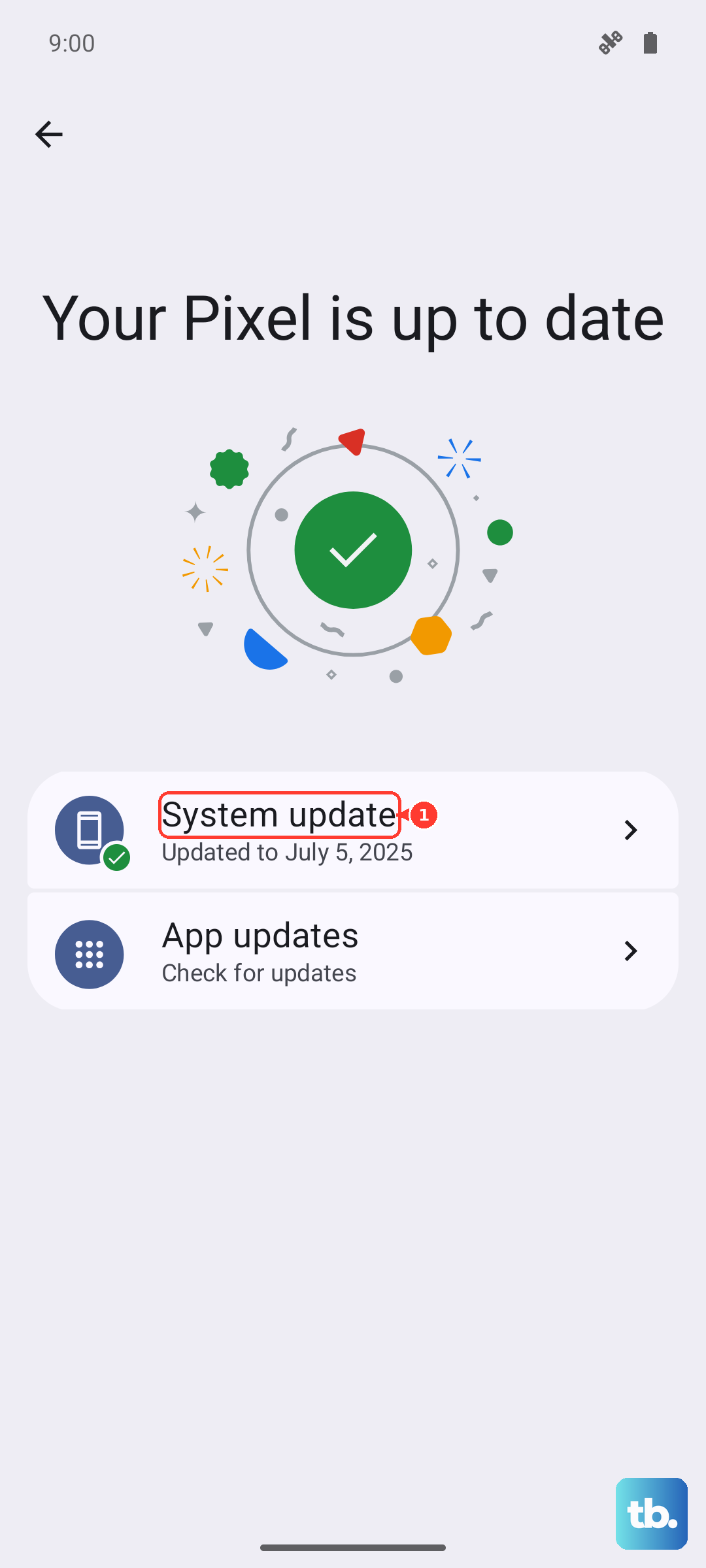
Tecno releases updates for HiOS that often include bug fixes and improvements for network stability. Make sure your phone is running the latest software.
Connect to a Wi-Fi network and go to Settings > About phone > System update. Tap "Check for updates" and install any that are available. I'd recommend doing this regularly, as major updates might be limited for this model.
Reset Your Network Settings
This will erase all your saved Wi-Fi networks, Bluetooth pairings, and cellular settings back to default. It's a strong fix for persistent connection issues.
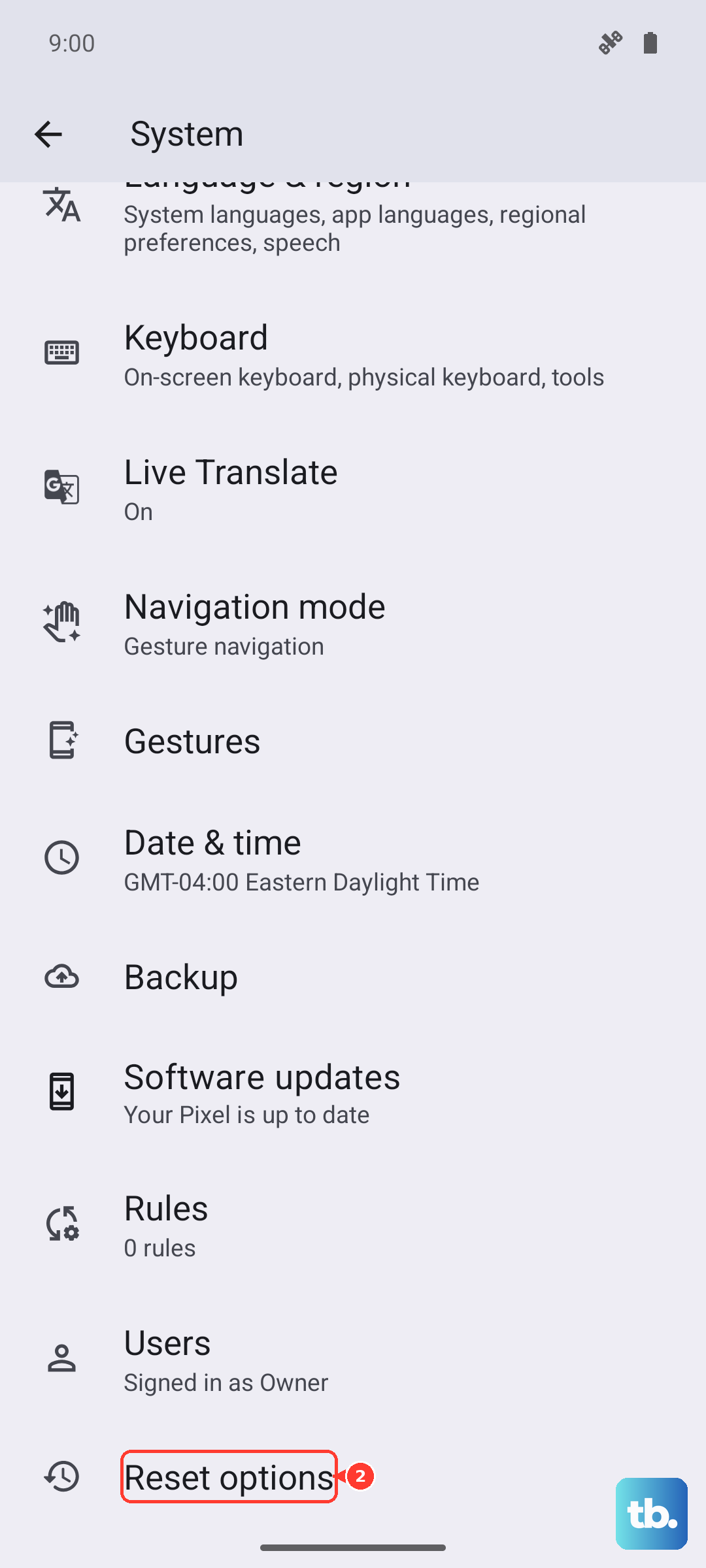
Go to Settings > System > Reset options. Tap on "Reset Wi-Fi, mobile & Bluetooth". You'll need to enter your screen lock PIN or password to confirm. After the reset, you'll have to reconnect to your Wi-Fi and re-pair Bluetooth devices.
Inspect and Clean Your SIM Card
A loose, dirty, or faulty SIM card can directly cause calls to drop. Power off your Spark 30 Pro completely. Use the SIM ejector tool that came in the box (or a small paperclip) to open the SIM tray on the side.
Carefully remove the SIM card and gently wipe the gold contacts with a soft, dry cloth. Blow any dust out of the SIM tray slot, then reinsert the card firmly. Turn your phone back on and test a call.