Screen flickering on the Samsung Galaxy Z Fold 7 can make the beautiful inner display nearly impossible to use. The screen might blink, flash, or show random lines. Here's how to pin down the cause and stop the blinking.
Force Restart the Phone
A forced restart clears temporary software glitches that can cause screen flickering. Press and hold the Volume down and Side buttons together for about 10 seconds. Keep holding until the device restarts and you see the Samsung logo.
This is different from a normal restart, so don't let go early. If the flickering started suddenly, this fix alone often resolves it.
Close All Background Apps
A buggy app running in the background can interfere with the display. Swipe up from the bottom and hold to open the recent apps screen. Swipe through each app card to close them all one by one. After that, use the phone normally for a few minutes to see if the flickering stops. If it does, you probably had a misbehaving app. Open your apps one at a time to find the culprit.
Is the Auto-Brightness Sensor Acting Up?
The ambient light sensor on the Z Fold 7 can sometimes malfunction and cause the screen to flicker as it constantly adjusts brightness. Go to Settings > Display and toggle off Auto brightness. Then manually set a comfortable brightness level using the slider. If the flickering stops, the sensor was the problem. You can try turning auto-brightness back on later to see if it behaves.
Adjust the Motion Smoothness Setting
The Z Fold 7 has a 120Hz adaptive display, and the refresh rate switching can cause a subtle flicker on some units. Go to Settings > Display > Motion smoothness. If it's set to Adaptive, switch to Standard (60Hz). The screen will feel less smooth, but this tells you whether the high refresh rate was causing the issue. Samsung has addressed refresh rate glitches in software updates before, so don't skip that fix below.
Check for Physical Damage on the Foldable Display
The inner folding screen is more delicate than a standard glass display. If the flickering started after closing the phone too hard, or after something pressed on the screen, the display panel or its internal ribbon cable may be damaged. Open the phone fully and look for any crease damage, pressure marks, or dead pixels. Even tiny cracks in the UTG (ultra-thin glass) layer can cause flickering. Physical damage means the display needs service from Samsung or an authorized repair center.
Update the Software
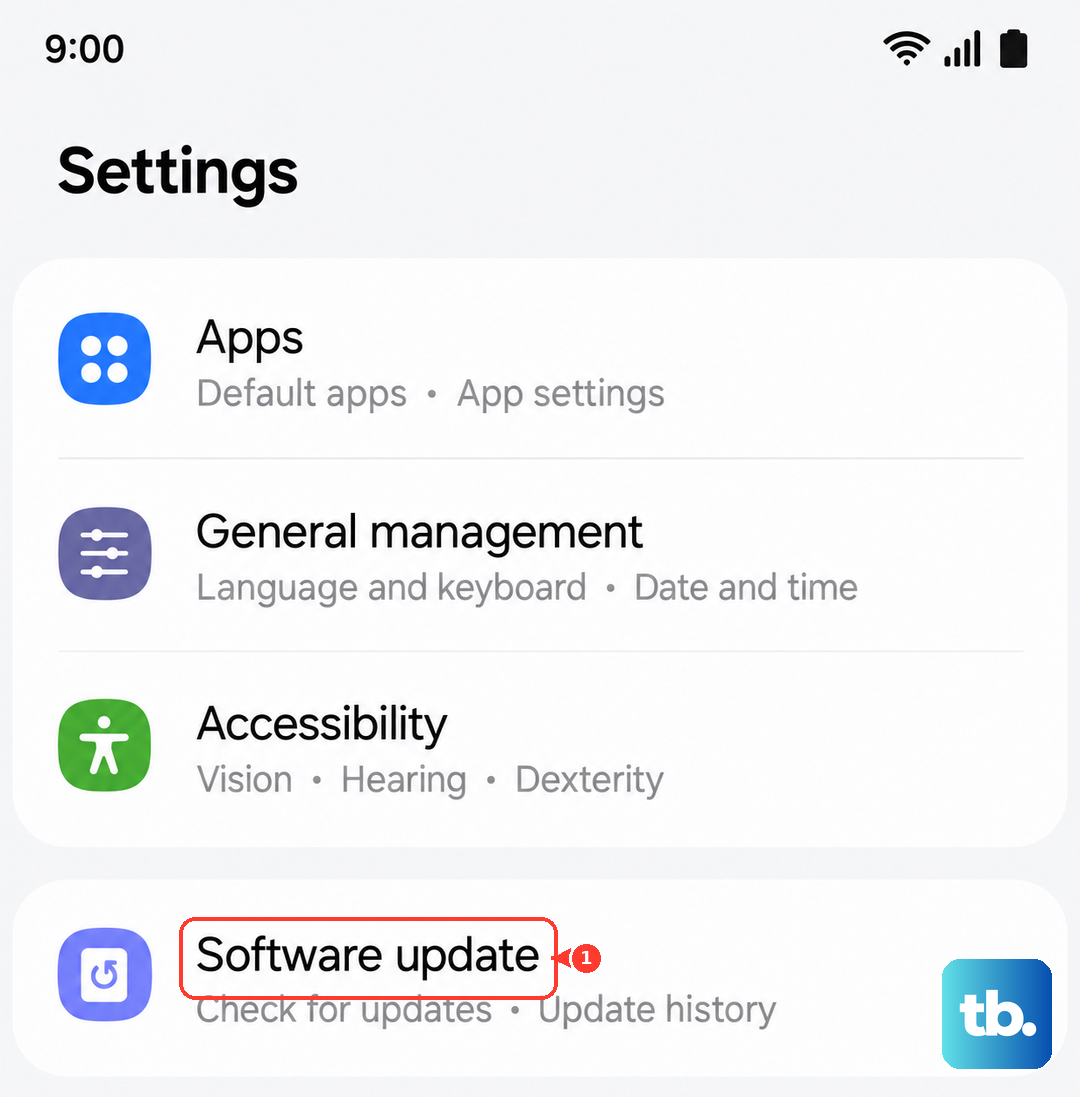
Screen flickering bugs are often patched in One UI updates. Go to Settings > Software Update > Download and install. Install any available update. Samsung has released several patches that specifically address display flickering on foldable OLED panels.
Boot Into Safe Mode
Safe Mode starts the Z Fold 7 with only pre-installed apps running. If the flickering stops in safe mode, a third-party app is causing it. Press and hold the Side button to bring up the power menu. Tap and hold Power off until you see the Safe Mode prompt, then tap Safe mode. Use the phone for a bit. No flickering? Restart normally and uninstall recently installed apps one at a time until you find the troublemaker.
Reset All Settings
This resets all system settings to default without deleting your photos, messages, or installed apps. Go to Settings > General management > Reset > Reset all settings. You'll need to re-enter Wi-Fi passwords and reconfigure personal preferences, but this often catches display configuration issues that a restart misses.
Factory Reset as a Last Resort
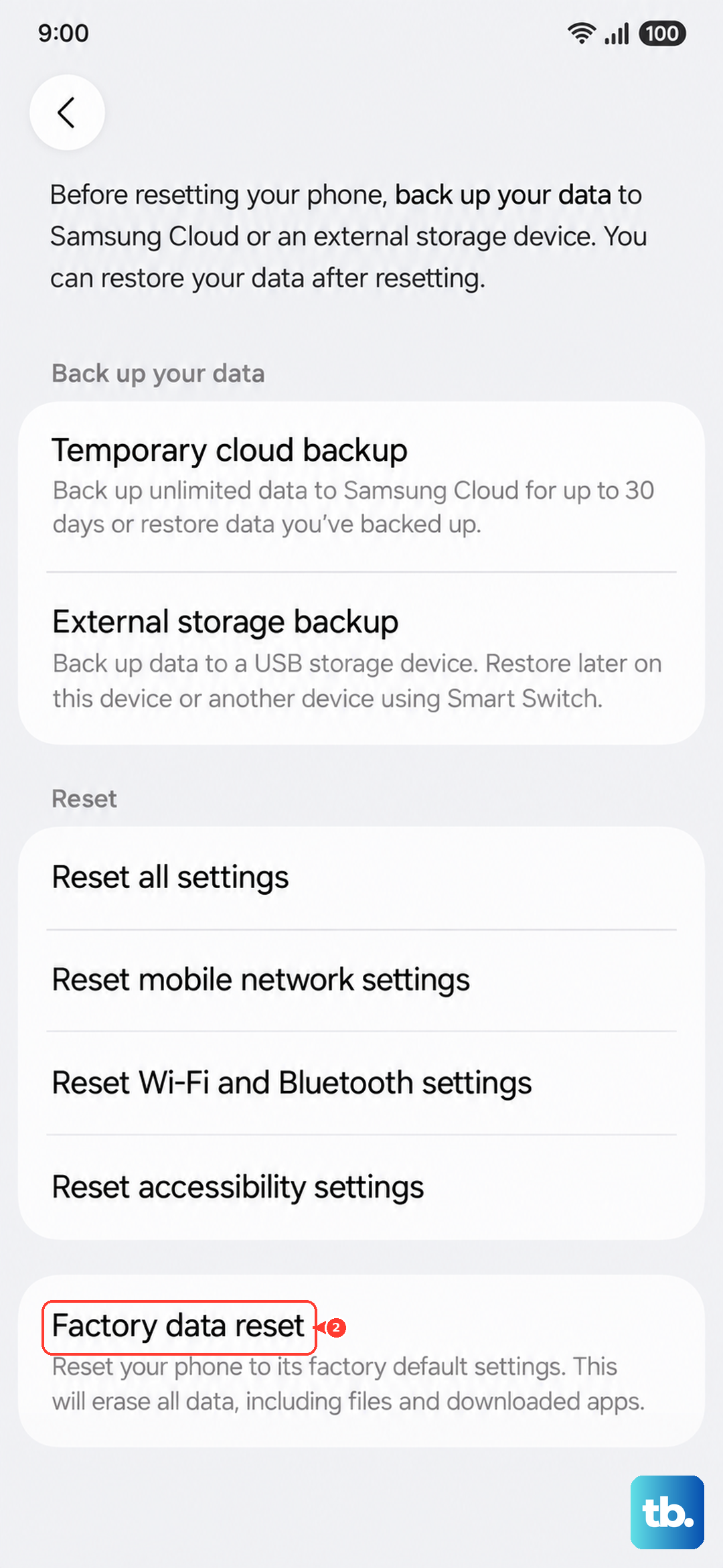
If none of the above worked, the next step is a full factory reset. Back up your data first. Go to Settings > General management > Reset > Factory data reset. This wipes everything and restores the phone to its out-of-box state. If the flickering stops after a factory reset, it was a deep software issue. If it continues on a clean phone, the display hardware is failing and needs repair.